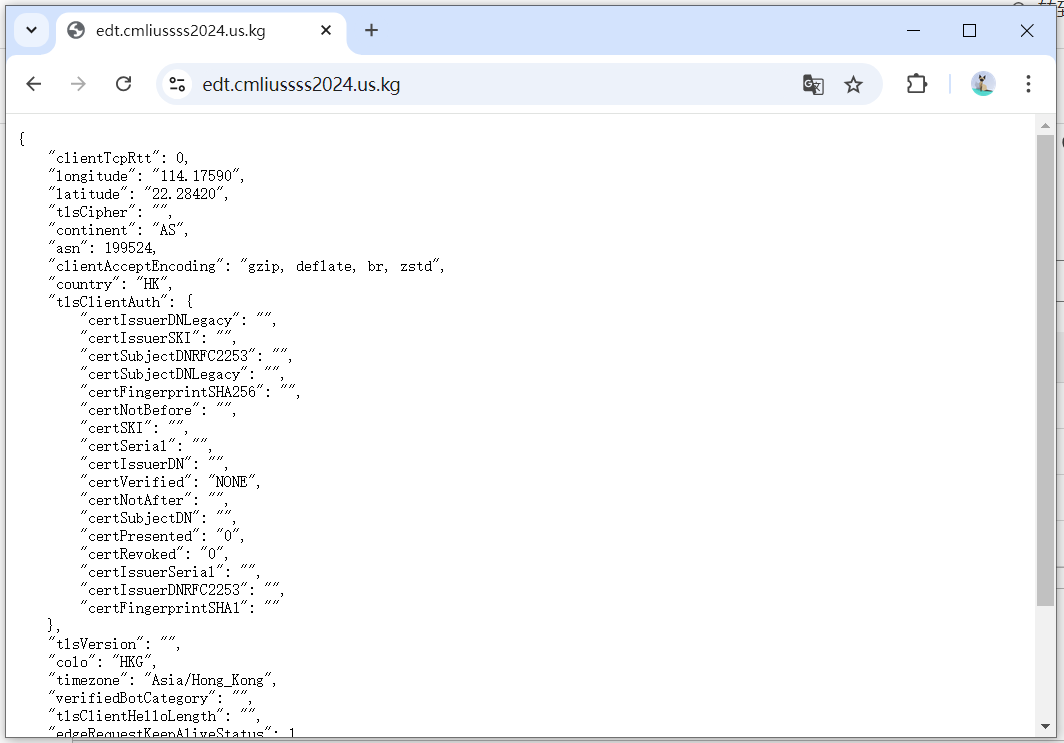
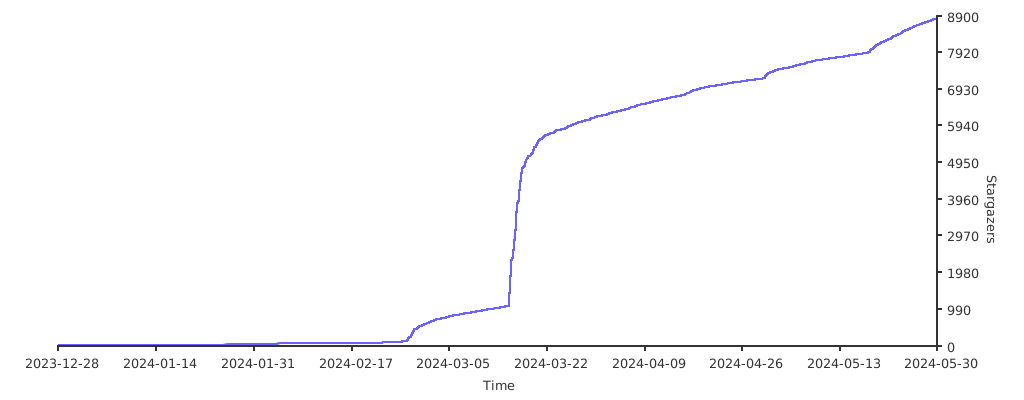
<?xml version="1.0" encoding="utf-8"?>
<feed xmlns="http://www.w3.org/2005/Atom">
  <title>CMLiussss Blog</title>
  <icon>https://blog.cmliussss.com/icon.png</icon>
  <subtitle>CM喂饭干货满满</subtitle>
  <link href="https://blog.cmliussss.com/atom.xml" rel="self"/>
  
  <link href="https://blog.cmliussss.com/"/>
  <updated>2026-03-25T11:20:01.967Z</updated>
  <id>https://blog.cmliussss.com/</id>
  
  <author>
    <name>杨幂的脚</name>
    
  </author>
  
  <generator uri="https://hexo.io/">Hexo</generator>
  
  <entry>
    <title>🚀 Edgetunnel2.0 全新版本，🎯 就是这么简单！✨ 就是这么方便！</title>
    <link href="https://blog.cmliussss.com/p/edt2/"/>
    <id>https://blog.cmliussss.com/p/edt2/</id>
    <published>2025-11-20T17:29:07.000Z</published>
    <updated>2026-03-25T11:20:01.967Z</updated>
    
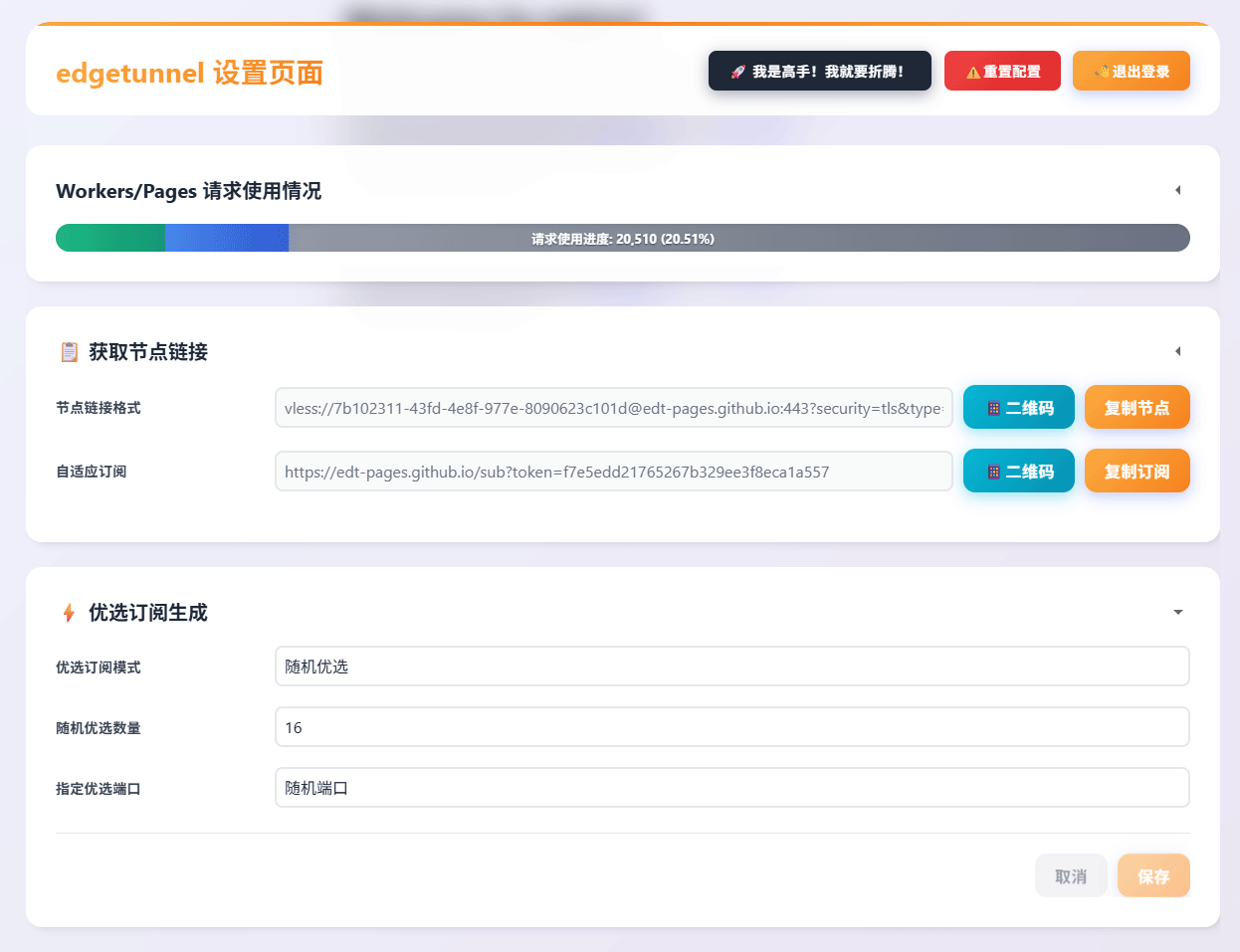
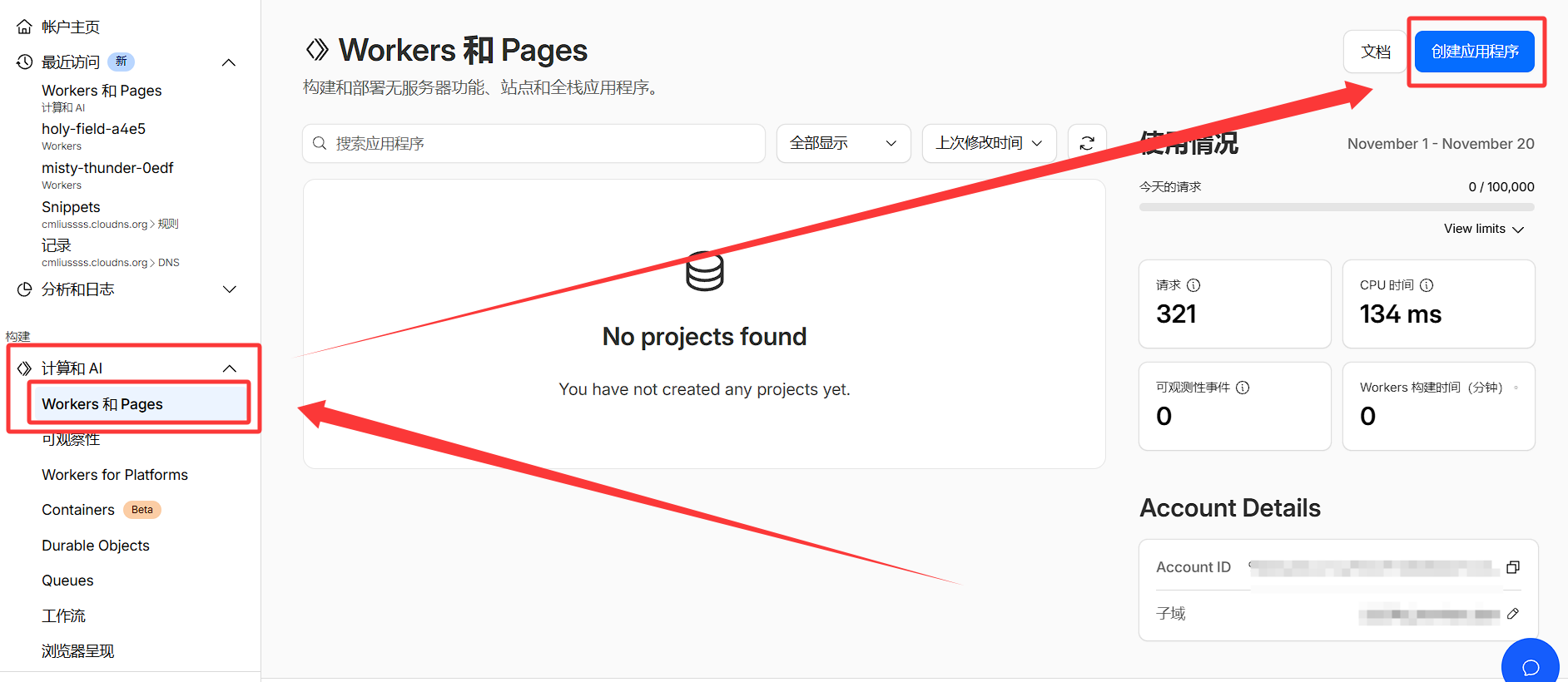
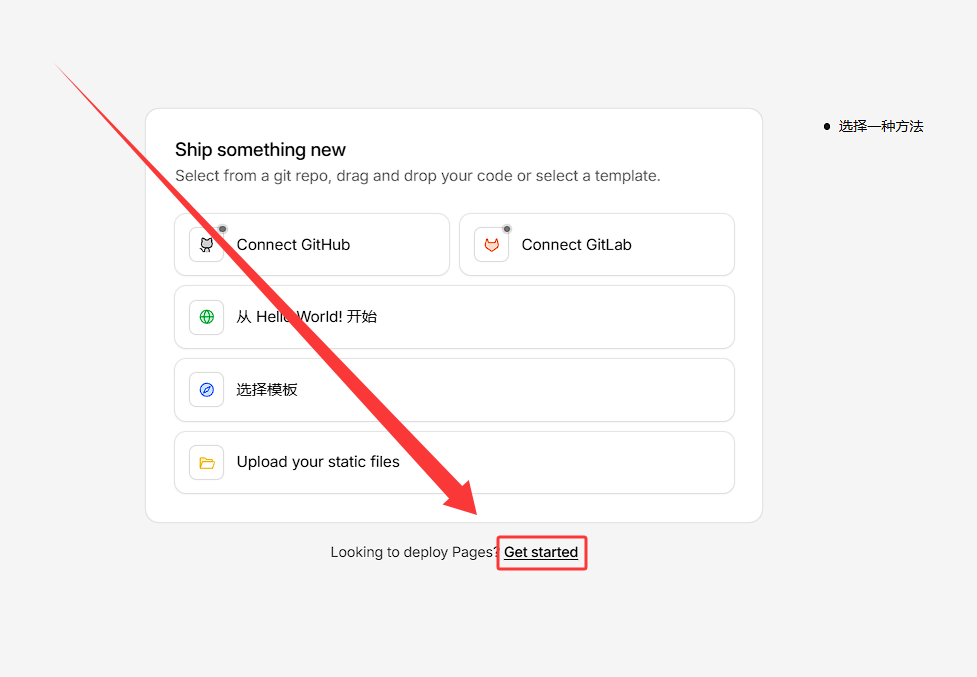
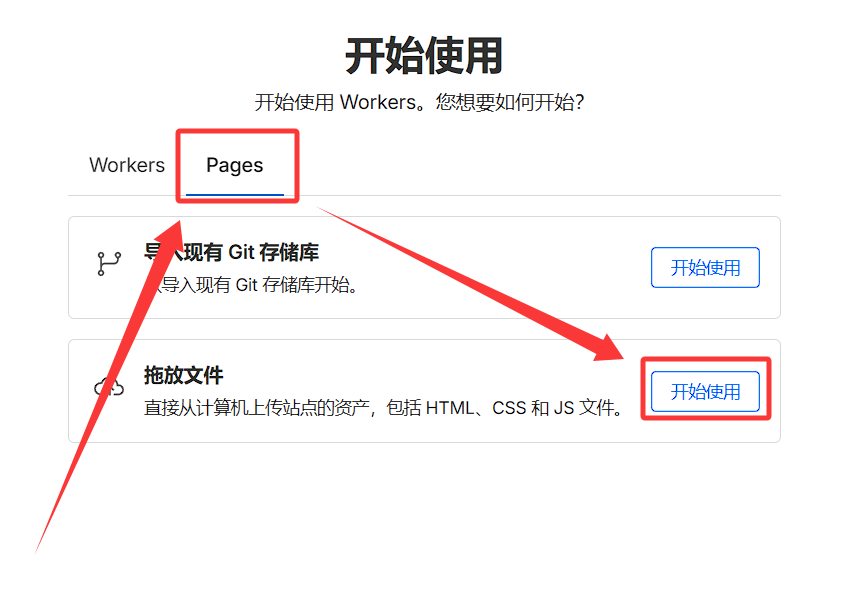
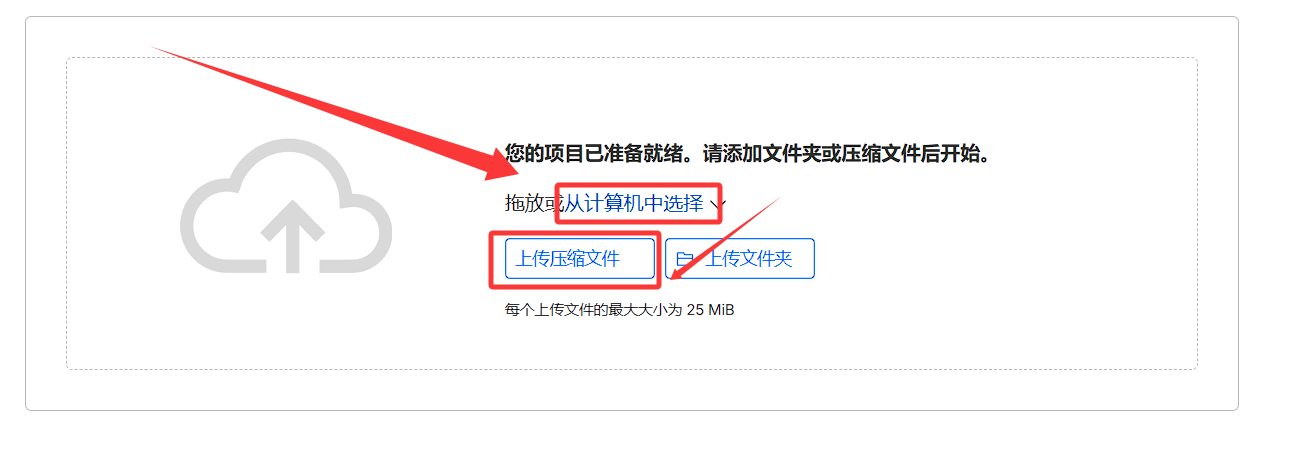
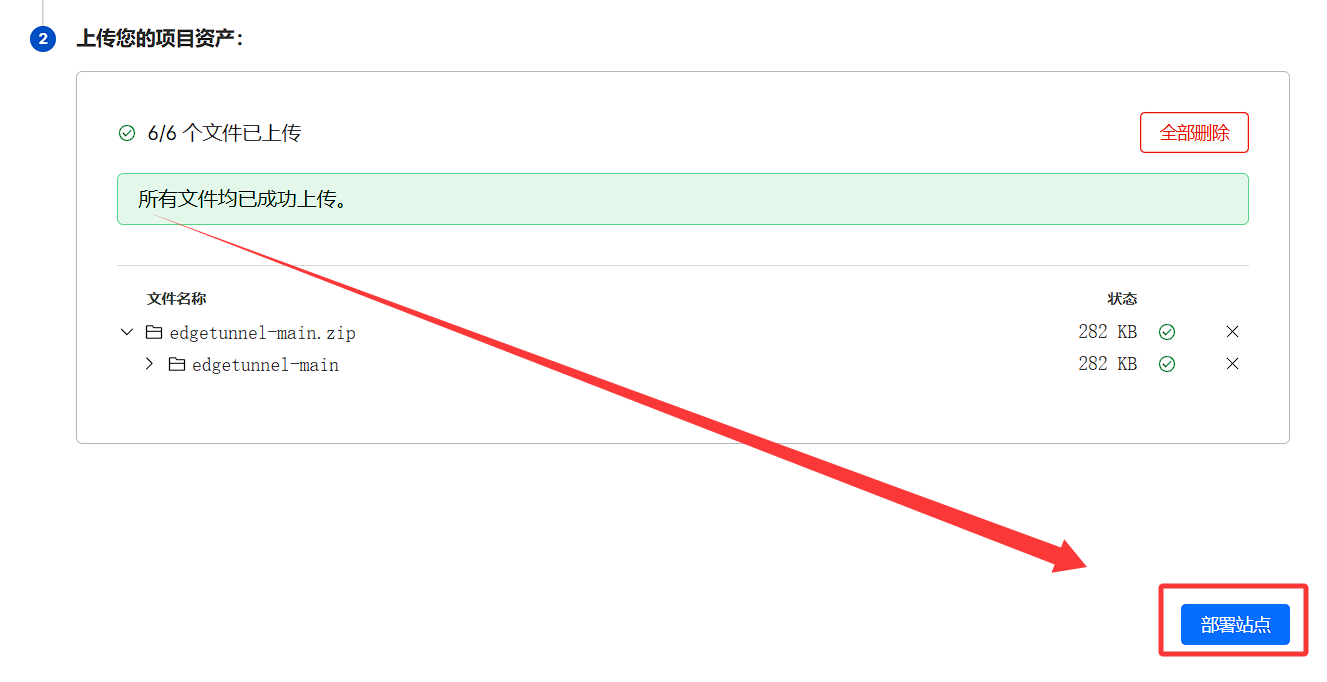
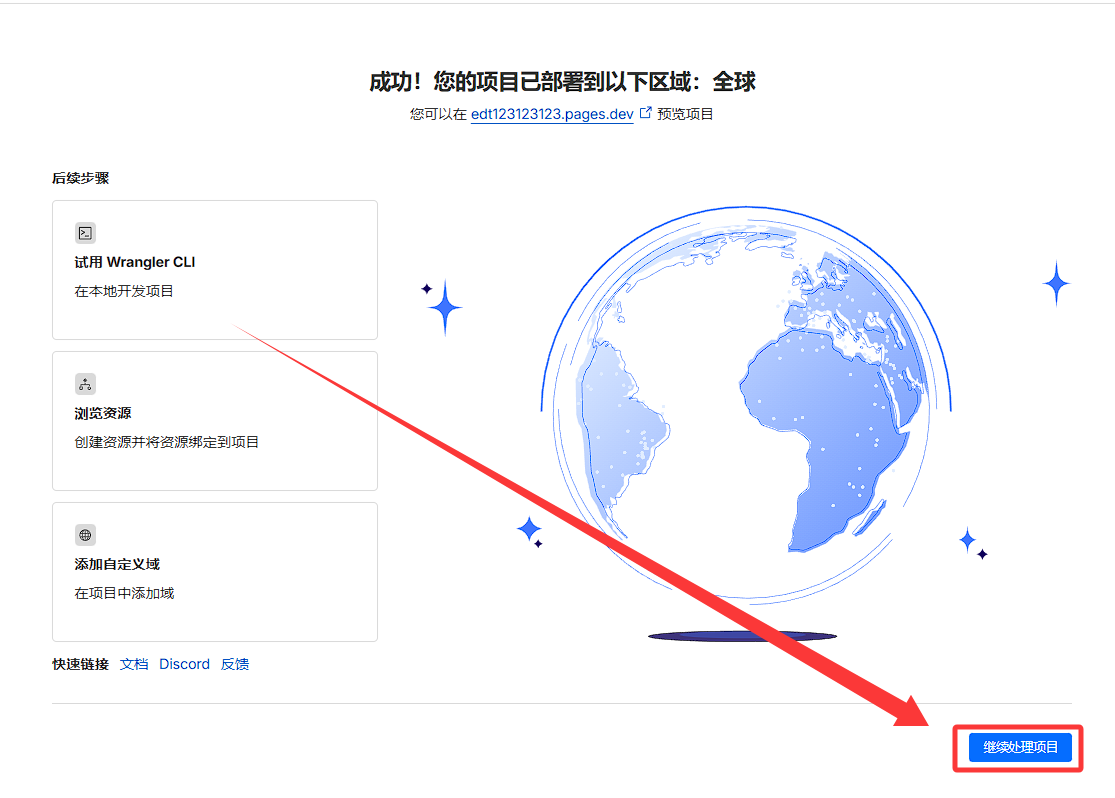
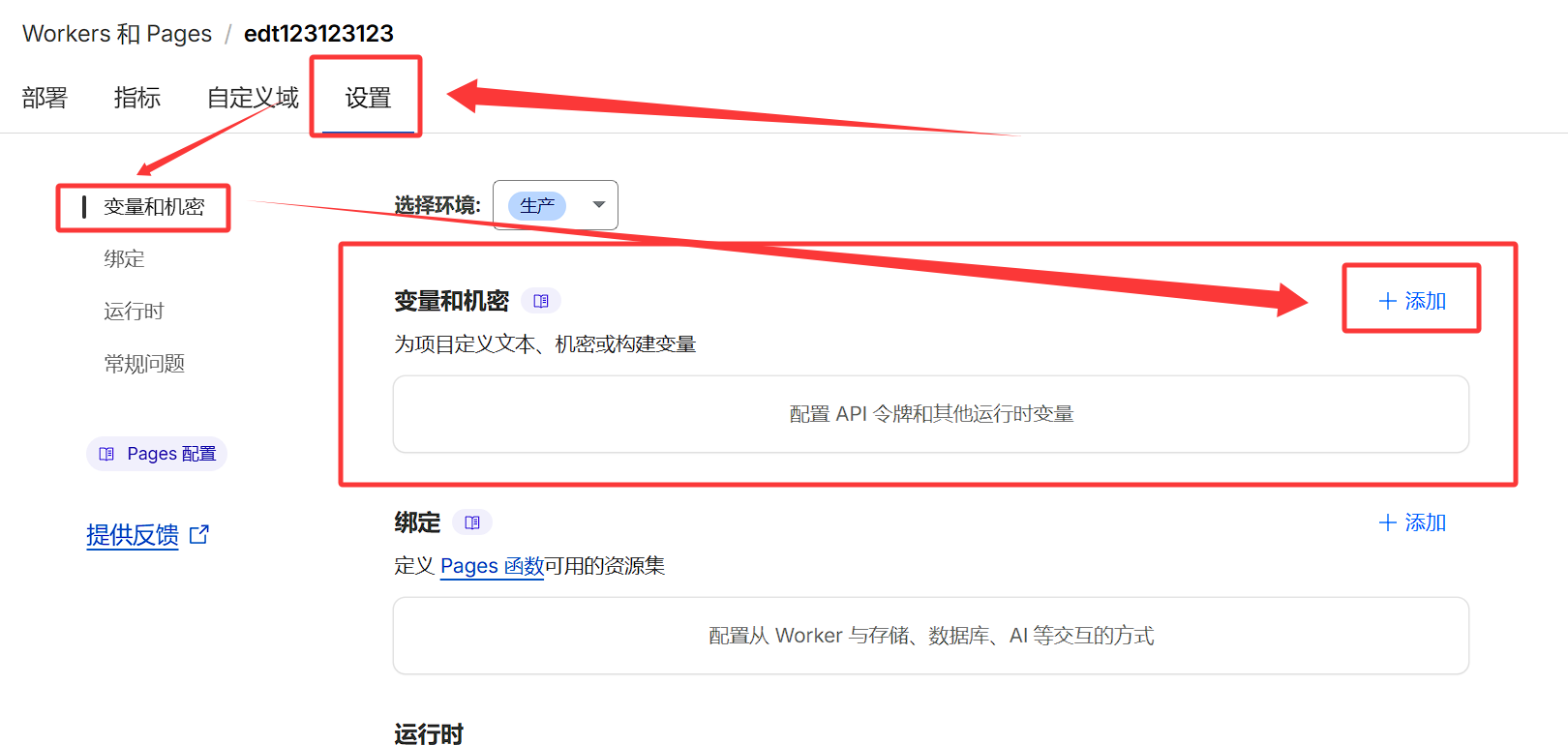
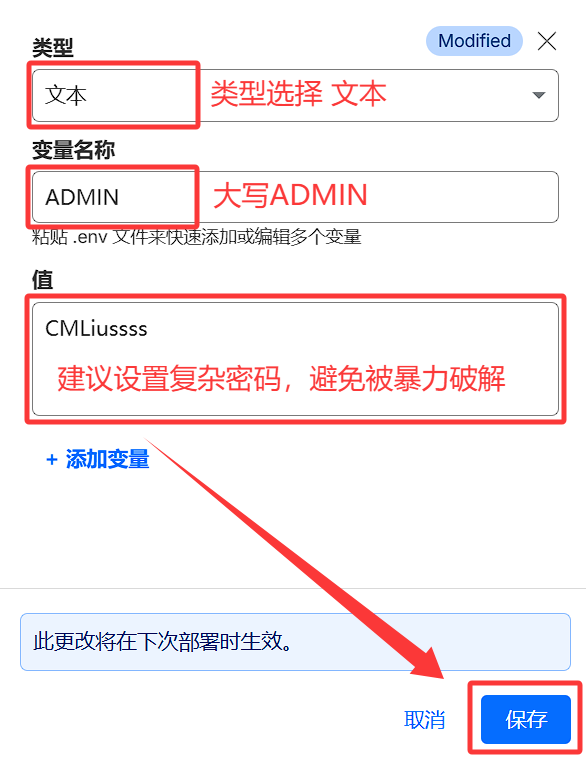
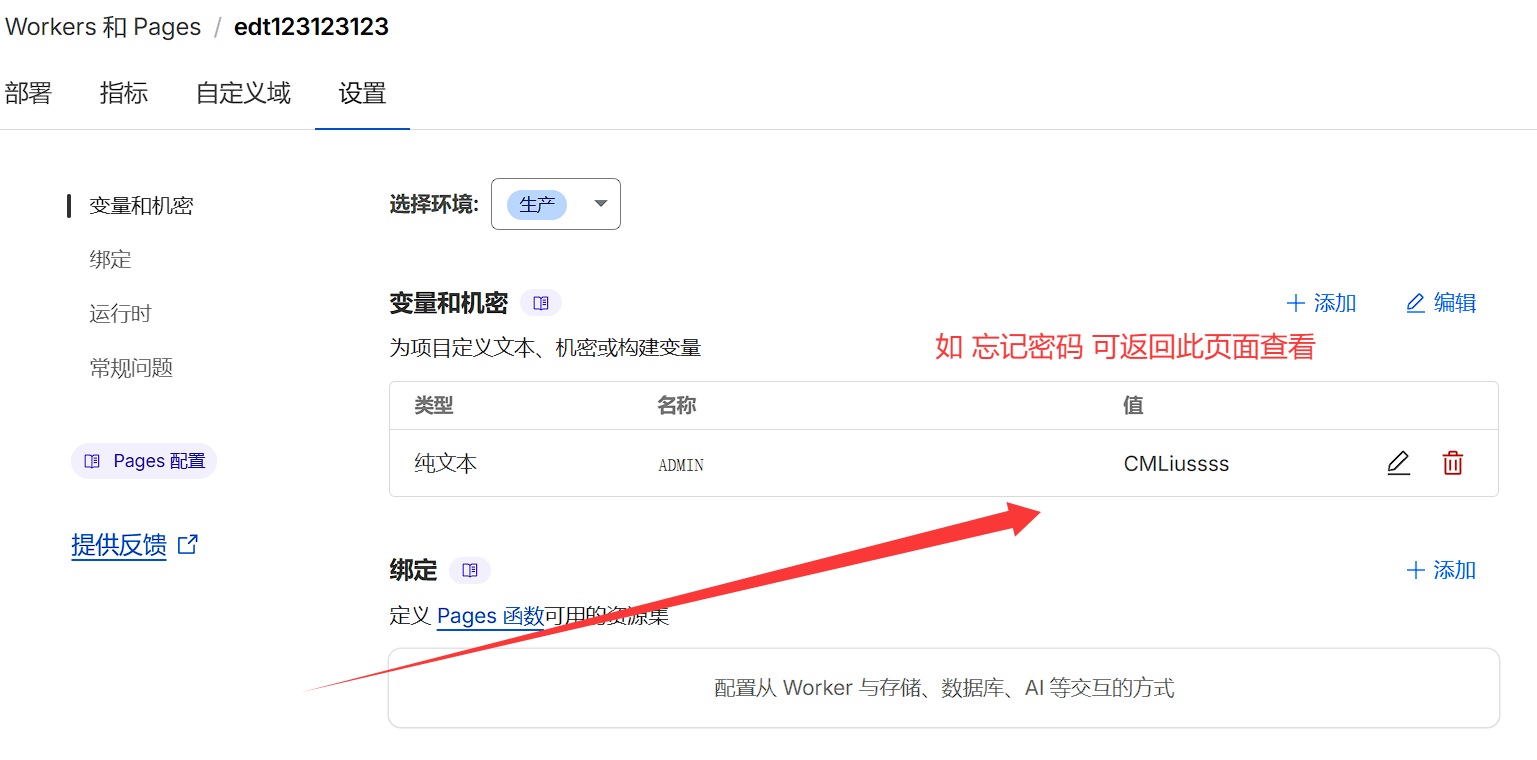
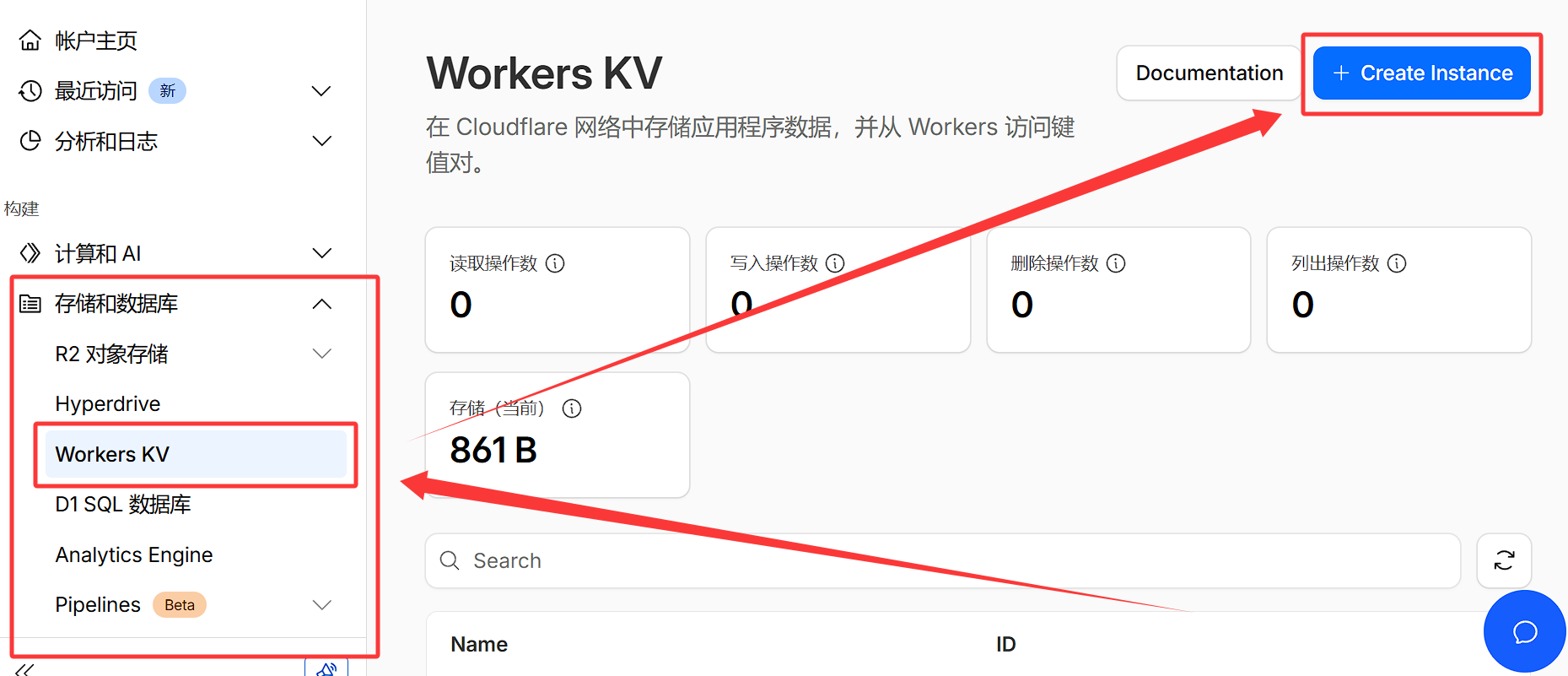
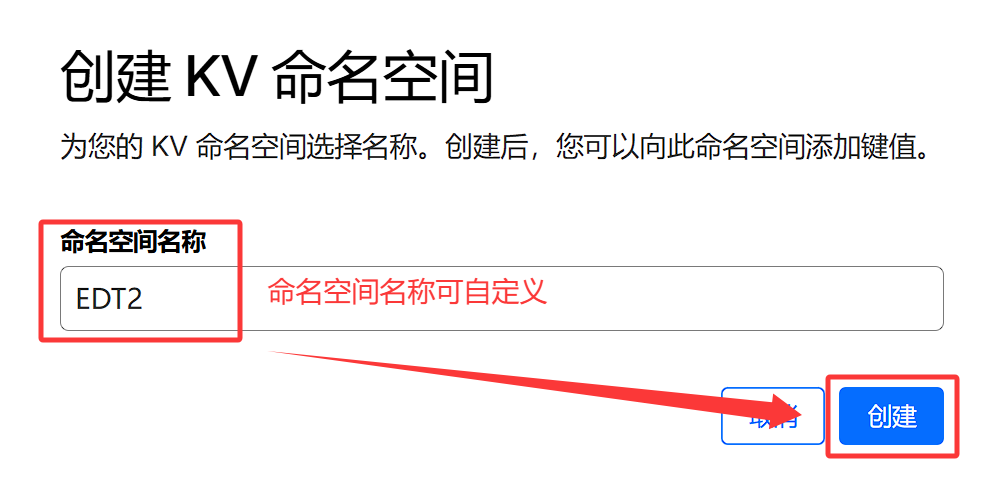
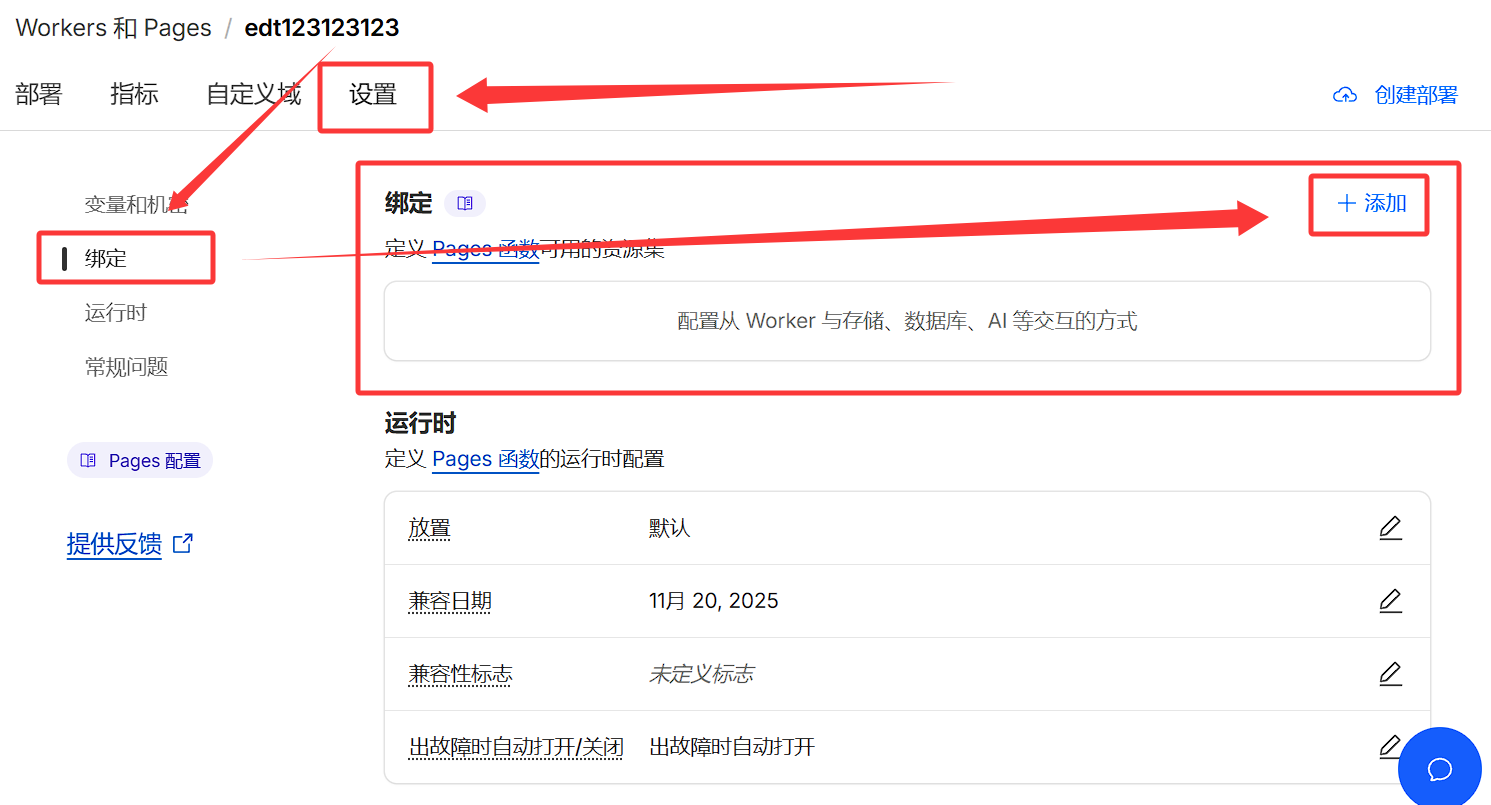
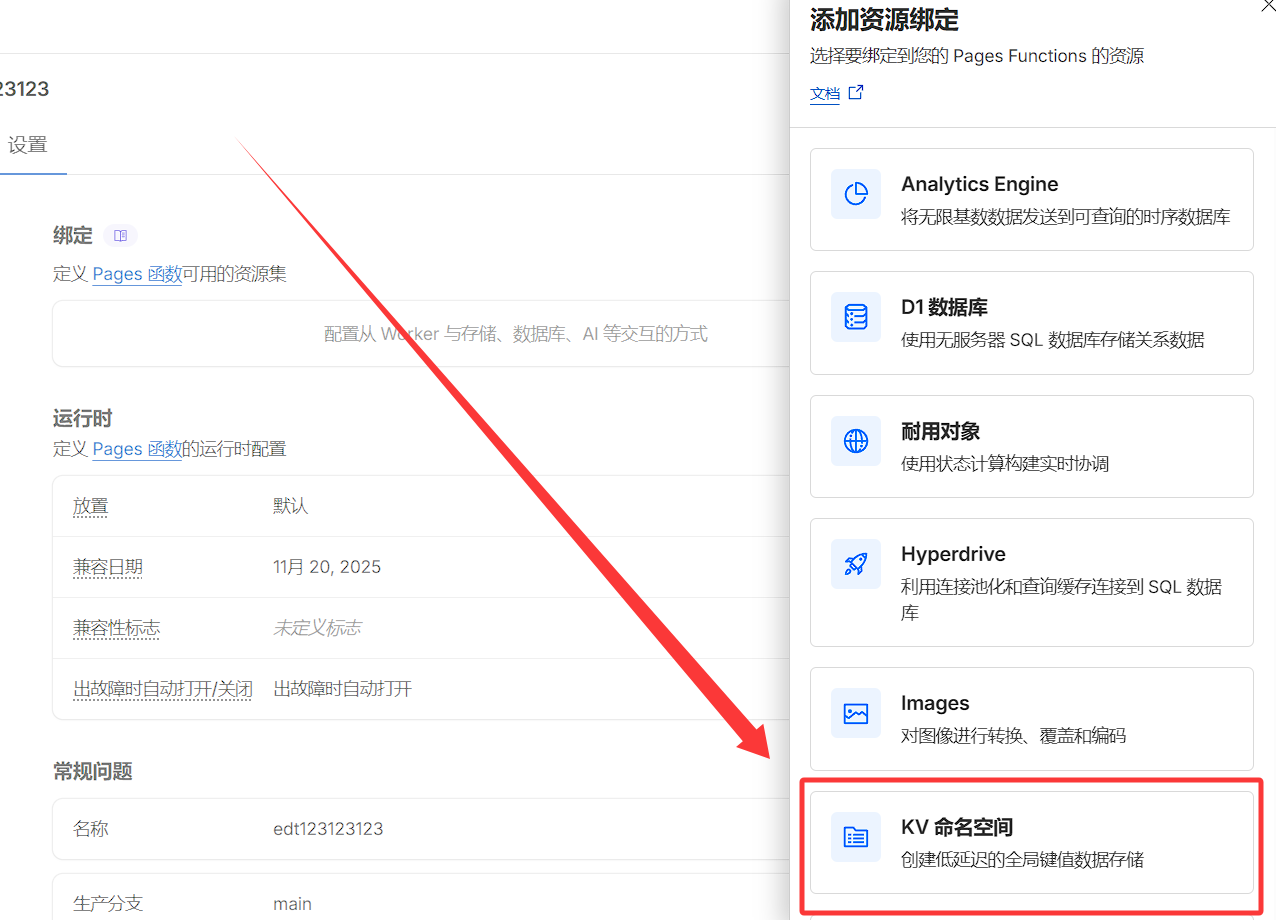
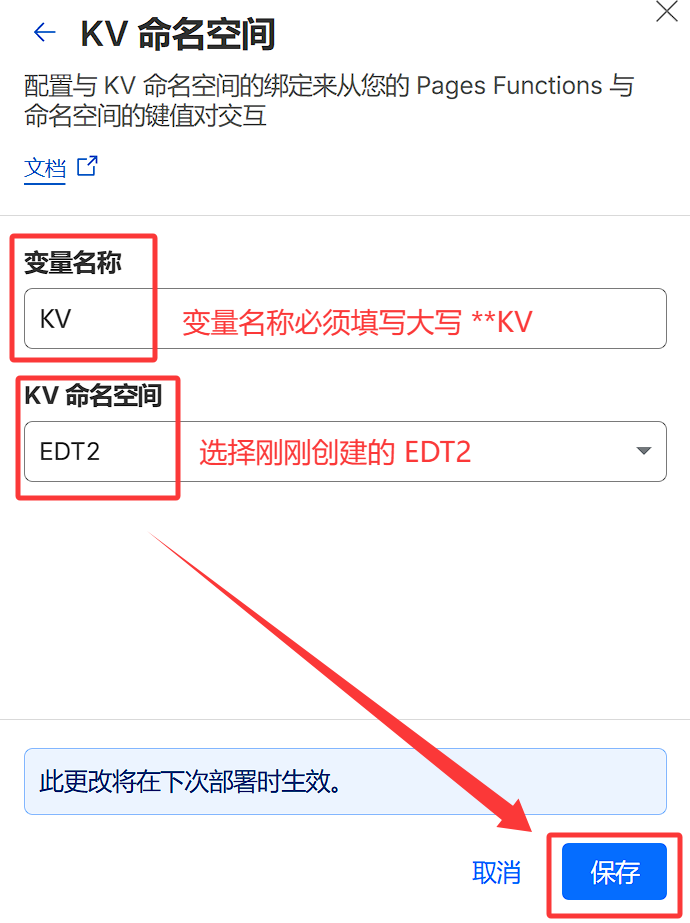
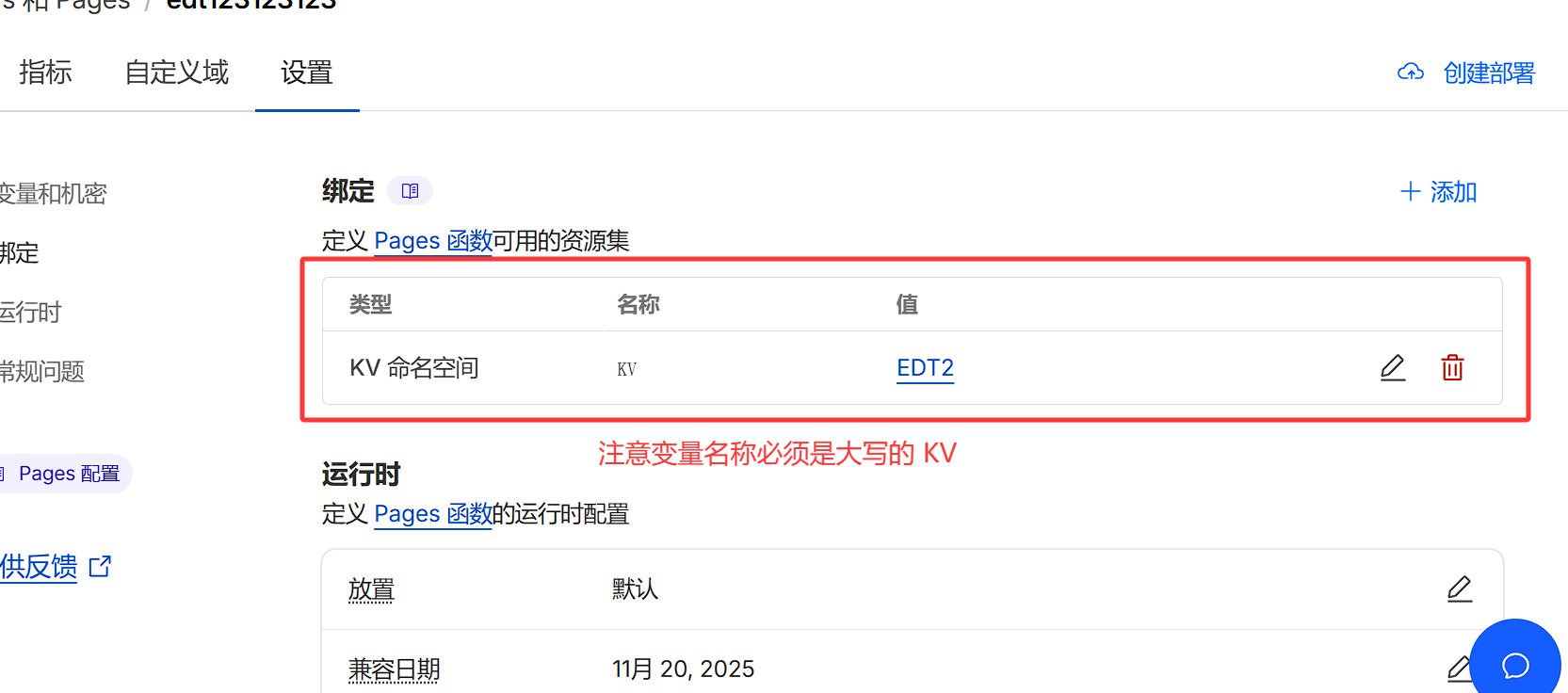
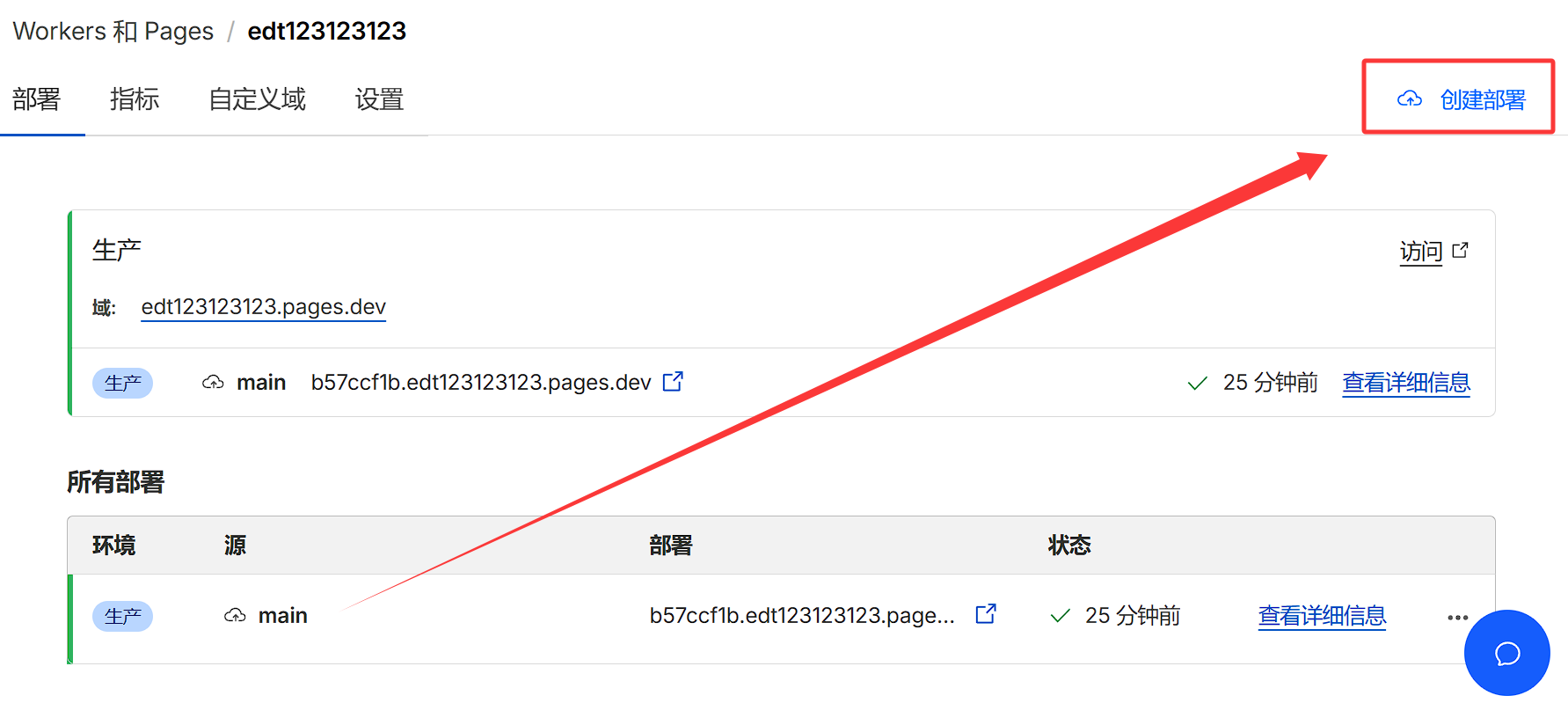
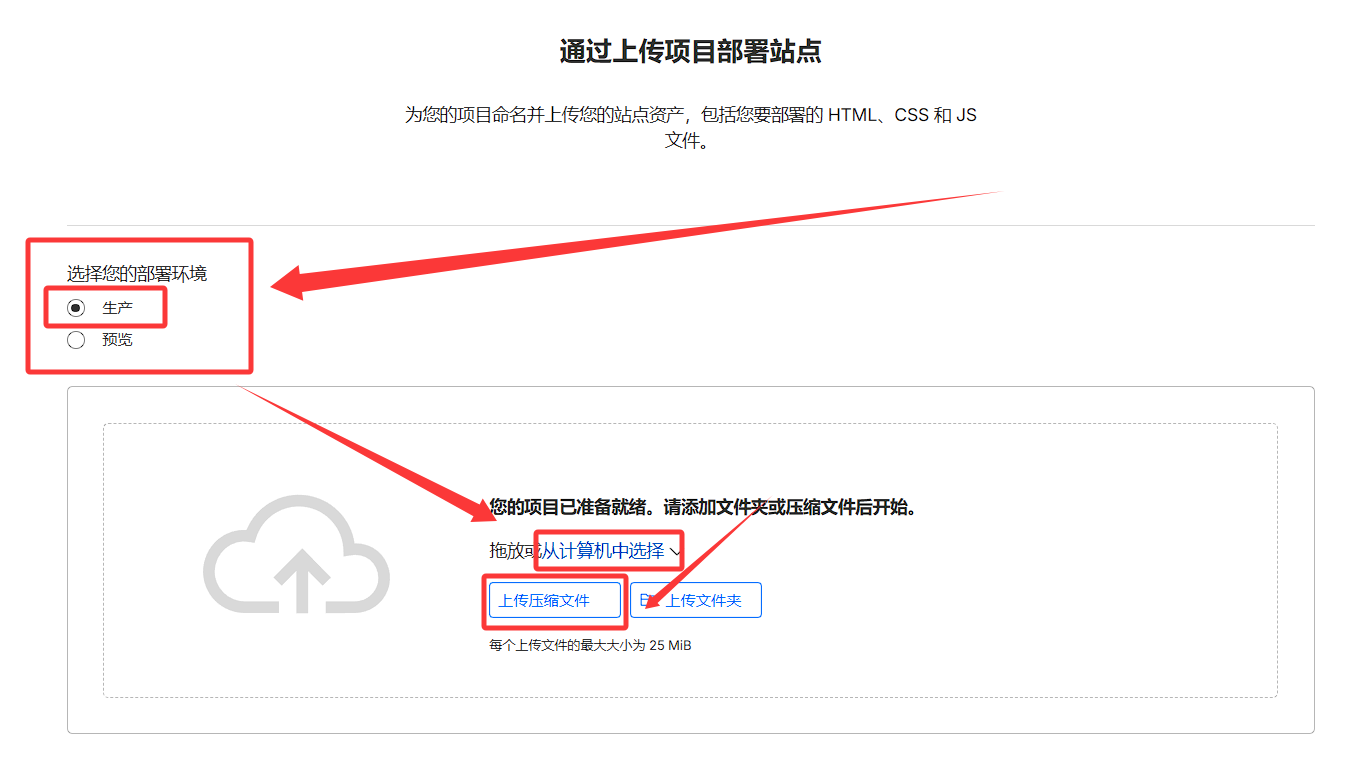
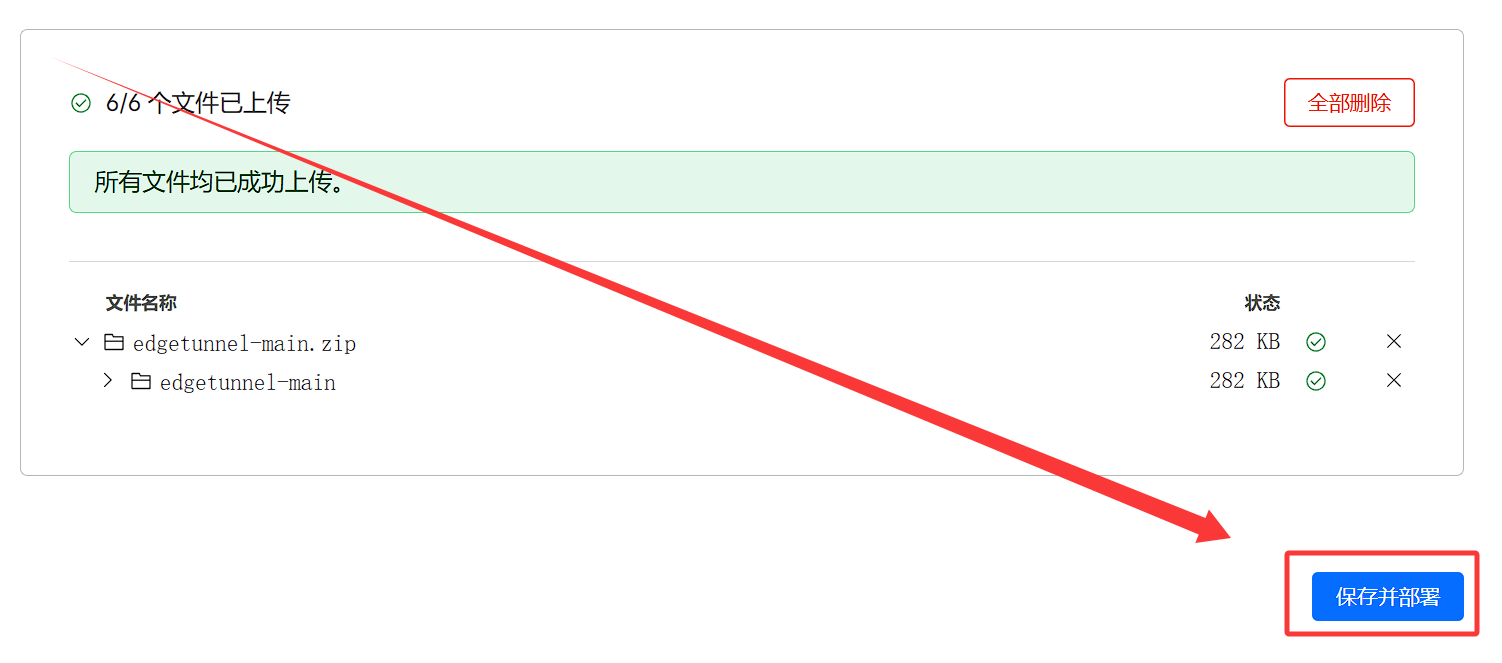
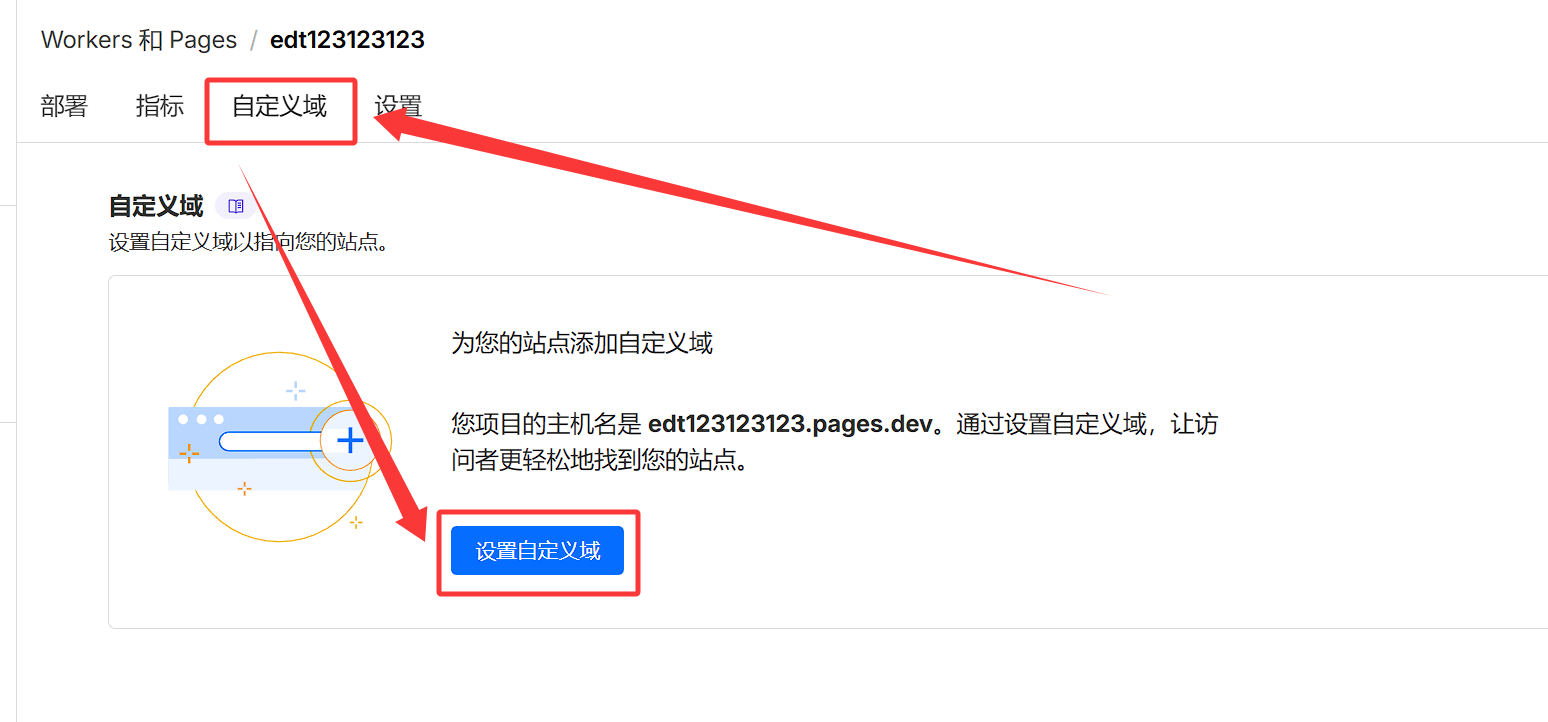
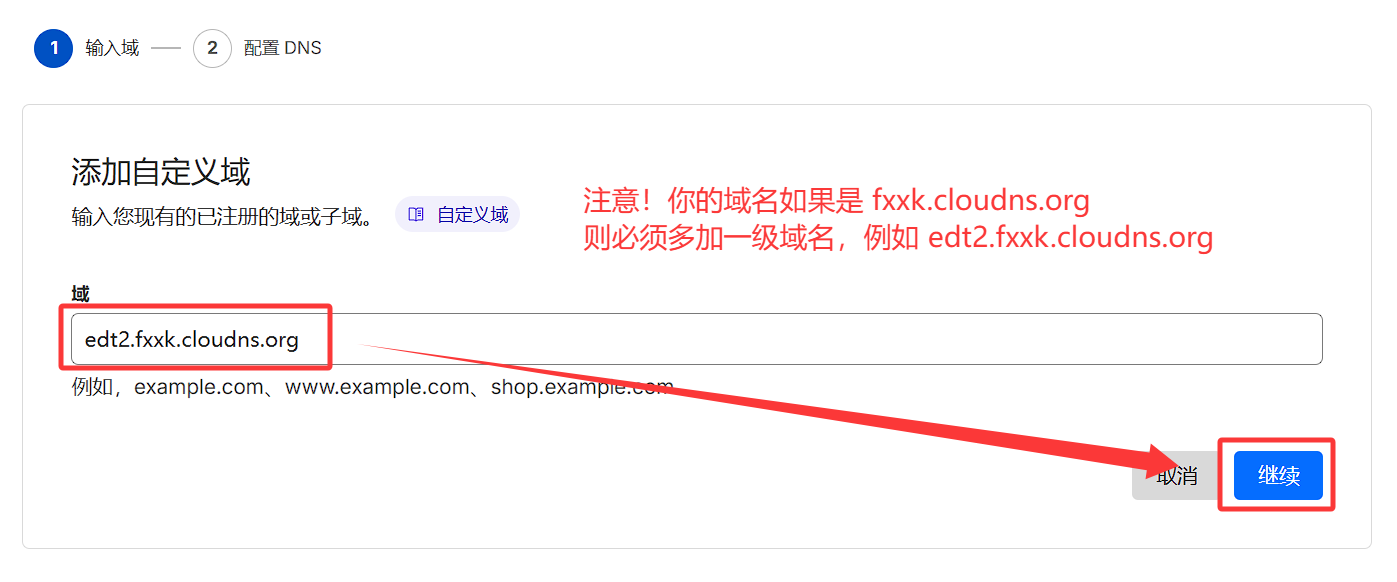
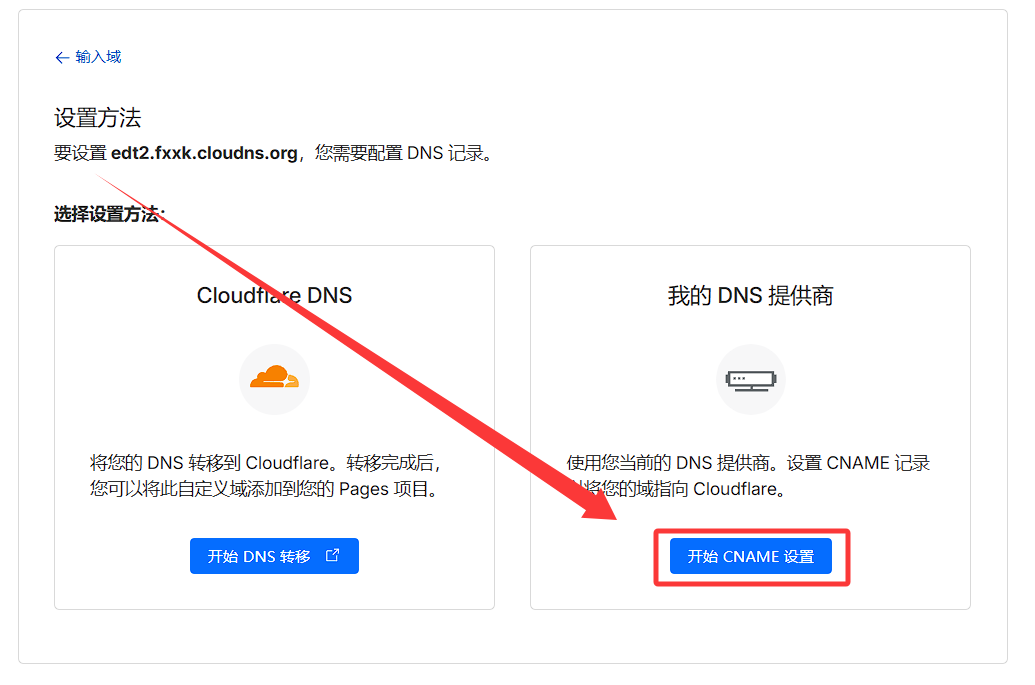
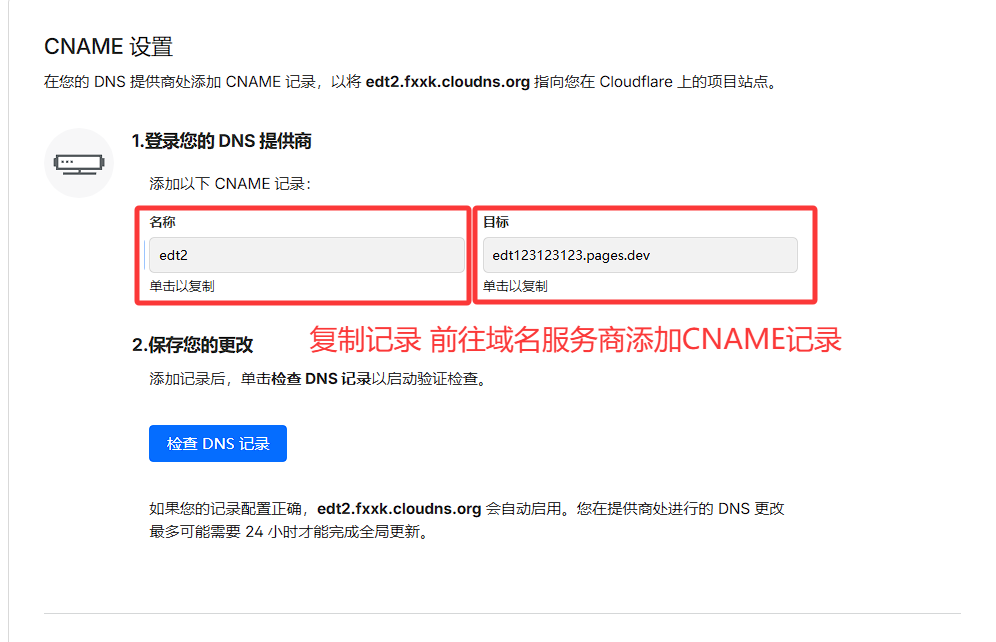
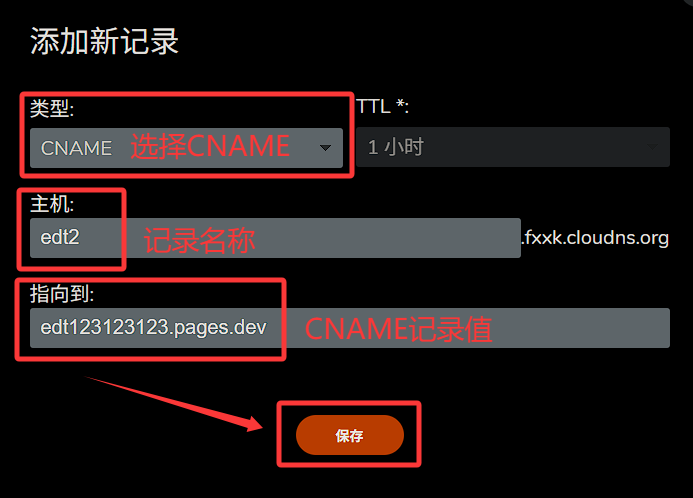
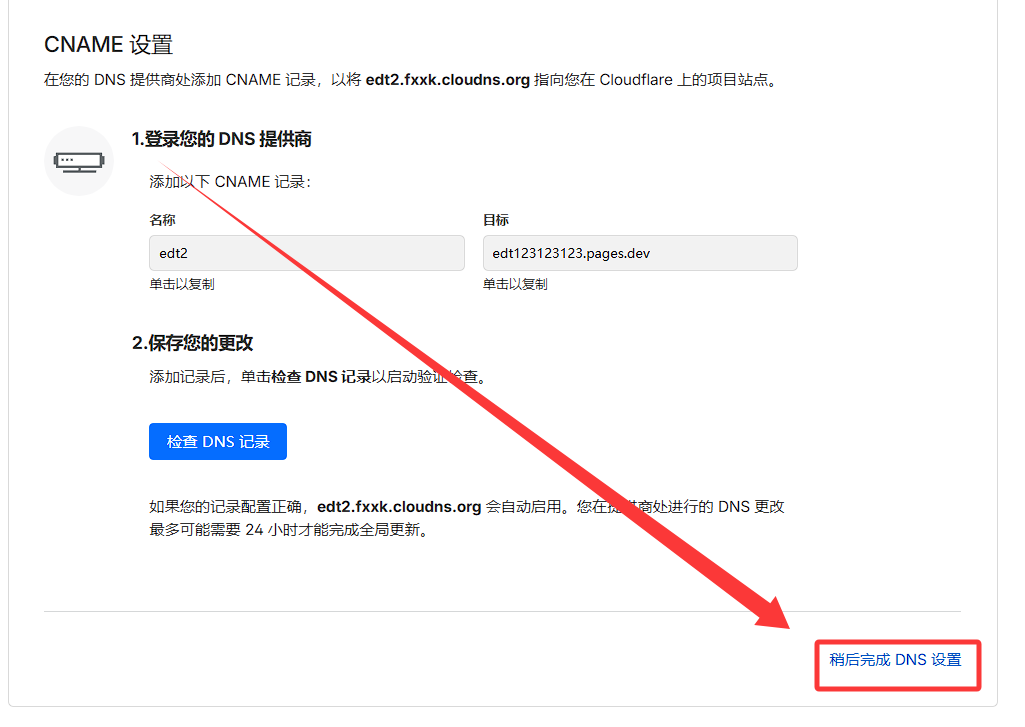
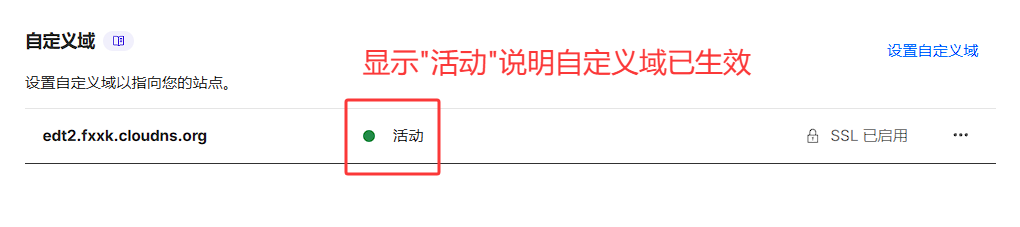
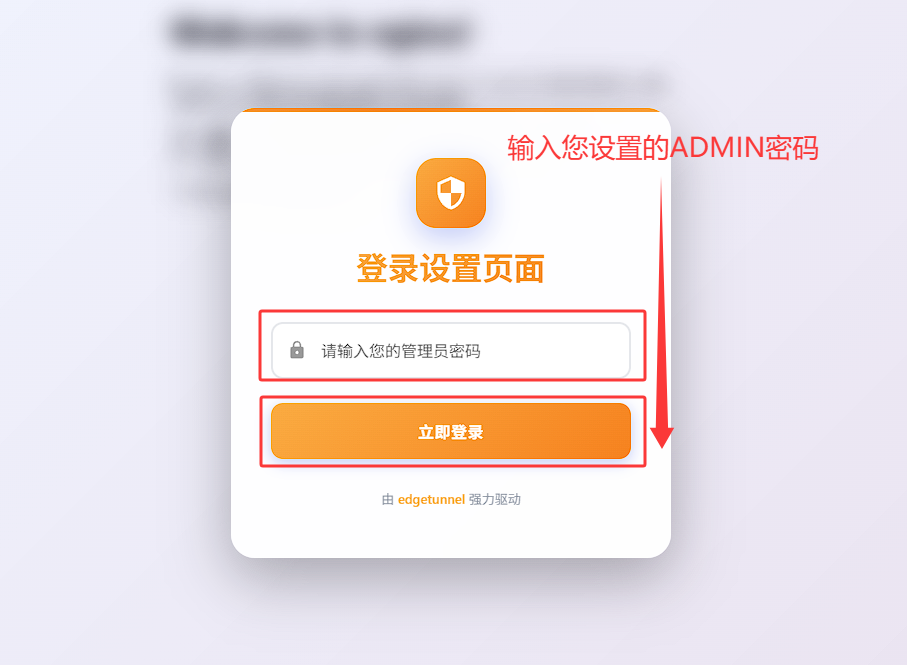
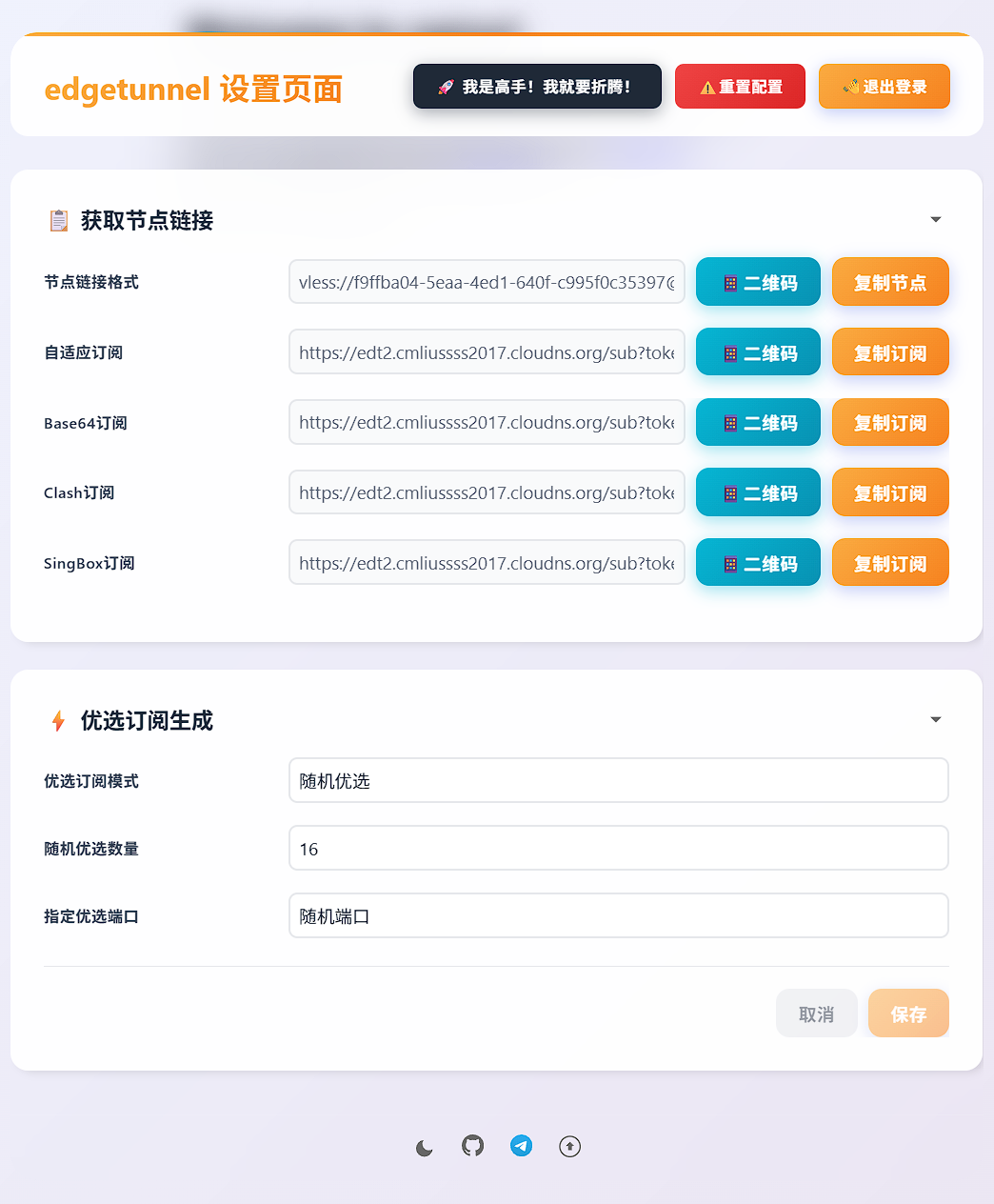
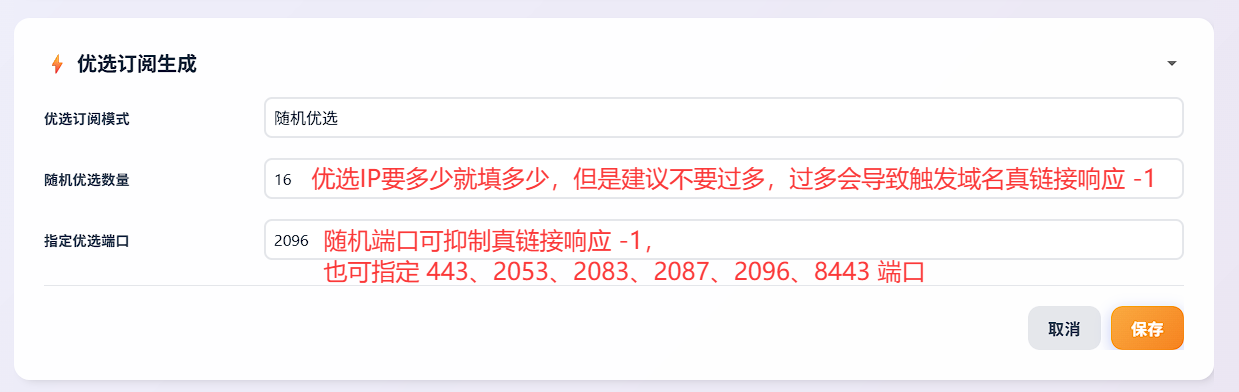
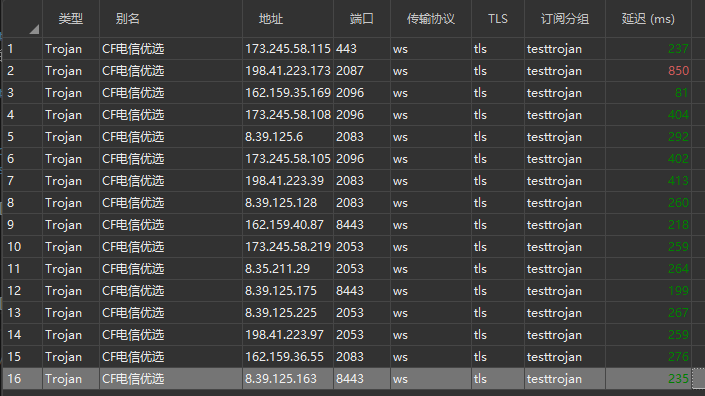
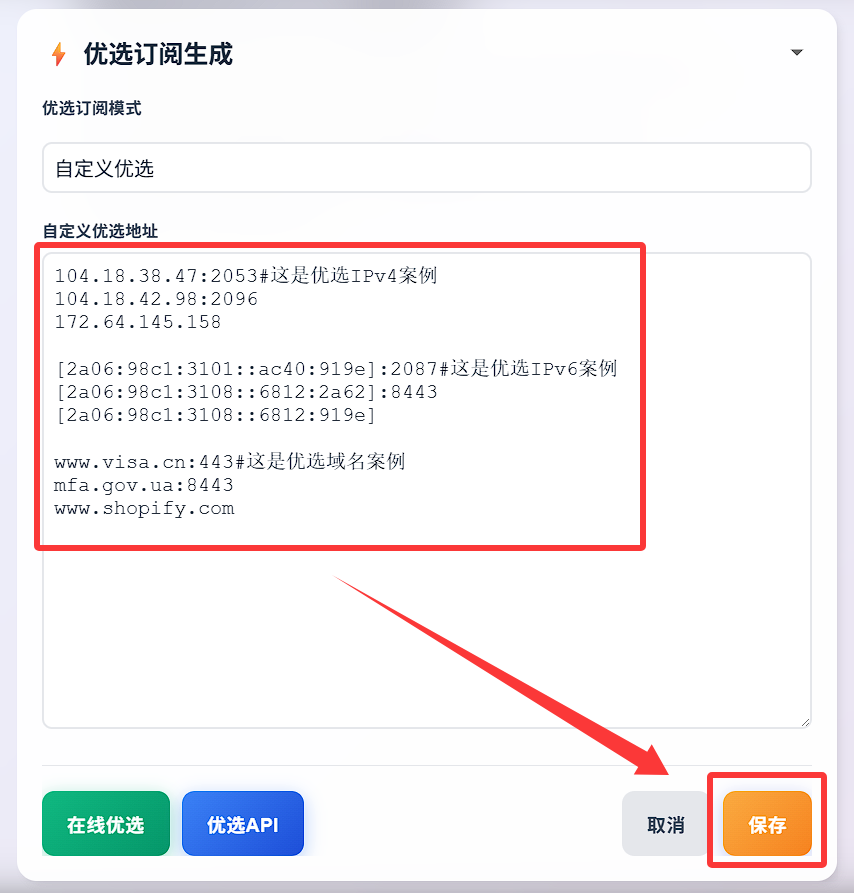
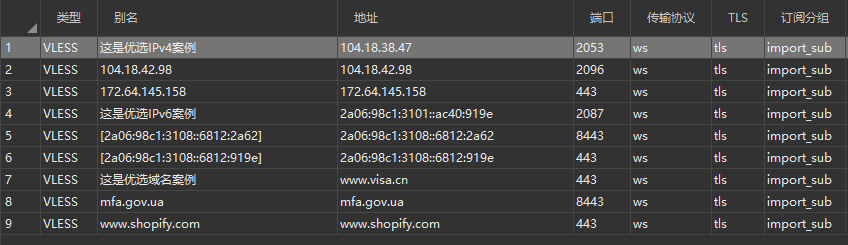
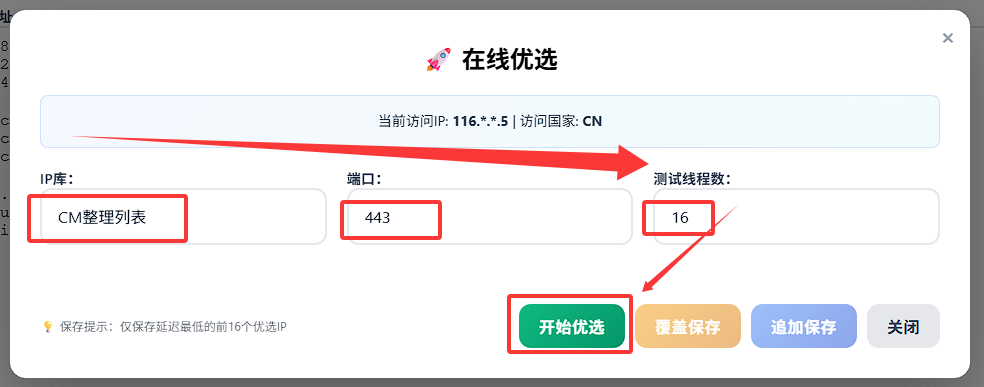
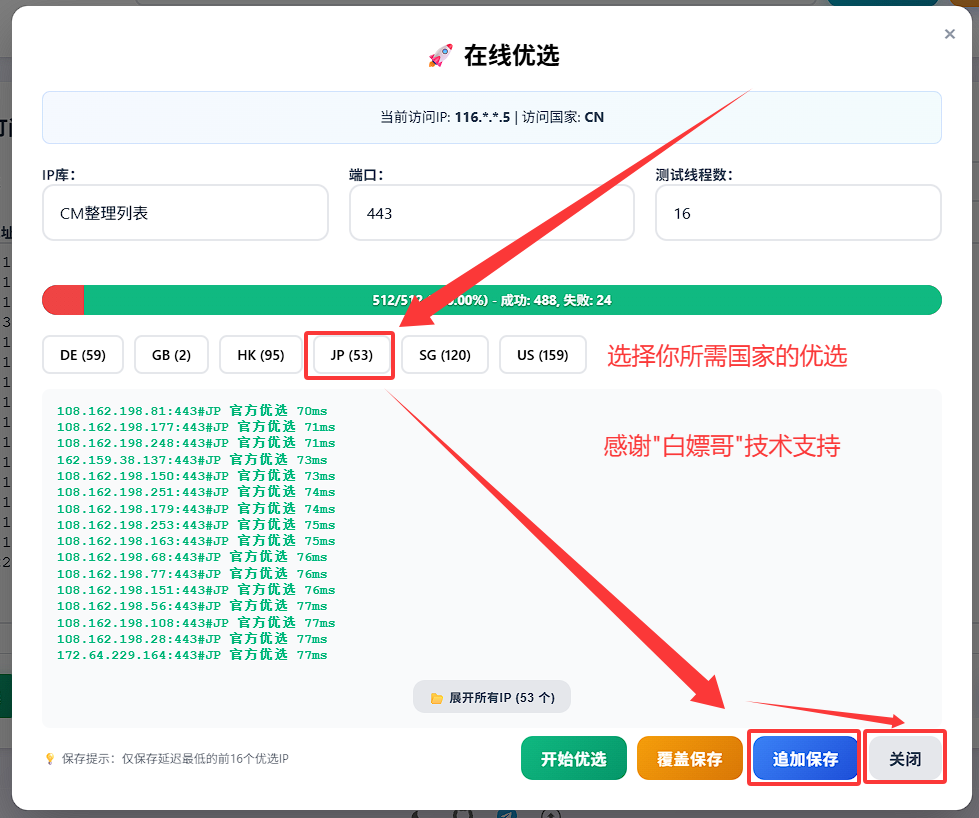
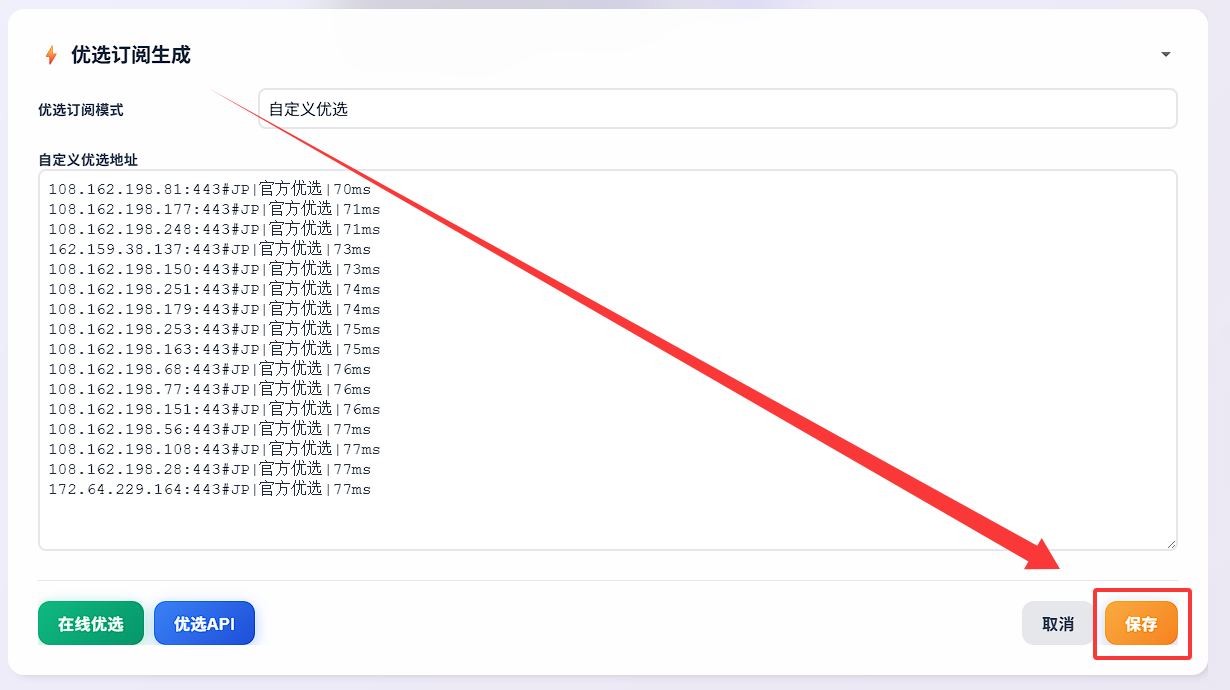
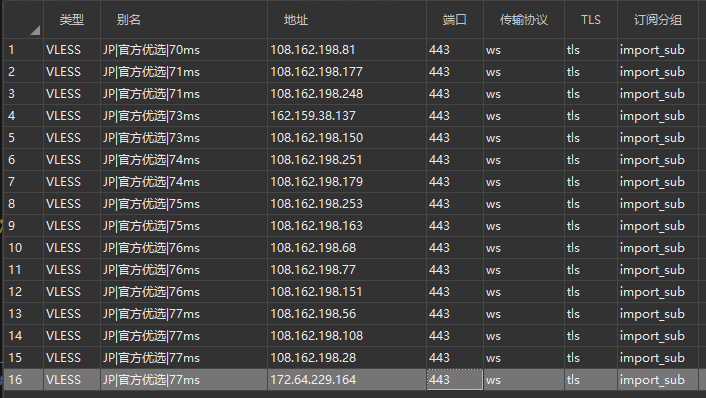
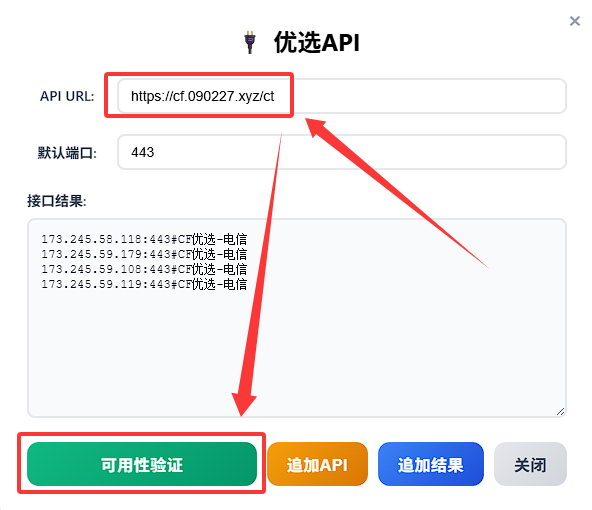
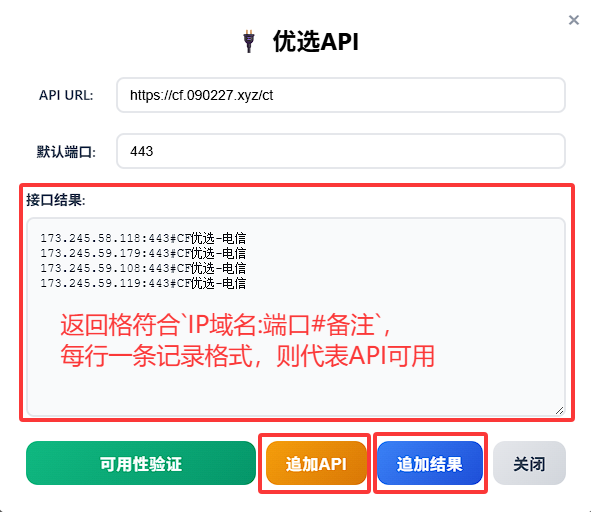
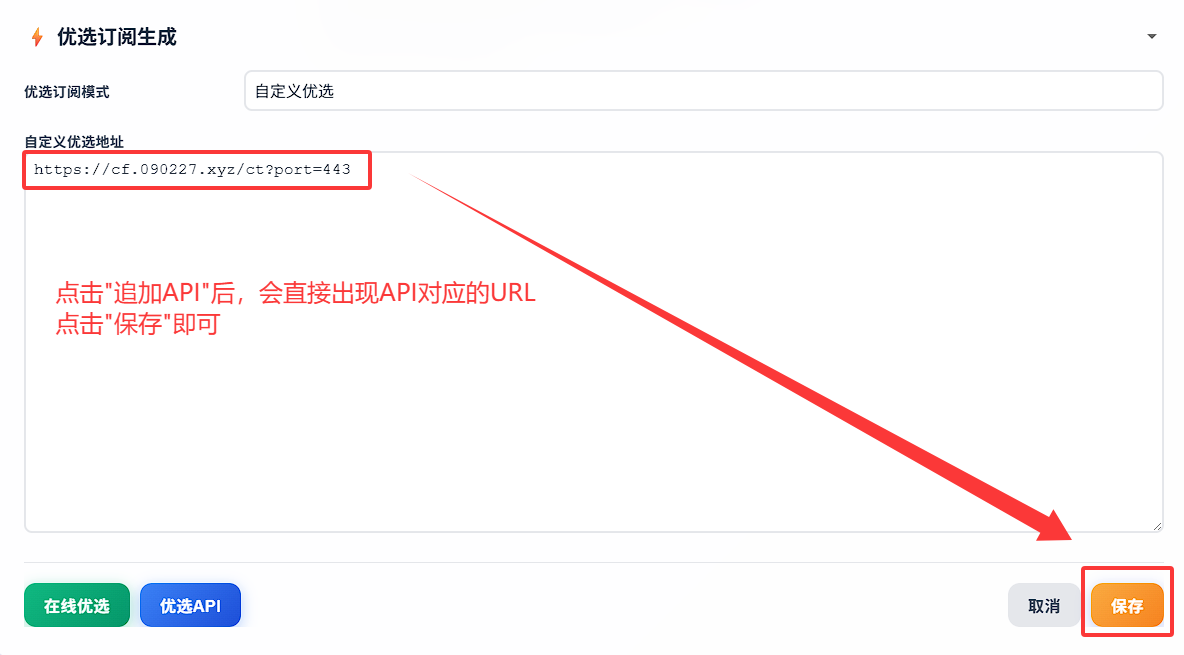
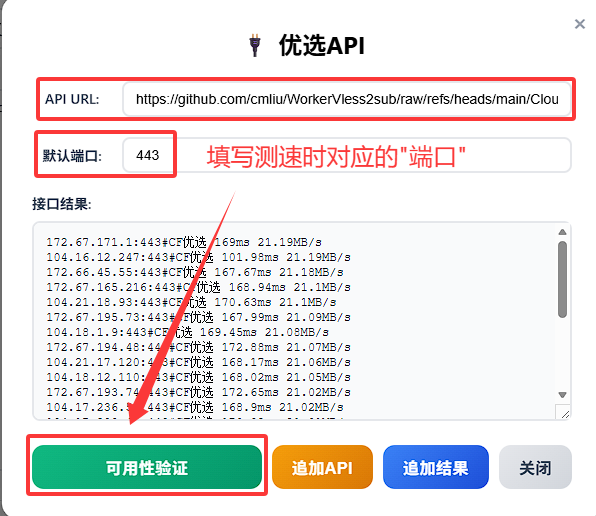
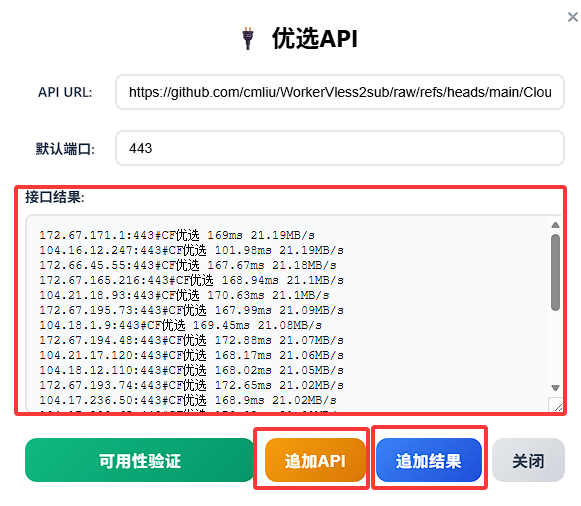
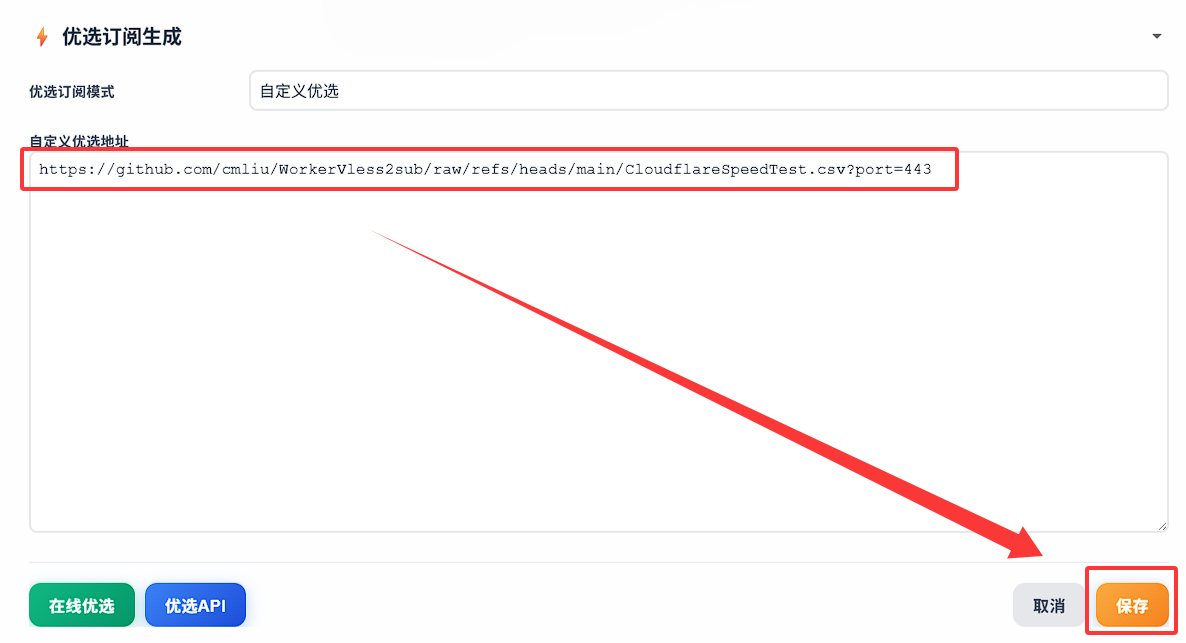
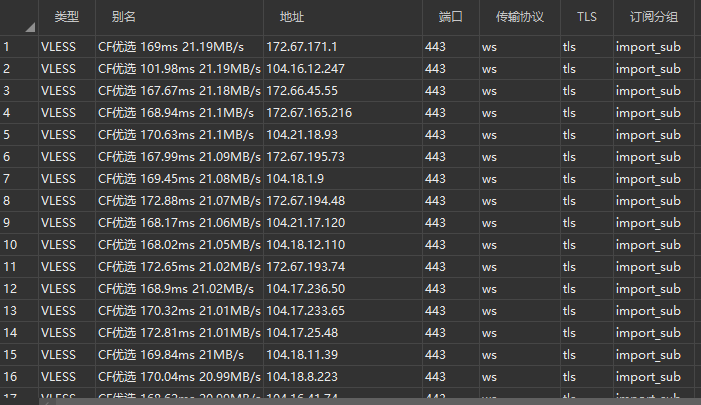
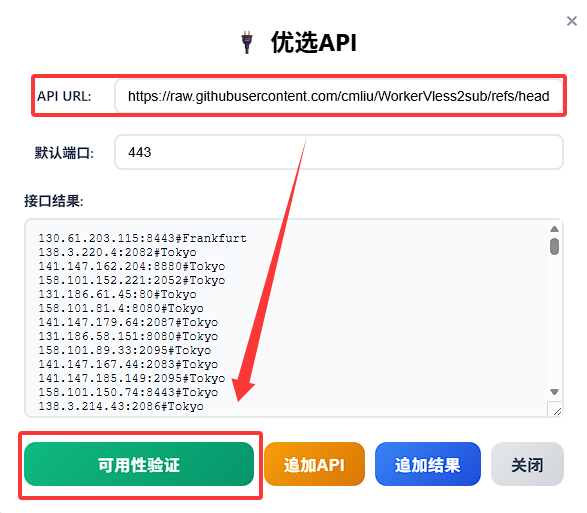
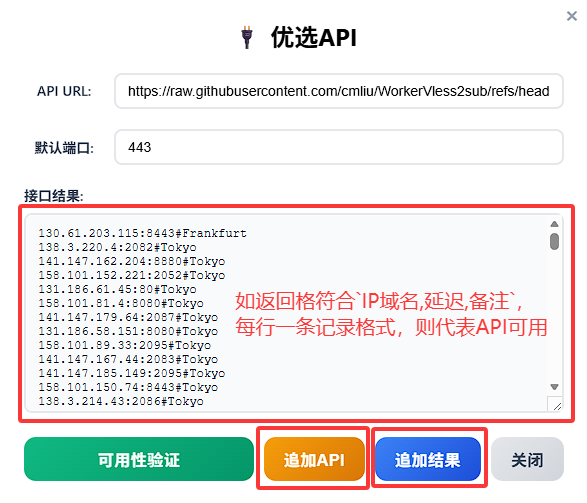
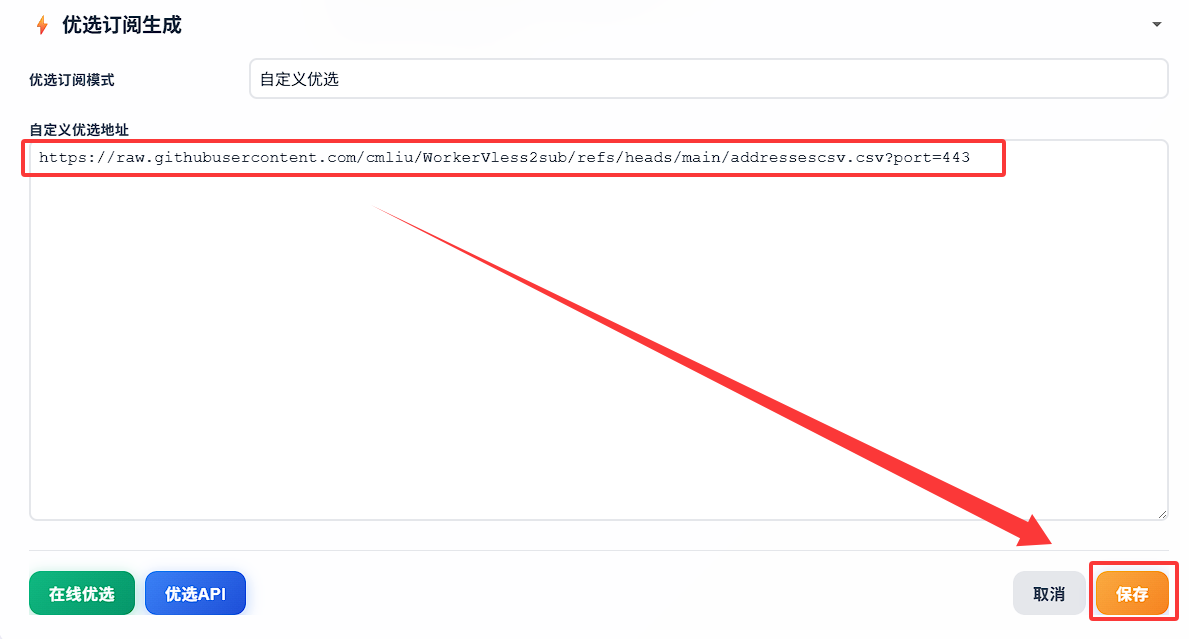
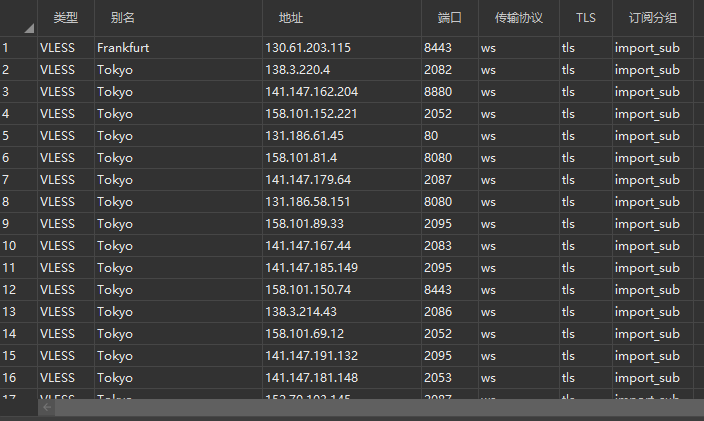
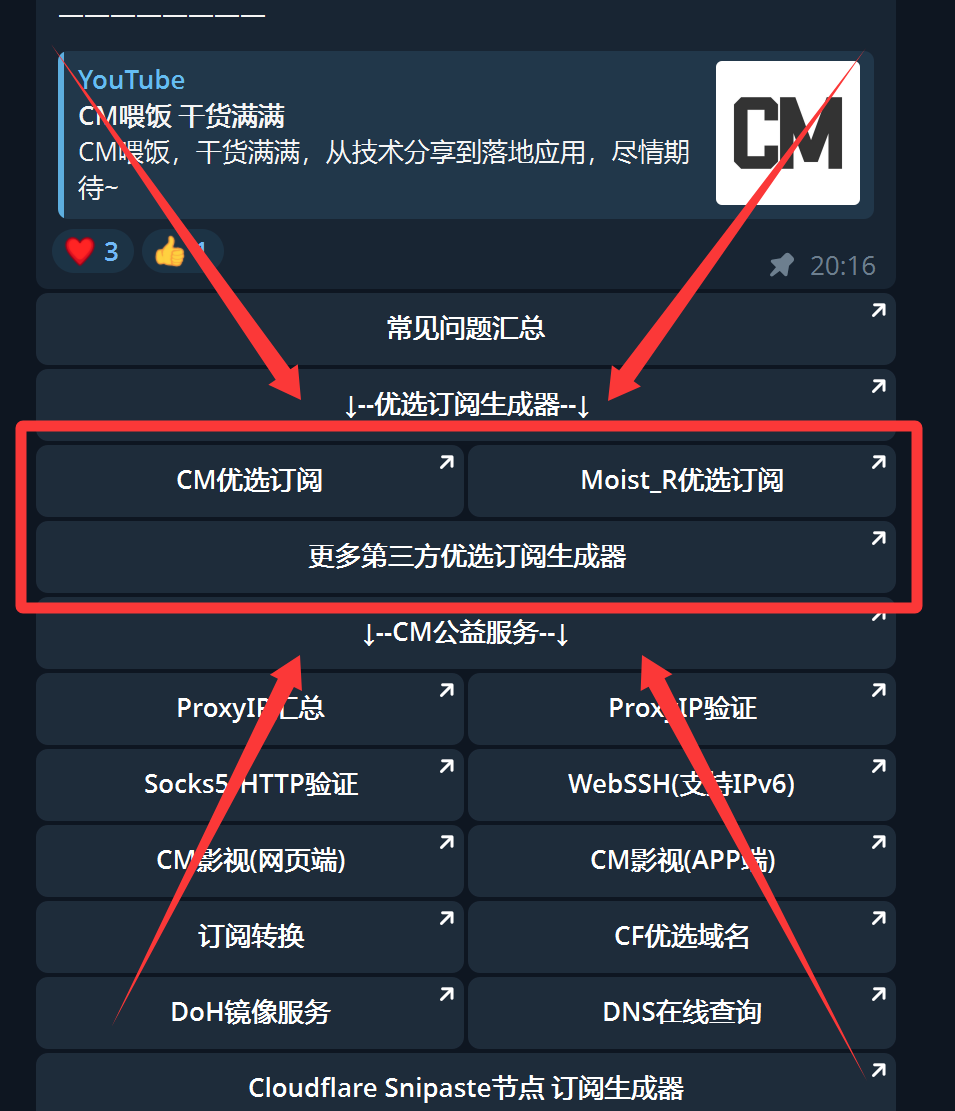
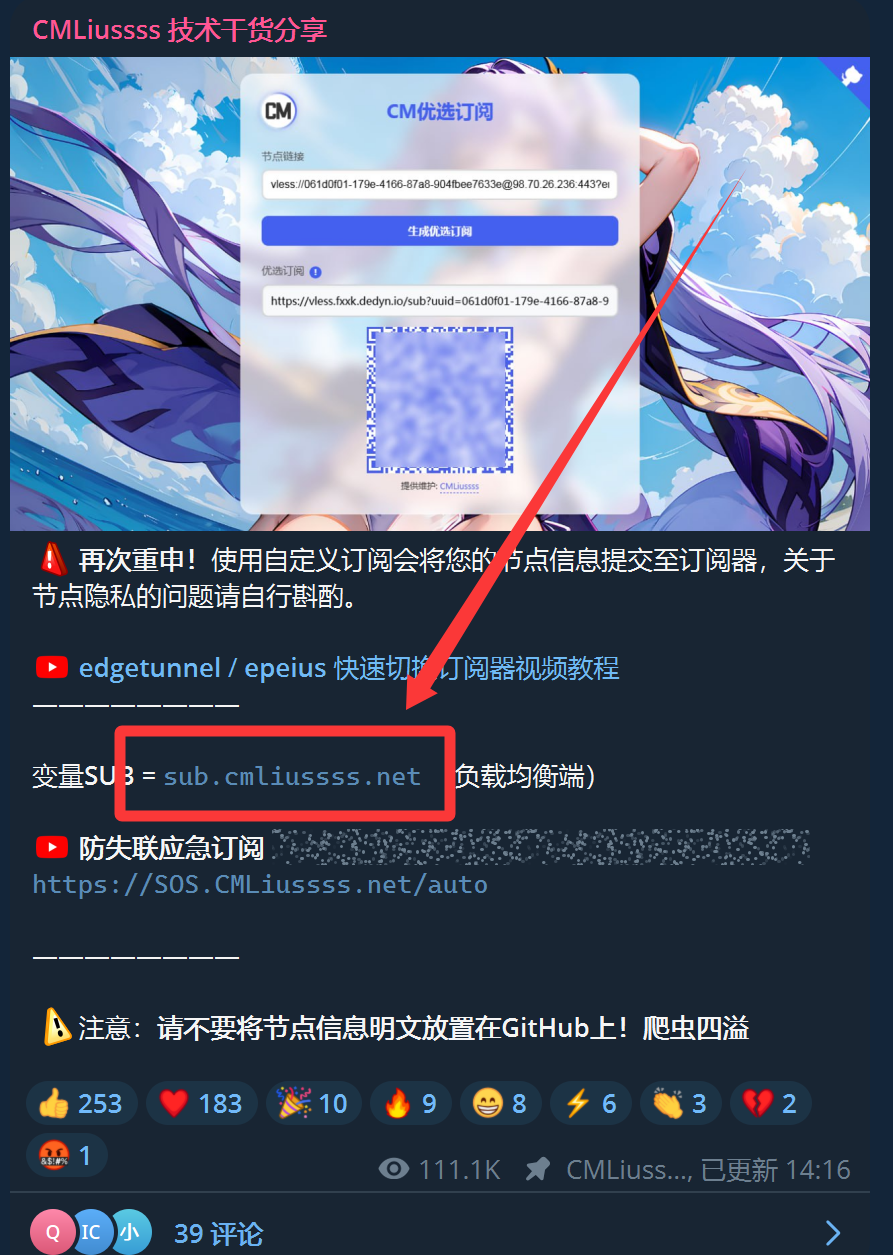
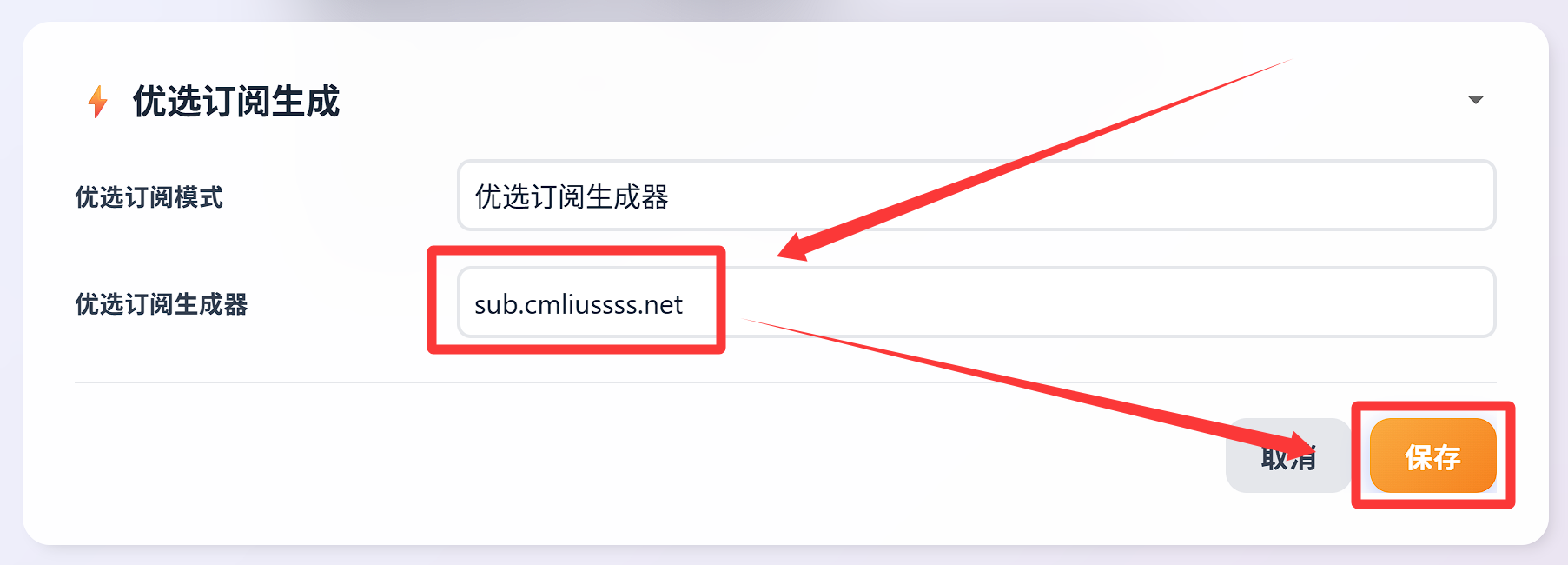
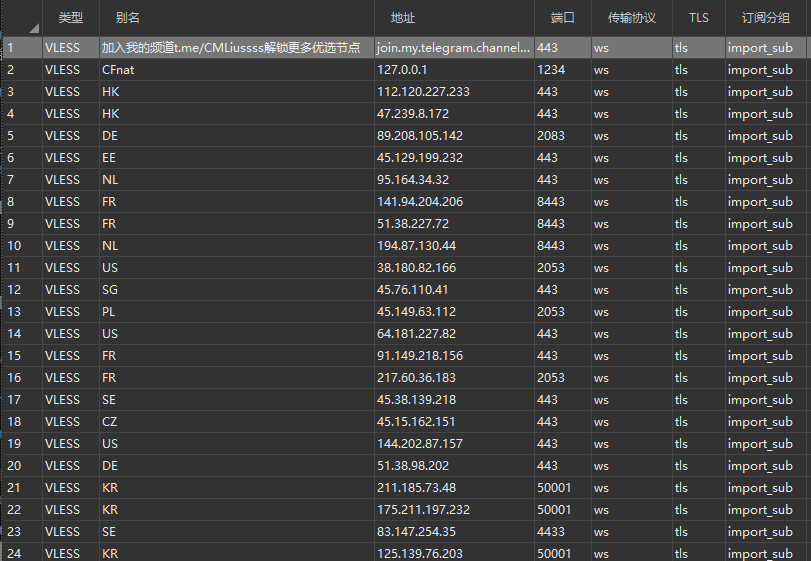
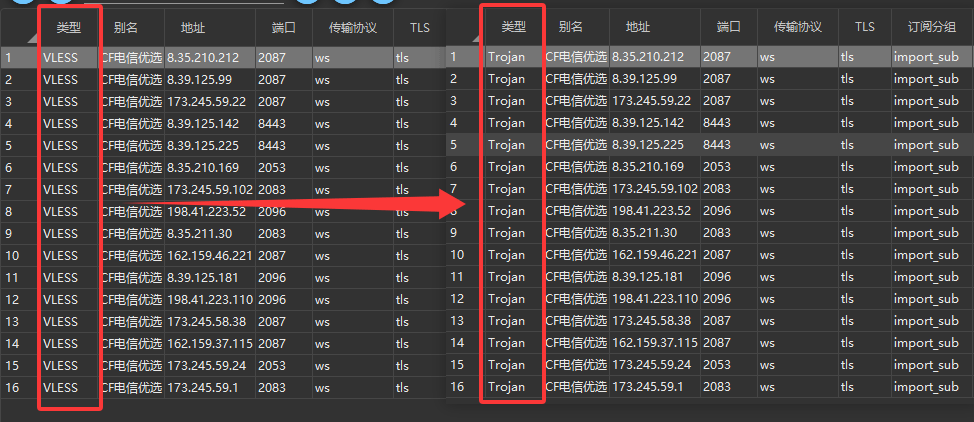
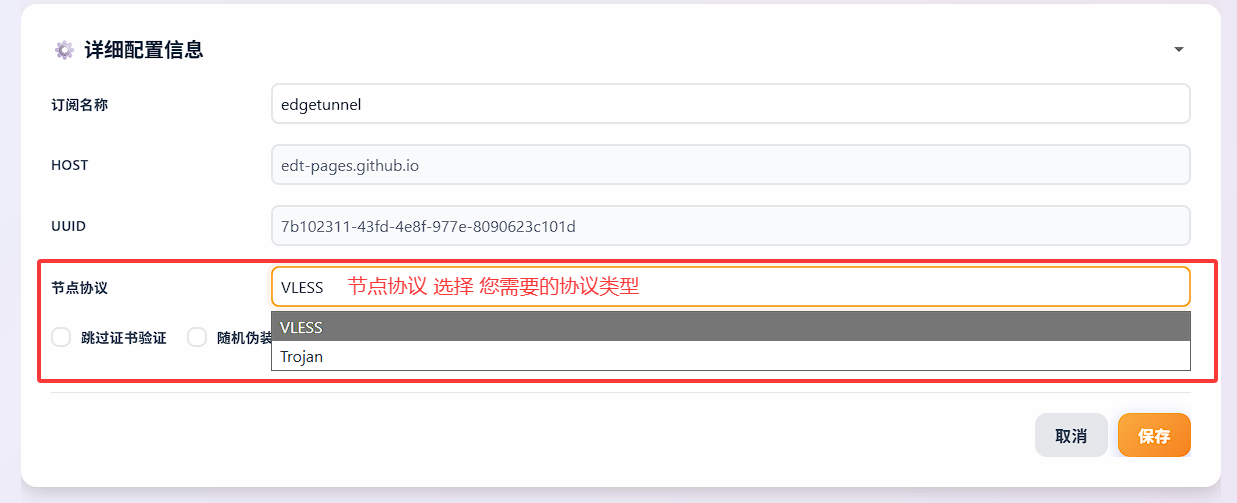
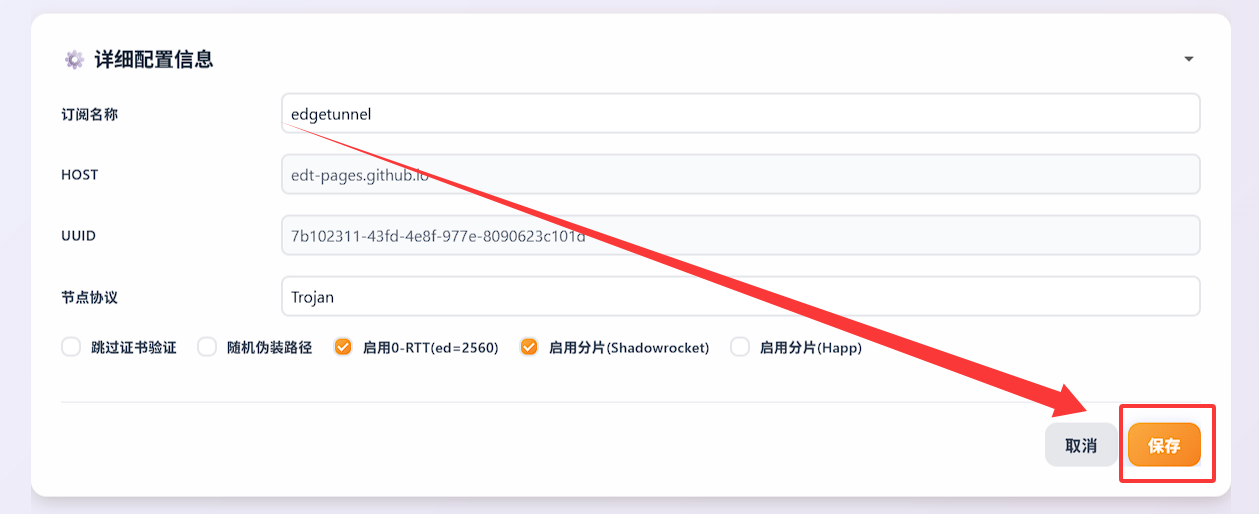
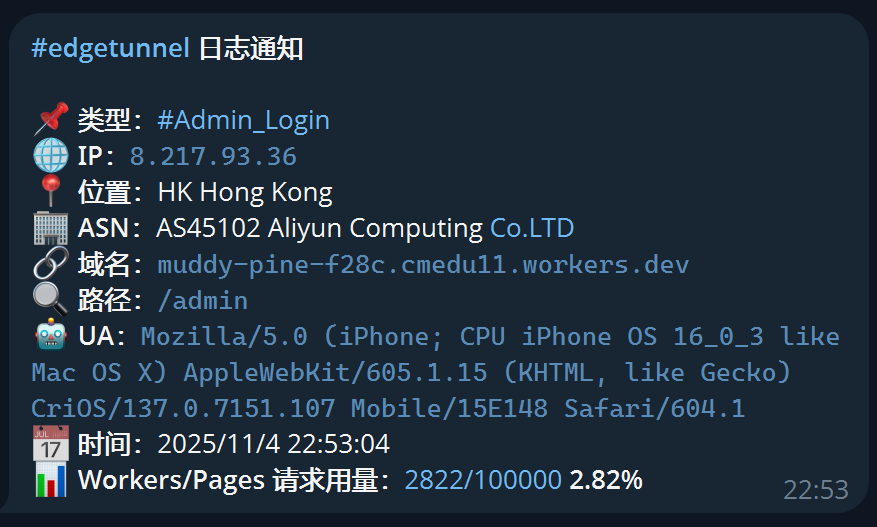
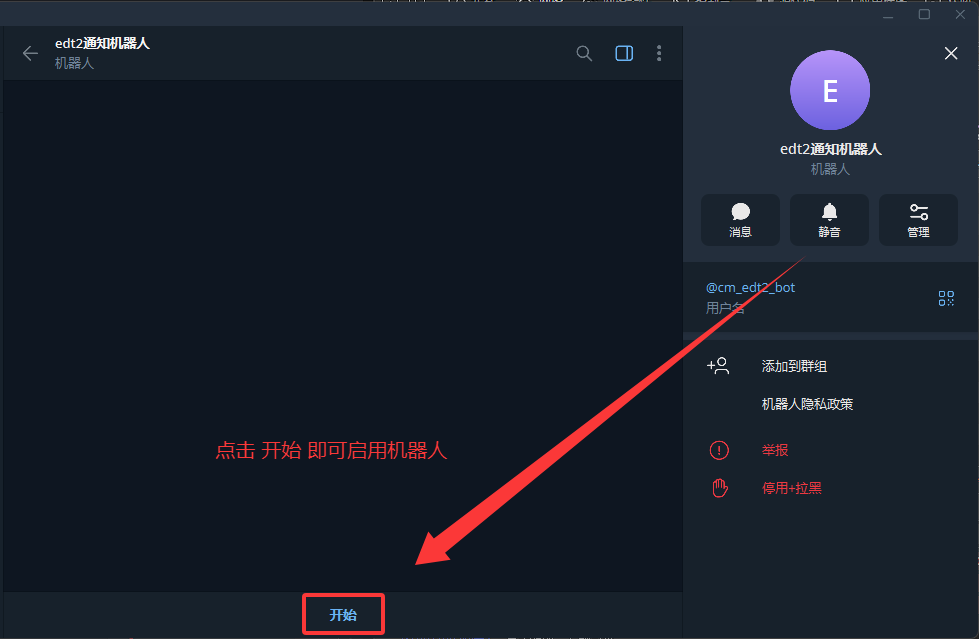
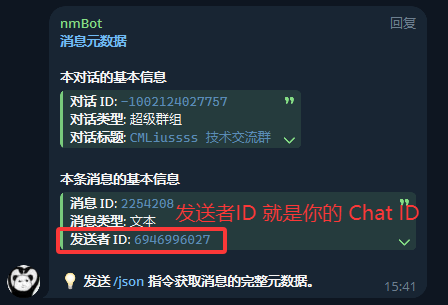
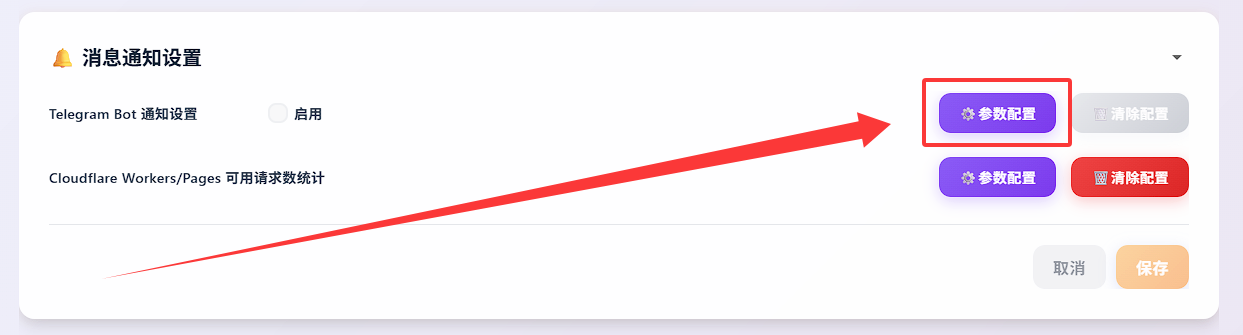
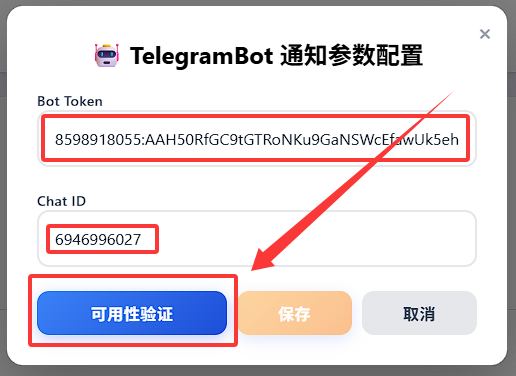
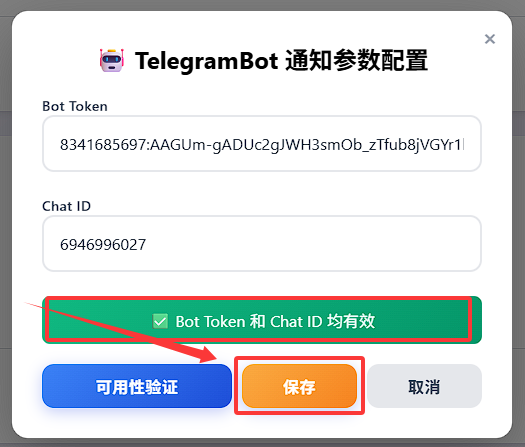
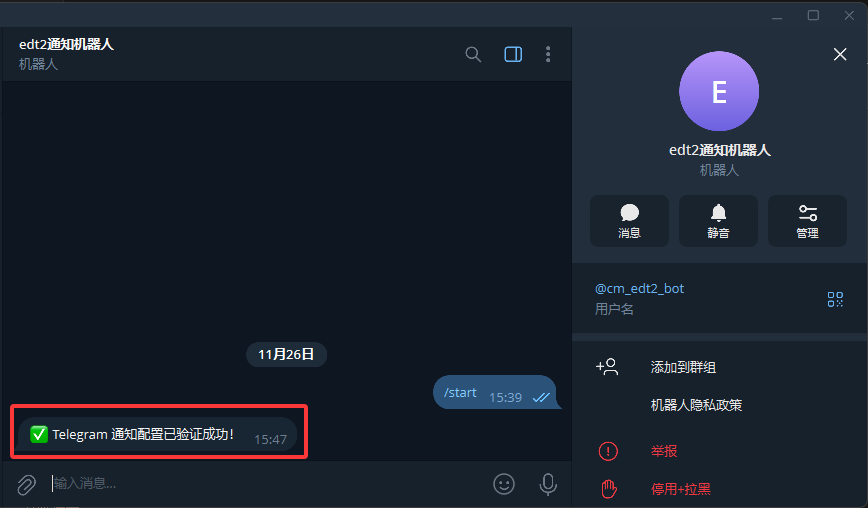
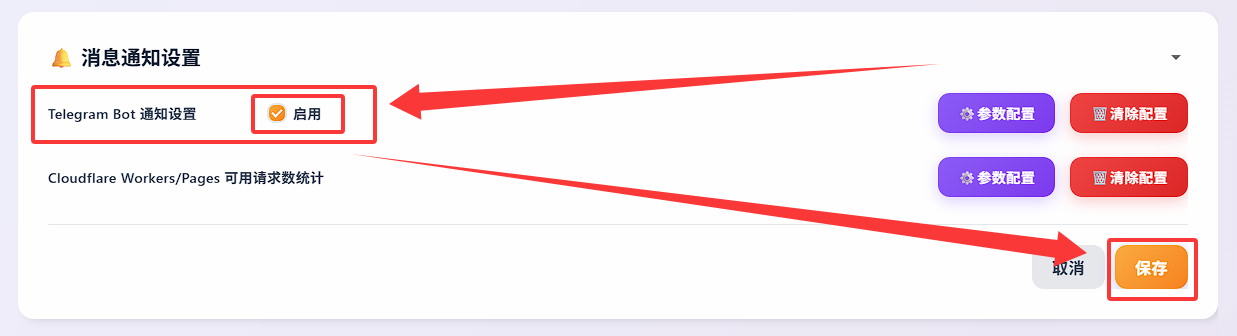
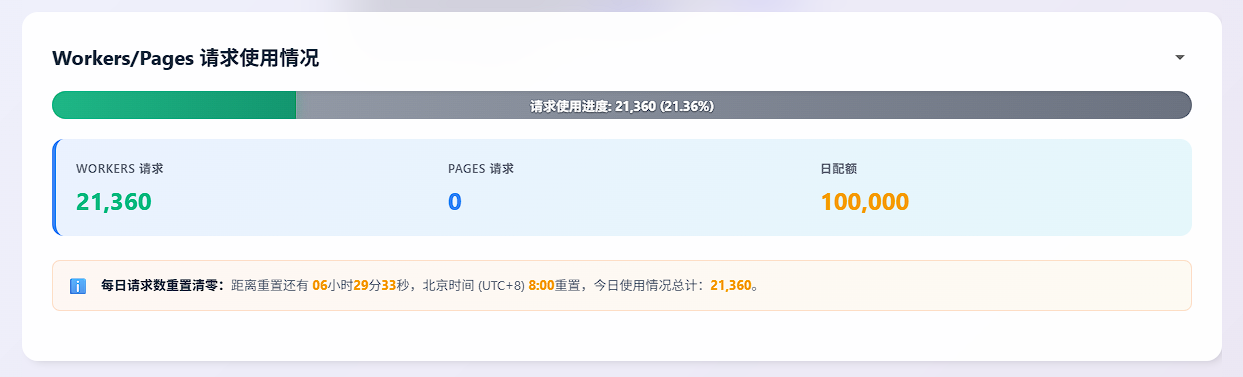
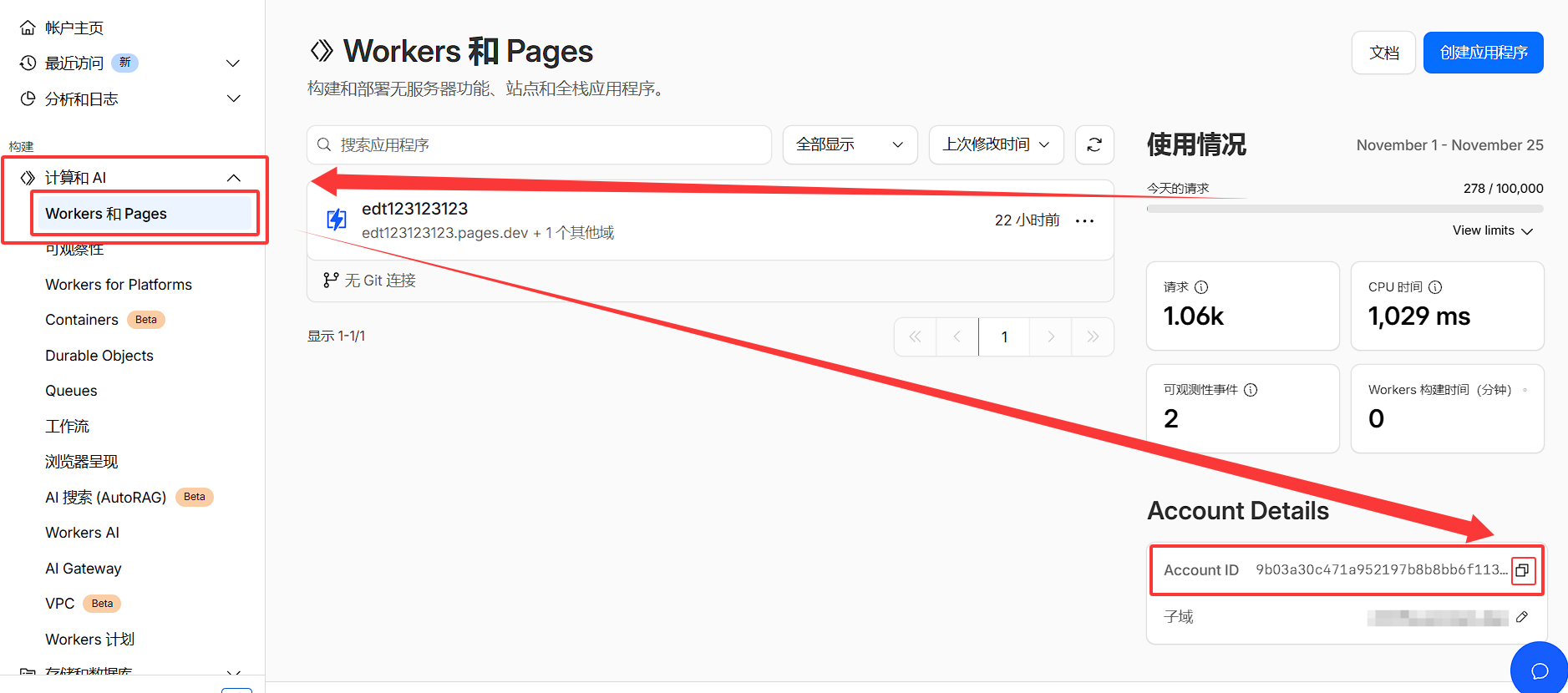
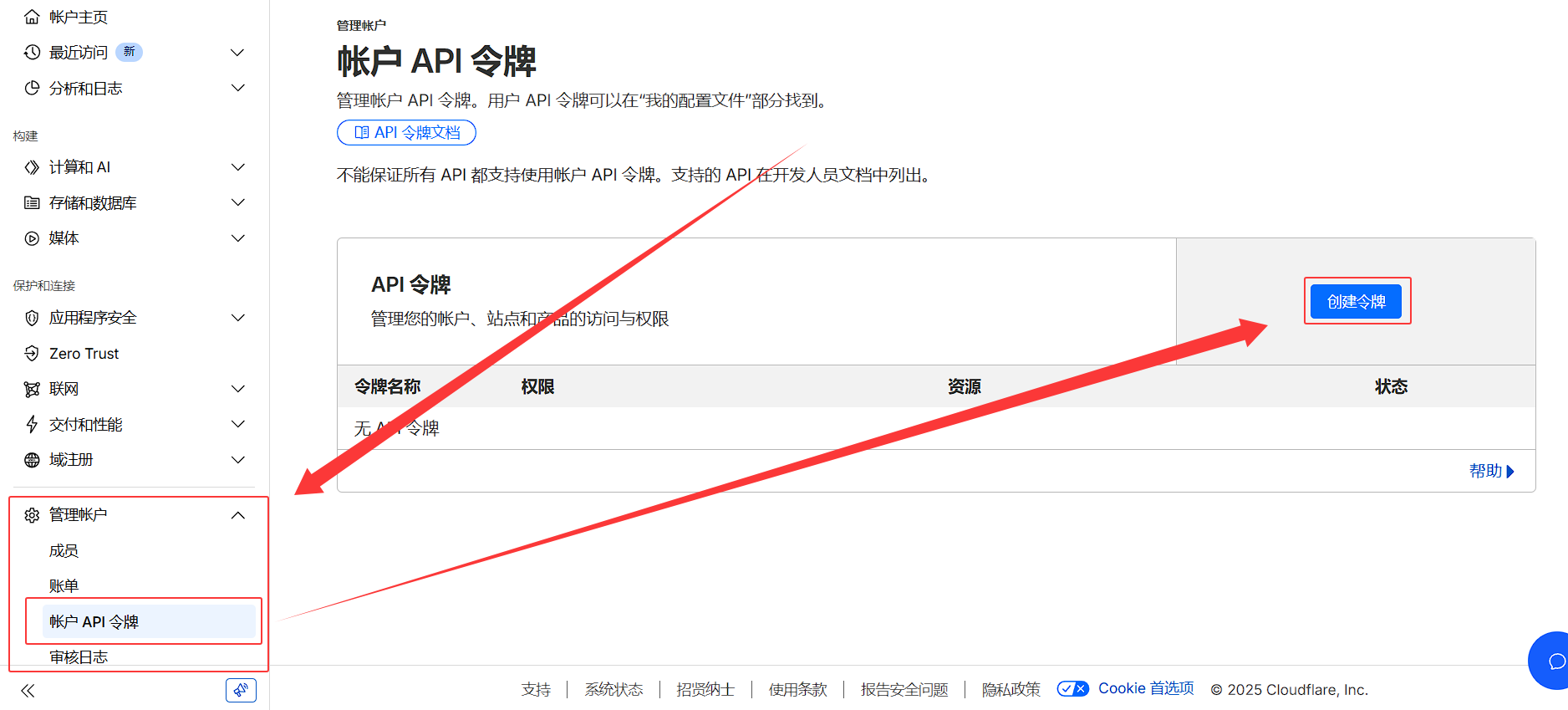
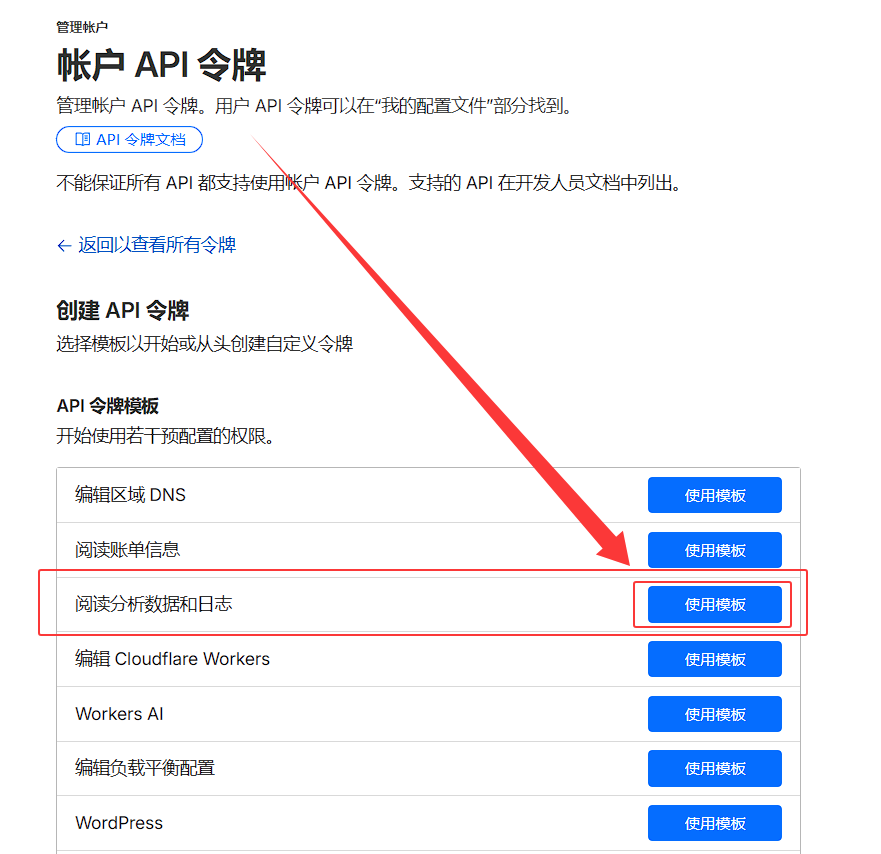
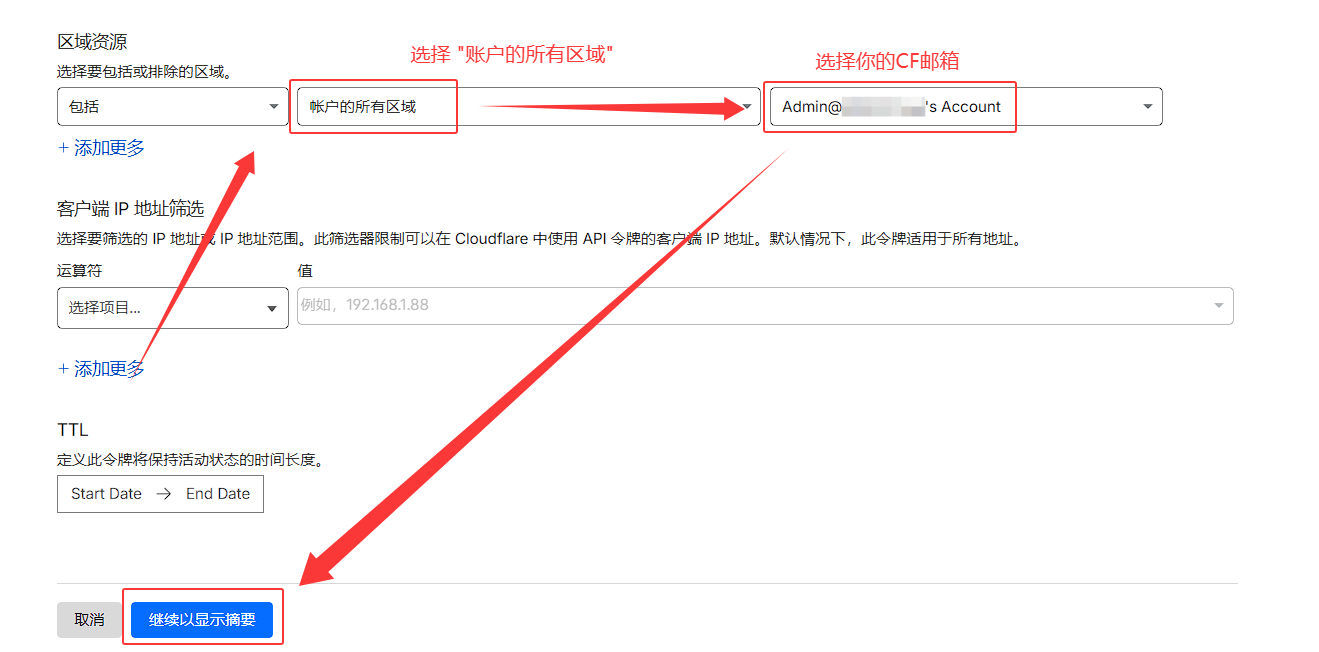
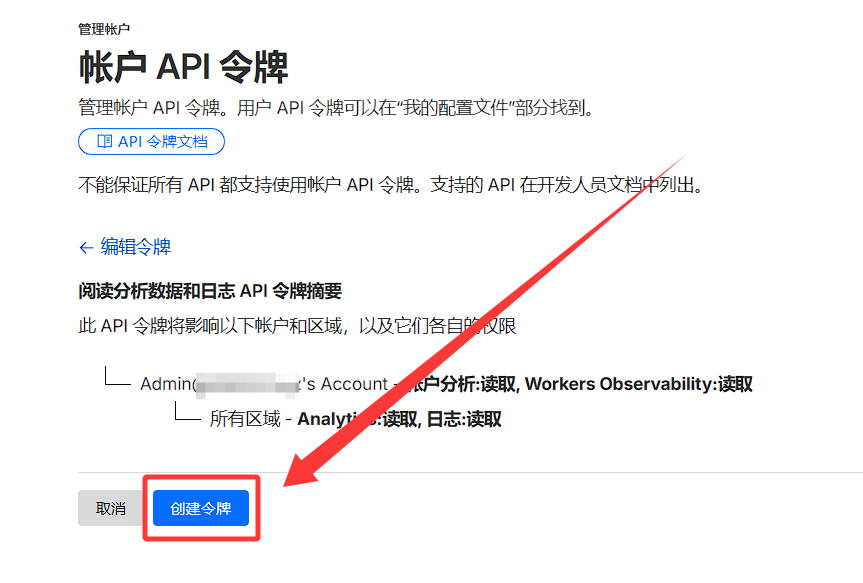
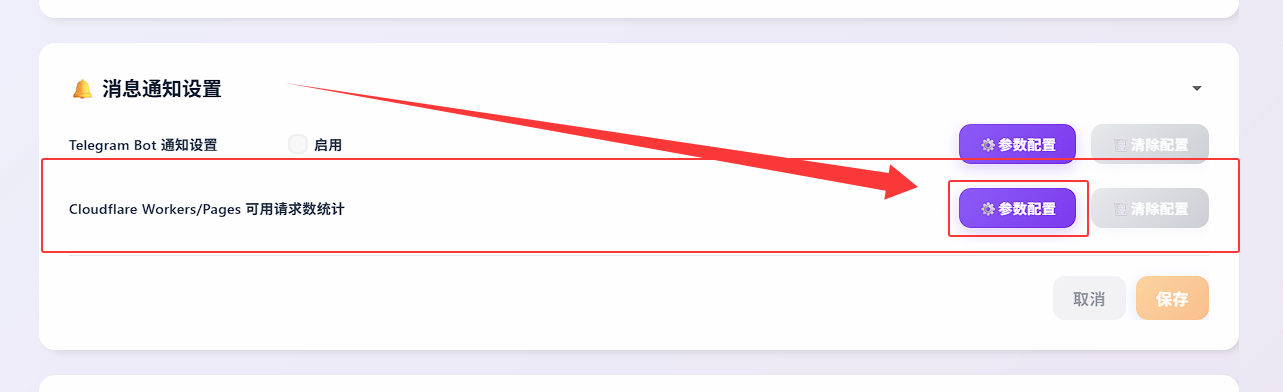
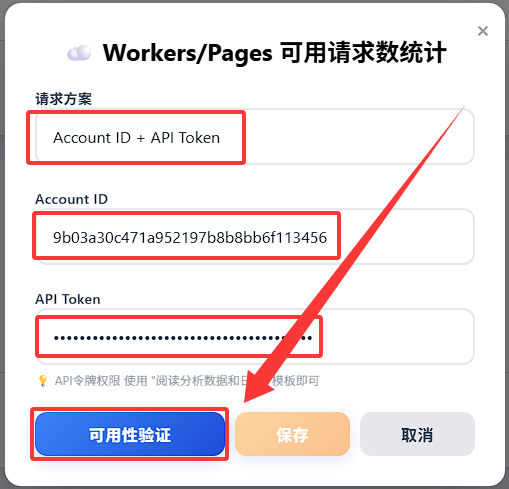
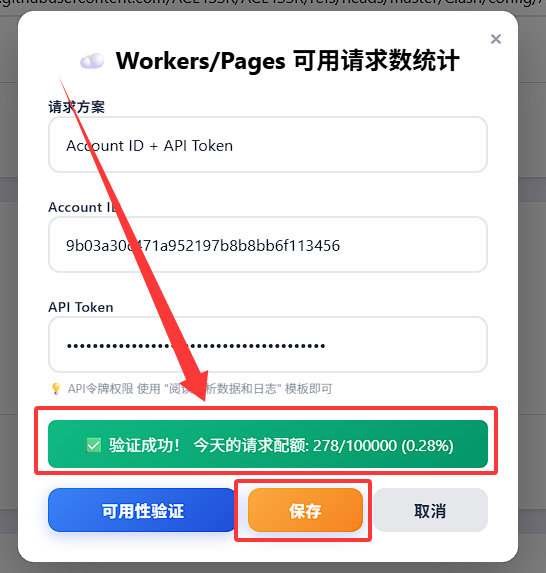
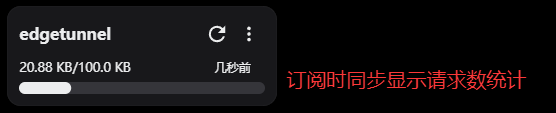
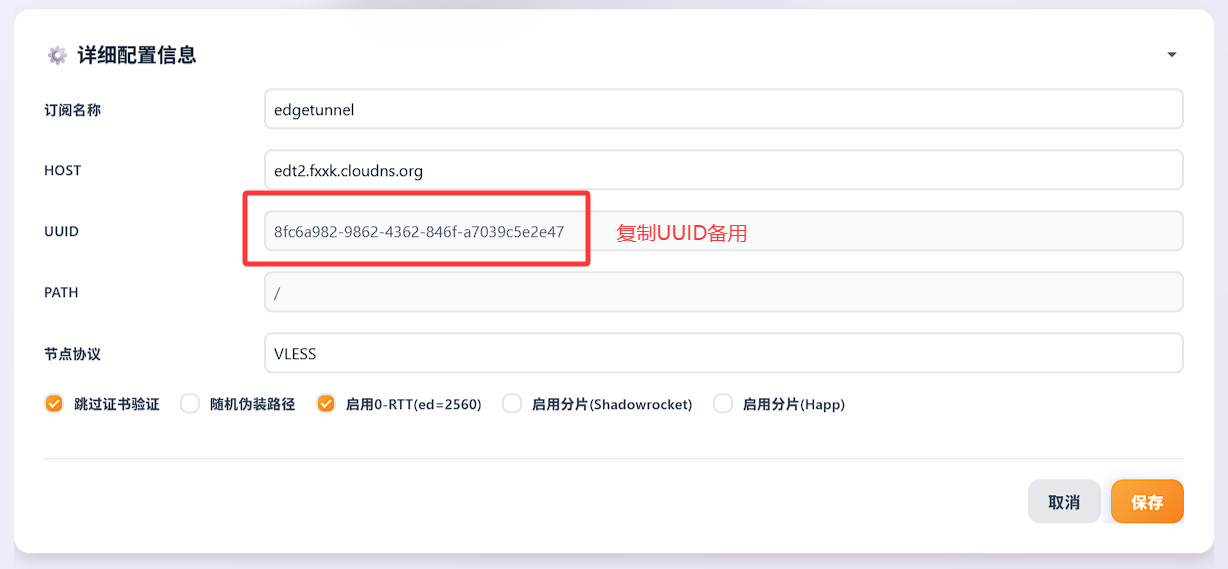
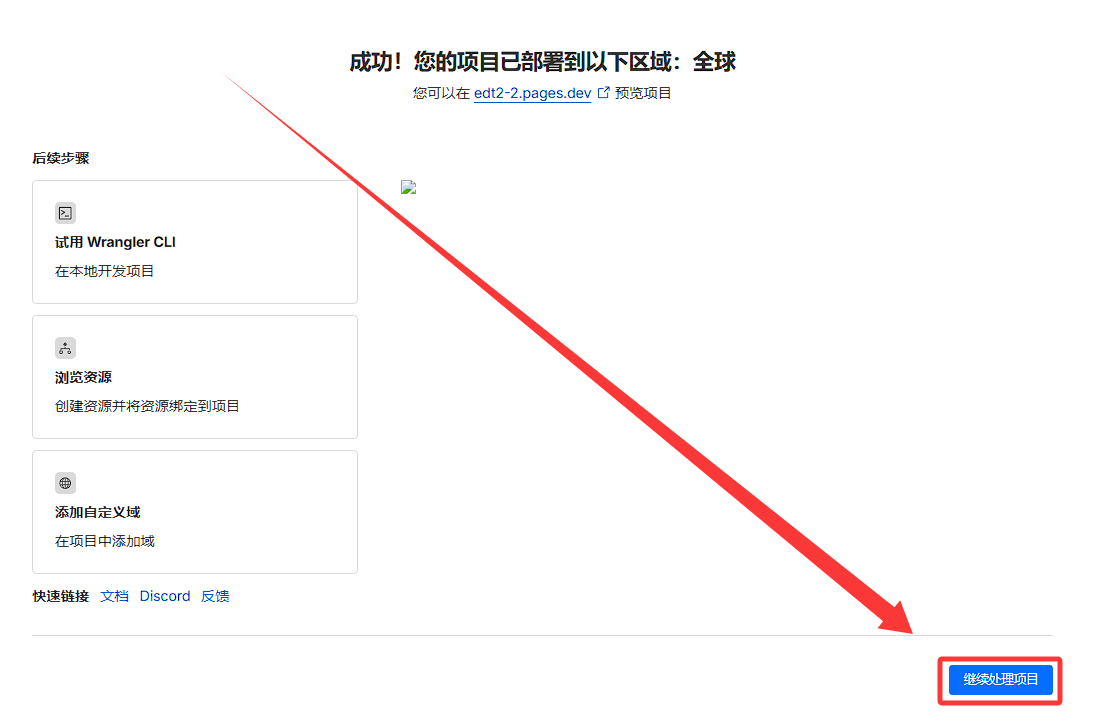
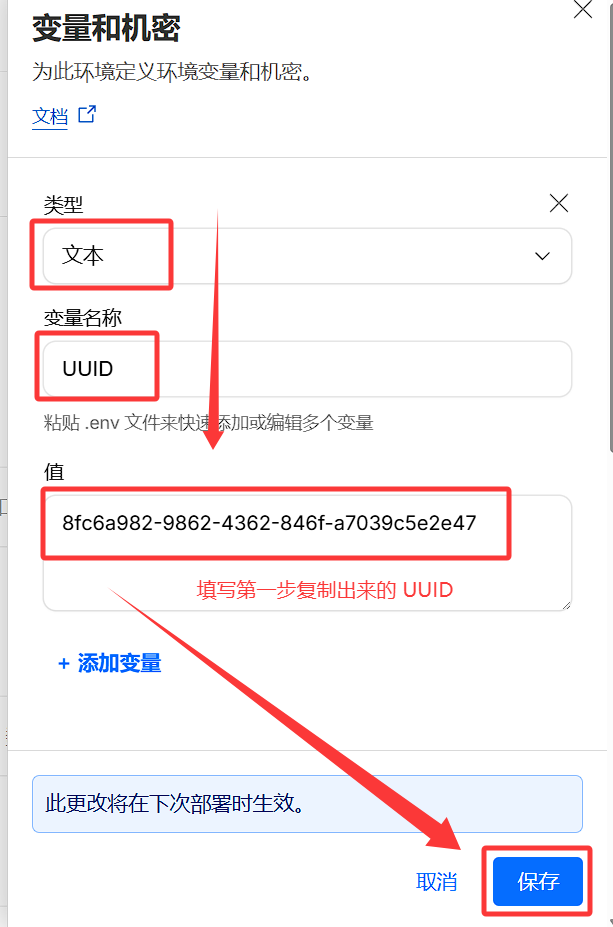
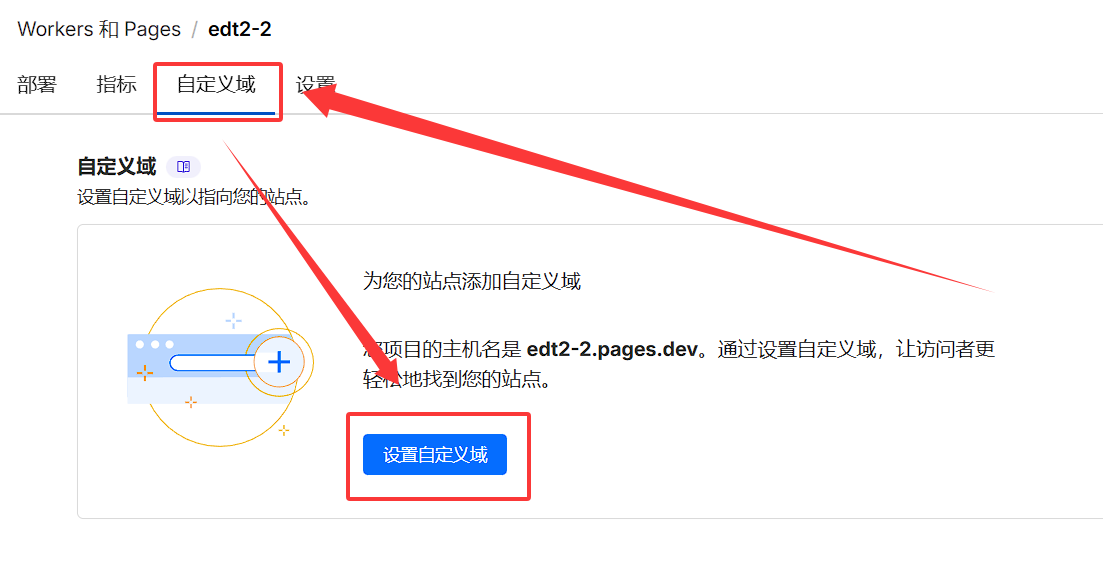
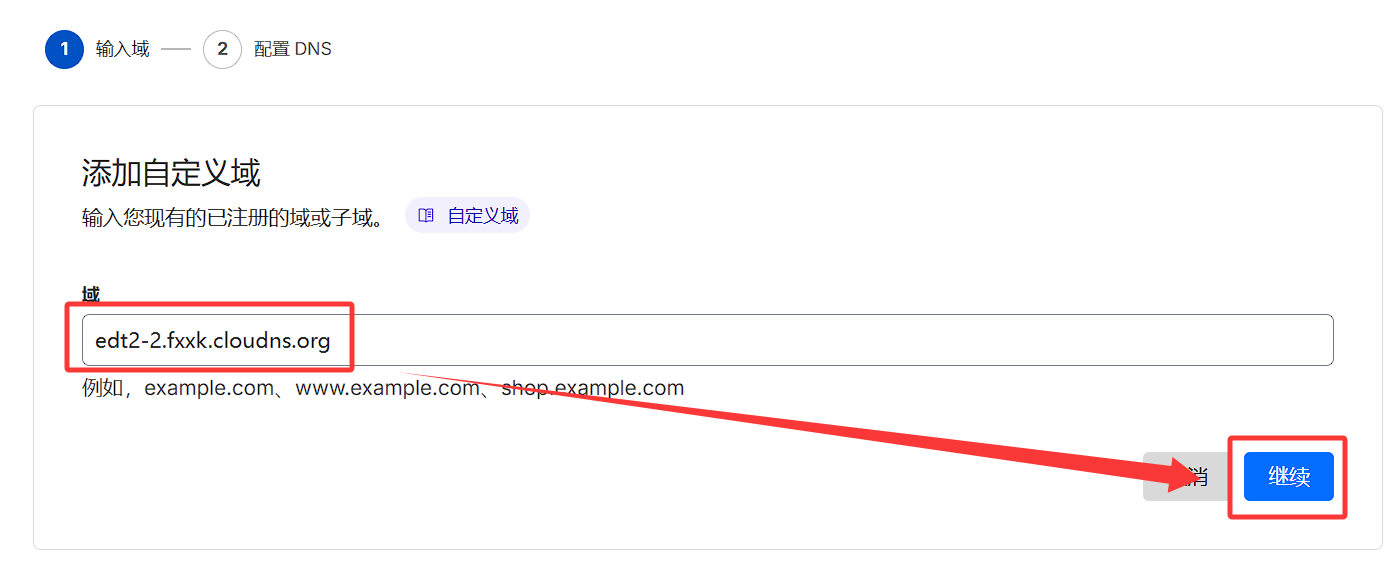
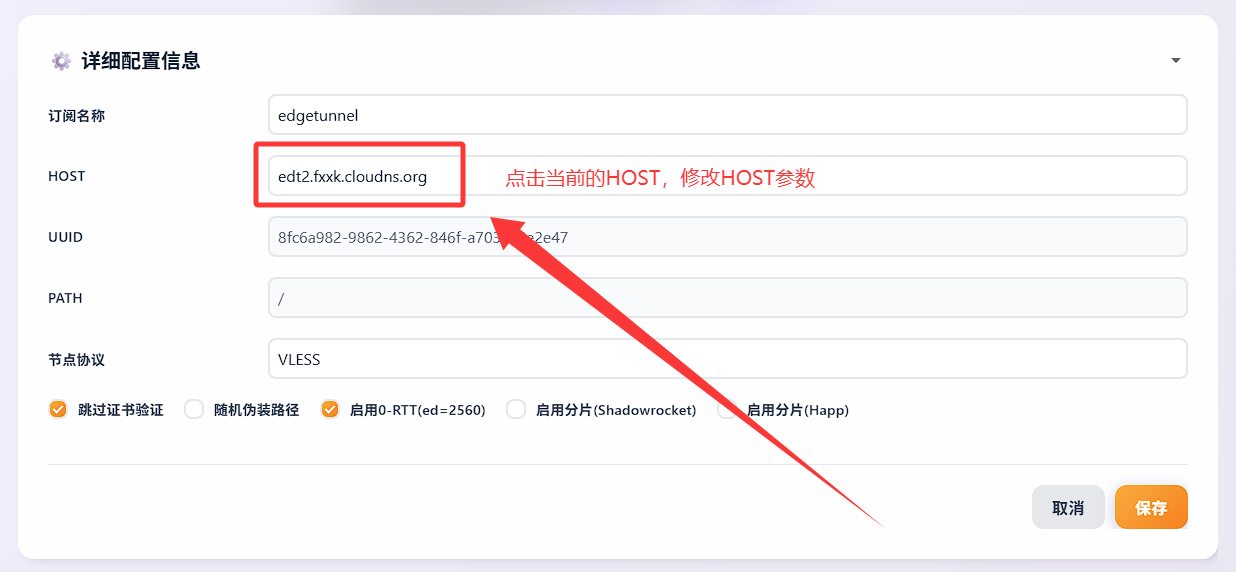
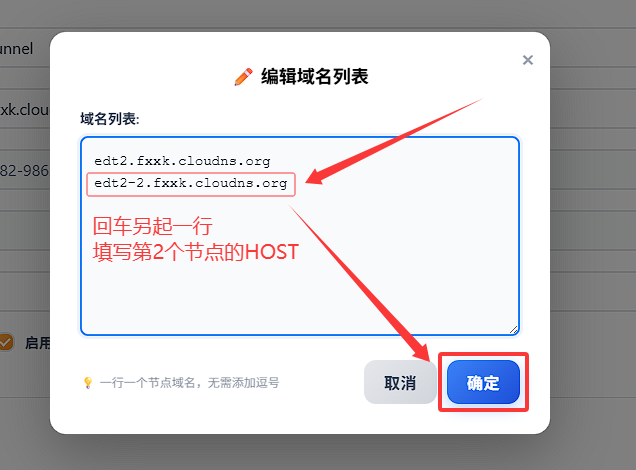
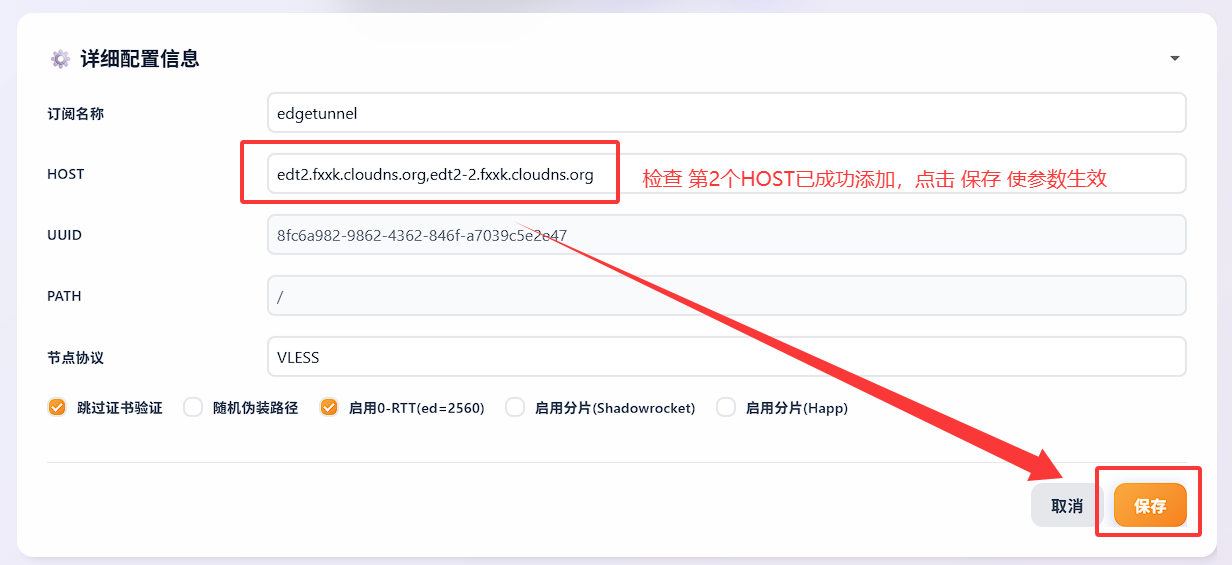
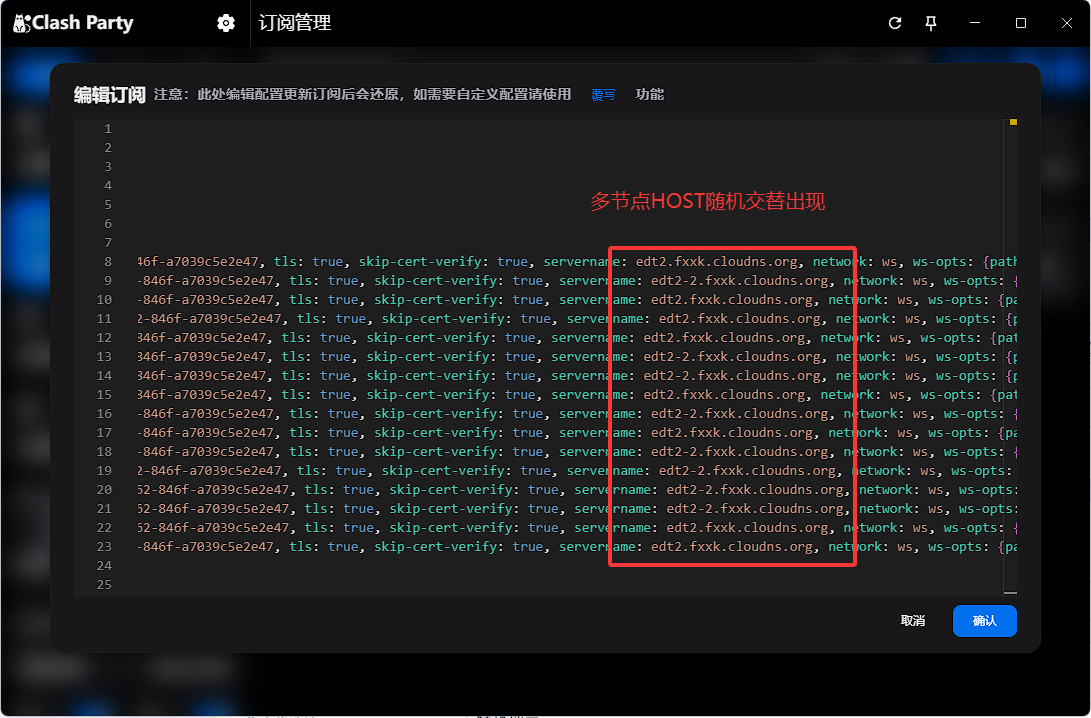
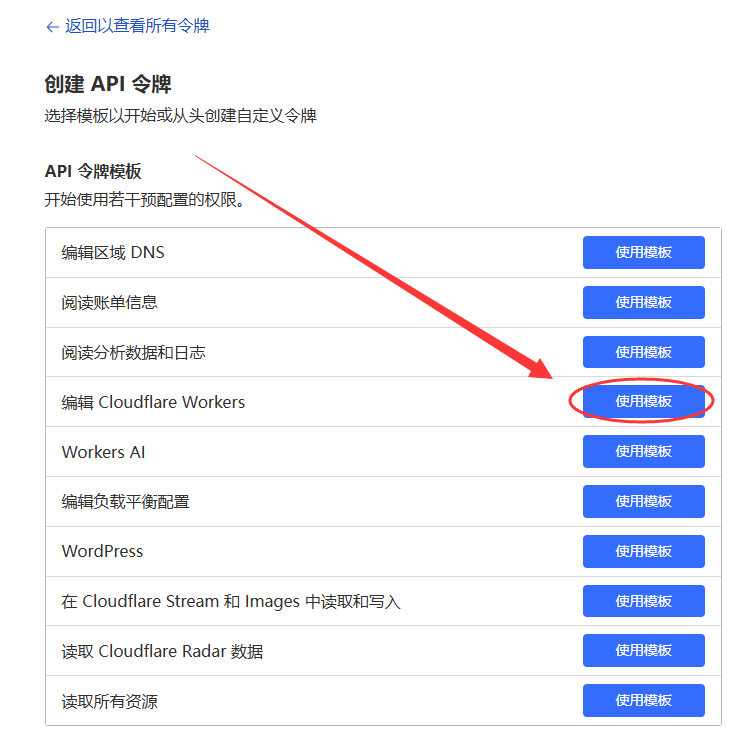
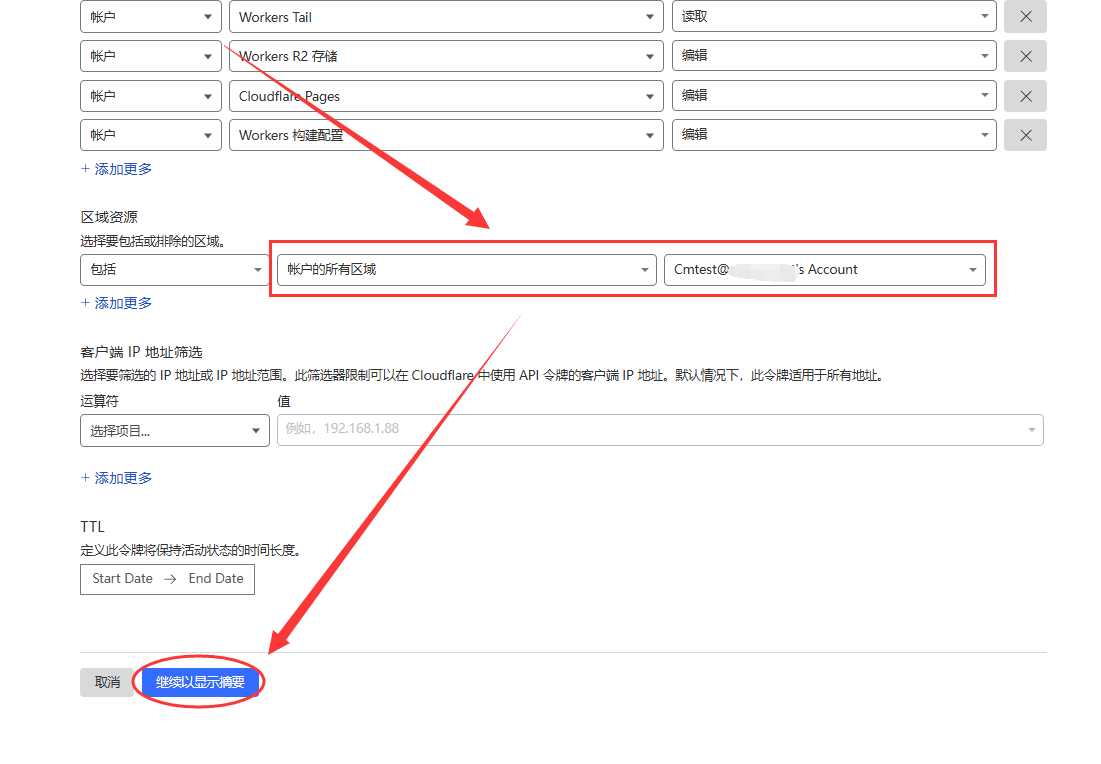
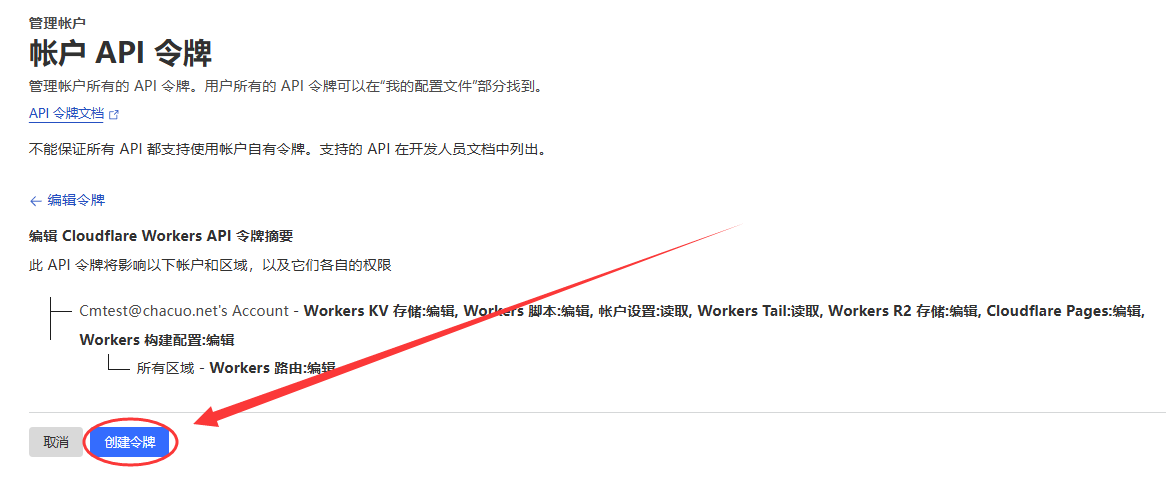
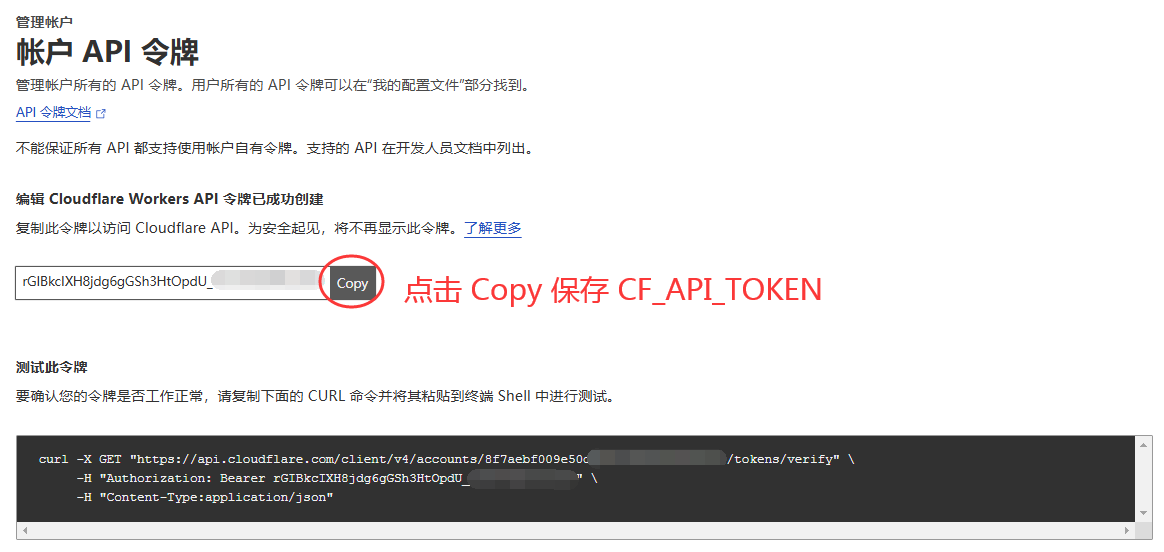
    <content type="html"><![CDATA[<h1 id="🚀-Edgetunnel2-0-全新版本，就是这么简单！-就是这么方便！"><a href="#🚀-Edgetunnel2-0-全新版本，就是这么简单！-就是这么方便！" class="headerlink" title="🚀 Edgetunnel2.0 全新版本，就是这么简单！ 就是这么方便！"></a>🚀 Edgetunnel2.0 全新版本，就是这么简单！ 就是这么方便！</h1><p>全新版本完全升级，集百家之所长，力求打造最强大的 Edgetunnel 解决方案！<br><img src="/./img/edt2/demo.png" alt="demo"></p><p><strong>Demo面板预览：<a href="https://edt-pages.github.io/admin">Edgetunnel2.0 WebUI</a></strong></p><details><summary>「 🚀 点击展开 <b>详细更新内容</b> 」</summary><h4 id="✨-有哪些改进呢？"><a href="#✨-有哪些改进呢？" class="headerlink" title="✨ 有哪些改进呢？"></a>✨ 有哪些改进呢？</h4><ol><li><strong>全新传输架构</strong>：Edgetunnel 2.0 采用了全新的传输架构，提升了兼容和稳定性。</li><li><strong>更简化的配置流程</strong>：新增了 WebUI用户界面，修改配置无需改动变量重试部署，点击保存即刻生效。</li><li><strong>多协议支持</strong>：一次部署，在线切换VLESS、Trojan传输协议，满足不同用户的需求。</li><li>内置<strong>三网优选IP</strong>，根据三网自动分配优选IP，优选IP想要多少就有多少！</li><li><strong>自定义优选</strong> 支持 <strong>在线优选</strong>，自选落地国家，手机浏览器一点就跑，跑完就用！<ul><li>感谢 <a href="https://t.me/Lfreea">白嫖哥</a> 提供的服务支持在线优选功能</li></ul></li><li><strong>自定义优选</strong> 支持 <strong>优选API</strong> 接入，搭配自动化实时优选！</li><li>反代除了支持ProxyIP，还支持<strong>SOCKS5</strong>&#x2F;<strong>HTTP</strong>出口(<strong>启用全局代理，即可实现链式代理效果</strong>)！<ul><li>感谢 <a href="https://t.me/Alexandre_Kojeve">AK大佬</a> 提供的<a href="https://t.me/Enkelte_notif">SOCKS5&#x2F;HTTP服务</a></li><li>感谢 <a href="https://t.me/otc006">OTC大佬</a> 提供的<a href="https://socks5.qqqqqq.tk/">SOCKS5</a>&#x2F;<a href="https://http.qqqqqq.tk/">HTTP服务</a></li></ul></li><li>配置 <strong>Telegram Bot 通知</strong>设置，即可实时获取项目访问登录订阅等消息；</li><li>配置 <strong>CF Account ID&#x2F;API Token</strong> 通知设置，即可实时获取当天 <strong>Workers&#x2F;Pages 请求使用情况</strong>；</li><li>添加 <strong>日志中心</strong>，查看所有可疑登录订阅操作；</li></ol><p>…太多太多的新功能太多了，这里就不一一赘述，望自行探索！</p></details><hr><h2 id="🛠️-部署教程"><a href="#🛠️-部署教程" class="headerlink" title="🛠️ 部署教程"></a>🛠️ 部署教程</h2><p>支持 <strong>Workers</strong>、<strong>Pages GitHub</strong>、<strong>Pages 上传</strong> 三种部署方式，本教程将以 <strong>Pages 上传</strong> 方式为例，因为该方式部署无需任何门槛。</p><p>如需了解其他部署方式，请自行查看：<a href="https://github.com/cmliu/edgetunnel">https://github.com/cmliu/edgetunnel</a> 项目文档</p><details><summary>「 🚀 点击展开 <b>Pages 上传部署</b> 图文教程 」</summary><h3 id="1️⃣-创建-Pages-应用程序"><a href="#1️⃣-创建-Pages-应用程序" class="headerlink" title="1️⃣ 创建 Pages 应用程序"></a>1️⃣ 创建 Pages 应用程序</h3><ol><li><p>点击 <a href="https://pages.cloudflare.com/direct-upload-demo.zip">direct-upload-demo.zip</a> 下载 Cloudflare Pages 演示项目压缩包备用；</p></li><li><p>准备一个 Cloudflare 账号，点击 <code>计算和AI</code> &gt; <code>Workers 和 Pages</code> &gt; <code>创建应用程序</code> ；<br><img src="/./img/edt2/1-2-1.png" alt="创建Pages应用程序"><br>或<br> <img src="/./img/edt2/1-2-0.png" alt="创建Pages应用程序"></p></li><li><p>选择 <code>Pages</code> 选项卡，点击 <code>拖放文件</code> &gt; <code>开始使用</code> ；<br><img src="/./img/edt2/1-3-1.png" alt="创建Pages应用程序"></p></li><li><p>项目名称 <strong>填写任意值</strong>，<strong>但必须是全新的名字</strong>，<strong>避免出现1101错误</strong>，推荐末尾补上任意数字，如 <code>edt123123123</code> ；<br><img src="/./img/edt2/1-4-1.png" alt="创建Pages应用程序"> </p></li><li><p>点击 <code>从计算机中选择</code> &gt; <code>上传压缩文件</code>，选择第一步下载的 <code>direct-upload-demo.zip</code> 压缩包，等待上传完成；<br><img src="/./img/edt2/1-5-1.png" alt="上传项目压缩包"></p></li><li><p>点击 <code>部署站点</code>，等待部署完成；<br><img src="/./img/edt2/1-6-1.png" alt="部署Pages应用程序"></p></li><li><p>提示成功，代表初始化部署完成！点击 <code>继续处理项目</code> 进入下一步设置变量绑定KV的操作；<br><img src="/./img/edt2/1-7-1.png" alt="部署成功"></p></li></ol><hr><h3 id="2️⃣-设置管理员变量"><a href="#2️⃣-设置管理员变量" class="headerlink" title="2️⃣ 设置管理员变量"></a>2️⃣ 设置管理员变量</h3><ol><li><p>进入项目设置页面，点击 <code>设置</code> 选项卡，添加变量和机密：<br><img src="/./img/edt2/2-1-1.png" alt="进入项目设置页面"></p></li><li><p>点击 <code>+ 添加</code>，类型 <code>文本</code> 变量名称 <code>ADMIN</code> 变量，变量值为<strong>WebUI管理员密码</strong>，建议设置复杂密码，避免被暴力破解；<br><img src="/./img/edt2/2-2-1.png" alt="添加ADMIN变量"></p></li><li><p>变量即可设置完成，如忘记密码可返回此页面查看<br><img src="/./img/edt2/2-3-1.png" alt="ADMIN变量设置完成"></p></li></ol><hr><h3 id="3️⃣-绑定-KV-命名空间"><a href="#3️⃣-绑定-KV-命名空间" class="headerlink" title="3️⃣ 绑定 KV 命名空间"></a>3️⃣ 绑定 KV 命名空间</h3><ol><li><p>点击 <code>存储和数据库</code> &gt; <code>Workers KV</code> &gt; <code>+ Create Instance</code> 创建一个命名空间；<br><img src="/./img/edt2/3-1-1.png" alt="创建KV命名空间"></p></li><li><p>命名空间名称可自定义，建议命名为 <code>EDT2</code> 以便区分，点击 <code>创建</code> 完成创建<br><img src="/./img/edt2/3-2-1.png" alt="命名空间创建完成"></p></li><li><p>返回项目设置页面，点击 <code>设置</code> &gt; <code>绑定</code> &gt; <code>+ 添加</code> &gt; <code>KV 命名空间</code>；<br><img src="/./img/edt2/3-3-1.png" alt="绑定命名空间"><br><img src="/./img/edt2/3-3-2.png" alt="绑定命名空间"></p></li><li><p>变量名称必须填写大写 <strong>KV</strong> ，命名空间选择刚刚创建的 <code>EDT2</code>，点击 <code>保存</code> 完成绑定；<br><img src="/./img/edt2/3-4-1.png" alt="完成绑定"></p></li><li><p>返回项目设置页面，确认绑定成功；<br><img src="/./img/edt2/3-5-1.png" alt="绑定成功"></p></li></ol><hr><h3 id="4️⃣-重试部署，使其变量生效！"><a href="#4️⃣-重试部署，使其变量生效！" class="headerlink" title="4️⃣ 重试部署，使其变量生效！"></a>4️⃣ <strong>重试部署，使其变量生效！</strong></h3><ol><li><p>点击 <a href="https://github.com/cmliu/edgetunnel/archive/refs/heads/main.zip">edgetunnel-main.zip</a> 下载最新版本项目压缩包备用；</p></li><li><p>点击右上角 <code>创建部署</code> ，上传<strong>上一步刚刚下载</strong>的 <code>edgetunnel-main.zip</code> 压缩包；<br><img src="/./img/edt2/4-1-1.png" alt="重试部署"></p></li><li><p>部署环境选择 <code>生产</code>，点击 <code>从计算机中选择</code> &gt; <code>上传压缩文件</code>，选择第一步下载的 <code>edgetunnel-main.zip</code> 压缩包，等待上传完成；<br><img src="/./img/edt2/4-2-1.png" alt="重试部署上传压缩包"></p></li><li><p>点击 <code>保存并部署</code>，等待部署完成；<br><img src="/./img/edt2/4-3-1.png" alt="重试部署保存并部署"><br><img src="/./img/edt2/4-3-2.png" alt="重试部署等待完成"></p></li></ol><ul><li>注意：如需修改管理员密码，修改完变量之后<strong>必须重新上传部署，否则变量无法生效！</strong></li></ul><hr><h3 id="5️⃣-绑定-自定义域名"><a href="#5️⃣-绑定-自定义域名" class="headerlink" title="5️⃣ 绑定 自定义域名"></a>5️⃣ 绑定 自定义域名</h3><ul><li><strong>可免费注册的CNAME域名</strong><ol><li><strong>DNSHE</strong>：<a href="https://my.dnshe.com/aff.php?aff=41810">https://www.dnshe.com/</a> <em>部分域名可托管CF</em>，邀请码：<code>CY483A4A4B</code></li><li><strong>DigitalPlat</strong>: <a href="https://domain.digitalplat.org/">https://domain.digitalplat.org/</a> <em>部分域名可托管CF</em></li><li><strong>ClouDNS</strong>：<a href="https://www.cloudns.net/index/lang/chs">https://www.cloudns.net/index/lang/chs</a></li><li><strong>dynv6</strong>：<a href="https://dynv6.com/">https://dynv6.com/</a></li><li><strong>ZoneABC</strong>：<a href="https://zoneabc.net/">https://zoneabc.net/</a></li></ol></li></ul><p>若无域名可使用以上免费域名注册商注册一个CNAME域名使用，图文教程使用ClouDNS域名演示：</p><ol><li><p>进入 Pages 应用程序，点击 <code>自定义域</code> 选项卡，点击 <code>设置自定义域</code> ；<br><img src="/./img/edt2/5-1-1.png" alt="设置自定义域"></p></li><li><p>添加自定义域</p><ul><li>注意！你的域名如果是 <strong>fxxk.cloudns.org</strong> ，则<strong>必须必须必须</strong>多加一级域名，例如 <strong>edt2.</strong>fxxk.cloudns.org<br><img src="/./img/edt2/5-2-1.png" alt="添加自定义域"></li></ul></li><li><p>选择<code>开始 CNAME 设置</code>；<br><img src="/./img/edt2/5-3-1.png" alt="开始CNAME设置"></p></li><li><p>记录名称 <code>edt2</code> 和 CNAME 记录值 <code>edt123123123.pages.dev</code> ；<br><img src="/./img/edt2/5-4-1.png" alt="CNAME记录值"></p></li><li><p>添加前往域名服务商添加CNAME记录；<br><img src="/./img/edt2/5-5-1.png" alt="添加自定义记录"></p></li><li><p>返回 <code>自定义域</code> 选项卡，点击 <code>稍后完成 DNS 设置</code> 等待域名验证成功；<br><img src="/./img/edt2/5-6-1.png" alt="等待域名验证成功"></p></li><li><p><strong>等待10~30分钟</strong>，域名验证成功后即可看到域名绑定成功提示；<br><img src="/./img/edt2/5-7-1.png" alt="域名绑定成功"></p></li></ol><hr><h3 id="6️⃣-登录-EDT2-管理页面"><a href="#6️⃣-登录-EDT2-管理页面" class="headerlink" title="6️⃣ 登录 EDT2 管理页面"></a>6️⃣ 登录 EDT2 管理页面</h3><ul><li>访问<code>/admin</code>即可登录管理页面，例如您绑定的自定义域名 <code>edt2.fxxk.cloudns.org</code> ，则您需访问 <code>https://edt2.fxxk.cloudns.org/admin</code>；</li></ul><ol><li><p>输入管理员密码，点击 <code>登录</code> 即可进入管理页面；<br><img src="/./img/edt2/6-1-1.png" alt="登录"></p></li><li><p>登录成功后，即可看到管理页面，如果您是小白，无需折腾直接订阅使用即可；<br><img src="/./img/edt2/6-2-1.png" alt="登录"></p></li></ol><hr><h3 id="⚠️-注意事项"><a href="#⚠️-注意事项" class="headerlink" title="⚠️ 注意事项"></a>⚠️ 注意事项</h3><ol><li>部署成功后访问主页提示<code>Welcome to nginx!</code>，这只是默认伪装页，说明你已部署成功，请访问 <code>/admin</code> 进入管理页面；<br><img src="/./img/edt2/7-1-1.png" alt="nginx欢迎页"></li></ol></details><hr><h2 id="🔀-自助优选订阅"><a href="#🔀-自助优选订阅" class="headerlink" title="🔀 自助优选订阅"></a>🔀 自助优选订阅</h2><p>当前 Edgetunnel2.0 自带了三种优选订阅生成方式，分别是：</p><h3 id="🎲-随机优选-简单"><a href="#🎲-随机优选-简单" class="headerlink" title="🎲 随机优选 - 简单"></a>🎲 随机优选 - <strong>简单</strong></h3><ul><li><strong>内置三网优选IP</strong>，根据订阅时的网络自动自动分配对应三网优选IP，优选IP想要多少就有多少！</li></ul><details><summary>「 🚀 点击展开 <b>随机优选</b> 图文教程 」</summary><p><img src="/./img/edt2/2-1-1-1.png" alt="随机优选"></p><ul><li><code>随机优选数量</code>：<strong>优选IP要多少就填多少</strong>，但是建议不要过多，过多会导致触发域名真链接响应 <code>-1</code>；</li><li><code>指定优选端口</code>：随机端口可抑制真链接响应 <code>-1</code>，也可指定<code>443</code>、<code>2053</code>、<code>2083</code>、<code>2087</code>、<code>2096</code>、<code>8443</code>端口；</li></ul><blockquote><p><strong>注意：</strong>更新订阅时<strong>不可使用代理更新订阅</strong>，否则会导致<strong>无法识别对应三网优选IP</strong>，会自动降级为三网优选订阅！也就是会<strong>同时下发所有三网优选IP</strong>！</p></blockquote><ul><li>订阅呈现的效果如下：<br><img src="/./img/edt2/2-1-1-2.png" alt="呈现效果"></li></ul></details><hr><h3 id="⚙️-自定义优选-折腾"><a href="#⚙️-自定义优选-折腾" class="headerlink" title="⚙️ 自定义优选 - 折腾"></a>⚙️ 自定义优选 - <strong>折腾</strong></h3><ul><li>自由度最高，适合喜欢折腾的选手，提供<strong>在线优选</strong>和<strong>优选API</strong>，等多种优选接入方式，在线优选可以自选落地国家，使用优选API可以实现自动化实时优选！</li></ul><details><summary>「 ✍️ 点击展开 <b>自定义优选 - 手动添加</b> 图文教程 」</summary><h4 id="✍️-手动添加"><a href="#✍️-手动添加" class="headerlink" title="✍️ 手动添加"></a>✍️ 手动添加</h4><ul><li>您可以手动添加你的优选域名IP，格式：<code>IP域名:端口#备注</code>，每行一条记录，例如：  <figure class="highlight text"><table><tr><td class="gutter"><pre><span class="line">1</span><br><span class="line">2</span><br><span class="line">3</span><br><span class="line">4</span><br><span class="line">5</span><br><span class="line">6</span><br><span class="line">7</span><br><span class="line">8</span><br><span class="line">9</span><br><span class="line">10</span><br><span class="line">11</span><br></pre></td><td class="code"><pre><span class="line">104.18.38.47:2053#这是优选IPv4案例</span><br><span class="line">104.18.42.98:2096</span><br><span class="line">172.64.145.158</span><br><span class="line"></span><br><span class="line">[2a06:98c1:3101::ac40:919e]:2087#这是优选IPv6案例</span><br><span class="line">[2a06:98c1:3108::6812:2a62]:8443</span><br><span class="line">[2a06:98c1:3108::6812:919e]</span><br><span class="line"></span><br><span class="line">www.visa.cn:443#这是优选域名案例</span><br><span class="line">mfa.gov.ua:8443</span><br><span class="line">www.shopify.com</span><br></pre></td></tr></table></figure><blockquote><p><strong>IPv6地址</strong>必须使用方括号<code>[]</code>括起来。<br>缺少<code>端口</code>时，默认为<code>443</code>。<br>缺少<code>备注</code>时，将直接显示<code>IP域名</code>。</p><p>更多优选域名可通过<a href="https://cf.090227.xyz/">CloudFlare 优选域名汇总</a>获取；</p></blockquote>  <img src="/./img/edt2/2-1-2-1.png"><ul><li>订阅呈现的效果如下：<br>  <img src="/./img/edt2/2-1-2-2.png"></li></ul></li></ul><hr></details><details><summary>「 🌐 点击展开 <b>自定义优选 - 在线优选</b> 图文教程 」</summary><h4 id="🌐-在线优选"><a href="#🌐-在线优选" class="headerlink" title="🌐 在线优选"></a>🌐 在线优选</h4><ul><li><p><strong>在线优选</strong>：点击 <code>在线优选</code> 按钮，注意必须关闭代理并且使用国内网络直连，才能进行在线优选！</p><ul><li><strong>IP库</strong>：默认为<code>CF官方列表</code>，推荐使用<code>CM整理列表</code>即可，该列表包含了大部分三网优选IP段，且会不定期更新维护；</li><li><strong>端口</strong>：默认为<code>443</code>，可自行修改为其他端口；</li><li><strong>测试线程数</strong>：默认为<code>8</code>，电脑浏览器推荐<code>16</code>线程以上，手机浏览器推荐<code>8</code>~ <code>16</code>线程；</li></ul><ol><li>选择好参数后，点击 <code>开始优选</code> 按钮，等待优选结果；<br>  <img src="/./img/edt2/z2-1-1.png"></li><li>点击你所需国家的标签，点击 <code>追加保存</code> 按钮后点击 <code>关闭</code> 返回上级菜单；<br>  <img src="/./img/edt2/z2-1-2.png"></li><li>点击 <code>保存</code> 自定义优选结果；<br>  <img src="/./img/edt2/z2-1-3.png"></li></ol><ul><li>订阅呈现的效果如下：<br>  <img src="/./img/edt2/z2-1-4.png"></li></ul><blockquote><ul><li>如果你当前网络再非<code>CN</code>环境下，将不被允许使用<strong>在线优选</strong>功能，因为<strong>在代理环境下进行在线优选只会得到你代理的优选</strong>，选出来的地区基本上都是你<strong>代理所属地区</strong>，而延迟也是你<strong>代理延迟</strong>，可以说是毫无意义的。</li><li>如果你是身处国外并且直连尝试在线优选，也毫无意义，因为也就只有在<code>CN</code>环境下，因为国内没有CF数据中心，所以才能实现直连多国数据中心，所以才需要优选。<br><img src="/./img/edt2/z2-1-0.png"></li></ul></blockquote></li></ul><hr></details><details><summary>「 🔌 点击展开 <b>自定义优选 - 优选API</b> 图文教程 」</summary><h4 id="🔌-优选API"><a href="#🔌-优选API" class="headerlink" title="🔌 优选API"></a>🔌 优选API</h4><ol><li>接入<strong>普通文本API</strong></li></ol><ul><li><p>例如 <code>https://cf.090227.xyz/ct</code>，后点击<code>可用性验证</code>按钮；<br><img src="/./img/edt2/z3-1-1.png"></p></li><li><p>如返回格符合<code>IP域名:端口#备注</code>，每行一条记录格式，则代表API可用；<br><img src="/./img/edt2/z3-2-1.png"></p></li><li><p>如果仅是一次性导入，无需实时自动更新，则点击<code>追加结果</code>，需要实时获取数据，则点击<code>追加API</code>，然后点击<code>保存</code>；<br><img src="/./img/edt2/z3-2-2.png"></p></li><li><p>订阅呈现的效果如下：<br><img src="/./img/edt2/z3-3-1.png"></p></li></ul><hr><ol start="2"><li>接入<a href="https://github.com/XIU2/CloudflareSpeedTest">XIU2&#x2F;CloudflareSpeedTest</a>项目，测速csv结果文件</li></ol><ul><li><p>例如 <code>https://github.com/cmliu/WorkerVless2sub/raw/refs/heads/main/CloudflareSpeedTest.csv</code>，填写测速对应的<code>默认端口</code>后，点击<code>可用性验证</code>按钮；<br><img src="/./img/edt2/z4-1-1.png"></p></li><li><p>如返回格符合<code>IP域名:端口#备注</code>，每行一条记录格式，则代表API可用，；<br><img src="/./img/edt2/z4-2-1.png"></p></li><li><p>如果仅是一次性导入，无需实时自动更新，则点击<code>追加结果</code>，需要实时获取数据，则点击<code>追加API</code>，然后点击<code>保存</code>；<br><img src="/./img/edt2/z4-2-2.png"></p></li><li><p>订阅呈现的效果如下：<br><img src="/./img/edt2/z4-3-1.png"></p></li></ul><hr><ol start="3"><li>接入<strong>iptest</strong>项目，测速csv结果文件</li></ol><ul><li><p>例如 <code>https://raw.githubusercontent.com/cmliu/WorkerVless2sub/refs/heads/main/addressescsv.csv</code>，点击<code>可用性验证</code>按钮；<br><img src="/./img/edt2/z5-1-1.png"></p></li><li><p>如返回格符合<code>IP域名:端口#备注</code>，每行一条记录格式，则代表API可用；<br><img src="/./img/edt2/z5-2-1.png"></p></li><li><p>如果仅是一次性导入，无需实时自动更新，则点击<code>追加结果</code>，需要实时获取数据，则点击<code>追加API</code>，然后点击<code>保存</code>；<br><img src="/./img/edt2/z5-2-2.png"></p></li><li><p>订阅呈现的效果如下：<br><img src="/./img/edt2/z5-3-1.png"></p></li></ul></details><hr><h3 id="🛋️-优选订阅生成器-偷懒"><a href="#🛋️-优选订阅生成器-偷懒" class="headerlink" title="🛋️ 优选订阅生成器 - 偷懒"></a>🛋️ 优选订阅生成器 - <strong>偷懒</strong></h3><ul><li>让大佬坐上来自己动，站在巨人的肩膀上，<strong>直接使用大佬的优选订阅生成器的优选结果</strong>，<a href="https://t.me/CMLiussss">CMLiussss 技术交流群</a>置顶里收集了众多大佬的优选订阅生成器，大家可以自行选择。</li></ul><details><summary>「 🚀 点击展开 <b>优选订阅生成器</b> 图文教程 」</summary><ol><li><p>加入<a href="https://t.me/CMLiussss">CMLiussss 技术交流群</a>，在群组置顶信息里找到<strong>优选订阅按钮</strong><br><img src="/./img/edt2/2-1-3-1.png" alt="优选订阅生成器"></p></li><li><p>复制优选订阅器的<code>变量SUB</code>对应的值备用<br><img src="/./img/edt2/2-1-3-2.png" alt="复制变量SUB"></p></li><li><p>填入<strong>优选订阅生成器</strong>，点击保存即可<br><img src="/./img/edt2/2-1-3-3.png" alt="填写优选订阅生成器"></p></li></ol><ul><li>订阅呈现的效果如下：<br><img src="/./img/edt2/2-1-3-4.png" alt="呈现效果"></li></ul></details><hr><h2 id="🧪-VLESS-Trojan-协议切换"><a href="#🧪-VLESS-Trojan-协议切换" class="headerlink" title="🧪 VLESS&#x2F;Trojan 协议切换"></a>🧪 VLESS&#x2F;Trojan 协议切换</h2><p><img src="/./img/edt2/vt1-1-0.png" alt="呈现效果"></p><details><summary>「 🚀 点击展开 <b>VLESS/Trojan 协议切换</b> 图文教程 」</summary><ol><li><p>返回 Edgetunnel2.0 管理页面，<code>⚙️ 详细配置信息</code> &gt; <code>节点协议</code>，选择你需要的代理协议后，<br><img src="/./img/edt2/vt1-1-1.png" alt="协议切换"></p></li><li><p>点击<code>保存</code>后，更新订阅即可生效；<br><img src="/./img/edt2/vt1-2-1.png" alt="保存协议"></p></li></ol></details><hr><h2 id="🔔-设置-Telegram-Bot-通知"><a href="#🔔-设置-Telegram-Bot-通知" class="headerlink" title="🔔 设置 Telegram Bot 通知"></a>🔔 设置 <strong>Telegram Bot 通知</strong></h2><p><img src="/./img/edt2/t1-1-0.png" alt="可用请求数统计"></p><details><summary>「 🚀 点击展开 <b>Telegram Bot 通知</b> 图文教程 」</summary><ol><li><p>添加 <a href="https://t.me/BotFather">@BotFather</a> ，发送<code>/newbot</code> 创建Bot，复制<code>Bot Token</code>备用；</p><ul><li>例如：<code>8598918055:AAH50RfGC9tGTRoNKu9GaNSWcEfawUk5eh0</code><br><img src="/./img/edt2/t1-1-1.png" alt="创建Bot"></li></ul></li><li><p>点击你的bot链接，例如 <code>t.me/cm_edt2_bot</code> ，点击<code>开始 / start</code>按钮，启用你的机器人；<br><img src="/./img/edt2/t1-2-1.png" alt="启用机器人"></p></li><li><p>加入 <a href="https://t.me/CMLiussss">CMLiussss 技术交流群</a>，发送 <code>/id@nmnmfunbot</code> 命令获取你的 <code>Chat ID</code>，复制备用；</p><ul><li>例如：<code>6946996027</code><br><img src="/./img/edt2/t1-3-1.png" alt="获取Chat ID"></li></ul></li><li><p>返回 Edgetunnel2.0 管理页面，<code>🔔 消息通知设置</code> &gt; <code>Telegram Bot 通知</code> &gt; <code>⚙️参数配置</code>，<br><img src="/./img/edt2/t1-4-1.png" alt="参数配置"></p></li><li><p>填写<code>Bot Token</code>和<code>Chat ID</code>参数，并点击<code>可用性验证</code>；<br><img src="/./img/edt2/t1-5-1.png" alt="参数填写"></p></li><li><p>如提示<code>✅ Bot Token 和 Chat ID 均有效</code>，则代表配置无误，点击<code>保存</code>即可，<br><img src="/./img/edt2/t1-6-1.png" alt="保存"></p><ul><li>同时机器人也会同步提示<code>✅ Telegram 通知配置已验证成功！</code>；<br><img src="/./img/edt2/t1-6-2.png" alt="机器人提示"></li></ul></li><li><p>配置完成后，勾选 <code>Telegram Bot 通知</code> &gt; <code>启用</code> &gt; <code>保存</code> 即可，<br><img src="/./img/edt2/t1-7-1.png" alt="启用通知"></p></li></ol><ul><li>之后<strong>登录管理页面</strong>或<strong>获取订阅</strong>等操作时，均会同步收到机器人通知；</li></ul></details><hr><h2 id="📊-设置-Workers-Pages-可用请求数统计"><a href="#📊-设置-Workers-Pages-可用请求数统计" class="headerlink" title="📊 设置 Workers&#x2F;Pages 可用请求数统计"></a>📊 设置 <strong>Workers&#x2F;Pages 可用请求数统计</strong></h2><p><img src="/./img/edt2/cf1-0-1.png" alt="可用请求数统计"></p><details><summary>「 🚀 点击展开 <b>Workers/Pages 可用请求数统计</b> 图文教程 」</summary><ol><li><p>登录 Cloudflare，点击 <code>计算和 AI</code> &gt; <code>Workers 和 Pages</code> ，复制右下角<code>Account ID</code>备用；</p><ul><li>例如：<code>9b03a30c471a952197b8b8bb6f113456</code><br><img src="/./img/edt2/cf1-1-1.png" alt="复制Account ID"></li></ul></li><li><p>点击左侧<code>管理账户</code> &gt; <code>账户 API 令牌</code> &gt; <code>创建令牌</code>；<br><img src="/./img/edt2/cf1-2-1.png" alt="创建API令牌"></p></li><li><p><strong>API 令牌模板</strong>选择<code>阅读分析数据和日志</code>，点击<code>使用模板</code>；<br><img src="/./img/edt2/cf1-3-1.png" alt="选择API令牌模板"></p></li><li><p>区域资源选择<code>账户的所有区域</code>，再选择你的CF账户邮箱后，点击<code>继续以显示摘要</code>；<br><img src="/./img/edt2/cf1-4-1.png" alt="选择区域资源"></p></li><li><p>点击<code>创建令牌</code>；<br><img src="/./img/edt2/cf1-5-1.png" alt="创建令牌"></p></li><li><p>复制<code>API 令牌</code>备用</p><ul><li>例如：<code>UQjdE9xzvK4oq32IaYRX7Z1-123YQvl3qLNwLQxE</code><br><img src="/./img/edt2/cf1-6-1.png" alt="复制API令牌"></li></ul></li><li><p>返回 Edgetunnel2.0 管理页面，<code>🔔 消息通知设置</code> &gt; <code>Cloudflare Workers/Pages 可用请求数统计</code> &gt; <code>⚙️参数配置</code>；<br><img src="/./img/edt2/cf1-7-1.png" alt="进入参数配置"></p></li><li><p>填写<code>Account ID</code>和<code>API Token</code>参数，并点击<code>可用性验证</code>；<br><img src="/./img/edt2/cf1-8-1.png" alt="进入参数配置"></p></li><li><p>如提示<code>✅ 验证成功！</code>并显示出<code>今天的请求配额</code>，则代表配置无误，点击<code>保存</code>即可；<br><img src="/./img/edt2/cf1-9-1.png" alt="保存配置"></p></li><li><p>等待保存成功后自动刷新加载页面，即可看到<code>Workers/Pages 可用请求数统计</code>信息；<br><img src="/./img/edt2/cf1-0-1.png" alt="可用请求数统计"></p></li></ol><ul><li>Clash订阅呈现的效果如下：<br><img src="/./img/edt2/cf1-0-2.png" alt="可用请求数统计"></li></ul></details><hr><h2 id="🎉-彩蛋：10w请求次数不够用？单面板管理多节点！"><a href="#🎉-彩蛋：10w请求次数不够用？单面板管理多节点！" class="headerlink" title="🎉 彩蛋：10w请求次数不够用？单面板管理多节点！"></a>🎉 彩蛋：10w请求次数不够用？<strong>单面板</strong>管理<strong>多节点</strong>！</h2><ul><li><strong>无敌！</strong>且可以有效降低SNI域名阻断情况(就是批量测试会出现-1的情况)，就是这么简单！就是这么方便！！！</li></ul><blockquote><p><strong>2个账号</strong>部署即可实现<strong>20w请求数</strong>，<strong>同理3个就是30w</strong>，不够就自行续杯；</p></blockquote><ul><li>域名可以使用同一个域名绑定多个自定义域，如：<ul><li><code>edt2.fxxk.cloudns.org</code> 绑定 <strong>第一个 EDT2.0</strong> 作为 <strong>面板</strong></li><li><code>edt2-2.fxxk.cloudns.org</code> 绑定 <strong>第二个 EDT2.0</strong> 作为 <strong>节点</strong></li><li><code>edt2-3.fxxk.cloudns.org</code> 绑定 <strong>第三个 EDT2.0</strong> 作为 <strong>节点</strong></li><li>…</li></ul></li></ul><details><summary>「 🚀 点击展开 <b>部署EDT2.0节点 绑定EDT2.0面板</b> 图文教程 」</summary><ol><li><p>前往 <strong>Edgetunnel2.0 管理页面</strong>，复制保存 <code>⚙️ 详细配置信息</code> 内的 <code>UUID</code> 参数备用，例如：</p><ul><li><code>UUID</code>：<strong>8fc6a982-9862-4362-846f-a7039c5e2e47</strong><br><img src="/./img/edt2/m1-1-1.png" alt="复制UUID"></li></ul></li><li><p><strong>换号换号换号</strong>，用第二个CF账号部署第二个 <strong>Edgetunnel2.0 节点</strong>，依旧需要 <a href="https://github.com/cmliu/edgetunnel/archive/refs/heads/main.zip">edgetunnel-main.zip</a> 压缩包：<br><img src="/./img/edt2/1-2-0.png" alt="创建Pages应用程序"><br><img src="/./img/edt2/1-3-1.png" alt="创建Pages应用程序"><br><img src="/./img/edt2/m1-2-1.png" alt="创建Pages应用程序"><br><img src="/./img/edt2/1-5-1.png" alt="上传项目压缩包"><br><img src="/./img/edt2/1-6-1.png" alt="部署Pages应用程序"><br><img src="/./img/edt2/m1-2-2.png" alt="部署成功"></p></li><li><p>进入项目设置页面，点击 <code>设置</code> 选项卡，添加变量和机密：<br><img src="/./img/edt2/2-1-1.png" alt="进入项目设置页面"></p></li><li><p>点击 <code>+ 添加</code>，类型 <code>文本</code> 变量名称 <code>UUID</code> 变量，变量值为刚才复制出来备用的<strong>UUID</strong>后，点击<code>保存</code>；<br><img src="/./img/edt2/m1-4-1.png" alt="添加UUID变量"></p></li><li><p>点击右上角 <code>创建部署</code> ，重新上传项目压缩包 <code>edgetunnel-main.zip</code> ；<br><img src="/./img/edt2/4-1-1.png" alt="重试部署"></p></li><li><p>部署环境选择 <code>生产</code>，点击 <code>从计算机中选择</code> &gt; <code>上传压缩文件</code>，选择第一步下载的 <code>edgetunnel-main.zip</code> 压缩包，等待上传完成；<br><img src="/./img/edt2/4-2-1.png" alt="重试部署上传压缩包"></p></li><li><p>点击 <code>保存并部署</code>，等待部署完成；<br><img src="/./img/edt2/4-3-1.png" alt="重试部署保存并部署"><br><img src="/./img/edt2/m1-7-1.png" alt="重试部署等待完成"></p></li><li><p>进入 Pages 应用程序，点击 <code>自定义域</code> 选项卡，点击 <code>设置自定义域</code> ；<br><img src="/./img/edt2/m1-8-1.png" alt="设置自定义域"></p></li><li><p>添加自定义域，<strong>必须必须必须</strong>不和面板域名一样即可，例如 <strong>edt2-2.</strong>fxxk.cloudns.org<br><img src="/./img/edt2/m1-9-1.png" alt="添加自定义域"></p></li></ol><ul><li>后续步骤同上绑定CNAME记录，等待域名验证成功即可；<br><img src="/./img/edt2/m1-9-2.png" alt="等待提示绑定成功"></li></ul><ol start="10"><li>点击修改 <code>⚙️ 详细配置信息</code> 内的 <code>HOST</code> 参数，加上你的 <strong>第二个EDT2 节点</strong> 的 <strong>HOST</strong>，例如 <code>edt2-2.fxxk.cloudns.org</code>，然后点击 <code>保存</code> 即可；<br><img src="/./img/edt2/m1-10-1.png" alt="修改HOST"><br><img src="/./img/edt2/m1-10-2.png" alt="修改HOST"><br><img src="/./img/edt2/m1-10-3.png" alt="修改HOST"></li></ol><ul><li>订阅呈现的效果如下：<br><img src="/./img/edt2/m0-1-1.png" alt="呈现效果"></li></ul></details><hr><p>新人<a href="https://www.youtube.com/@CMLiussss">Youtuber</a>，需要您的支持，请务必帮我<strong>点赞</strong>、<strong>关注</strong>、<strong>打开小铃铛</strong>，<em><strong>十分感谢！！！</strong></em></p>]]></content>
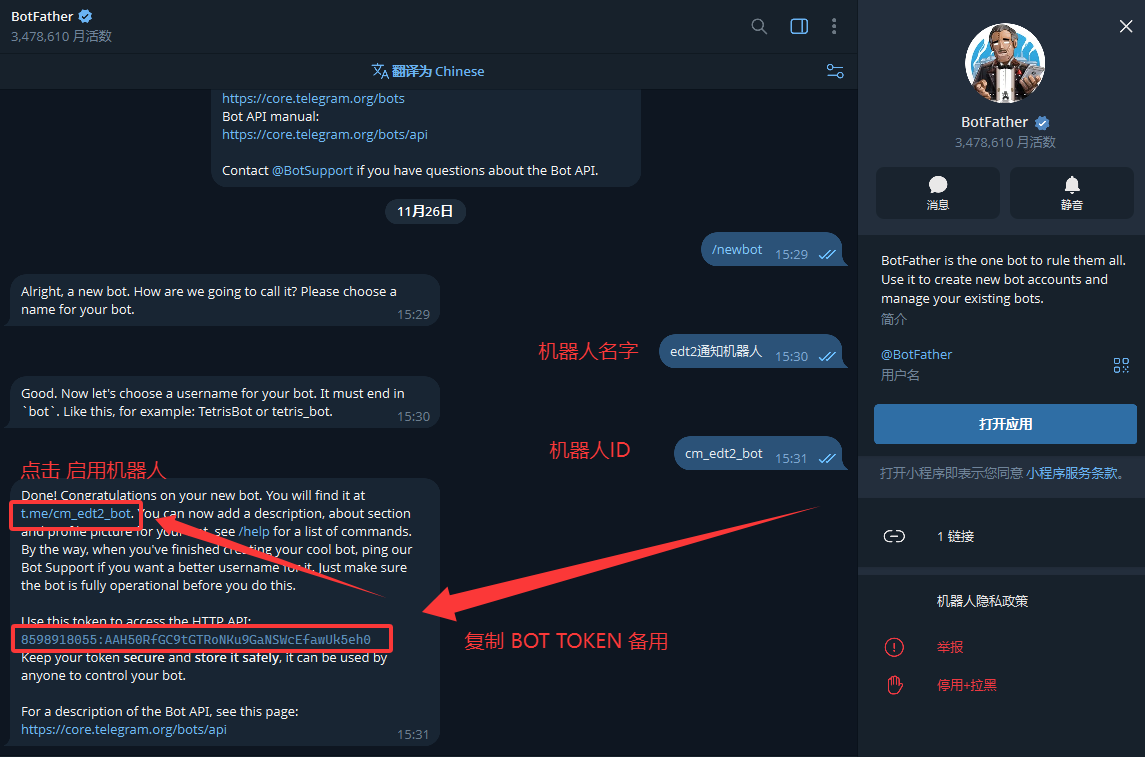
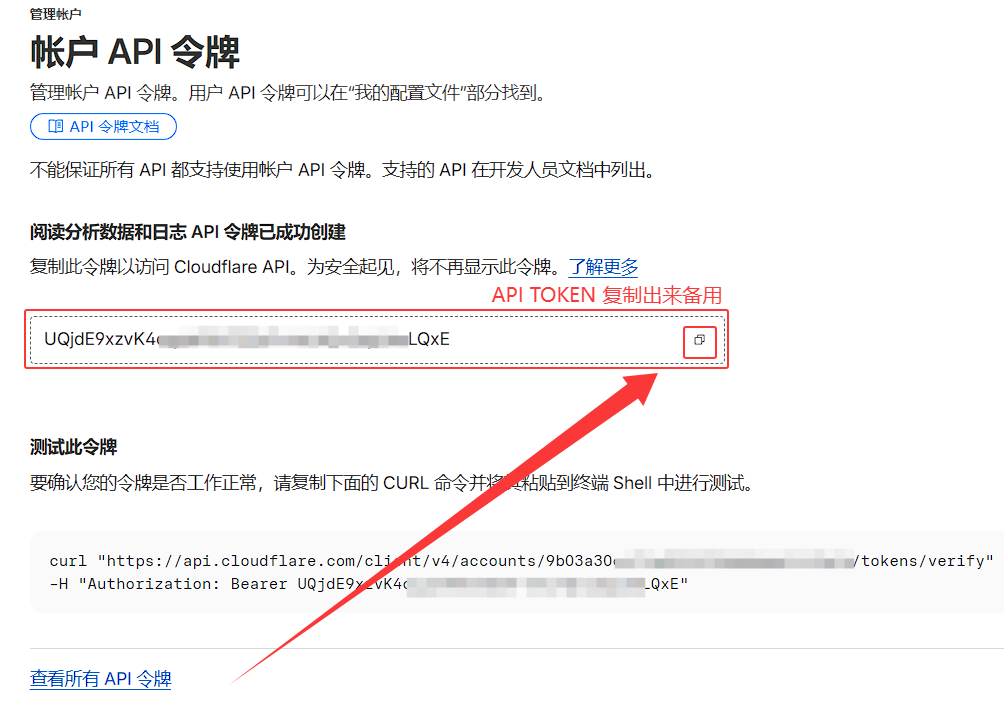


    <summary type="html"></summary>


    <category term="科学上网" scheme="https://blog.cmliussss.com/categories/%E7%A7%91%E5%AD%A6%E4%B8%8A%E7%BD%91/"/>
    
    
    <category term="Cloudflare" scheme="https://blog.cmliussss.com/tags/Cloudflare/"/>
    
    <category term="优选IP" scheme="https://blog.cmliussss.com/tags/%E4%BC%98%E9%80%89IP/"/>
    
    <category term="Cloudflare Pages" scheme="https://blog.cmliussss.com/tags/Cloudflare-Pages/"/>
    
    <category term="Pages" scheme="https://blog.cmliussss.com/tags/Pages/"/>
    
    <category term="优选域名" scheme="https://blog.cmliussss.com/tags/%E4%BC%98%E9%80%89%E5%9F%9F%E5%90%8D/"/>
    
    <category term="VLESS" scheme="https://blog.cmliussss.com/tags/VLESS/"/>
    
    <category term="Trojan" scheme="https://blog.cmliussss.com/tags/Trojan/"/>
    
    <category term="Edgetunnel" scheme="https://blog.cmliussss.com/tags/Edgetunnel/"/>
    
  </entry>
  
  <entry>
    <title>🚀 CF Snippets 节点部署手册：零门槛快速上手、付费域名全功能、💸 免费 Cloudns域名 双向解析详解</title>
    <link href="https://blog.cmliussss.com/p/BPSUB/"/>
    <id>https://blog.cmliussss.com/p/BPSUB/</id>
    <published>2025-09-22T09:13:26.000Z</published>
    <updated>2025-10-15T07:22:34.119Z</updated>
    
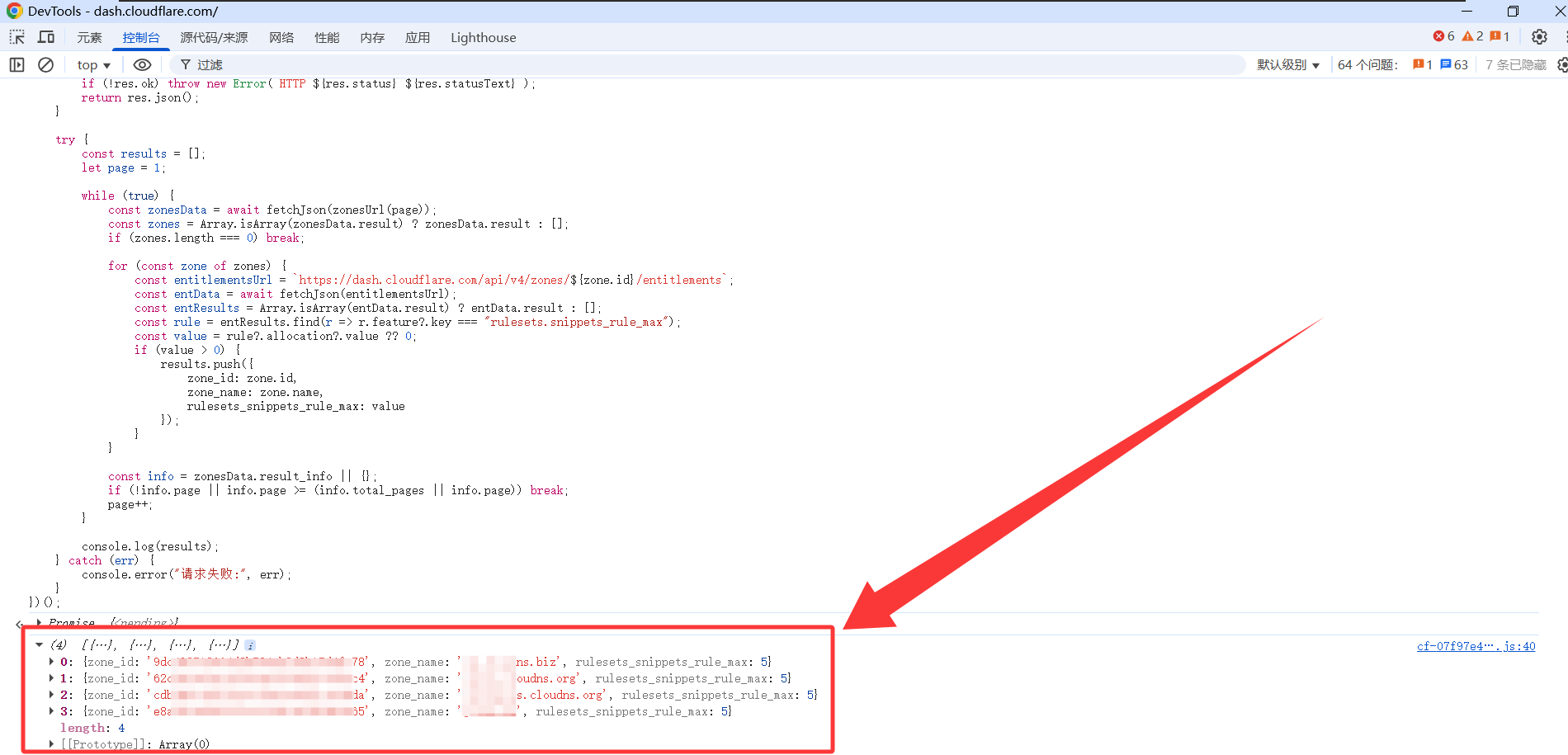
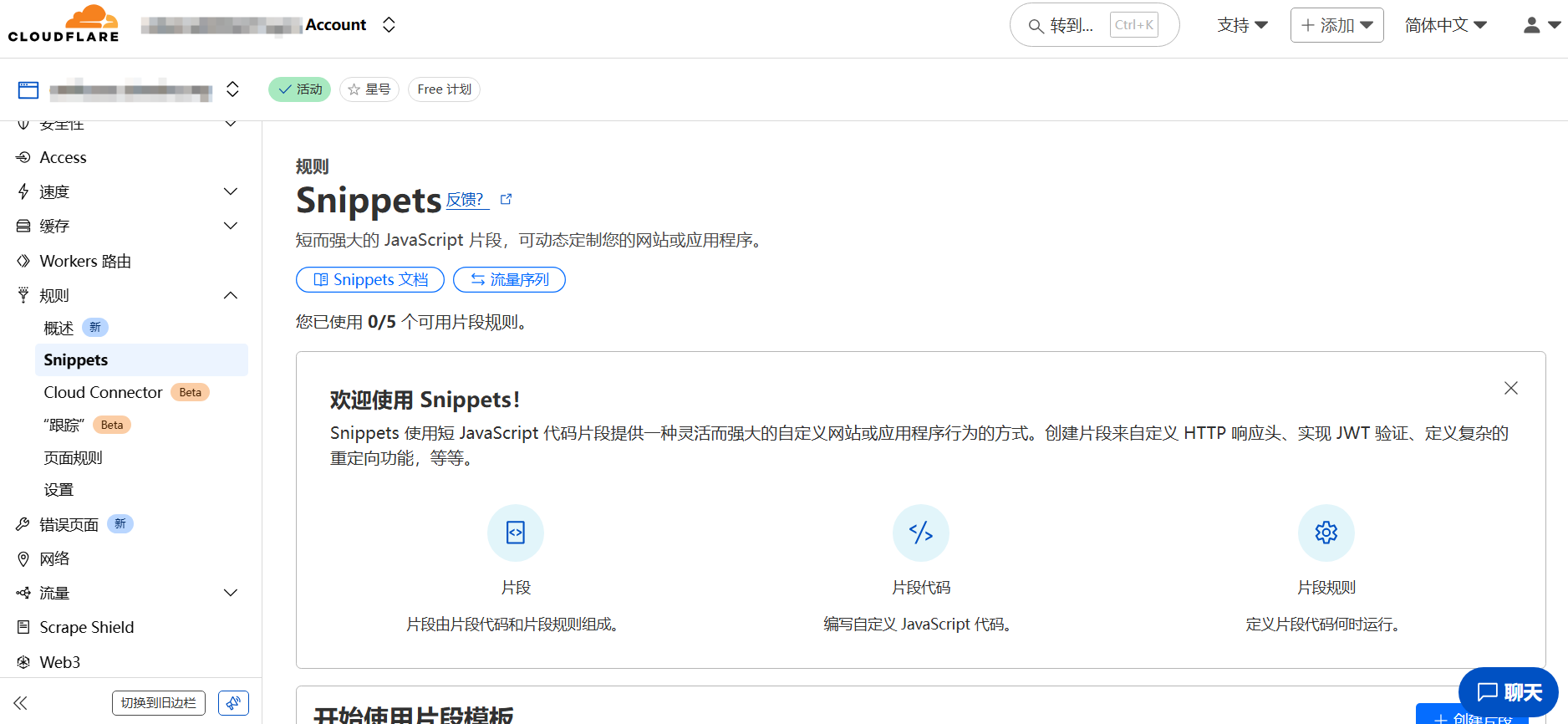
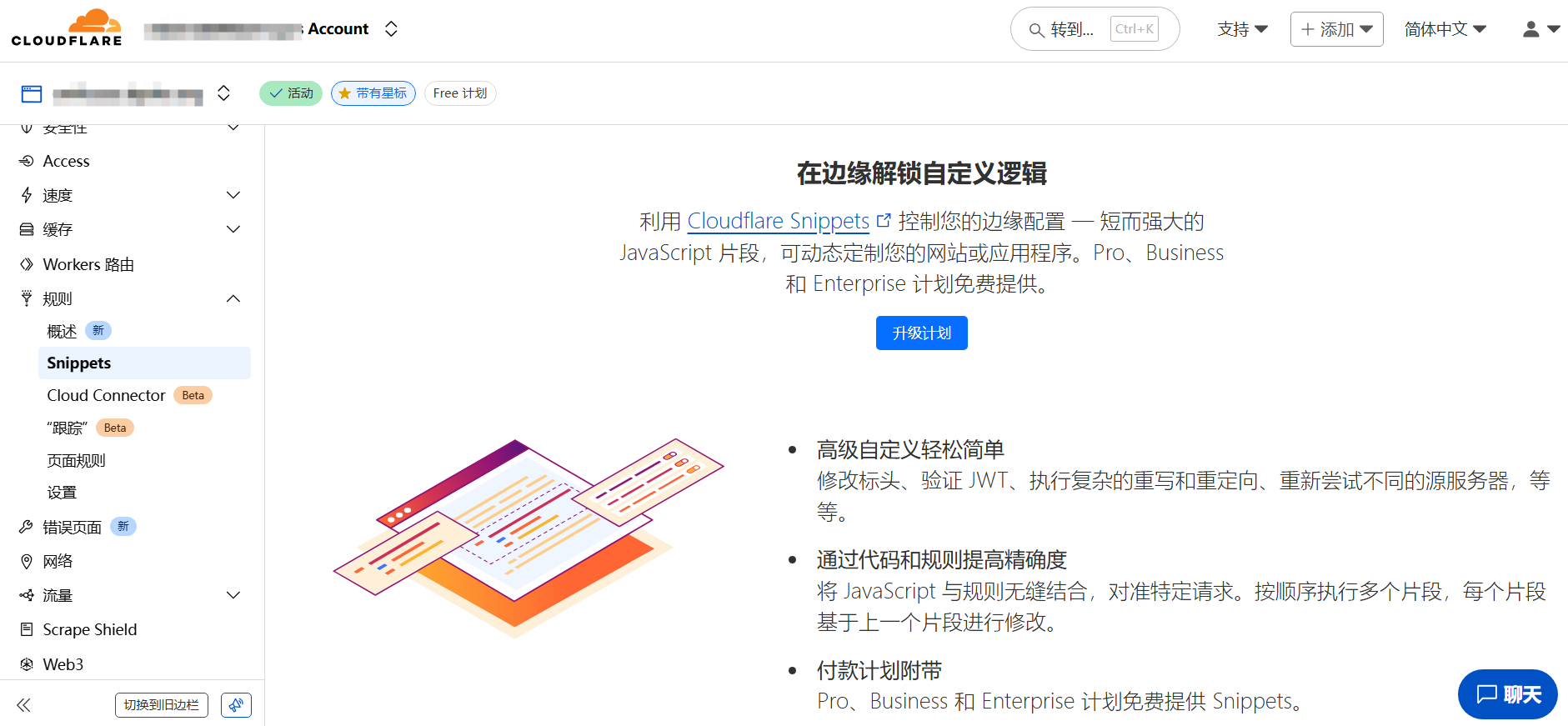
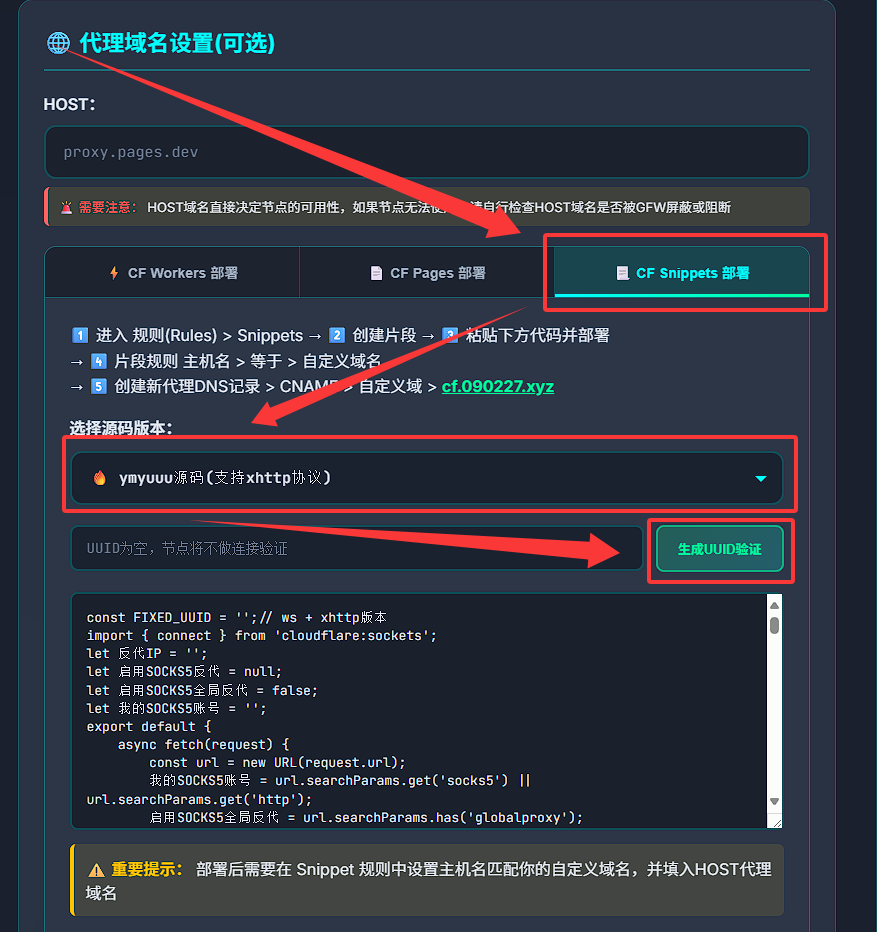
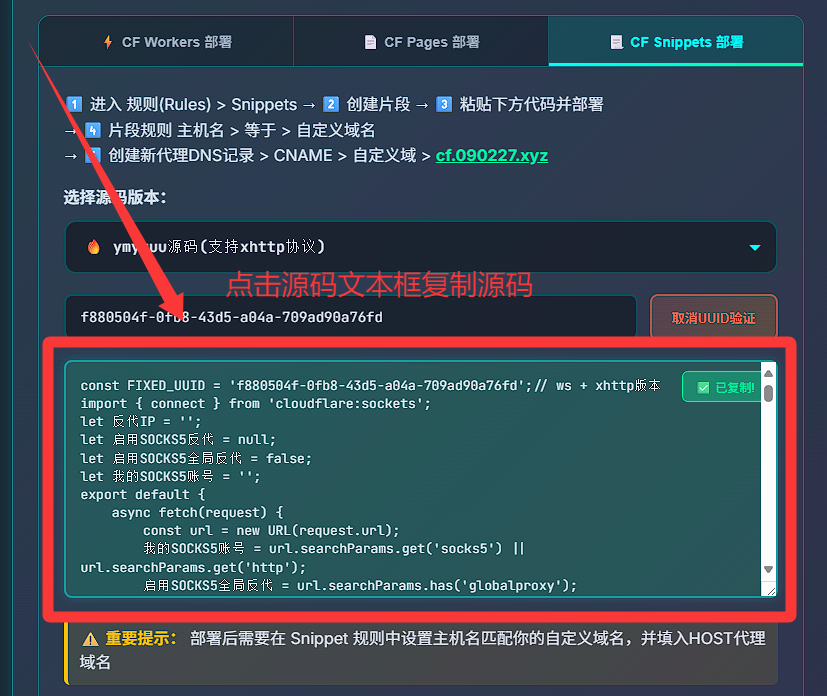
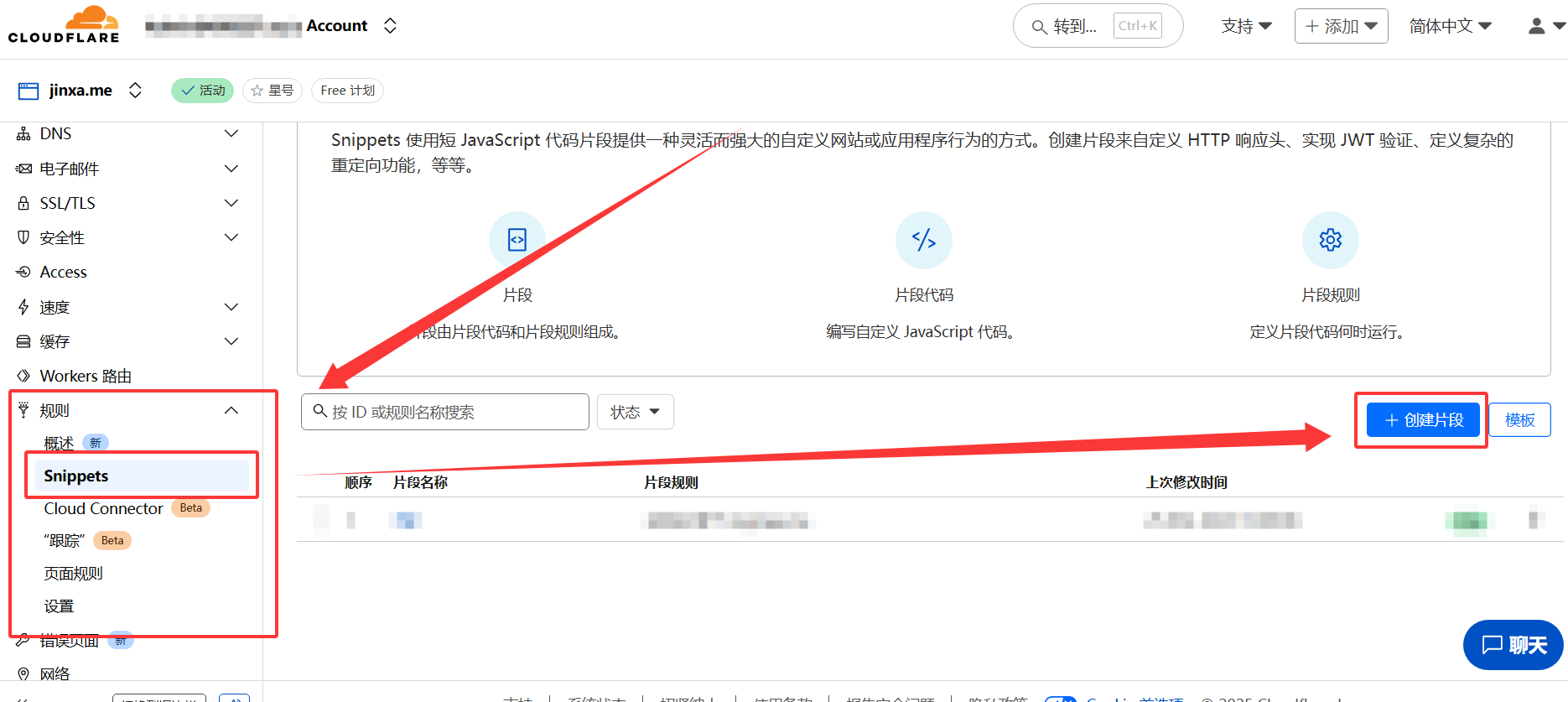
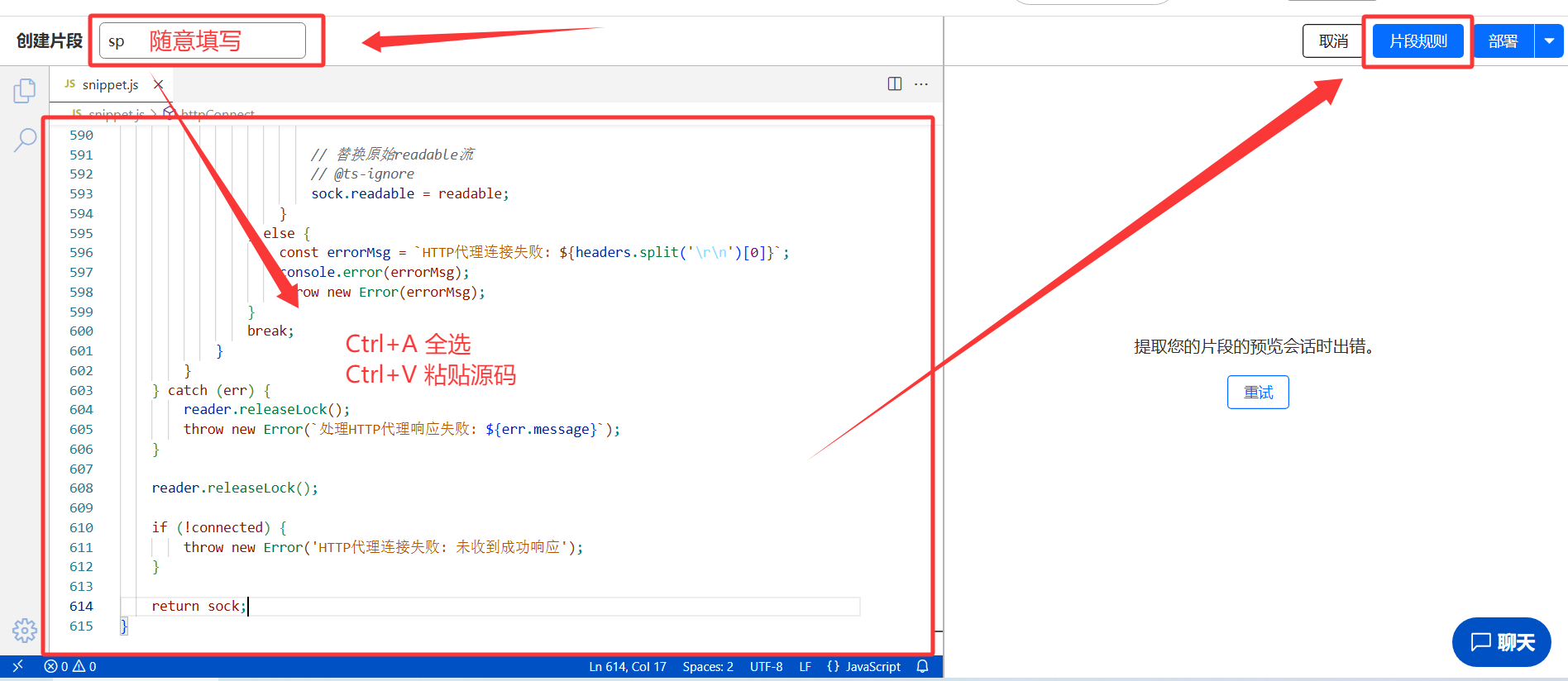
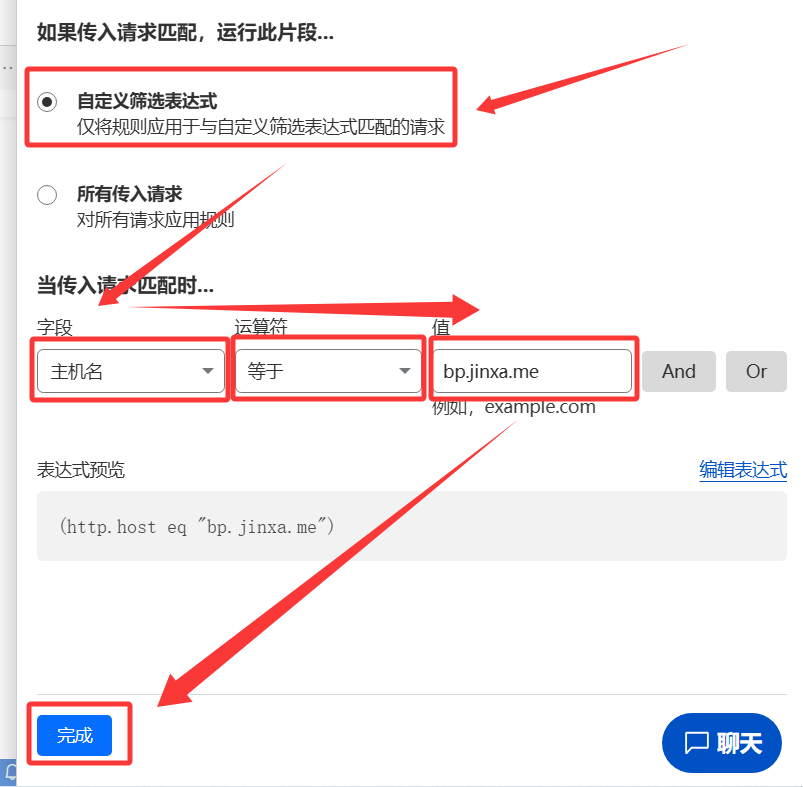
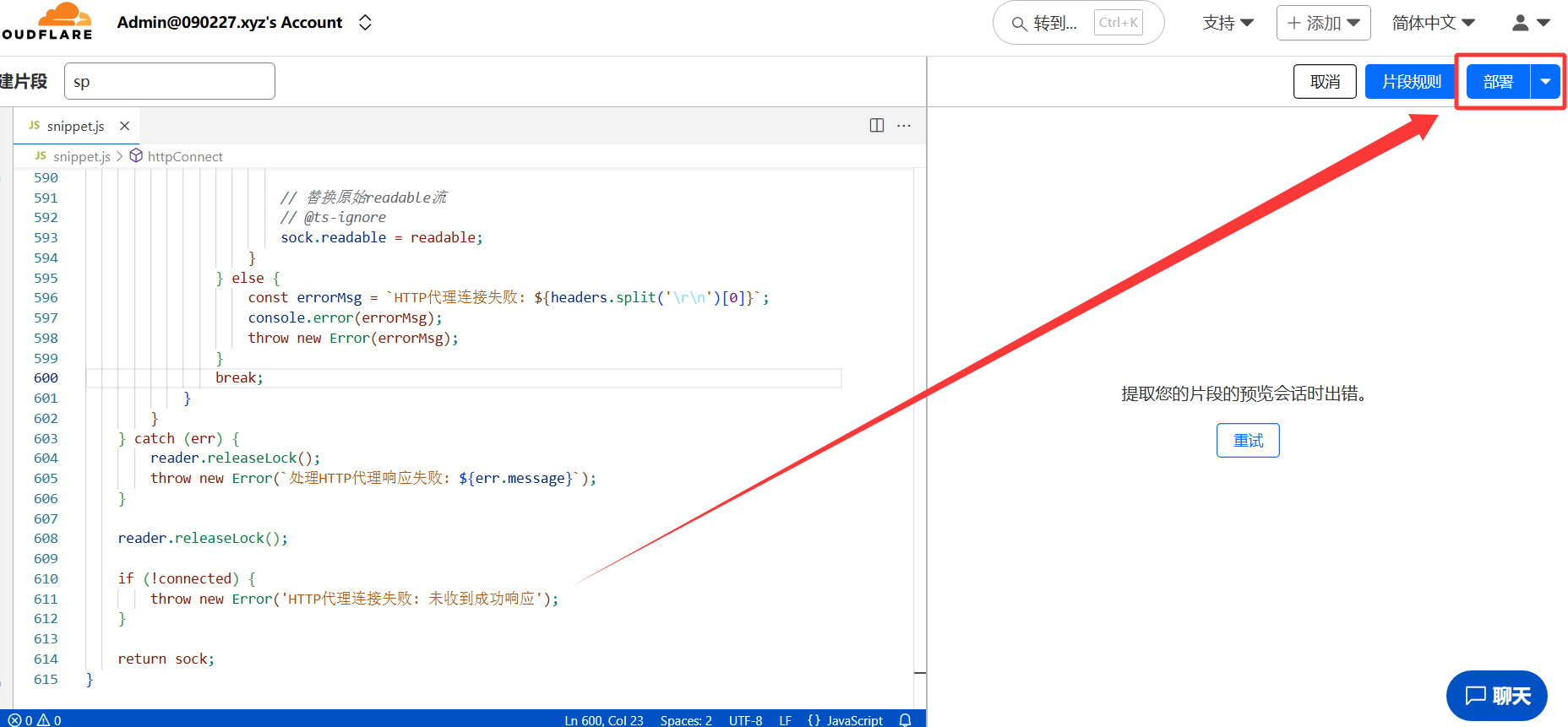
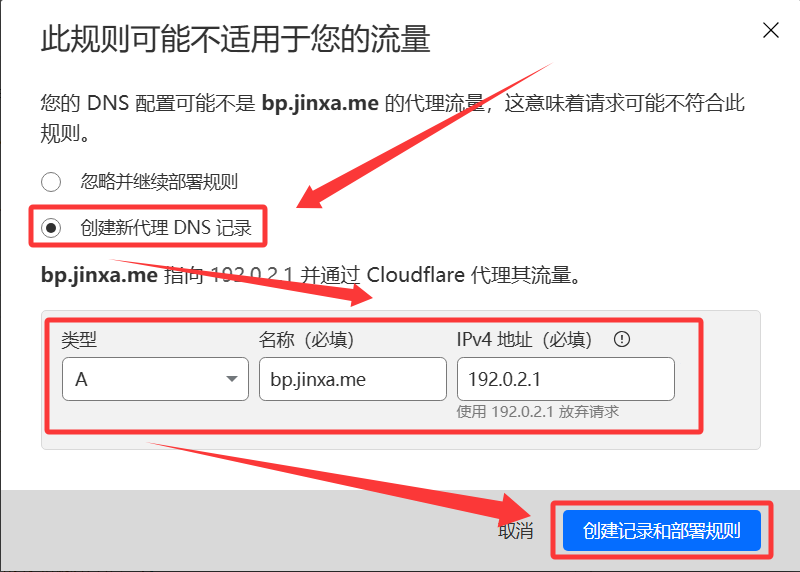
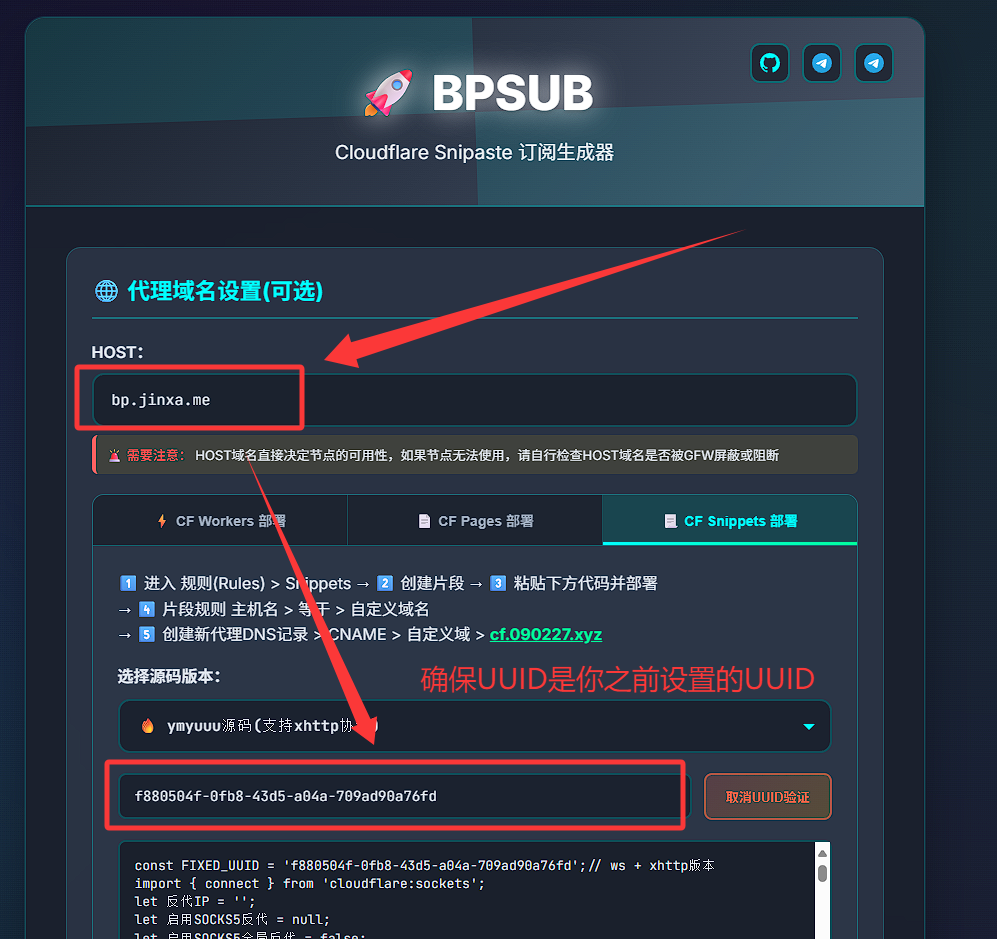
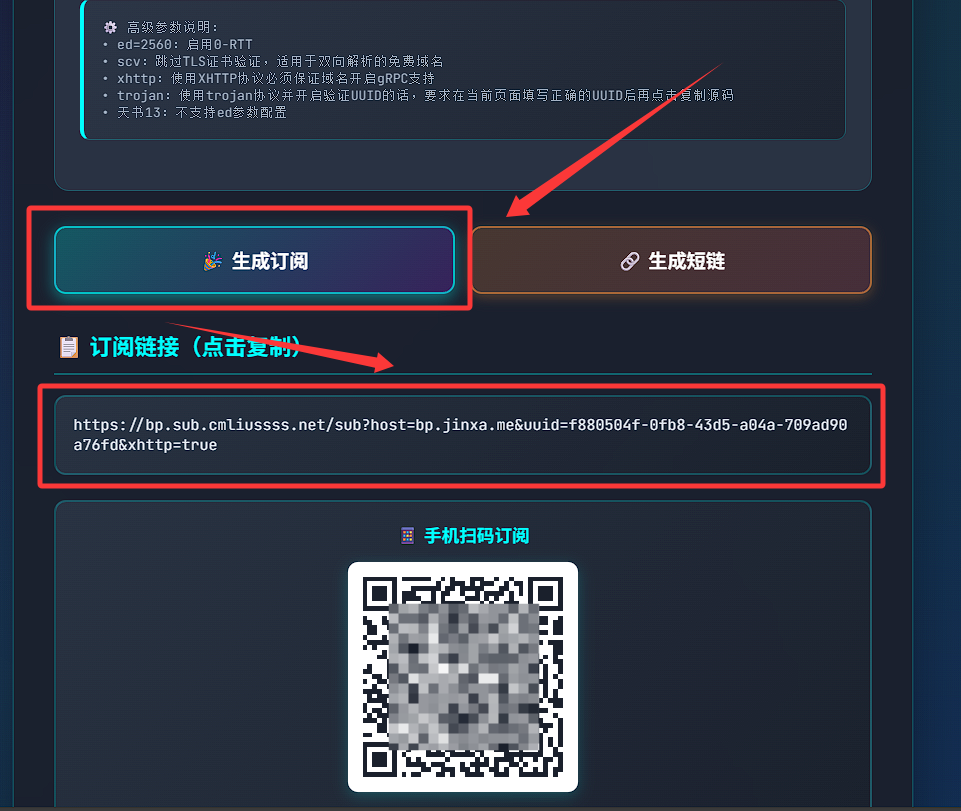
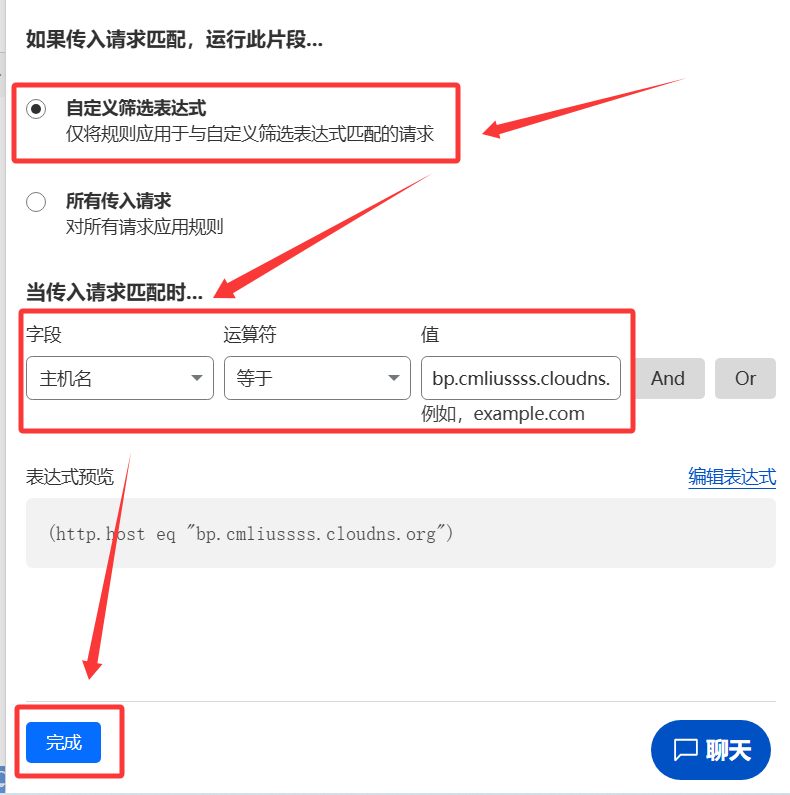
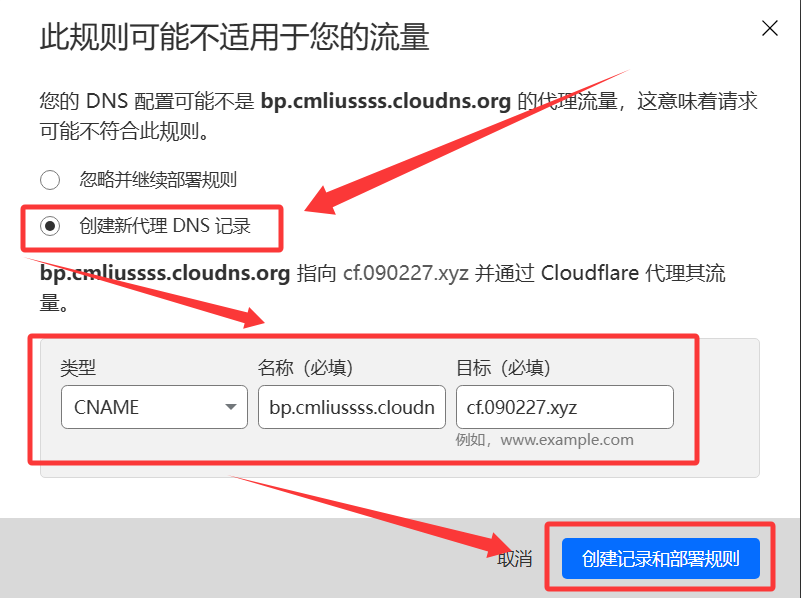
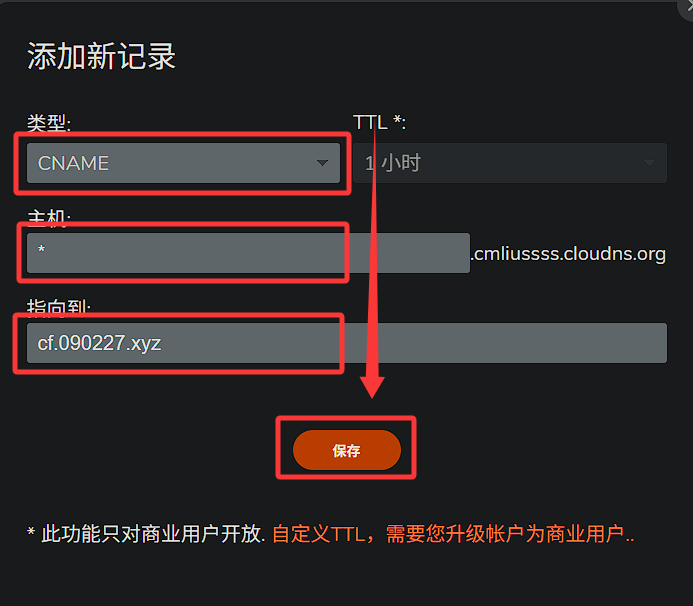
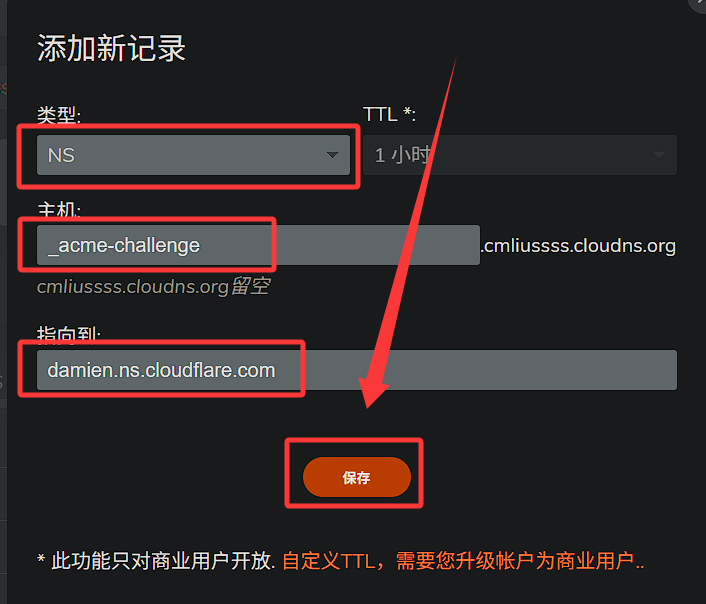
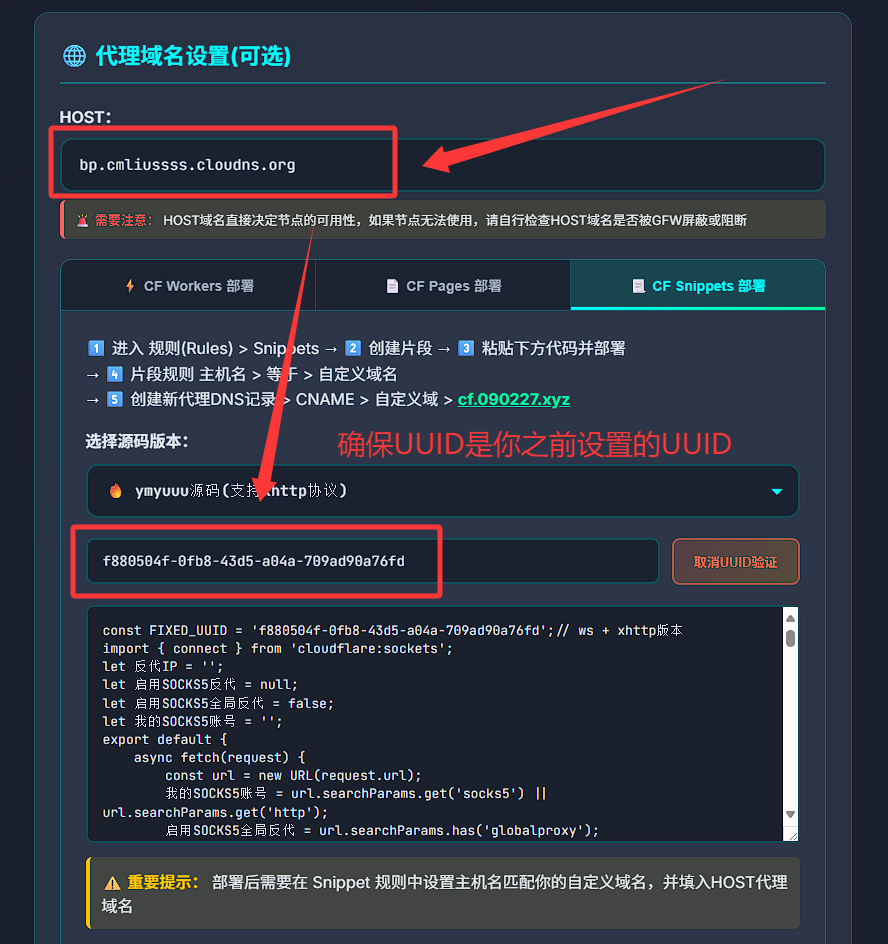
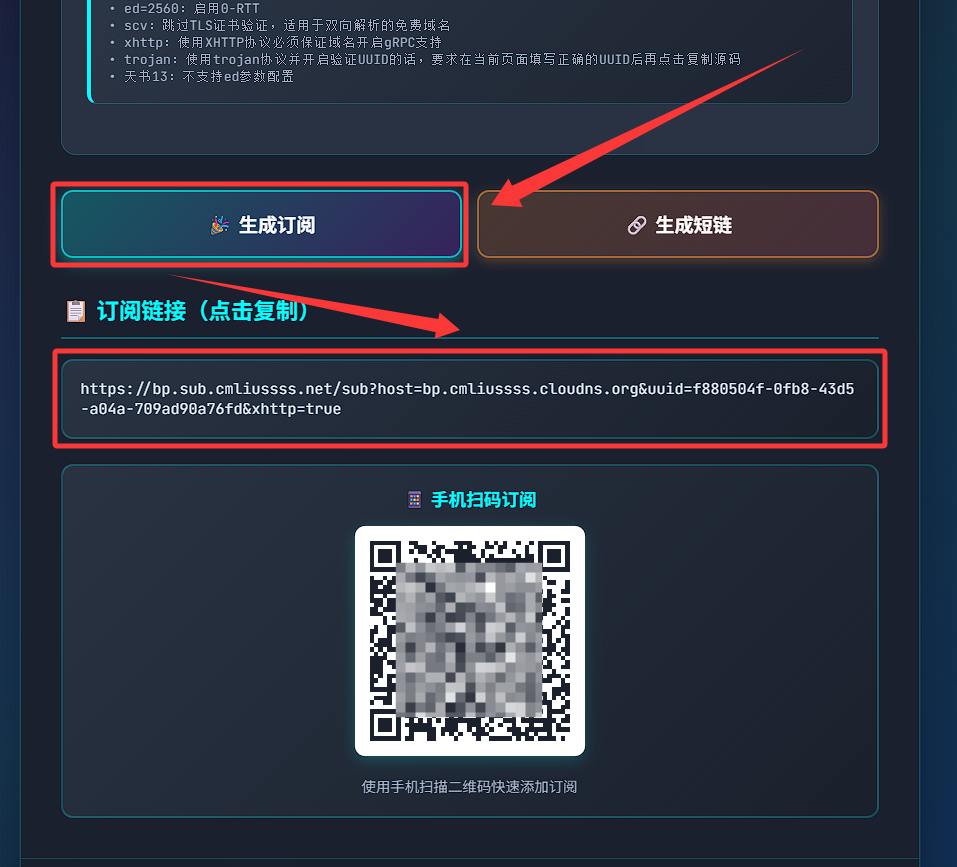
    <content type="html"><![CDATA[<h1 id="🛠️-部署-Cloudflare-Snippets-节点"><a href="#🛠️-部署-Cloudflare-Snippets-节点" class="headerlink" title="🛠️ 部署 Cloudflare Snippets 节点"></a>🛠️ 部署 Cloudflare Snippets 节点</h1><h2 id="⚠️-免责声明"><a href="#⚠️-免责声明" class="headerlink" title="⚠️ 免责声明"></a>⚠️ 免责声明</h2><ul><li>Snippets 目前仍处于灰度 &#x2F; 新功能阶段，<strong>免费额度只向部分账号开放</strong>，不排除未来会因为部署该服务导致<strong>封禁账号</strong>或<strong>关闭你账号的Snippets功能</strong>。<strong>请务必谨慎部署</strong>，<strong>更不要在生产环境中部署代理服务！！！</strong></li><li>当前相对更稳妥的方式是：使用全新注册的小号通过 <strong>CF Pages 部署方式</strong> 部署。单账号每日请求上限 10 万次，不够就再注册（无额外成本）。</li></ul><hr><h2 id="🧪-部署方式优缺点速览"><a href="#🧪-部署方式优缺点速览" class="headerlink" title="🧪 部署方式优缺点速览"></a>🧪 部署方式优缺点速览</h2><p>这期图文教程为大家准备了三种部署方法，以应对你当前的账号情况：</p><ol><li><p><strong>CF Snippets 部署方式</strong> — 自有 <strong>付费域名</strong></p><ul><li>优点：<strong>功能最全</strong>，支持自定义域名并可使用全部 Snippets 功能</li><li>缺点：<strong>必须使用并在账号中开启 Snippets 的付费域名</strong>，<strong>免费域名不支持</strong></li></ul></li><li><p>CF Snippets 部署方式 — 使用 <strong>cloudns 域名</strong></p><ul><li>优点：<strong>免费获取域名</strong>，同样可使用完整功能，支持自定义域名</li><li>缺点：需配置 <strong>双向解析</strong>，相比正常付费域名有更多且更繁琐的设置步骤</li></ul></li></ol><hr><h2 id="🔍-检测是否具备-Snippets-功能"><a href="#🔍-检测是否具备-Snippets-功能" class="headerlink" title="🔍 检测是否具备 Snippets 功能"></a>🔍 检测是否具备 Snippets 功能</h2><h3 id="🤖-自动检测"><a href="#🤖-自动检测" class="headerlink" title="🤖 自动检测"></a>🤖 自动检测</h3><ul><li>如果<strong>我们的域名很多</strong>，可以使用下面的<strong>自动检测脚本</strong>进行批量检测。</li></ul><details><summary> 🚀 点击展开 自动检测教程 </summary><p>首先我们先登录<a href="https://dash.cloudflare.com/">Cloudflare</a>，查看一下我们的域名是否具备Snippets功能。</p><p>登录账号后，点击<code>F12</code>，进入浏览器的<strong>开发者模式</strong>，点击<code>控制台</code>，输入以下命令：</p><figure class="highlight javascript"><table><tr><td class="gutter"><pre><span class="line">1</span><br><span class="line">2</span><br><span class="line">3</span><br><span class="line">4</span><br><span class="line">5</span><br><span class="line">6</span><br><span class="line">7</span><br><span class="line">8</span><br><span class="line">9</span><br><span class="line">10</span><br><span class="line">11</span><br><span class="line">12</span><br><span class="line">13</span><br><span class="line">14</span><br><span class="line">15</span><br><span class="line">16</span><br><span class="line">17</span><br><span class="line">18</span><br><span class="line">19</span><br><span class="line">20</span><br><span class="line">21</span><br><span class="line">22</span><br><span class="line">23</span><br><span class="line">24</span><br><span class="line">25</span><br><span class="line">26</span><br><span class="line">27</span><br><span class="line">28</span><br><span class="line">29</span><br><span class="line">30</span><br><span class="line">31</span><br><span class="line">32</span><br><span class="line">33</span><br><span class="line">34</span><br><span class="line">35</span><br><span class="line">36</span><br><span class="line">37</span><br><span class="line">38</span><br><span class="line">39</span><br><span class="line">40</span><br><span class="line">41</span><br><span class="line">42</span><br><span class="line">43</span><br><span class="line">44</span><br></pre></td><td class="code"><pre><span class="line">(<span class="keyword">async</span> <span class="keyword">function</span> <span class="title function_">main</span>(<span class="params"></span>) &#123;</span><br><span class="line">    <span class="keyword">const</span> <span class="title function_">zonesUrl</span> = (<span class="params">page = <span class="number">1</span></span>) =&gt;</span><br><span class="line">        <span class="string">`https://dash.cloudflare.com/api/v4/zones?type=full,partial,secondary&amp;per_page=100&amp;page=<span class="subst">$&#123;page&#125;</span>`</span>;</span><br><span class="line"></span><br><span class="line">    <span class="keyword">async</span> <span class="keyword">function</span> <span class="title function_">fetchJson</span>(<span class="params">url</span>) &#123;</span><br><span class="line">        <span class="keyword">const</span> res = <span class="keyword">await</span> <span class="title function_">fetch</span>(url, &#123; <span class="attr">credentials</span>: <span class="string">&quot;include&quot;</span> &#125;);</span><br><span class="line">        <span class="keyword">if</span> (!res.<span class="property">ok</span>) <span class="keyword">throw</span> <span class="keyword">new</span> <span class="title class_">Error</span>(<span class="string">`HTTP <span class="subst">$&#123;res.status&#125;</span> <span class="subst">$&#123;res.statusText&#125;</span>`</span>);</span><br><span class="line">        <span class="keyword">return</span> res.<span class="title function_">json</span>();</span><br><span class="line">    &#125;</span><br><span class="line"></span><br><span class="line">    <span class="keyword">try</span> &#123;</span><br><span class="line">        <span class="keyword">const</span> results = [];</span><br><span class="line">        <span class="keyword">let</span> page = <span class="number">1</span>;</span><br><span class="line"></span><br><span class="line">        <span class="keyword">while</span> (<span class="literal">true</span>) &#123;</span><br><span class="line">            <span class="keyword">const</span> zonesData = <span class="keyword">await</span> <span class="title function_">fetchJson</span>(<span class="title function_">zonesUrl</span>(page));</span><br><span class="line">            <span class="keyword">const</span> zones = <span class="title class_">Array</span>.<span class="title function_">isArray</span>(zonesData.<span class="property">result</span>) ? zonesData.<span class="property">result</span> : [];</span><br><span class="line">            <span class="keyword">if</span> (zones.<span class="property">length</span> === <span class="number">0</span>) <span class="keyword">break</span>;</span><br><span class="line"></span><br><span class="line">            <span class="keyword">for</span> (<span class="keyword">const</span> zone <span class="keyword">of</span> zones) &#123;</span><br><span class="line">                <span class="keyword">const</span> entitlementsUrl = <span class="string">`https://dash.cloudflare.com/api/v4/zones/<span class="subst">$&#123;zone.id&#125;</span>/entitlements`</span>;</span><br><span class="line">                <span class="keyword">const</span> entData = <span class="keyword">await</span> <span class="title function_">fetchJson</span>(entitlementsUrl);</span><br><span class="line">                <span class="keyword">const</span> entResults = <span class="title class_">Array</span>.<span class="title function_">isArray</span>(entData.<span class="property">result</span>) ? entData.<span class="property">result</span> : [];</span><br><span class="line">                <span class="keyword">const</span> rule = entResults.<span class="title function_">find</span>(<span class="function"><span class="params">r</span> =&gt;</span> r.<span class="property">feature</span>?.<span class="property">key</span> === <span class="string">&quot;rulesets.snippets_rule_max&quot;</span>);</span><br><span class="line">                <span class="keyword">const</span> value = rule?.<span class="property">allocation</span>?.<span class="property">value</span> ?? <span class="number">0</span>;</span><br><span class="line">                <span class="keyword">if</span> (value &gt; <span class="number">0</span>) &#123;</span><br><span class="line">                    results.<span class="title function_">push</span>(&#123;</span><br><span class="line">                        <span class="attr">zone_id</span>: zone.<span class="property">id</span>,</span><br><span class="line">                        <span class="attr">zone_name</span>: zone.<span class="property">name</span>,</span><br><span class="line">                        <span class="attr">rulesets_snippets_rule_max</span>: value</span><br><span class="line">                    &#125;);</span><br><span class="line">                &#125;</span><br><span class="line">            &#125;</span><br><span class="line"></span><br><span class="line">            <span class="keyword">const</span> info = zonesData.<span class="property">result_info</span> || &#123;&#125;;</span><br><span class="line">            <span class="keyword">if</span> (!info.<span class="property">page</span> || info.<span class="property">page</span> &gt;= (info.<span class="property">total_pages</span> || info.<span class="property">page</span>)) <span class="keyword">break</span>;</span><br><span class="line">            page++;</span><br><span class="line">        &#125;</span><br><span class="line"></span><br><span class="line">        <span class="variable language_">console</span>.<span class="title function_">log</span>(results);</span><br><span class="line">    &#125; <span class="keyword">catch</span> (err) &#123;</span><br><span class="line">        <span class="variable language_">console</span>.<span class="title function_">error</span>(<span class="string">&quot;请求失败:&quot;</span>, err);</span><br><span class="line">    &#125;</span><br><span class="line">&#125;)();</span><br></pre></td></tr></table></figure><blockquote><p>检测代码来源: <a href="https://www.nodeseek.com/post-464626-1">https://www.nodeseek.com/post-464626-1</a></p></blockquote><hr><ul><li>如果您看到如下内容，<strong>恭喜你！</strong>说明当前账号下有域名<strong>开启Snippets功能</strong>。<figure class="highlight plaintext"><table><tr><td class="gutter"><pre><span class="line">1</span><br><span class="line">2</span><br><span class="line">3</span><br><span class="line">4</span><br><span class="line">5</span><br><span class="line">6</span><br></pre></td><td class="code"><pre><span class="line">[</span><br><span class="line">  &#123;&quot;zone_id&quot;:&quot;a7f4c9e12b3d4f6a9c0e12345678abcd&quot;,&quot;zone_name&quot;:&quot;cm.google.com&quot;,&quot;rulesets_snippets_rule_max&quot;:5&#125;,</span><br><span class="line">  &#123;&quot;zone_id&quot;:&quot;d41e2f9b7c8a0b3c4d5e6f7890ab12cd&quot;,&quot;zone_name&quot;:&quot;cmliu.google.com&quot;,&quot;rulesets_snippets_rule_max&quot;:5&#125;,</span><br><span class="line">  &#123;&quot;zone_id&quot;:&quot;9b8a7c6d5e4f3a2b1c0d9e8f7a6b5c4d&quot;,&quot;zone_name&quot;:&quot;cmliussss.google.com&quot;,&quot;rulesets_snippets_rule_max&quot;:5&#125;,</span><br><span class="line">  &#123;&quot;zone_id&quot;:&quot;f0e1d2c3b4a5968778695a4b3c2d1e0f&quot;,&quot;zone_name&quot;:&quot;jinxa.me&quot;,&quot;rulesets_snippets_rule_max&quot;:5&#125;</span><br><span class="line">]</span><br></pre></td></tr></table></figure></li></ul><p><img src="/./img/bpsub/0-1-1.png"></p><hr><ul><li>如果返回的结果是一个空数组<code>[]</code>，<strong>很遗憾！</strong>说明当前账号下没有任何域名<strong>没有Snippets功能</strong>。</li></ul></details><hr><h3 id="🧭-手动检测"><a href="#🧭-手动检测" class="headerlink" title="🧭 手动检测"></a>🧭 手动检测</h3><ul><li>如果<strong>域名并不多</strong>的话也可以<strong>手动查看</strong>是否具备Snippets功能。</li></ul><details><summary> 🚀 点击展开 手动检测教程 </summary><ol><li><p>登录<a href="https://dash.cloudflare.com/">Cloudflare</a>选择一个域名进入，点击左侧的<strong>规则(Rules)</strong> &gt; <strong>Snippets</strong></p><p> 如下图所示，提示 <em><strong>欢迎使用 Snippets！</strong></em> 说明当前域名<strong>具备Snippets功能</strong>！<br> <img src="/./img/bpsub/0-2-1.png"></p><p> 如果提示 <em><strong>升级计划</strong></em> 说明当前域名<strong>不具备Snippets功能</strong>，请继续往下看备用方案。<br> <img src="/./img/bpsub/0-2-2.png"></p></li></ol></details><hr><h2 id="1️⃣-CF-Snippets-部署方式-—-付费域名"><a href="#1️⃣-CF-Snippets-部署方式-—-付费域名" class="headerlink" title="1️⃣ CF Snippets 部署方式 — 付费域名"></a>1️⃣ CF Snippets 部署方式 — <strong>付费域名</strong></h2><ul><li><strong>功能最全</strong>，支持自定义域名并可使用全部 Snippets 功能。</li></ul><details><summary> 🚀 点击展开 部署图文教程 </summary><ol><li><p>前往 <a href="https://bp.sub.cmliussss.net/">BPSUB 网站</a> ，点击 <strong>CF Snippets 部署</strong>，选择你心仪的源码并点击 <strong>生成UUID验证</strong> 。<br><img src="/./img/bpsub/2-1-1.png"></p></li><li><p>生成UUID后，直接<strong>点击源码文本框即可复制源码</strong>。（<strong>注意保存UUID方便以后使用！</strong>）</p></li></ol><p><img src="/./img/bpsub/2-2-1.png"></p><ol start="3"><li><p>前往 CF 域名管理页面，选择一个<strong>具备Snippets功能</strong>的域名，点击左侧的<strong>规则(Rules)</strong> &gt; <strong>Snippets</strong> &gt; <strong>创建片段</strong>。<br><img src="/./img/bpsub/2-3-1.png"></p></li><li><p>填写<strong>片段名称</strong>，<strong>片段规则</strong>，并点击<strong>创建</strong>。</p><ol><li><p>片段名称随意填写，例如 <code>sp</code>。</p></li><li><p>snippet.js文本框中<code>Ctrl + A</code><strong>全选</strong>后<code>Ctrl + V</code><strong>粘贴源码</strong>，并点击<strong>片段规则</strong>。<br> <img src="/./img/bpsub/2-4-2.png"></p></li><li><p>片段规则填写如下：</p><ol><li>选择 <code>自定义筛选表达式</code> </li><li>字段 &gt; <code>主机名</code></li><li>运算符 &gt; <code>等于</code></li><li>值 &gt; <code>你的自定义域名</code>，例如 <code>bp.jinxa.me</code><ul><li>注意！你的域名如果是 <strong>jinxa.me</strong> ，则必须多加一级域名，例如 <strong>bp.</strong>jinxa.me</li></ul></li><li>点击 <strong>完成</strong>。<br> <img src="/./img/bpsub/2-4-3.png"></li></ol></li><li><p>点击<strong>部署</strong>，<br> <img src="/./img/bpsub/2-4-4.png"></p></li><li><p>如提示<code>此规则可能不适用于您的流量</code>，选择<code>创建新代理 DNS 记录</code>，选择以下任意一种方式：</p><ul><li>类型<code>A</code> &gt; 名称<code>你的自定义域名</code> &gt; IPv4地址<code>192.0.2.1</code> &gt; <strong>创建记录和部署规则</strong><br> <img src="/./img/bpsub/2-4-5.png"></li></ul></li><li><p>自动返回上级页面，代表部署完成！</p></li></ol></li><li><p>配置<strong>Snippets 订阅生成器</strong>获取节点订阅链接</p><ul><li>前往 <a href="https://bp.sub.cmliussss.net/">BPSUB 网站</a>，<strong>HOST</strong>填写你的<strong>自定义域</strong>，例如 <code>bp.jinxa.me</code>。<br> <img src="/img/bpsub/2-5-1.png"></li><li>拖至底部点击<code>生成订阅</code>即可获取<strong>节点订阅链接</strong>。<br> <img src="/img/bpsub/2-5-2.png"></li><li>将<strong>节点订阅链接</strong>粘贴至梯子中<strong>直接订阅使用</strong>即可！就是这么简单！就是这么方便！！！</li></ul></li></ol></details><hr><h2 id="2️⃣-CF-Snippets-部署方式-—-Cloudns-域名"><a href="#2️⃣-CF-Snippets-部署方式-—-Cloudns-域名" class="headerlink" title="2️⃣ CF Snippets 部署方式 — Cloudns 域名"></a>2️⃣ CF Snippets 部署方式 — <strong>Cloudns 域名</strong></h2><ul><li>大多数Cloudns免费域名均获得了可使用Snippets功能，但是因为<strong>双向解析域名特殊</strong>，所以特殊配置步骤，相比正常付费域名有更多且更繁琐的设置步骤。</li></ul><details><summary> 🚀 点击展开 部署图文教程 </summary><ol><li><p>前往 <a href="https://bp.sub.cmliussss.net/">BPSUB 网站</a> ，点击 <strong>CF Snippets 部署</strong>，选择你心仪的源码并点击 <strong>生成UUID验证</strong> 。<br><img src="/./img/bpsub/2-1-1.png"></p></li><li><p>生成UUID后，直接<strong>点击源码文本框即可复制源码</strong>。（<strong>注意保存UUID方便以后使用！</strong>）</p></li></ol><p><img src="/./img/bpsub/2-2-1.png"></p><ol start="3"><li><p>前往 CF 域名管理页面，选择一个<strong>具备Snippets功能</strong>的域名，点击左侧的<strong>规则(Rules)</strong> &gt; <strong>Snippets</strong> &gt; <strong>创建片段</strong>。<br><img src="/./img/bpsub/2-3-1.png"></p></li><li><p>填写<strong>片段名称</strong>，<strong>片段规则</strong>，并点击<strong>创建</strong>。</p><ol><li><p>片段名称随意填写，例如 <code>sp</code>。</p></li><li><p>snippet.js文本框中<code>Ctrl + A</code><strong>全选</strong>后<code>Ctrl + V</code><strong>粘贴源码</strong>，并点击<strong>片段规则</strong>。<br> <img src="/./img/bpsub/2-4-2.png"></p></li><li><p>片段规则填写如下：</p><ol><li>选择 <code>自定义筛选表达式</code> </li><li>字段 &gt; <code>主机名</code></li><li>运算符 &gt; <code>等于</code></li><li>值 &gt; <code>你的自定义域名</code>，例如 <code>bp.cmliussss.cloudns.org</code><ul><li>注意！你的域名如果是 <strong>cmliussss.cloudns.org</strong> ，则必须多加一级域名，例如 <strong>bp.</strong>cmliussss.cloudns.org</li></ul></li><li>点击 <strong>完成</strong>。<br> <img src="/./img/bpsub/3-4-3.png"></li></ol></li><li><p>点击<strong>部署</strong>，<br> <img src="/./img/bpsub/2-4-4.png"></p></li><li><p>如提示<code>此规则可能不适用于您的流量</code>，选择<code>创建新代理 DNS 记录</code>，选择以下任意一种方式：</p><ul><li>类型<code>CNAME</code> &gt; 名称<code>你的自定义域名</code> &gt; 值<code>cf.090227.xyz</code> &gt; <strong>创建记录和部署规则</strong><br> <img src="/./img/bpsub/3-4-5.png"></li></ul></li><li><p>自动返回上级页面，代表部署完成！</p></li></ol></li><li><p>前往 <a href="https://www.cloudns.net/">Cloudns</a> ，登录你的账号，进入<strong>域名管理</strong>页面，点击<strong>添加新纪录</strong>。</p><ol><li>类型<code>CNAME</code> &gt; 主机<code>*</code> &gt; 指向到<code>cf.090227.xyz</code><br> <img src="/./img/bpsub/3-5-1.png"></li><li>复制出你主域名的NS记录的值，例如 <code>damien.ns.cloudflare.com</code> 或 <code>kim.ns.cloudflare.com</code> 。<br> <img src="/./img/bpsub/3-5-2.png"></li><li>添加<code>NS</code>记录 &gt; 主机<code>_acme-challenge</code> &gt; 指向到<code>你的NS记录值</code> &gt; 保存。<br> <img src="/./img/bpsub/3-5-3.png"></li><li>等待解析生效，通常几分钟到半小时不等。</li></ol></li><li><p>配置<strong>Snippets 订阅生成器</strong>获取节点订阅链接</p><ul><li>前往 <a href="https://bp.sub.cmliussss.net/">BPSUB 网站</a>，<strong>HOST</strong>填写你的<strong>自定义域</strong>，例如 <code>bp.cmliussss.cloudns.org</code>。<br> <img src="/img/bpsub/3-6-1.png"></li><li>拖至底部点击<code>生成订阅</code>即可获取<strong>节点订阅链接</strong>。<br> <img src="/img/bpsub/3-6-2.png"></li><li>将<strong>节点订阅链接</strong>粘贴至梯子中<strong>直接订阅使用</strong>即可！就是这么简单！就是这么方便！！！</li></ul></li></ol></details><hr><h2 id="🧰-BPSUB-Cloudflare-Snippets-订阅生成器"><a href="#🧰-BPSUB-Cloudflare-Snippets-订阅生成器" class="headerlink" title="🧰 BPSUB - Cloudflare Snippets 订阅生成器"></a>🧰 <a href="https://github.com/cmliu/CF-Workers-BPSUB">BPSUB - Cloudflare Snippets 订阅生成器</a></h2><ul><li>BPSUB面板是一个运行在 Cloudflare Workers 上的 <strong>Snippets 订阅生成器</strong>，其主要功能<strong>就只是负责生成订阅内容</strong>，有需要的朋友可以自行部署 <a href="https://github.com/cmliu/CF-Workers-BPSUB">https://github.com/cmliu/CF-Workers-BPSUB</a> 。</li></ul><ol><li>支持自定义<a href="https://cmliussss.com/p/CloudFlare%E4%BC%98%E9%80%89/">优选域名</a>、<a href="https://sub.cmliussss.net/">优选订阅生成器</a>，并可生成 Snippets 订阅链接。</li><li>自定义 ProxyIP、Socks5（Socks5支持全局代理）、HTTP（仅支持Snippets部署模式）。</li><li>自适应<strong>订阅转化</strong>Clash、SingBox订阅格式。</li></ol><hr><h2 id="🧩-实用工具"><a href="#🧩-实用工具" class="headerlink" title="🧩 实用工具"></a>🧩 实用工具</h2><ul><li><a href="https://cmliussss.com/p/CloudFlare%E4%BC%98%E9%80%89/">CF优选域名汇总</a></li><li><a href="https://check.proxyip.cmliussss.net/">ProxyIP可用性检测</a></li><li><a href="https://check.socks5.cmliussss.net/">Socks5&#x2F;HTTP代理检测</a></li><li><a href="https://t.me/Enkelte_notif">Notif 💬</a></li></ul><hr><p>新人<a href="https://www.youtube.com/@CMLiussss">Youtuber</a>，需要您的支持，请务必帮我<strong>点赞</strong>、<strong>关注</strong>、<strong>打开小铃铛</strong>，<em><strong>十分感谢！！！</strong></em></p>]]></content>


    <summary type="html"></summary>


    <category term="开发笔记" scheme="https://blog.cmliussss.com/categories/%E5%BC%80%E5%8F%91%E7%AC%94%E8%AE%B0/"/>
    
    
    <category term="Cloudflare" scheme="https://blog.cmliussss.com/tags/Cloudflare/"/>
    
    <category term="Snippets" scheme="https://blog.cmliussss.com/tags/Snippets/"/>
    
    <category term="Cloudns" scheme="https://blog.cmliussss.com/tags/Cloudns/"/>
    
    <category term="订阅生成器" scheme="https://blog.cmliussss.com/tags/%E8%AE%A2%E9%98%85%E7%94%9F%E6%88%90%E5%99%A8/"/>
    
    <category term="BPSUB" scheme="https://blog.cmliussss.com/tags/BPSUB/"/>
    
  </entry>
  
  <entry>
    <title>平民法拉利：EasyLink（洛杉矶）VPS 性能与回程深度测评 — 低价大流量 vs 精品线路实测 🚀💸🇺🇸🇨🇳</title>
    <link href="https://blog.cmliussss.com/p/vps-EasyLink/"/>
    <id>https://blog.cmliussss.com/p/vps-EasyLink/</id>
    <published>2025-09-12T22:16:47.000Z</published>
    <updated>2025-09-22T09:13:12.677Z</updated>
    
    <content type="html"><![CDATA[<h1 id="EasyLink-洛杉矶VPS-全面测速与回程解析-📊🔥"><a href="#EasyLink-洛杉矶VPS-全面测速与回程解析-📊🔥" class="headerlink" title="EasyLink 洛杉矶VPS 全面测速与回程解析 📊🔥"></a>EasyLink 洛杉矶VPS 全面测速与回程解析 📊🔥</h1><p>今天给大家带来一篇面向小白友好的 EasyLink（洛杉矶）VPS 测评，重点在于线路体验和性价比分析。文章会保留原始的路由与测速输出（供进阶读者参考），正文则用更直白、专业但易懂的语言来解释测试结果。🔍</p><ul><li><strong>EasyLink-官方TG频道</strong>：<a href="https://t.me/easylink_vps">https://t.me/easylink_vps</a></li><li><strong>EasyLink-官方交流群</strong>：<a href="https://t.me/EasyLink_chat">https://t.me/EasyLink_chat</a></li></ul><hr><h1 id="配置与价格（最低档参考）💰"><a href="#配置与价格（最低档参考）💰" class="headerlink" title="配置与价格（最低档参考）💰"></a>配置与价格（最低档参考）💰</h1><h2 id="L3-M-VPS-C1G1-精品线路-CU9929-CMIN2"><a href="#L3-M-VPS-C1G1-精品线路-CU9929-CMIN2" class="headerlink" title="L3.M.VPS.C1G1 精品线路 CU9929 + CMIN2"></a>L3.M.VPS.C1G1 精品线路 CU9929 + CMIN2</h2><ul><li>服务类型: 云服务器</li><li>区域: 洛杉矶</li><li>处理器: 1 vCPU</li><li>内存: 1 GB</li><li>存储: 50 GB</li><li>带宽: 200 Mbps</li><li>带宽类型：<strong>Premium</strong></li><li>流量: <strong>300GB</strong></li><li>公网IP: IPv4</li><li>价格：$3&#x2F;月付 $30&#x2F;年付 <a href="https://www.vmrack.net/?ref_code=5Zk7eNhbgL7">购买链接</a></li></ul><h3 id="上游及三网回程测评报告"><a href="#上游及三网回程测评报告" class="headerlink" title="上游及三网回程测评报告"></a>上游及三网回程测评报告</h3><figure class="highlight shell"><table><tr><td class="gutter"><pre><span class="line">1</span><br><span class="line">2</span><br><span class="line">3</span><br><span class="line">4</span><br><span class="line">5</span><br><span class="line">6</span><br><span class="line">7</span><br><span class="line">8</span><br><span class="line">9</span><br><span class="line">10</span><br><span class="line">11</span><br><span class="line">12</span><br><span class="line">13</span><br><span class="line">14</span><br><span class="line">15</span><br><span class="line">16</span><br><span class="line">17</span><br><span class="line">18</span><br><span class="line">19</span><br><span class="line">20</span><br><span class="line">21</span><br><span class="line">22</span><br><span class="line">23</span><br><span class="line">24</span><br><span class="line">25</span><br><span class="line">26</span><br><span class="line">27</span><br><span class="line">28</span><br><span class="line">29</span><br><span class="line">30</span><br><span class="line">31</span><br><span class="line">32</span><br><span class="line">33</span><br><span class="line">34</span><br><span class="line">35</span><br><span class="line">36</span><br><span class="line">37</span><br><span class="line">38</span><br><span class="line">39</span><br><span class="line">40</span><br><span class="line">41</span><br><span class="line">42</span><br><span class="line">43</span><br><span class="line">44</span><br><span class="line">45</span><br><span class="line">46</span><br><span class="line">47</span><br><span class="line">48</span><br><span class="line">49</span><br><span class="line">50</span><br><span class="line">51</span><br><span class="line">52</span><br><span class="line">53</span><br><span class="line">54</span><br><span class="line">55</span><br><span class="line">56</span><br><span class="line">57</span><br><span class="line">58</span><br><span class="line">59</span><br><span class="line">60</span><br><span class="line">61</span><br><span class="line">62</span><br></pre></td><td class="code"><pre><span class="line">-------------上游及三网回程--基于oneclickvirt/backtrace开源-------------</span><br><span class="line">国家: US 城市: Los Angeles 服务商: AS46783 EASY LINK LLC</span><br><span class="line">      AS174             AS1299      </span><br><span class="line">      Cogent           Arelion      </span><br><span class="line">   Tier1 Global      Tier1 Global   </span><br><span class="line">北京电信v4 219.141.140.10           联通9929   [优质线路] </span><br><span class="line">北京联通v4 202.106.195.68           联通9929   [优质线路] </span><br><span class="line">北京移动v4 221.179.155.161          移动CMI    [普通线路] 移动CMIN2  [精品线路] </span><br><span class="line">上海电信v4 202.96.209.133           联通9929   [优质线路] </span><br><span class="line">上海联通v4 210.22.97.1              联通9929   [优质线路] </span><br><span class="line">上海移动v4 211.136.112.200          移动CMI    [普通线路] 移动CMIN2  [精品线路] </span><br><span class="line">广州电信v4 58.60.188.222            联通9929   [优质线路] </span><br><span class="line">广州联通v4 210.21.196.6             联通9929   [优质线路] </span><br><span class="line">广州移动v4 120.196.165.24           移动CMI    [普通线路] 移动CMIN2  [精品线路] </span><br><span class="line">成都电信v4 61.139.2.69              联通9929   [优质线路] </span><br><span class="line">成都联通v4 119.6.6.6                联通9929   [优质线路] 联通4837   [普通线路] </span><br><span class="line">成都移动v4 211.137.96.205           移动CMI    [普通线路] 移动CMIN2  [精品线路] </span><br><span class="line">准确线路自行查看详细路由，本测试结果仅作参考</span><br><span class="line">同一目标地址多个线路时，检测可能已越过汇聚层，除第一个线路外，后续信息可能无效</span><br><span class="line">-----------------------回程路由--基于nexttrace开源----------------------</span><br><span class="line">依次测试电信/联通/移动经过的地区及线路，核心程序来自nexttrace，请知悉!</span><br><span class="line">广州电信 58.60.188.222</span><br><span class="line">8.97 ms         AS46783 美国 加利福尼亚州 洛杉矶 EASY LINK LLC</span><br><span class="line">0.69 ms         * RFC1918</span><br><span class="line">1.26 ms         AS10099 中国 香港 chinaunicomglobal.com</span><br><span class="line">128.92 ms       AS10099 [CUG-BACKBONE] 中国 上海 chinaunicomglobal.com 联通</span><br><span class="line">135.13 ms       AS9929 [CNC-BACKBONE] 中国 上海 chinaunicom.cn 联通 CUII</span><br><span class="line">162.23 ms       AS9929 [CNC-BACKBONE] 中国 广东 广州 chinaunicom.cn 联通 CUII</span><br><span class="line">156.81 ms       * [CNC-BACKBONE] 中国 广东 广州</span><br><span class="line">210.25 ms       AS4134 [CHINANET-BB] 中国 北京 北京 www.chinatelecom.com.cn</span><br><span class="line">广州联通 210.21.196.6</span><br><span class="line">4.51 ms         AS46783 美国 加利福尼亚州 洛杉矶 EASY LINK LLC</span><br><span class="line">0.72 ms         * RFC1918</span><br><span class="line">1.45 ms         AS10099 中国 香港 chinaunicomglobal.com</span><br><span class="line">128.42 ms       AS10099 [CUG-BACKBONE] 中国 上海 chinaunicomglobal.com 联通</span><br><span class="line">134.89 ms       * [CNC-BACKBONE] 中国 上海 联通</span><br><span class="line">162.24 ms       AS9929 [CNC-BACKBONE] 中国 广东 广州 chinaunicom.cn 联通 CUII</span><br><span class="line">157.30 ms       * [CNC-BACKBONE] 中国 广东 广州</span><br><span class="line">170.80 ms       AS17623 [APNIC-AP] 中国 广东 深圳 chinaunicom.cn 联通</span><br><span class="line">167.17 ms       AS17623 中国 广东 深圳 宝安区 chinaunicom.cn 联通</span><br><span class="line">广州移动 120.196.165.24</span><br><span class="line">35.06 ms        AS46783 美国 加利福尼亚州 洛杉矶 EASY LINK LLC</span><br><span class="line">0.89 ms         * RFC1918</span><br><span class="line">1.36 ms         AS58807 [CMIN2-NET] 中国 cmi.chinamobile.com 移动</span><br><span class="line">127.44 ms       AS58807 [CMIN2-NET] 美国 加利福尼亚 洛杉矶 cmi.chinamobile.com 移动</span><br><span class="line">126.91 ms       AS58807 [CMIN2-NET] 中国 上海 cmi.chinamobile.com 移动</span><br><span class="line">126.69 ms       AS9808 [CMNET] 中国 上海 chinamobileltd.com 移动</span><br><span class="line">126.92 ms       AS9808 [CMNET] 中国 上海 chinamobileltd.com 移动</span><br><span class="line">127.23 ms       AS9808 [CMNET] 中国 上海 chinamobileltd.com</span><br><span class="line">150.42 ms       AS9808 [CMNET] 中国 北京 chinamobileltd.com 移动</span><br><span class="line">151.50 ms       AS9808 [CMNET] 中国 北京 chinamobileltd.com 移动</span><br><span class="line">155.36 ms       AS9808 [CMNET] 中国 北京 chinamobileltd.com 移动</span><br><span class="line">153.20 ms       AS56040 [APNIC-AP] 中国 广东 深圳 gd.10086.cn 移动</span><br><span class="line">--------------------自动更新测速节点列表--本脚本原创--------------------</span><br><span class="line">位置             上传速度        下载速度        延迟</span><br><span class="line">Speedtest.net    505.51Mbps      488.53Mbps      1.98ms</span><br><span class="line">洛杉矶           452.94Mbps      475.19Mbps      1.93ms</span><br><span class="line">日本东京         354.35Mbps      494.66Mbps      123.57ms</span><br><span class="line">联通上海5G       312.67Mbps      314.52Mbps      136.20ms</span><br><span class="line">电信Suzhou5G     255.30Mbps      344.36Mbps      157.40ms</span><br><span class="line">移动Suzhou       252.67Mbps      0.96Mbps        212.47ms</span><br><span class="line">------------------------------------------------------------------------</span><br></pre></td></tr></table></figure><p><strong>完整融合怪测评报告 <a href="https://paste.spiritlhl.net/#/show/yLmoc.txt">https://paste.spiritlhl.net/#/show/yLmoc.txt</a></strong></p><p><strong>卖点概览</strong>：该节点在回程上支持<strong>联通9929+移动CMIN2</strong>两套优质回程线路，适合国内用户对回程质量有要求的场景（比如自建服务、代理、远程办公等）。✨</p><ul><li>电信 &#x2F; 联通：回程走<strong>联通 9929</strong>（属于<strong>优质回程</strong>），延迟与稳定性较好。📶</li><li>移动：走 <strong>CMIN2</strong>（<strong>精品线路</strong>），在多数节点也能获得较稳定的表现。📱</li></ul><hr><h2 id="L1-VPS-C1G1-普通线路-性价比量大管饱"><a href="#L1-VPS-C1G1-普通线路-性价比量大管饱" class="headerlink" title="L1.VPS.C1G1 普通线路 性价比量大管饱"></a>L1.VPS.C1G1 普通线路 性价比量大管饱</h2><ul><li>服务类型: 云服务器</li><li>区域: 洛杉矶</li><li>处理器: 1 vCPU</li><li>内存: 1 GB</li><li>存储: 50 GB</li><li>带宽: 200 Mbps</li><li>带宽类型：Global BGP</li><li>流量: <strong>1TB</strong></li><li>公网IP: IPv4</li><li>价格：$2&#x2F;月付 $20&#x2F;年付 <a href="https://www.vmrack.net/?ref_code=5Zk7eNhbgL7">购买链接</a></li></ul><h3 id="上游及三网回程测评报告-1"><a href="#上游及三网回程测评报告-1" class="headerlink" title="上游及三网回程测评报告"></a>上游及三网回程测评报告</h3><figure class="highlight shell"><table><tr><td class="gutter"><pre><span class="line">1</span><br><span class="line">2</span><br><span class="line">3</span><br><span class="line">4</span><br><span class="line">5</span><br><span class="line">6</span><br><span class="line">7</span><br><span class="line">8</span><br><span class="line">9</span><br><span class="line">10</span><br><span class="line">11</span><br><span class="line">12</span><br><span class="line">13</span><br><span class="line">14</span><br><span class="line">15</span><br><span class="line">16</span><br><span class="line">17</span><br><span class="line">18</span><br><span class="line">19</span><br><span class="line">20</span><br><span class="line">21</span><br><span class="line">22</span><br><span class="line">23</span><br><span class="line">24</span><br><span class="line">25</span><br><span class="line">26</span><br><span class="line">27</span><br><span class="line">28</span><br><span class="line">29</span><br><span class="line">30</span><br><span class="line">31</span><br><span class="line">32</span><br><span class="line">33</span><br><span class="line">34</span><br><span class="line">35</span><br><span class="line">36</span><br><span class="line">37</span><br><span class="line">38</span><br><span class="line">39</span><br><span class="line">40</span><br><span class="line">41</span><br><span class="line">42</span><br><span class="line">43</span><br><span class="line">44</span><br><span class="line">45</span><br><span class="line">46</span><br><span class="line">47</span><br><span class="line">48</span><br><span class="line">49</span><br><span class="line">50</span><br><span class="line">51</span><br><span class="line">52</span><br><span class="line">53</span><br><span class="line">54</span><br><span class="line">55</span><br><span class="line">56</span><br><span class="line">57</span><br><span class="line">58</span><br><span class="line">59</span><br></pre></td><td class="code"><pre><span class="line">-------------上游及三网回程--基于oneclickvirt/backtrace开源-------------</span><br><span class="line">国家: US 城市: El Segundo 服务商: AS46783 EASY LINK LLC</span><br><span class="line">北京电信v4 219.141.140.10           电信163    [普通线路] </span><br><span class="line">北京联通v4 202.106.195.68           联通4837   [普通线路] </span><br><span class="line">北京移动v4 221.179.155.161          移动CMI    [普通线路] </span><br><span class="line">上海电信v4 202.96.209.133  检测不到回程路由节点的IPV4地址</span><br><span class="line">上海联通v4 210.22.97.1     检测不到回程路由节点的IPV4地址</span><br><span class="line">上海移动v4 211.136.112.200          移动CMI    [普通线路] </span><br><span class="line">广州电信v4 58.60.188.222   检测不到回程路由节点的IPV4地址</span><br><span class="line">广州联通v4 210.21.196.6             联通4837   [普通线路] </span><br><span class="line">广州移动v4 120.196.165.24           移动CMI    [普通线路] </span><br><span class="line">成都电信v4 61.139.2.69              电信163    [普通线路] </span><br><span class="line">成都联通v4 119.6.6.6       检测不到回程路由节点的IPV4地址</span><br><span class="line">成都移动v4 211.137.96.205           移动CMI    [普通线路] </span><br><span class="line">准确线路自行查看详细路由，本测试结果仅作参考</span><br><span class="line">同一目标地址多个线路时，检测可能已越过汇聚层，除第一个线路外，后续信息可能无效</span><br><span class="line">-----------------------回程路由--基于nexttrace开源----------------------</span><br><span class="line">依次测试电信/联通/移动经过的地区及线路，核心程序来自nexttrace，请知悉!</span><br><span class="line">广州电信 58.60.188.222</span><br><span class="line">2.68 ms         AS46783 美国 加利福尼亚州 埃尔塞贡多 EASY LINK LLC</span><br><span class="line">0.68 ms         * RFC1918</span><br><span class="line">1.32 ms         AS1299 [ARELION-NET] 美国 加利福尼亚 洛杉矶 arelion.com</span><br><span class="line">1.36 ms         AS1299 [ARELION-NET] 美国 加利福尼亚 洛杉矶 arelion.com</span><br><span class="line">2.60 ms         AS1299 [ARELION-NET] 美国 加利福尼亚 洛杉矶 Telia-CT-Peer arelion.com</span><br><span class="line">259.27 ms       AS4134 [CHINANET-BB] 中国 广东 广州 www.chinatelecom.com.cn 电信</span><br><span class="line">161.76 ms       AS4134 [CHINANET-BB] 中国 广东 广州 www.chinatelecom.com.cn 电信</span><br><span class="line">163.86 ms       AS134774 [CHINANET-GD] 中国 广东 深圳 chinatelecom.cn 电信</span><br><span class="line">广州联通 210.21.196.6</span><br><span class="line">8.42 ms         AS46783 美国 加利福尼亚州 埃尔塞贡多 EASY LINK LLC</span><br><span class="line">5.09 ms         * RFC1918</span><br><span class="line">1.60 ms         AS1299 [ARELION-NET] 美国 加利福尼亚 洛杉矶 arelion.com</span><br><span class="line">1.17 ms         AS1299 [ARELION-NET] 美国 加利福尼亚 洛杉矶 arelion.com</span><br><span class="line">27.40 ms        AS1299 美国 加利福尼亚 洛杉矶 arelion.com</span><br><span class="line">174.62 ms       AS4837 [CU169-BACKBONE] 中国 广东省 广州市 chinaunicom.cn</span><br><span class="line">219.66 ms       AS17623 [APNIC-AP] 中国 广东 深圳 chinaunicom.cn 联通</span><br><span class="line">207.20 ms       AS17623 中国 广东 深圳 宝安区 chinaunicom.cn 联通</span><br><span class="line">广州移动 120.196.165.24</span><br><span class="line">8.13 ms         AS46783 美国 加利福尼亚州 埃尔塞贡多 EASY LINK LLC</span><br><span class="line">1.30 ms         * RFC1918</span><br><span class="line">2.16 ms         AS1299 [ARELION-NET] 美国 加利福尼亚 洛杉矶 arelion.com</span><br><span class="line">2.22 ms         AS1299 [ARELION-NET] 美国 加利福尼亚 洛杉矶 arelion.com</span><br><span class="line">2.08 ms         AS58453 [CMI-INT] 美国 加利福尼亚 洛杉矶 cmi.chinamobile.com 移动</span><br><span class="line">163.16 ms       AS58453 [CMI-INT] 中国 广东 广州 cmi.chinamobile.com 移动</span><br><span class="line">215.76 ms       AS9808 [CMNET] 中国 广东 广州 chinamobileltd.com 移动</span><br><span class="line">230.71 ms       AS9808 [CMNET] 中国 广东 广州 I-C chinamobileltd.com 移动</span><br><span class="line">273.59 ms       AS9808 [CMNET] 中国 广东 广州 chinamobileltd.com 移动</span><br><span class="line">177.38 ms       AS9808 [CMNET] 中国 广东 广州 chinamobileltd.com 移动</span><br><span class="line">179.58 ms       AS9808 [CMNET] 中国 广东 广州 chinamobileltd.com 移动</span><br><span class="line">177.07 ms       AS56040 [APNIC-AP] 中国 广东 深圳 gd.10086.cn 移动</span><br><span class="line">--------------------自动更新测速节点列表--本脚本原创--------------------</span><br><span class="line">位置             上传速度        下载速度        延迟</span><br><span class="line">Speedtest.net    1020.17Mbps     983.05Mbps      1.64ms</span><br><span class="line">洛杉矶           907.11Mbps      886.10Mbps      4.54ms</span><br><span class="line">日本东京         366.55Mbps      663.14Mbps      111.90ms</span><br><span class="line">联通上海5G       237.11Mbps      414.42Mbps      176.07ms</span><br><span class="line">电信浙江         153.77Mbps      369.49Mbps      151.12ms</span><br><span class="line">电信Suzhou5G     250.82Mbps      367.90Mbps      173.94ms</span><br><span class="line">移动Suzhou       135.43Mbps      0.89Mbps        264.80ms</span><br><span class="line">------------------------------------------------------------------------</span><br></pre></td></tr></table></figure><p><strong>完整融合怪测评报告 <a href="https://paste.spiritlhl.net/#/show/pnWMJ.txt">https://paste.spiritlhl.net/#/show/pnWMJ.txt</a></strong></p><p><strong>卖点概览</strong>：面向追求低成本大流量的用户，适合做文件分发、备份、个人代理等场景。💼💸</p><ul><li>价格超值：1 TB 流量 + 200 Mbps，$2&#x2F;月起。💰  </li><li>大流量友好：适合下载、备份、媒体缓存等。📦⬇️  </li><li>Global BGP：公网可达性好，基础连通稳定。🌐  </li><li>适合轻量服务：小站、VPN、代理、监控回传等。🛠️  </li><li>局限提示：回程多为普通线路，延迟&#x2F;稳定性不如精品线路。⚠️</li></ul><hr><p>新人<a href="https://www.youtube.com/@CMLiussss">Youtuber</a>，需要您的支持，请务必帮我<strong>点赞</strong>、<strong>关注</strong>、<strong>打开小铃铛</strong>，<em><strong>十分感谢！！！</strong></em></p>]]></content>


    <summary type="html"></summary>


    <category term="VPS测评" scheme="https://blog.cmliussss.com/categories/VPS%E6%B5%8B%E8%AF%84/"/>
    
    
    <category term="性价比" scheme="https://blog.cmliussss.com/tags/%E6%80%A7%E4%BB%B7%E6%AF%94/"/>
    
    <category term="EasyLink" scheme="https://blog.cmliussss.com/tags/EasyLink/"/>
    
    <category term="洛杉矶" scheme="https://blog.cmliussss.com/tags/%E6%B4%9B%E6%9D%89%E7%9F%B6/"/>
    
    <category term="美国VPS" scheme="https://blog.cmliussss.com/tags/%E7%BE%8E%E5%9B%BDVPS/"/>
    
    <category term="回程路由" scheme="https://blog.cmliussss.com/tags/%E5%9B%9E%E7%A8%8B%E8%B7%AF%E7%94%B1/"/>
    
    <category term="路由分析" scheme="https://blog.cmliussss.com/tags/%E8%B7%AF%E7%94%B1%E5%88%86%E6%9E%90/"/>
    
    <category term="联通9929" scheme="https://blog.cmliussss.com/tags/%E8%81%94%E9%80%9A9929/"/>
    
    <category term="移动CMIN2" scheme="https://blog.cmliussss.com/tags/%E7%A7%BB%E5%8A%A8CMIN2/"/>
    
    <category term="低价VPS" scheme="https://blog.cmliussss.com/tags/%E4%BD%8E%E4%BB%B7VPS/"/>
    
    <category term="大流量" scheme="https://blog.cmliussss.com/tags/%E5%A4%A7%E6%B5%81%E9%87%8F/"/>
    
  </entry>
  
  <entry>
    <title>🔒 通过给 ClawCloudRun 容器套 CDN 来解决 SSL 证书一直处于 Pending 的问题</title>
    <link href="https://blog.cmliussss.com/p/ccrssl/"/>
    <id>https://blog.cmliussss.com/p/ccrssl/</id>
    <published>2025-08-15T12:18:40.000Z</published>
    <updated>2025-08-15T20:52:25.739Z</updated>
    
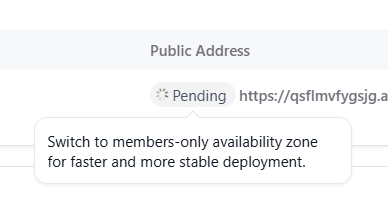
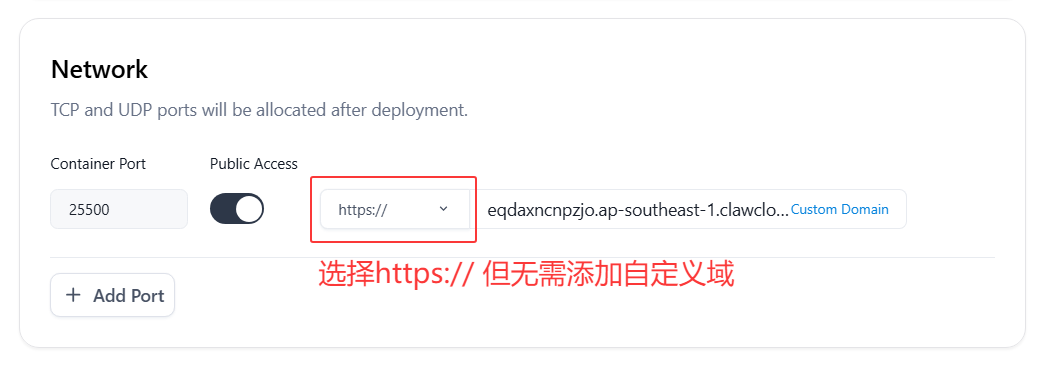
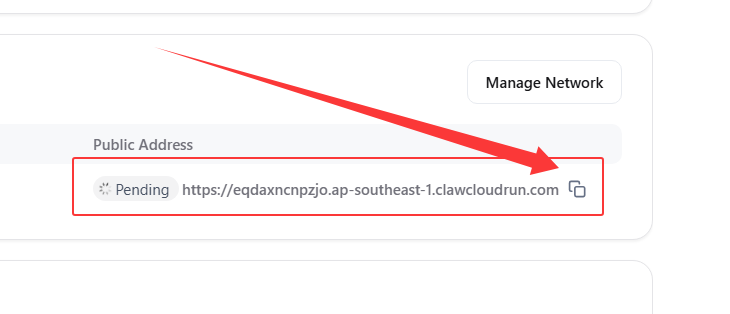
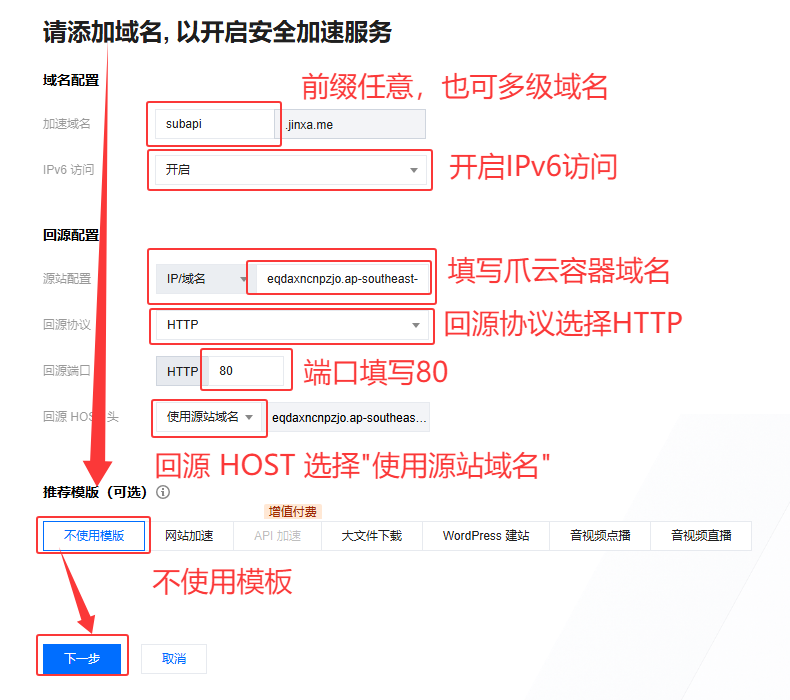
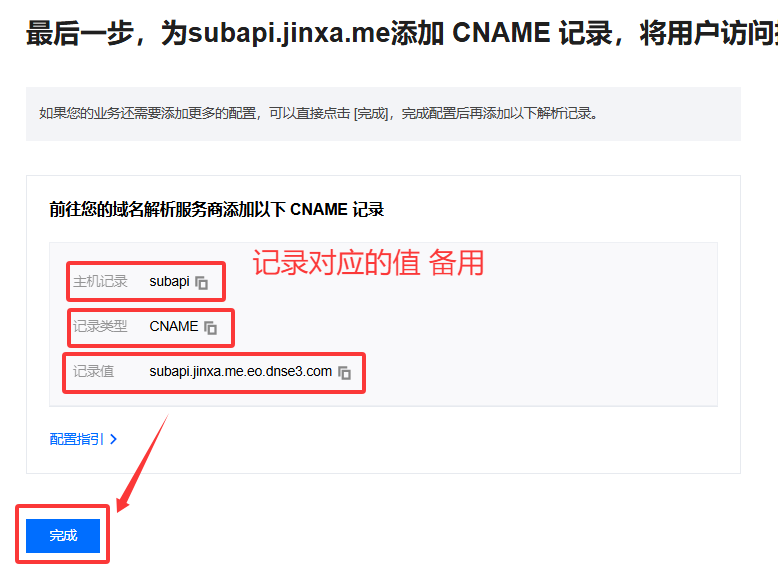
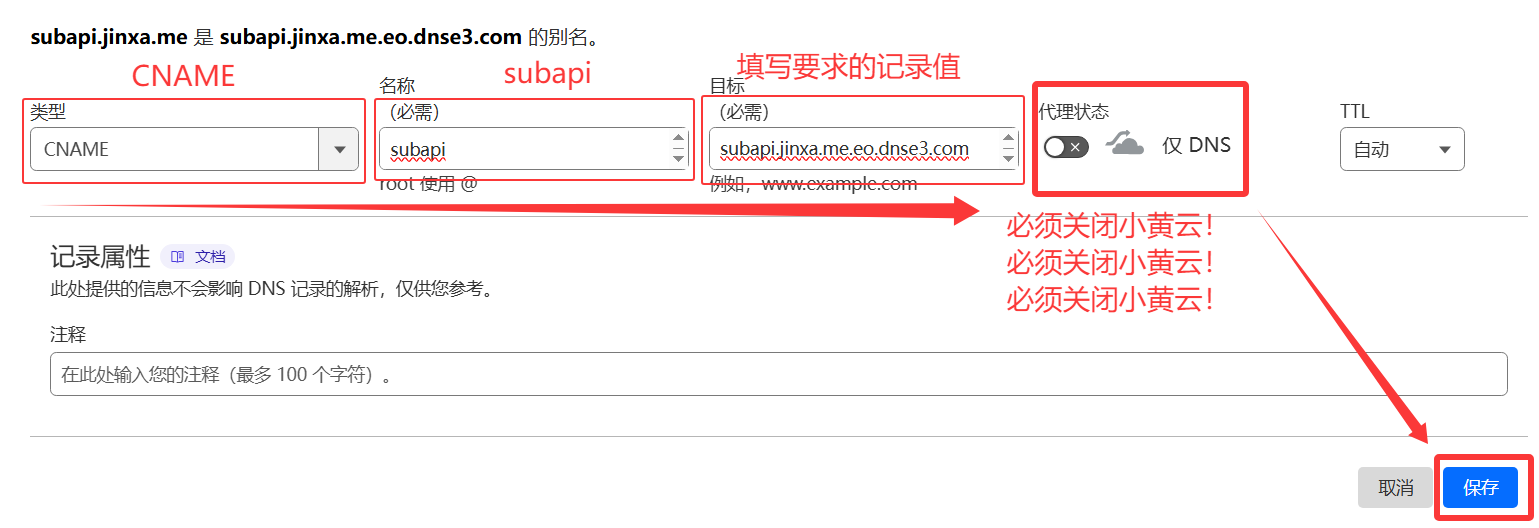
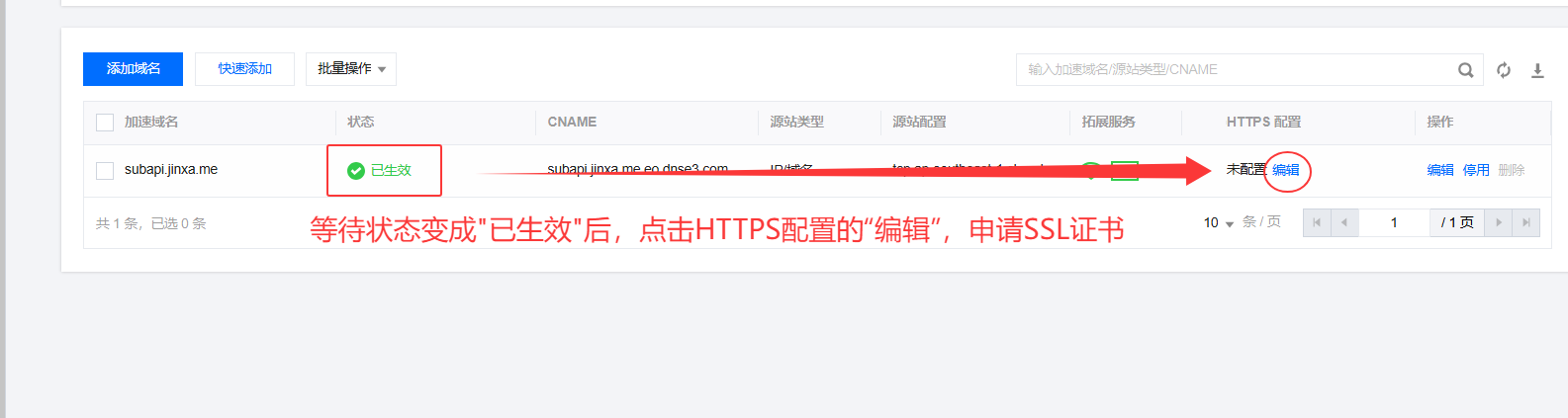
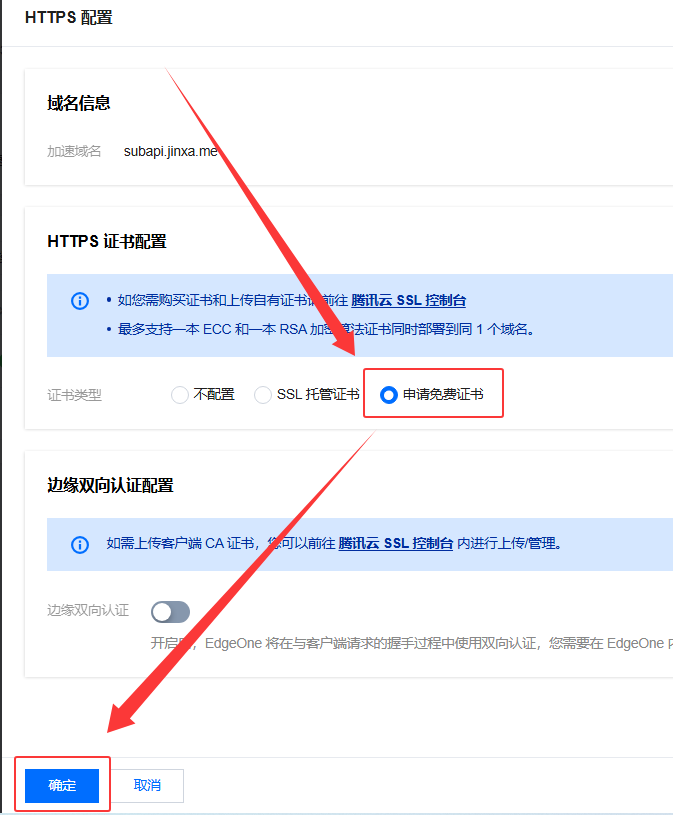
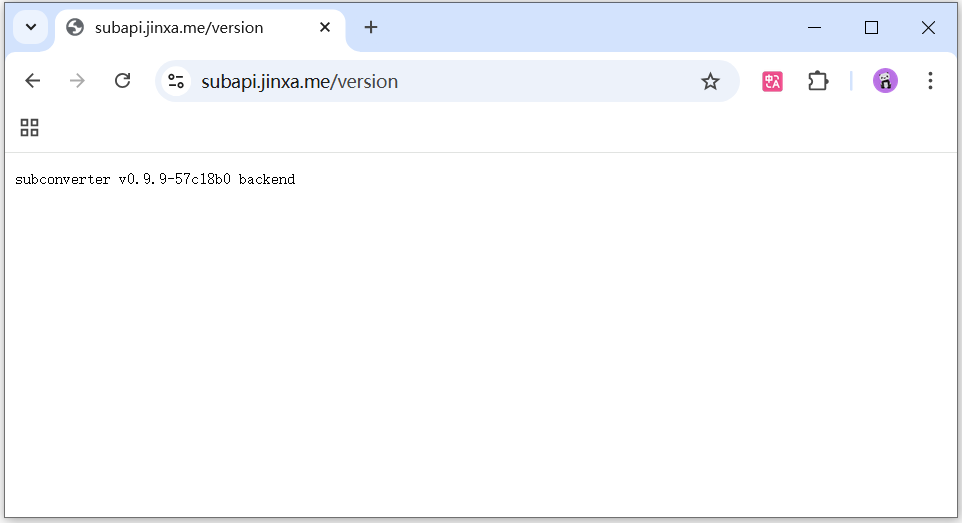
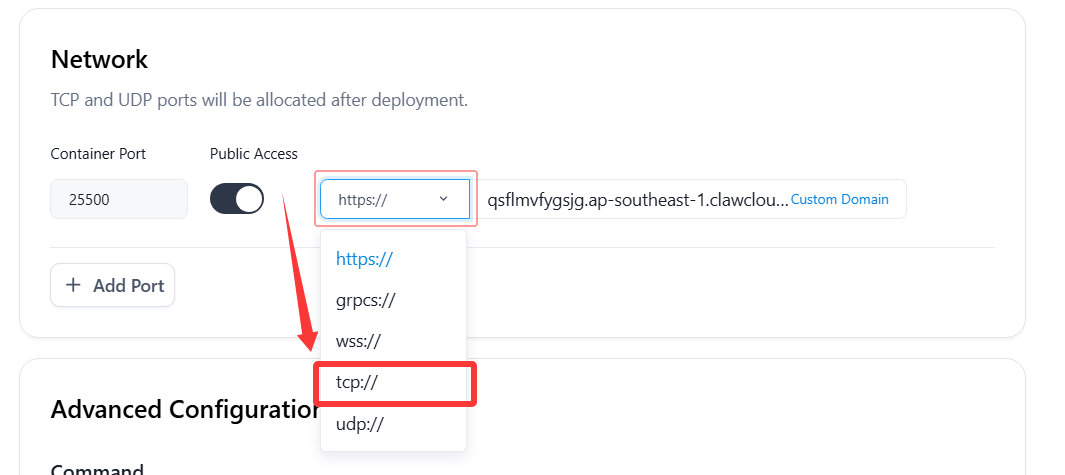
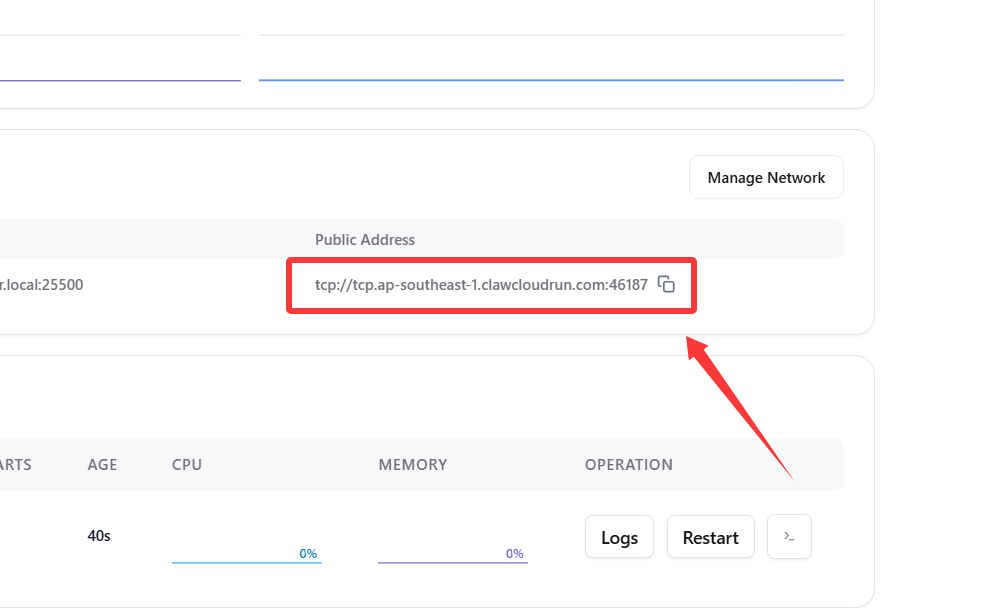
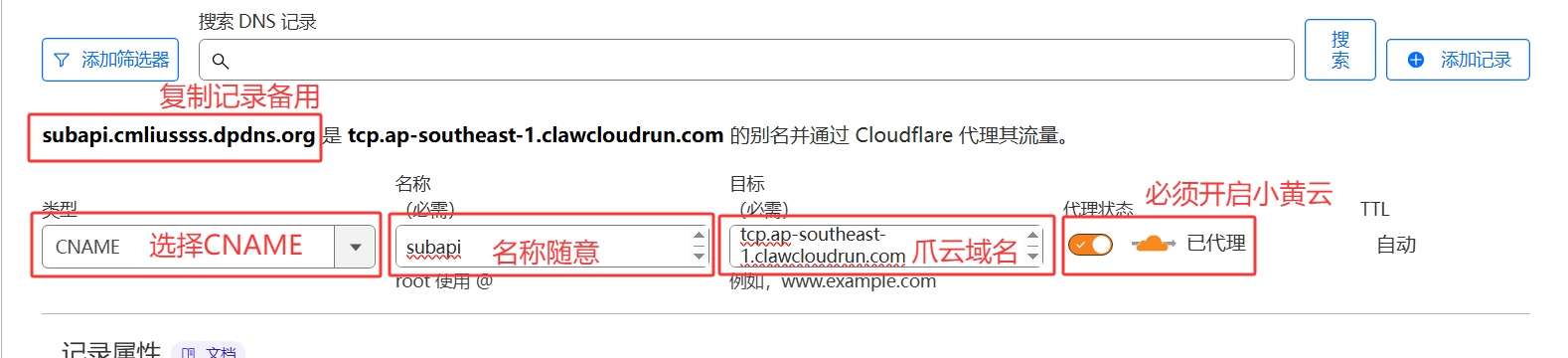
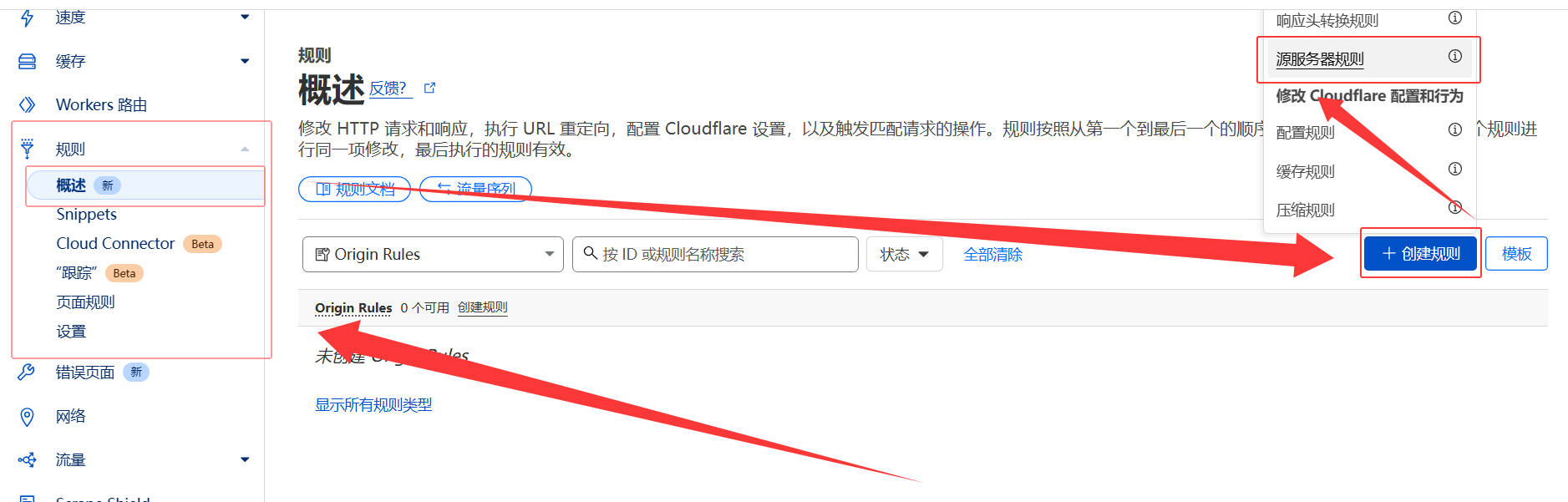
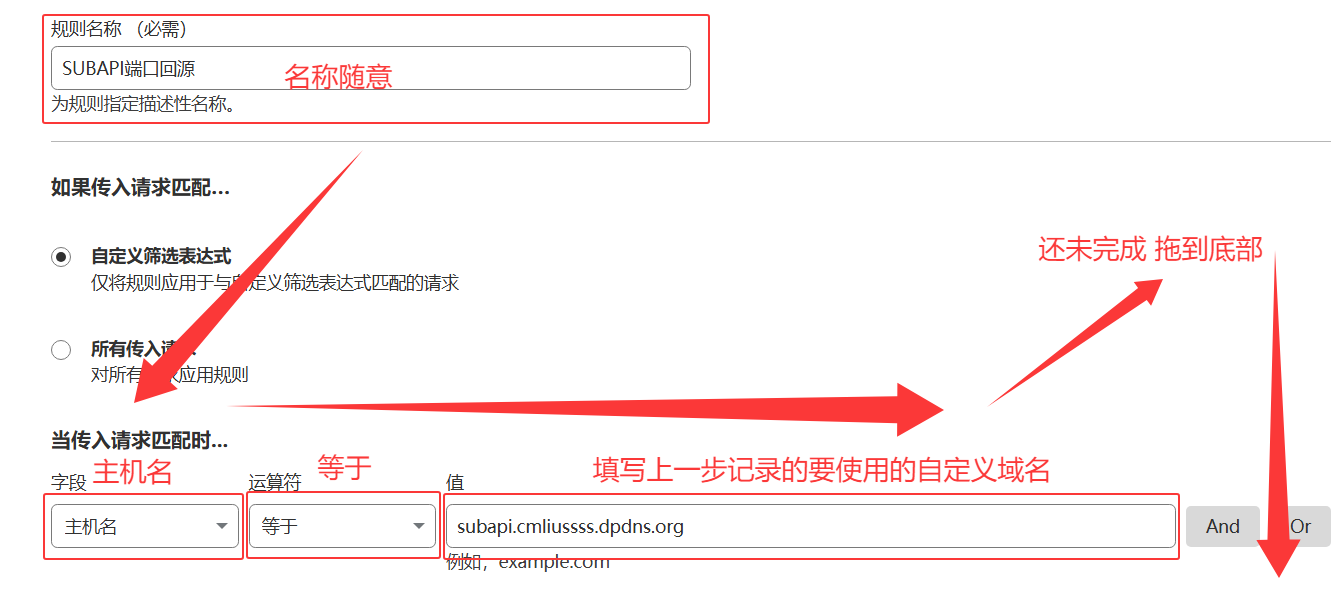
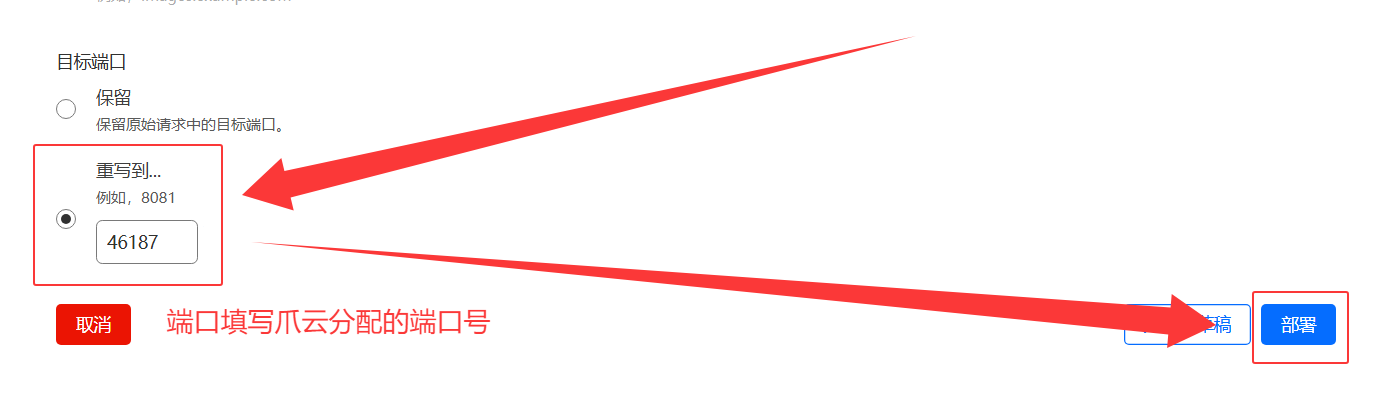
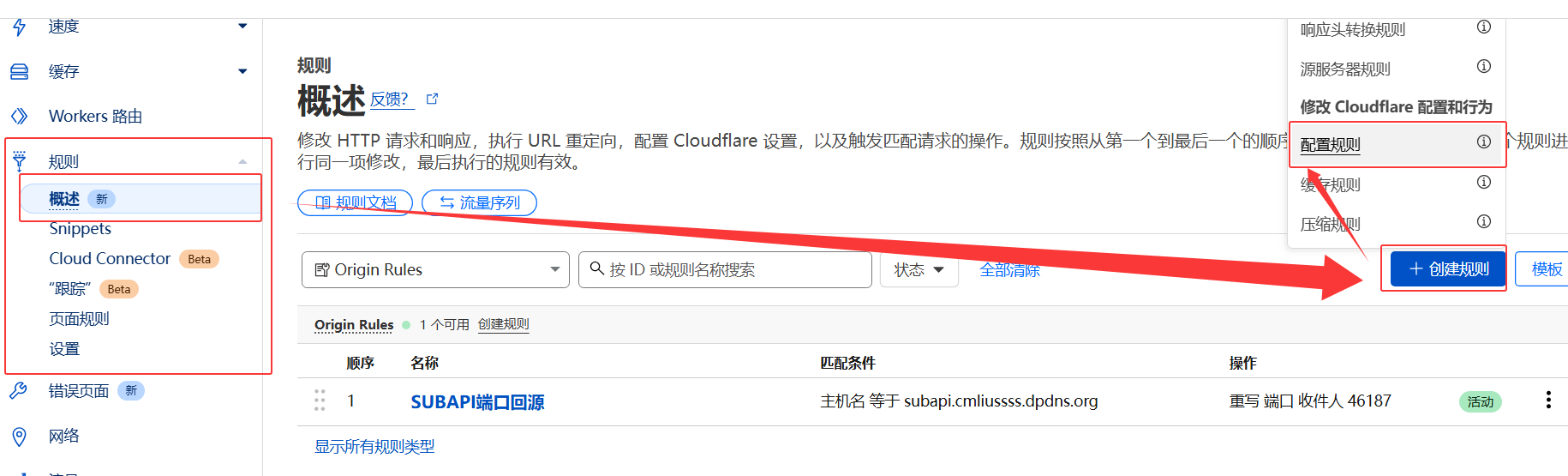
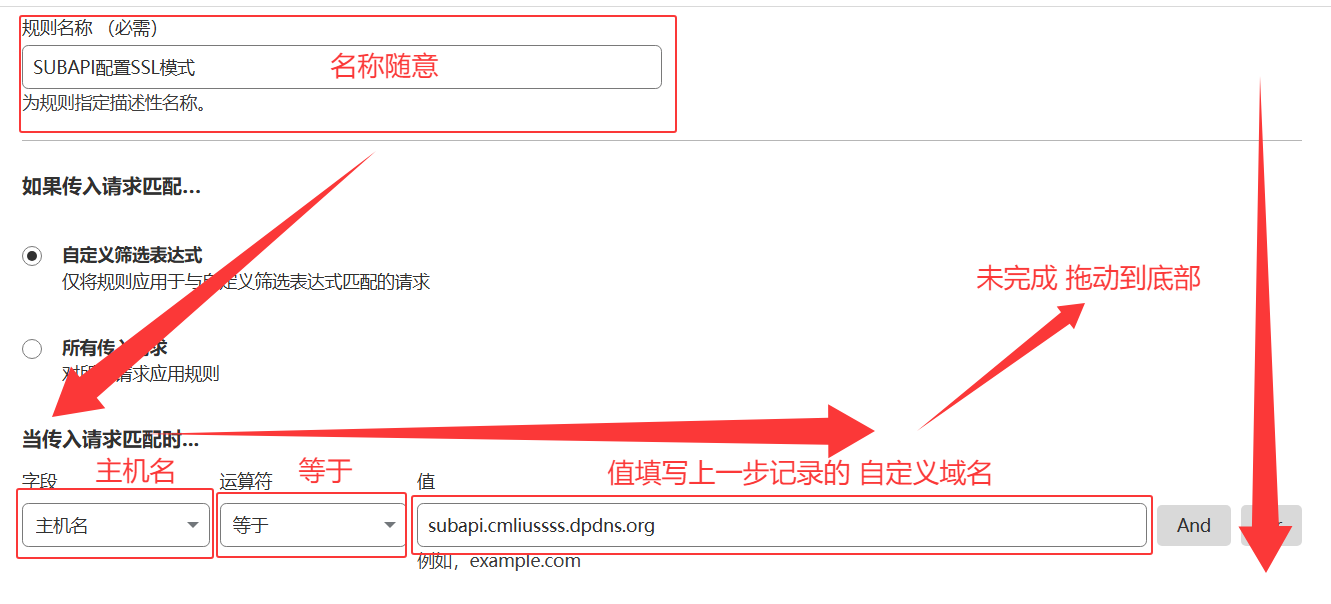
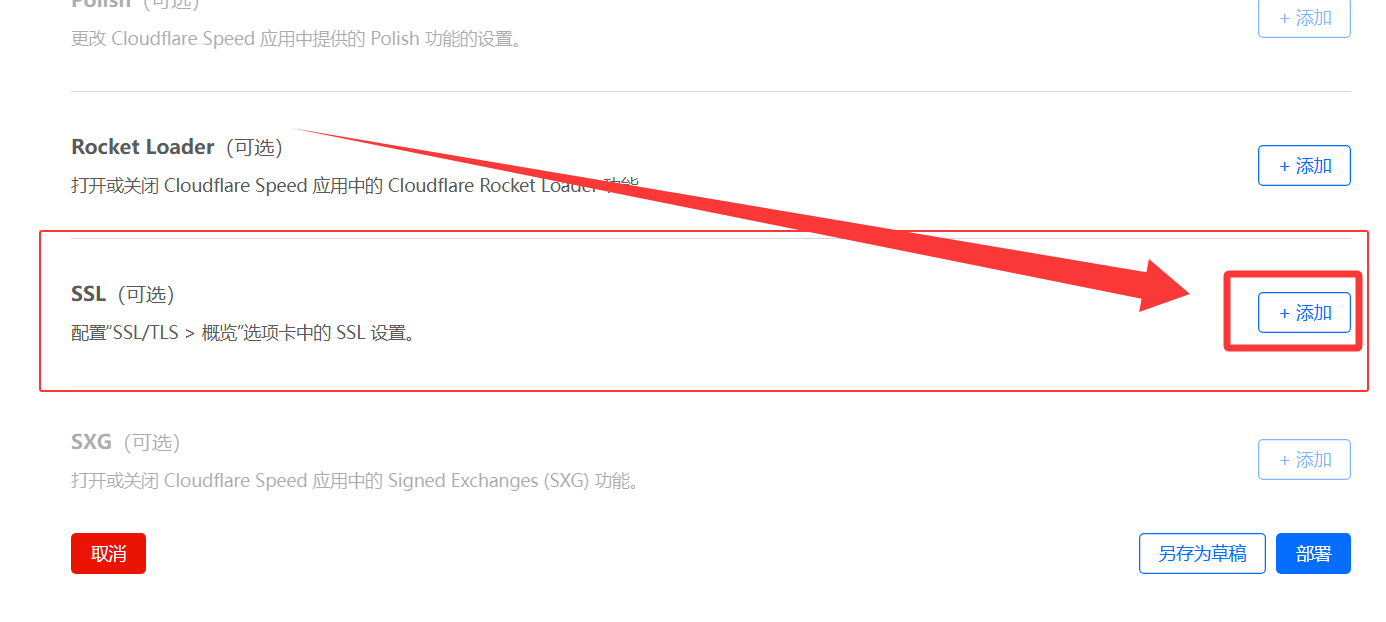
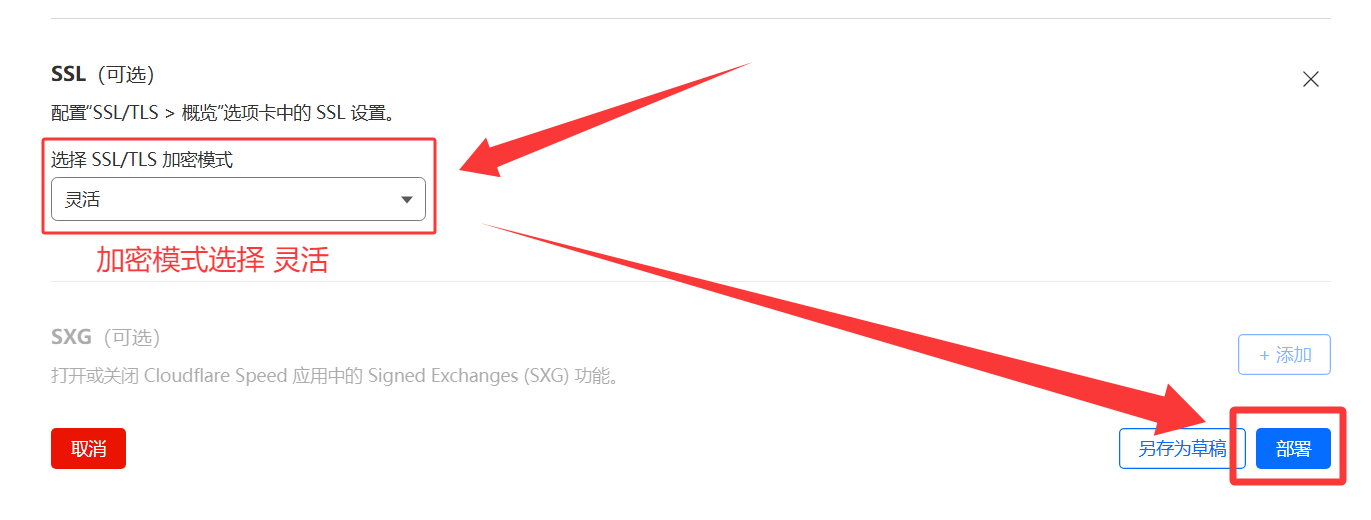
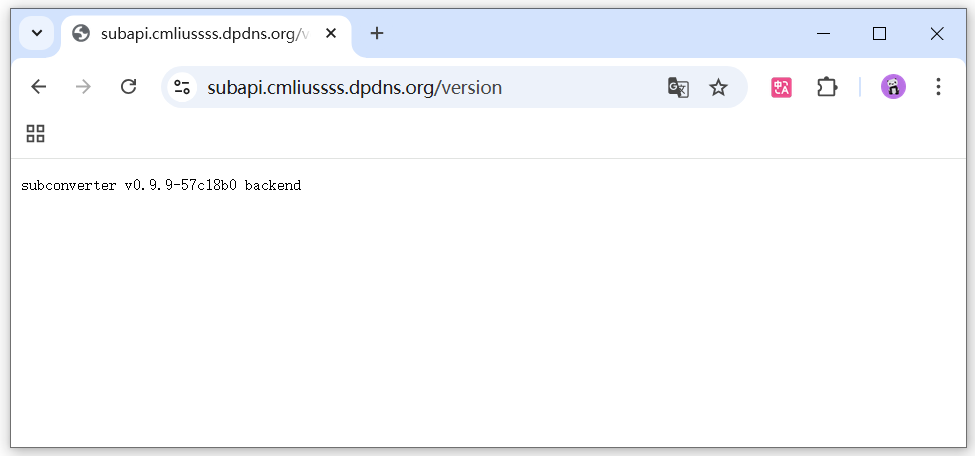
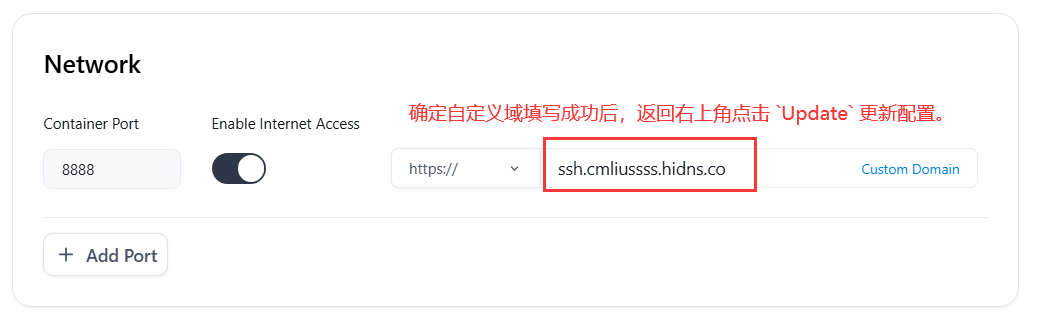
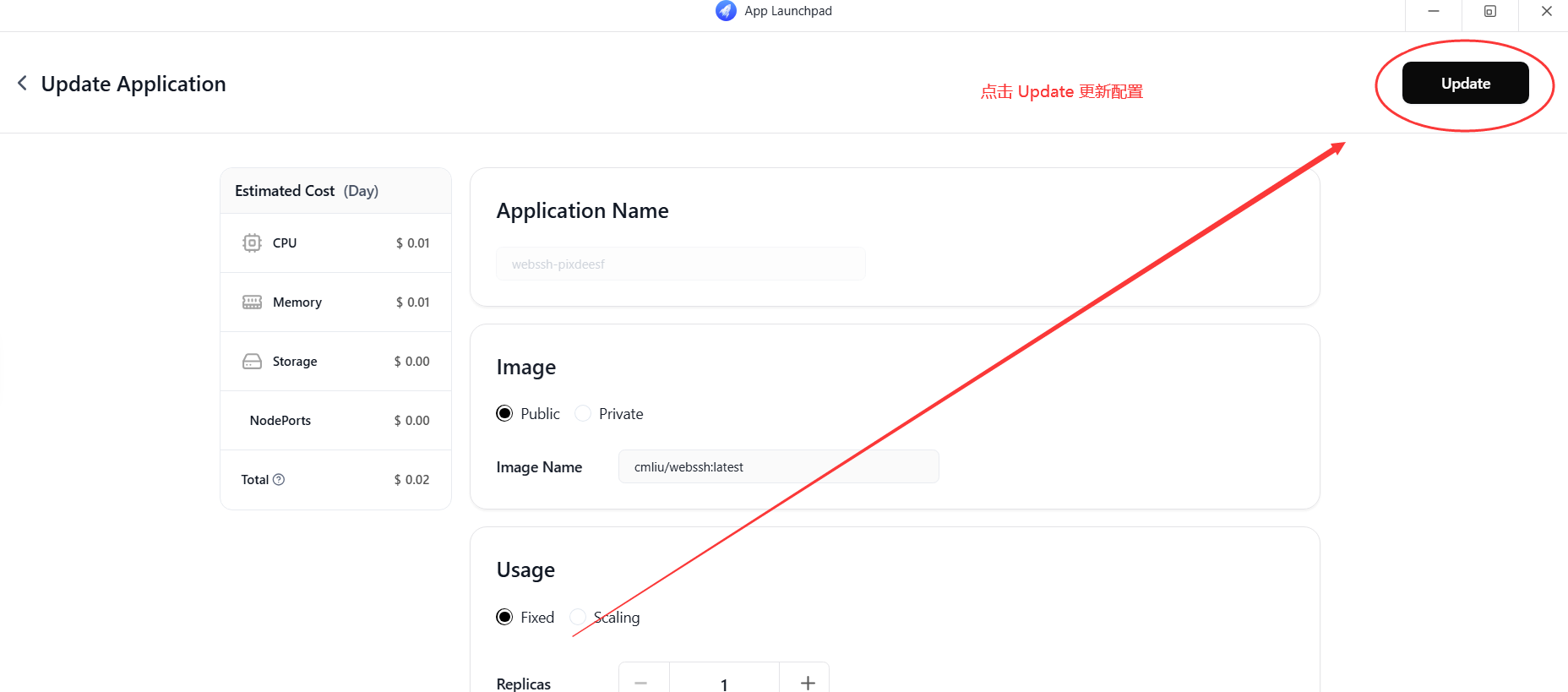
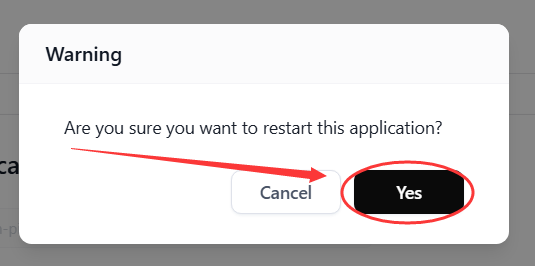
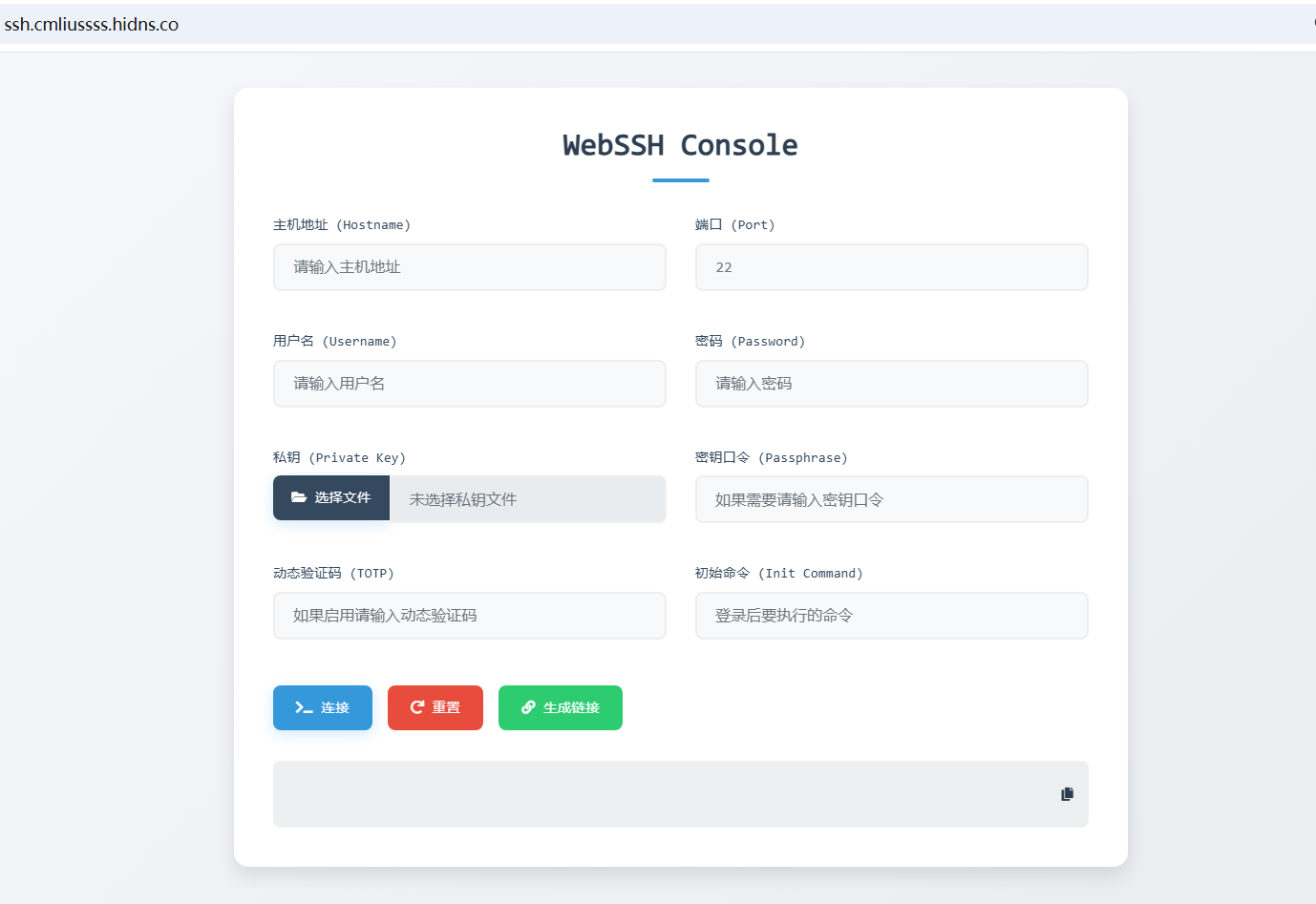
    <content type="html"><![CDATA[<h1 id="🔒-ClawCloudRun-容器套-CDN-解决-SSL-Pending-问题"><a href="#🔒-ClawCloudRun-容器套-CDN-解决-SSL-Pending-问题" class="headerlink" title="🔒 ClawCloudRun 容器套 CDN 解决 SSL Pending 问题"></a>🔒 ClawCloudRun 容器套 CDN 解决 SSL Pending 问题</h1><p><img src="/./img/ccrssl/0-0-0.png" alt="Pending"><br>近期小伙伴部署爪云容器出现SSL证书一直提示<code>Pending</code>的问题，长时间等待或更换工作区也无法解决。<br>所以这篇教程就来了，我们可以通过使用 <a href="https://www.cloudflare.com/">Cloudflare</a> 或 <a href="https://edgeone.ai/zh/get-free-plan">EdgeOne</a> 来解决SSL证书问题，顺便给你的爪云容器套上CDN进行加速。</p><hr><h1 id="🔧-配置-CDN"><a href="#🔧-配置-CDN" class="headerlink" title="🔧 配置 CDN"></a>🔧 配置 CDN</h1><h2 id="⚡-EdgeOne-CDN"><a href="#⚡-EdgeOne-CDN" class="headerlink" title="⚡ EdgeOne CDN"></a>⚡ <a href="https://edgeone.ai/zh/get-free-plan">EdgeOne CDN</a></h2><ul><li><strong>优点</strong>：低延迟，回源规则不设限制，支持多级域名。</li><li><strong>缺点</strong>：<ul><li><strong>不支持免费域名</strong>，需要付费域名。</li><li>超长时间连接限速<strong>500Kbps</strong>，只适用于小流量项目。</li></ul></li></ul><details><summary> 🚀 点击展开 部署图文教程 </summary><h3 id="1️⃣-记录爪云容器的域名"><a href="#1️⃣-记录爪云容器的域名" class="headerlink" title="1️⃣ 记录爪云容器的域名"></a>1️⃣ 记录爪云容器的域名</h3><ul><li>确认协议选择<code>https://</code>，返回右上角点击<strong>Update</strong>更新部署。<br><img src="/./img/ccrssl/2-0-1.png" alt="确认协议"></li><li>记录容器域名的部分，不包含<code>https://</code>，例如 <code>eqdaxncnpzjo.ap-southeast-1.clawcloudrun.com</code><br><img src="/./img/ccrssl/2-0-2.png" alt="记录容器域名"></li></ul><h3 id="2️⃣-前往-EdgeOne-添加一个CNAME-接入域名"><a href="#2️⃣-前往-EdgeOne-添加一个CNAME-接入域名" class="headerlink" title="2️⃣ 前往 EdgeOne 添加一个CNAME 接入域名"></a>2️⃣ 前往 <a href="https://edgeone.ai/zh/get-free-plan">EdgeOne</a> 添加一个<code>CNAME 接入</code>域名</h3><ul><li><p><strong>域名配置</strong></p><ul><li><strong>加速域名</strong>：<code>subapi</code>(前缀随意填写，也可填写多级域名)</li><li><strong>IPv6 访问</strong>：<code>开启</code></li></ul></li><li><p><strong>回源配置</strong></p><ul><li><strong>源站配置</strong>：<code>IP/域名</code>&gt;<code>eqdaxncnpzjo.ap-southeast-1.clawcloudrun.com</code>(填写爪云容器的域名)</li><li><strong>回源协议</strong>：<code>HTTP</code></li><li><strong>回源端口</strong>：<code>80</code></li><li><strong>回源 HOST 头</strong> ：<code>使用源站域名</code></li></ul></li><li><p><strong>推荐模板</strong></p><ul><li><code>不使用模板</code><br><img src="/./img/ccrssl/2-1-1.png" alt="添加域名"></li></ul></li></ul><h3 id="3️⃣-记录对应的值"><a href="#3️⃣-记录对应的值" class="headerlink" title="3️⃣ 记录对应的值"></a>3️⃣ 记录对应的值</h3><ul><li><strong>主机记录</strong>：<code>subapi</code></li><li><strong>记录类型</strong>：<code>CNAME</code></li><li><strong>记录值</strong>：<code>subapi.jinxa.me.eo.dnse3.com</code><br><img src="/./img/ccrssl/2-2-1.png" alt="记录对应的值"></li></ul><h3 id="4️⃣-前往域名服务商添加-CNAME-记录。"><a href="#4️⃣-前往域名服务商添加-CNAME-记录。" class="headerlink" title="4️⃣ 前往域名服务商添加 CNAME 记录。"></a>4️⃣ 前往域名服务商添加 CNAME 记录。</h3><p><strong>必须关闭小黄云！必须关闭小黄云！必须关闭小黄云！！！</strong><br><img src="/./img/ccrssl/2-3-1.png" alt="添加 CNAME"></p><h3 id="5️⃣-等待生效后配置SSL证书"><a href="#5️⃣-等待生效后配置SSL证书" class="headerlink" title="5️⃣ 等待生效后配置SSL证书"></a>5️⃣ 等待生效后配置SSL证书</h3><p><img src="/./img/ccrssl/2-4-1.png" alt="等待生效"></p><ul><li><strong>HTTPS 证书配置</strong>选择<code>申请免费证书</code>后点击确定即可。<br><img src="/./img/ccrssl/2-4-2.png" alt="申请免费证书"></li></ul><h3 id="6️⃣-完成！访问自定义域"><a href="#6️⃣-完成！访问自定义域" class="headerlink" title="6️⃣ 完成！访问自定义域"></a>6️⃣ 完成！访问自定义域</h3><p>等待几分钟，成功申请免费证书后，访问 例如<code>https://subapi.jinxa.me/version</code>即可访问到爪云容器。<br><img src="/./img/ccrssl/2-5-1.png" alt="访问自定义域"></p></details><hr><h2 id="☁️-Cloudflare-CDN"><a href="#☁️-Cloudflare-CDN" class="headerlink" title="☁️ Cloudflare CDN"></a>☁️ <a href="https://dash.cloudflare.com/">Cloudflare CDN</a></h2><ul><li><strong>优点</strong>：支持<strong>免费域名</strong>(除了双向解析的域名)，例如 <code>dpdns.org</code>、<code>us.kg</code> 等等。</li><li><strong>缺点</strong>：<ul><li><strong>占用TCP端口额度</strong></li><li>配置过于复杂，需要添加<code>更改端口(Origin Rules)</code>和<code>配置规则(Configuration Rules)</code>，免费用户只能添加10条规则。</li><li>只能使用次级域名，例如 <code>example.dpdns.org</code>，更多的次级层域名不会自动添加SSL证书。</li></ul></li></ul><details><summary> 🚀 点击展开 部署图文教程 </summary><h3 id="1️⃣-切换服务为TCP模式"><a href="#1️⃣-切换服务为TCP模式" class="headerlink" title="1️⃣ 切换服务为TCP模式"></a>1️⃣ 切换服务为TCP模式</h3><ol><li>将需要套CDN的端口服务从<code>https://</code>改为<code>tcp://</code>后，返回右上角点击<strong>Update</strong>更新部署。<br><img src="/./img/ccrssl/0-1-1.png" alt="tcp"></li><li>记录下分配的域名端口备用，例如 域名<code>tcp.ap-southeast-1.clawcloudrun.com</code> 端口<code>46187</code>。<br><img src="/./img/ccrssl/0-2-1.png" alt="记录下分配的域名端口备用"></li></ol><h3 id="2️⃣-前往-Cloudflare-添加一个CNAME记录，"><a href="#2️⃣-前往-Cloudflare-添加一个CNAME记录，" class="headerlink" title="2️⃣ 前往 Cloudflare 添加一个CNAME记录，"></a>2️⃣ 前往 <a href="https://dash.cloudflare.com/">Cloudflare</a> 添加一个<code>CNAME</code>记录，</h3><p>前缀随意(<strong>但是不能是多级域名，不能出现</strong><code>.</code>)，值必须填写<strong>爪云分配的域名</strong>，例如 <code>tcp.ap-southeast-1.clawcloudrun.com</code>，并记录即将使用的自定义域 例如<code>subapi.cmliussss.dpdns.org</code>。<br><img src="/./img/ccrssl/1-1-1.png" alt="添加CNAME记录"></p><h3 id="3️⃣-添加源服务器规则"><a href="#3️⃣-添加源服务器规则" class="headerlink" title="3️⃣ 添加源服务器规则"></a>3️⃣ 添加<code>源服务器规则</code></h3><p><img src="/./img/ccrssl/1-2-1.png" alt="添加源服务器规则"></p><ul><li><strong>规则名称</strong>：<code>SUBAPI端口回源规则</code>(随意填写)</li><li><strong>字段</strong>：<code>主机名</code></li><li><strong>运算符</strong>：<code>等于</code></li><li><strong>值</strong>：<code>subapi.cmliussss.dpdns.org</code><br>   <img src="/./img/ccrssl/1-2-2.png" alt="添加源服务器规则"></li><li><strong>目标端口</strong>：重写到<code>46187</code><br>   <img src="/./img/ccrssl/1-2-3.png" alt="目标端口重写"></li></ul><h3 id="4️⃣-添加配置规则"><a href="#4️⃣-添加配置规则" class="headerlink" title="4️⃣ 添加配置规则"></a>4️⃣ 添加<code>配置规则</code></h3><p><img src="/./img/ccrssl/1-3-1.png" alt="添加配置规则"></p><ul><li><strong>规则名称</strong>：<code>SUBAPI配置SSL模式</code>(随意填写)</li><li><strong>字段</strong>：<code>主机名</code></li><li><strong>运算符</strong>：<code>等于</code></li><li><strong>值</strong>：<code>subapi.cmliussss.dpdns.org</code><br>   <img src="/./img/ccrssl/1-3-2.png" alt="添加配置规则"></li><li><strong>SSL</strong>：<code>+添加</code><br>   <img src="/./img/ccrssl/1-3-3.png" alt="添加SSL配置"></li><li><strong>选择 SSL&#x2F;TLS 加密模式</strong>：<code>灵活</code><br>   <img src="/./img/ccrssl/1-3-4.png" alt="选择 SSL/TLS 加密模式"></li></ul><h3 id="5️⃣-完成！访问自定义域"><a href="#5️⃣-完成！访问自定义域" class="headerlink" title="5️⃣ 完成！访问自定义域"></a>5️⃣ 完成！访问自定义域</h3><p>等待几分钟，访问 例如<code>https://subapi.cmliussss.dpdns.org/version</code>即可访问到爪云容器。<br><img src="/./img/ccrssl/1-4-1.png" alt="访问自定义域"></p></details><hr><p>新人<a href="https://www.youtube.com/@CMLiussss">Youtuber</a>，需要您的支持，请务必帮我<strong>点赞</strong>、<strong>关注</strong>、<strong>打开小铃铛</strong>，<em><strong>十分感谢！！！</strong></em></p>]]></content>


    <summary type="html"></summary>


    <category term="开发笔记" scheme="https://blog.cmliussss.com/categories/%E5%BC%80%E5%8F%91%E7%AC%94%E8%AE%B0/"/>
    
    
    <category term="Cloudflare" scheme="https://blog.cmliussss.com/tags/Cloudflare/"/>
    
    <category term="ClawCloudRun" scheme="https://blog.cmliussss.com/tags/ClawCloudRun/"/>
    
    <category term="SSL Pending" scheme="https://blog.cmliussss.com/tags/SSL-Pending/"/>
    
    <category term="HTTPS 证书" scheme="https://blog.cmliussss.com/tags/HTTPS-%E8%AF%81%E4%B9%A6/"/>
    
    <category term="EdgeOne" scheme="https://blog.cmliussss.com/tags/EdgeOne/"/>
    
    <category term="爪云加速" scheme="https://blog.cmliussss.com/tags/%E7%88%AA%E4%BA%91%E5%8A%A0%E9%80%9F/"/>
    
  </entry>
  
  <entry>
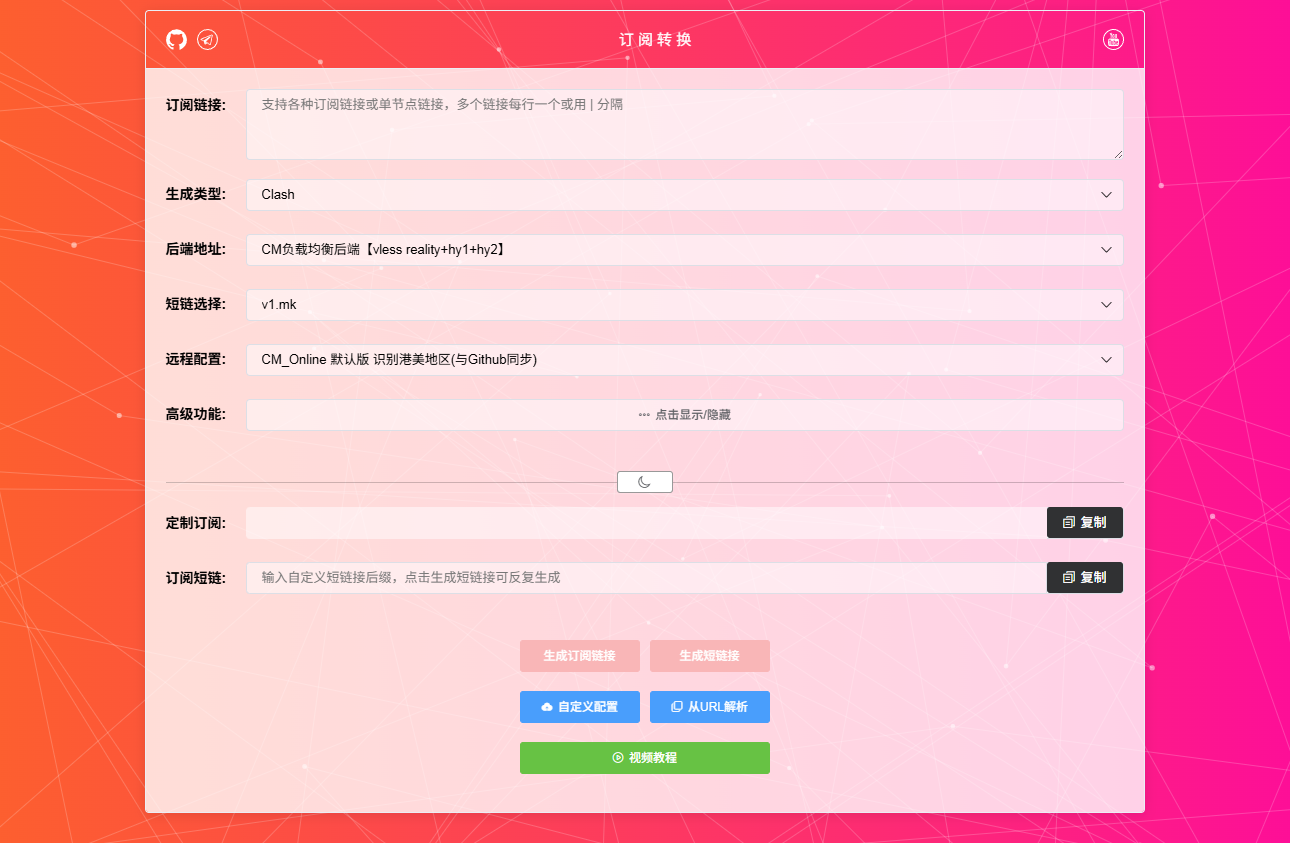
    <title>🔄 部署订阅转换：WEB前端 💎 多种主流方案详解 - 从零基础到专家级部署的完整进阶指南</title>
    <link href="https://blog.cmliussss.com/p/SUBWEB/"/>
    <id>https://blog.cmliussss.com/p/SUBWEB/</id>
    <published>2025-06-29T18:23:39.000Z</published>
    <updated>2025-07-10T15:22:01.000Z</updated>
    
    <content type="html"><![CDATA[<h1 id="🔄-订阅转换前端解决方案"><a href="#🔄-订阅转换前端解决方案" class="headerlink" title="🔄 订阅转换前端解决方案"></a>🔄 订阅转换前端解决方案</h1><p>当您成功部署了自己的<a href="/p/SUBAPI/">订阅转换后端</a>之后，下一步就是选择合适的WEB前端界面来提升用户体验。本文将为您介绍四种不同特色的订阅转换前端方案，从简单实用到功能丰富，总有一款适合您的需求。</p><hr><h2 id="🎯-如何选择合适的方案"><a href="#🎯-如何选择合适的方案" class="headerlink" title="🎯 如何选择合适的方案"></a>🎯 如何选择合适的方案</h2><h4 id="新手小白推荐"><a href="#新手小白推荐" class="headerlink" title="新手小白推荐"></a>新手小白推荐</h4><ul><li><strong>常规前端</strong>：<a href="./#1-%F0%9F%93%A6-%E5%9F%BA%E7%A1%80%E8%AE%A2%E9%98%85%E8%BD%AC%E6%8D%A2-sub-web-modify">sub-web-modify - 扎实可靠</a></li><li><strong>简单轻量</strong>：<a href="./#2-%E2%9A%A1-%E8%BD%BB%E9%87%8F%E5%8C%96%E9%AB%98%E6%95%88%E8%BD%AC%E6%8D%A2-cf-worker-mihomo">cf-worker-mihomo - 高效简洁</a></li></ul><h4 id="进阶高端玩家"><a href="#进阶高端玩家" class="headerlink" title="进阶高端玩家"></a>进阶高端玩家</h4><ul><li><strong>优选订阅</strong>：<a href="./#3-%F0%9F%8E%AF-%E4%BC%98%E9%80%89%E8%AE%A2%E9%98%85%E7%94%9F%E6%88%90%E5%99%A8-WorkerVless2sub">WorkerVless2sub - 批量生成优选订阅，快速提升体验</a></li><li><strong>链式代理</strong>：<a href="./#4-%F0%9F%94%84-Socks2VLESS%E8%AE%A2%E9%98%85%E7%94%9F%E6%88%90%E5%99%A8-Socks2Vlesssub">Socks2Vlesssub - 协议转换，扩展兼容</a></li></ul><hr><h2 id="🛠️-事前准备"><a href="#🛠️-事前准备" class="headerlink" title="🛠️ 事前准备"></a>🛠️ 事前准备</h2><ol><li>一个 <a href="https://github.com/">GitHub</a> 账号（用于Fork项目，方便后续部署）</li><li>一个 <a href="https://dash.cloudflare.com/">CloudFlare</a> 账号（用于部署Pages项目）</li><li>一个域名（可选，使用 <a href="/p/hidns/">HiDNS 免费域名</a> 进行绑定，便于记忆和访问）</li></ol><hr><h2 id="1-📦-基础订阅转换-sub-web-modify"><a href="#1-📦-基础订阅转换-sub-web-modify" class="headerlink" title="1. 📦 基础订阅转换 - sub-web-modify"></a>1. 📦 基础订阅转换 - <a href="https://github.com/cmliu/sub-web-modify">sub-web-modify</a></h2><p><img src="/./img/SUBWEB/sub-web-modify.png" alt="sub-web-modify"><br><strong>项目简介</strong>：这是一个经过优化的订阅转换前端，专注于提供稳定可靠的基础转换功能。</p><ul><li><strong>🔗 项目地址</strong>：<a href="https://github.com/cmliu/sub-web-modify">sub-web-modify</a></li><li><strong>🌐 在线演示</strong>：<a href="https://sub.cmliussss.com/">https://sub.cmliussss.com</a></li></ul><blockquote><p><strong>开发背景</strong>：基于 <a href="https://github.com/youshandefeiyang/sub-web-modify">友善的肥羊</a> 的原版项目进行优化，简化了部署流程，对小白更加友好。</p></blockquote><details><summary> 🚀 点击展开 部署图文教程 </summary><ol><li>fork <a href="https://github.com/cmliu/sub-web-modify">sub-web-modify</a> 项目到自己的GitHub账号</li><li>编辑修改<code>.env</code>与<code>src\views\Subconverter.vue</code>文件，配置自己的订阅转换后端地址<ul><li><code>.env</code>文件示例：<figure class="highlight bash"><table><tr><td class="gutter"><pre><span class="line">1</span><br><span class="line">2</span><br><span class="line">3</span><br></pre></td><td class="code"><pre><span class="line"></span><br><span class="line">VUE_APP_SUBCONVERTER_DEFAULT_BACKEND = <span class="string">&quot;https://subapi.cmliussss.hidns.vip&quot;</span> // 替换为您的后端地址</span><br><span class="line"></span><br></pre></td></tr></table></figure></li><li><code>src\views\Subconverter.vue</code>文件示例：<figure class="highlight javascript"><table><tr><td class="gutter"><pre><span class="line">1</span><br><span class="line">2</span><br><span class="line">3</span><br><span class="line">4</span><br><span class="line">5</span><br><span class="line">6</span><br><span class="line">7</span><br><span class="line">8</span><br><span class="line">9</span><br><span class="line">10</span><br><span class="line">11</span><br><span class="line">12</span><br><span class="line">13</span><br><span class="line">14</span><br><span class="line">15</span><br><span class="line">16</span><br><span class="line">17</span><br><span class="line">18</span><br><span class="line">19</span><br><span class="line">20</span><br><span class="line">21</span><br><span class="line">22</span><br><span class="line">23</span><br><span class="line">24</span><br><span class="line">25</span><br><span class="line">26</span><br><span class="line">27</span><br><span class="line">28</span><br><span class="line">29</span><br><span class="line">30</span><br><span class="line">31</span><br><span class="line">32</span><br><span class="line">33</span><br><span class="line">34</span><br><span class="line">35</span><br></pre></td><td class="code"><pre><span class="line">... <span class="comment">// 省略其他代码</span></span><br><span class="line"></span><br><span class="line"><span class="attr">customBackend</span>: &#123;</span><br><span class="line">      <span class="string">&quot;自用专属后端&quot;</span>: <span class="string">&quot;https://subapi.cmliussss.hidns.vip&quot;</span>,<span class="comment">// 为您的后端取名</span></span><br><span class="line">      <span class="string">&quot;CM负载均衡后端【vless reality+hy1+hy2】&quot;</span>: <span class="string">&quot;https://subapi.cmliussss.net&quot;</span>,</span><br><span class="line">      <span class="string">&quot;CM应急备用后端【vless reality+hy1+hy2】&quot;</span>: <span class="string">&quot;https://subapi.fxxk.dedyn.io&quot;</span>,</span><br><span class="line">      <span class="string">&quot;肥羊增强型后端【vless reality+hy1+hy2】&quot;</span>: <span class="string">&quot;https://url.v1.mk&quot;</span>,</span><br><span class="line">      <span class="string">&quot;肥羊备用后端【vless reality+hy1+hy2】&quot;</span>: <span class="string">&quot;https://sub.d1.mk&quot;</span>,</span><br><span class="line">      <span class="string">&quot;nameless13提供&quot;</span>: <span class="string">&quot;https://www.nameless13.com&quot;</span>,</span><br><span class="line">      <span class="string">&quot;subconverter作者提供&quot;</span>: <span class="string">&quot;https://sub.xeton.dev&quot;</span>,</span><br><span class="line">      <span class="string">&quot;sub-web作者提供&quot;</span>: <span class="string">&quot;https://api.wcc.best&quot;</span>,</span><br><span class="line">  &#125;,</span><br><span class="line">  <span class="attr">backendOptions</span>: [</span><br><span class="line">      &#123; <span class="attr">value</span>: <span class="string">&quot;https://subapi.cmliussss.hidns.vip&quot;</span> &#125;, <span class="comment">// 添加您的后端地址</span></span><br><span class="line">      &#123; <span class="attr">value</span>: <span class="string">&quot;https://subapi.cmliussss.net&quot;</span> &#125;,</span><br><span class="line">      &#123; <span class="attr">value</span>: <span class="string">&quot;https://subapi.fxxk.dedyn.io&quot;</span> &#125;,</span><br><span class="line">      &#123; <span class="attr">value</span>: <span class="string">&quot;https://url.v1.mk&quot;</span> &#125;,</span><br><span class="line">      &#123; <span class="attr">value</span>: <span class="string">&quot;https://sub.d1.mk&quot;</span> &#125;,</span><br><span class="line">      &#123; <span class="attr">value</span>: <span class="string">&quot;https://www.nameless13.com&quot;</span> &#125;,</span><br><span class="line">      &#123; <span class="attr">value</span>: <span class="string">&quot;https://sub.xeton.dev&quot;</span> &#125;,</span><br><span class="line">      &#123; <span class="attr">value</span>: <span class="string">&quot;https://api.wcc.best&quot;</span> &#125;,</span><br><span class="line">  ],</span><br><span class="line"></span><br><span class="line">  ... <span class="comment">// 省略其他代码</span></span><br><span class="line">  </span><br><span class="line">  <span class="attr">form</span>: &#123; <span class="comment">// 默认表单配置</span></span><br><span class="line">  <span class="attr">sourceSubUrl</span>: <span class="string">&quot;&quot;</span>,</span><br><span class="line">  <span class="attr">clientType</span>: <span class="string">&quot;&quot;</span>,</span><br><span class="line">  <span class="attr">customBackend</span>: <span class="variable language_">this</span>.<span class="title function_">getUrlParam</span>() == <span class="string">&quot;&quot;</span> ? <span class="string">&quot;https://subapi.cmliussss.hidns.vip&quot;</span> : <span class="variable language_">this</span>.<span class="title function_">getUrlParam</span>(),<span class="comment">// 替换为您的后端地址</span></span><br><span class="line">  <span class="attr">shortType</span>: <span class="string">&quot;https://v1.mk/short&quot;</span>,</span><br><span class="line">  <span class="attr">remoteConfig</span>: <span class="string">&quot;https://raw.githubusercontent.com/cmliu/ACL4SSR/main/Clash/config/ACL4SSR_Online.ini&quot;</span>,<span class="comment">// 替换为您常用的订阅转换配置文件地址</span></span><br><span class="line">  <span class="attr">excludeRemarks</span>: <span class="string">&quot;&quot;</span>,</span><br><span class="line">  <span class="attr">includeRemarks</span>: <span class="string">&quot;&quot;</span>,</span><br><span class="line"></span><br><span class="line">  ... <span class="comment">// 省略其他代码</span></span><br></pre></td></tr></table></figure></li></ul></li><li>进入 <code>Workers 和 Pages</code> → <code>创建</code> → <code>Pages</code> → <code>导入现有 Git 存储库</code> → <code>sub-web-modify</code> → <code>开始设置</code></li><li>修改 <strong>设置构建和部署</strong> 中的参数<ul><li>框架预设：<code>Vue</code></li><li>构建命令：<code>npm run build</code></li><li>构建输出目录：&#x2F;<code>dist</code></li></ul></li><li>保存并部署，完成后绑定自定义域名（可选）</li></ol></details><hr><h2 id="2-⚡-轻量化高效转换-cf-worker-mihomo"><a href="#2-⚡-轻量化高效转换-cf-worker-mihomo" class="headerlink" title="2. ⚡ 轻量化高效转换 - cf-worker-mihomo"></a>2. ⚡ 轻量化高效转换 - <a href="https://github.com/Kwisma/cf-worker-mihomo">cf-worker-mihomo</a></h2><p><img src="/./img/SUBWEB/cf-worker-mihomo.png" alt="cf-worker-mihomo"><br><strong>项目简介</strong>：<strong>SingBox订阅兼容性极佳</strong>，对订阅转换后的内容进行二次优化，例如 <strong>防止 DNS&#x2F;WebRTC 泄漏</strong> 等。</p><ul><li><strong>🔗 项目地址</strong>：<a href="https://github.com/Kwisma/cf-worker-mihomo">cf-worker-mihomo</a></li><li><strong>🌐 在线演示</strong>：<a href="https://sub.ikar.eu.org/">https://sub.ikar.eu.org</a></li></ul><blockquote><p><strong>技术亮点</strong>：由 <a href="https://t.me/Marisa_kristi/628">Kwisma</a> 开发，该方案不仅提供转换服务，还会自动修复后端转换中的常见问题。</p></blockquote><details><summary> 🚀 点击展开 部署图文教程 </summary><ol><li>fork <a href="https://github.com/Kwisma/cf-worker-mihomo">cf-worker-mihomo</a> 项目到自己的GitHub账号</li><li>点击 <strong>创建项目</strong> → <strong>导入现有 Git 存储库</strong> → 选择仓库 → 开始设置</li><li>点击 <strong>保存并部署</strong>（首次部署会失败是正常现象） → <strong>继续处理项目</strong> → 继续</li><li>设置 &gt; 运行时 &gt; 兼容性标志 设置为 <code>nodejs_compat</code></li><li>添加变量，变量名为 <code>SUB</code> ，值为您的订阅转换后端地址，例如 <code>https://subapi.cmliussss.hidns.vip</code></li><li>重试部署</li></ol></details><hr><h2 id="3-🎯-优选订阅生成器-WorkerVless2sub"><a href="#3-🎯-优选订阅生成器-WorkerVless2sub" class="headerlink" title="3. 🎯 优选订阅生成器 - WorkerVless2sub"></a>3. 🎯 优选订阅生成器 - <a href="https://github.com/cmliu/WorkerVless2sub">WorkerVless2sub</a></h2><p><img src="/./img/SUBWEB/WorkerVless2sub.png" alt="WorkerVless2sub"><br><strong>项目简介</strong>：专为追求最佳连接质量用户设计的智能优选订阅生成器。</p><ul><li><strong>🔗 项目地址</strong>：<a href="https://github.com/cmliu/WorkerVless2sub">WorkerVless2sub</a></li><li><strong>🌐 在线演示</strong>：<a href="https://sub.cmliussss.net/">https://sub.cmliussss.net</a></li></ul><blockquote><p><strong>批量生成优选订阅</strong>：自动将优选IP和域名一键生成优化后的订阅链接，兼容 VMess、VLESS、Trojan</p></blockquote><details><summary> 🚀 点击展开 部署图文教程 </summary><ol><li>fork <a href="https://github.com/cmliu/WorkerVless2sub">WorkerVless2sub</a> 项目到自己的GitHub账号</li><li>点击 <strong>创建项目</strong> → <strong>导入现有 Git 存储库</strong> → 选择仓库 → 开始设置</li><li>点击 <strong>保存并部署</strong> → 继续</li><li>添加变量，变量名为 <code>SUBAPI</code> ，值为您的订阅转换后端地址，例如 <code>https://subapi.cmliussss.hidns.vip</code></li><li>添加变量，变量名为 <code>ADD</code> ，值为您的<strong>优选IP</strong>、<strong>优选域名</strong>、<strong>优选API</strong>URL（多个元素将使用换行作间隔），例如 <code>www.visa.cn</code></li><li>重试部署</li></ol></details><hr><h2 id="4-🔄-Socks2VLESS订阅生成器-Socks2Vlesssub"><a href="#4-🔄-Socks2VLESS订阅生成器-Socks2Vlesssub" class="headerlink" title="4. 🔄 Socks2VLESS订阅生成器 - Socks2Vlesssub"></a>4. 🔄 Socks2VLESS订阅生成器 - <a href="https://github.com/cmliu/Socks2Vlesssub">Socks2Vlesssub</a></h2><p><img src="/./img/SUBWEB/Socks2Vlesssub.png" alt="Socks2Vlesssub"><br><strong>项目简介</strong>：将<code>Socks5</code>&#x2F;<code>HTTP代理</code>转换为<code>VLESS</code>&#x2F;<code>Trojan</code>订阅链接，通过CF形成链式代理，支持多种协议转换。</p><ul><li><strong>🔗 项目地址</strong>：<a href="https://github.com/cmliu/Socks2Vlesssub">Socks2Vlesssub</a></li><li><strong>🌐 在线演示</strong>：<a href="https://socks5.sub.cmliussss.net/">https://socks5.sub.cmliussss.net</a></li></ul><blockquote><p><strong>如何使用</strong>：填入 <a href="https://github.com/cmliu/edgetunnel">edgetunnel</a>、<a href="https://github.com/cmliu/epeius">epeius</a> 生成的 VLESS、Trojan 的LINK地址，后点击 <code>生成订阅</code>，即可生成对应的订阅链接</p></blockquote><details><summary> 🚀 点击展开 部署图文教程 </summary><ol><li>fork <a href="https://github.com/cmliu/Socks2Vlesssub">Socks2Vlesssub</a> 项目到自己的GitHub账号</li><li>点击 <strong>创建项目</strong> → <strong>导入现有 Git 存储库</strong> → 选择仓库 → 开始设置</li><li>点击 <strong>保存并部署</strong> → 继续</li><li>添加变量，变量名为 <code>SUBAPI</code> ，值为您的订阅转换后端地址，例如 <code>https://subapi.cmliussss.hidns.vip</code></li><li>重试部署</li></ol></details><hr><p>新人<a href="https://www.youtube.com/@CMLiussss">Youtuber</a>，需要您的支持，请务必帮我<strong>点赞</strong>、<strong>关注</strong>、<strong>打开小铃铛</strong>，<em><strong>十分感谢！！！</strong></em></p>]]></content>


    <summary type="html"></summary>


    <category term="科学上网" scheme="https://blog.cmliussss.com/categories/%E7%A7%91%E5%AD%A6%E4%B8%8A%E7%BD%91/"/>
    
    
    <category term="订阅转换" scheme="https://blog.cmliussss.com/tags/%E8%AE%A2%E9%98%85%E8%BD%AC%E6%8D%A2/"/>
    
    <category term="SUBWEB" scheme="https://blog.cmliussss.com/tags/SUBWEB/"/>
    
    <category term="隐私保护" scheme="https://blog.cmliussss.com/tags/%E9%9A%90%E7%A7%81%E4%BF%9D%E6%8A%A4/"/>
    
  </entry>
  
  <entry>
    <title>🛡️ 自建订阅转换：API后端 🔒 告别订阅泄露风险！无需VPS，免费拥有专属私密转换服务，守护科学上网的节点隐私。</title>
    <link href="https://blog.cmliussss.com/p/SUBAPI/"/>
    <id>https://blog.cmliussss.com/p/SUBAPI/</id>
    <published>2025-06-24T19:08:25.000Z</published>
    <updated>2025-06-30T18:13:45.000Z</updated>
    
    <content type="html"><![CDATA[<div class="video-container"><iframe width="560" height="315" src="https://www.youtube.com/embed/31e9YBrnqw8?si=t2bggUh_5HAze2B3" title="YouTube video player" frameborder="0" allow="accelerometer; autoplay; clipboard-write; encrypted-media; gyroscope; picture-in-picture; web-share" referrerpolicy="strict-origin-when-cross-origin" allowfullscreen></iframe></div><style>.video-container {    position: relative;    width: 100%;    padding-top: 56.25%; /* 16:9 aspect ratio (height/width = 9/16 * 100%) */}.video-container iframe {    position: absolute;    top: 0;    left: 0;    width: 100%;    height: 100%;}</style><h1 id="🔄-自建订阅转换-SubConverter"><a href="#🔄-自建订阅转换-SubConverter" class="headerlink" title="🔄 自建订阅转换 SubConverter"></a>🔄 自建订阅转换 SubConverter</h1><h2 id="🤔-什么是订阅转换？"><a href="#🤔-什么是订阅转换？" class="headerlink" title="🤔 什么是订阅转换？"></a>🤔 什么是订阅转换？</h2><p>因为市面上的梯子很多，支持的订阅格式各不相同，所以我们需要一个可以转换订阅格式的工具。</p><p>市面上最常见的订阅转换工具是 <strong>SubConverter</strong>，但是因为原作者 <a href="https://github.com/tindy2013/subconverter">tindy2013</a> 更新维护频率并不高，<br>所以这次教程演示的是另一个大佬维护的版本 <a href="https://github.com/asdlokj1qpi233/subconverter">asdlokj1qpi233&#x2F;subconverter</a>（<strong>请给大佬的项目点上一颗星星支持一下</strong>），有问题可以在该项目的 <a href="https://github.com/asdlokj1qpi233/subconverter/issues">issues</a> 提交反馈。</p><hr><h2 id="🏗️-什么是前端与后端？"><a href="#🏗️-什么是前端与后端？" class="headerlink" title="🏗️ 什么是前端与后端？"></a>🏗️ 什么是前端与后端？</h2><ul><li><strong>后端</strong>：实际负责处理订阅转换的核心程序，即 <strong>SubConverter 本体</strong>。例如：<ol><li><a href="https://subapi.cmliussss.net/version">https://subapi.cmliussss.net</a>（我维护的订阅转换后端）</li><li><a href="https://url.v1.mk/version">https://url.v1.mk</a>（<a href="https://github.com/youshandefeiyang">肥羊</a>维护的订阅转换后端）</li></ol></li></ul><blockquote><p><strong>重要</strong>：后端没有用户界面，直接访问域名<strong>网页打不开</strong>是正常现象。后端只需要提供 API 接口，供前端调用来完成订阅转换。</p></blockquote><ul><li><strong>前端</strong>：用户交互界面，提供方便的方式让用户输入订阅链接、选择转换格式的<strong>静态网页</strong>。例如：<ol><li><a href="https://sub.cmliussss.com/">https://sub.cmliussss.com</a> （我维护的订阅转换前端）</li><li><a href="https://suburl.v1.mk/">https://suburl.v1.mk</a> （<a href="https://github.com/youshandefeiyang/sub-web-modify">肥羊</a>维护的订阅转换前端）</li></ol></li></ul><blockquote><p><strong>说明</strong>：前端<strong>网页可以正常打开</strong>，如果你不打算将订阅转换作为公共服务提供给他人使用，前端其实是可有可无的。</p></blockquote><hr><h2 id="📋-部署须知"><a href="#📋-部署须知" class="headerlink" title="📋 部署须知"></a>📋 部署须知</h2><p>本教程采用 Docker 容器化部署方式：</p><ol><li><p><strong>无 VPS 用户</strong>：可以使用 <a href="https://url.cmliussss.com/rcc">ClawCloudRun</a> 直接部署后端。<strong>本教程重点介绍如何使用 ClawCloudRun 部署后端。</strong></p></li><li><p><strong>有 VPS 用户</strong>：可以在 VPS 上直接运行以下命令部署后端：</p><figure class="highlight bash"><table><tr><td class="gutter"><pre><span class="line">1</span><br></pre></td><td class="code"><pre><span class="line">docker run -d --restart=always -p 25500:25500 asdlokj1qpi23/subconverter:latest</span><br></pre></td></tr></table></figure></li></ol><blockquote><p><strong>⚠️ 重要提醒</strong>：由于订阅链接可能存在被墙的情况，所以<strong>后端必须部署在境外服务器上</strong>，以确保能够正常获取订阅内容。</p></blockquote><hr><h2 id="🛠️-事前准备"><a href="#🛠️-事前准备" class="headerlink" title="🛠️ 事前准备"></a>🛠️ 事前准备</h2><ol><li>一个 <a href="https://url.cmliussss.com/rcc">ClawCloudRun</a> 账号<ul><li><strong>推荐</strong>：使用注册满 180 天以上的 GitHub 账号注册，每月可获得 $5 免费额度</li></ul></li><li>一个域名（可选）<ul><li><strong>推荐</strong>：使用 <a href="/p/hidns/">HiDNS 免费域名</a> 进行绑定，便于记忆和访问</li></ul></li></ol><hr><h2 id="🚀-部署后端"><a href="#🚀-部署后端" class="headerlink" title="🚀 部署后端"></a>🚀 部署后端</h2><ol><li><p>登录 <a href="https://url.cmliussss.com/rcc">ClawCloudRun</a>。<br><img src="/./img/webssh/1-1.png" alt="登录ClawCloudRun"> </p></li><li><p>点击 <strong>App Launchpad</strong>，然后点击右上角 <strong>Create App</strong>。<br><img src="/./img/SUBAPI/1-2-1.png" alt="App Launchpad"><br><img src="/./img/SUBAPI/1-2-2.png" alt="Create App"></p></li><li><p>填写参数列表：</p><ul><li><strong>Application Name</strong>：随便起个名字，例如 <code>subapi</code>。</li><li><strong>Image Name</strong>：填写 <code>asdlokj1qpi23/subconverter</code>。</li><li><strong>CPU</strong>：推荐 <code>0.2</code>（如需作为<strong>公益服务，则配置上不封顶</strong>）。</li><li><strong>Memory</strong>：推荐 <code>256MB</code>（如需作为<strong>公益服务，则配置上不封顶</strong>）。</li><li><strong>Container Port</strong>：填写 <code>25500</code>（推荐绑定自定义域方便记忆）。<br><img src="/./img/SUBAPI/1-3-1.png" alt="填写参数"></li></ul></li><li><p>点击右上角 <strong>Deploy Application</strong> 等待部署完成。<br><img src="/./img/SUBAPI/1-4-1.png" alt="Deploy Application"></p></li><li><p>部署完成后，访问 <code>/version</code> 路径验证部署状态，如果返回版本信息，说明部署成功。<br><img src="/./img/SUBAPI/1-5-1.png" alt="部署成功"></p></li></ol><hr><h2 id="💡-如何使用？"><a href="#💡-如何使用？" class="headerlink" title="💡 如何使用？"></a>💡 如何使用？</h2><p>部署完成后，你的订阅转换后端地址格式为：<code>https://&lt;your-app-name&gt;.region.clawcloudrun.com</code></p><p><strong>示例地址</strong>：<code>https://vavjhwaixhes.ap-southeast-1.clawcloudrun.com</code></p><h3 id="🔧-使用场景"><a href="#🔧-使用场景" class="headerlink" title="🔧 使用场景"></a>🔧 使用场景</h3><ol><li><p><strong>配合订阅转换前端使用</strong></p><ul><li>在 <a href="https://suburl.v1.mk/">肥羊的前端</a> 中填写你的后端地址<br><img src="/./img/SUBAPI/2-1-1.png" alt="前端使用"></li></ul></li><li><p><strong>配合 CF-Workers 项目</strong></p><ul><li>在我的 <strong>CF-Workers</strong> 项目中使用 <code>SUBAPI</code> 变量配置你的后端地址<br><img src="/./img/SUBAPI/2-2-1.png" alt="SUBAPI"></li></ul></li><li><p><strong>OpenClash 路由插件的订阅配置</strong></p><ul><li>在 <strong>OpenClash</strong> 编辑配置订阅时，使用自建后端进行订阅转换<br><img src="/./img/SUBAPI/2-3-1.png" alt="OpenClash"></li></ul></li><li><p><strong>部署配套前端</strong></p><ul><li>自行部署订阅转换前端进行配套使用（下期教程内容）</li></ul></li><li><p><strong>自定义开发</strong></p><ul><li>更多使用场景可根据需求自行开发</li></ul></li></ol><hr><h2 id="⚠️-注意事项"><a href="#⚠️-注意事项" class="headerlink" title="⚠️ 注意事项"></a>⚠️ 注意事项</h2><h3 id="🌐-网络访问"><a href="#🌐-网络访问" class="headerlink" title="🌐 网络访问"></a>🌐 网络访问</h3><ul><li>确保后端地址在<strong>无代理环境</strong>下可正常访问</li><li>如遇访问问题，可尝试<strong>套用 CDN</strong> 解决</li></ul><h3 id="🔒-域名选择"><a href="#🔒-域名选择" class="headerlink" title="🔒 域名选择"></a>🔒 域名选择</h3><ul><li>建议使用<strong>未被封锁的域名</strong>进行绑定</li><li>避免因域名被墙导致服务不可用</li></ul><h3 id="🛡️-隐私安全"><a href="#🛡️-隐私安全" class="headerlink" title="🛡️ 隐私安全"></a>🛡️ 隐私安全</h3><ul><li><strong>订阅泄露风险</strong>：在订阅转换后端无漏洞的前提下，你的<strong>订阅链接必然会透露</strong>给<strong>后端的维护者</strong>，所以<strong>避免使用来源不明的订阅转换后端</strong>！</li></ul><hr><p>新人<a href="https://www.youtube.com/@CMLiussss">Youtuber</a>，需要您的支持，请务必帮我<strong>点赞</strong>、<strong>关注</strong>、<strong>打开小铃铛</strong>，<em><strong>十分感谢！！！</strong></em></p>]]></content>


    <summary type="html"></summary>


    <category term="科学上网" scheme="https://blog.cmliussss.com/categories/%E7%A7%91%E5%AD%A6%E4%B8%8A%E7%BD%91/"/>
    
    
    <category term="订阅转换" scheme="https://blog.cmliussss.com/tags/%E8%AE%A2%E9%98%85%E8%BD%AC%E6%8D%A2/"/>
    
    <category term="隐私保护" scheme="https://blog.cmliussss.com/tags/%E9%9A%90%E7%A7%81%E4%BF%9D%E6%8A%A4/"/>
    
    <category term="SUBAPI" scheme="https://blog.cmliussss.com/tags/SUBAPI/"/>
    
    <category term="SubConverter" scheme="https://blog.cmliussss.com/tags/SubConverter/"/>
    
    <category term="Docker部署" scheme="https://blog.cmliussss.com/tags/Docker%E9%83%A8%E7%BD%B2/"/>
    
  </entry>
  
  <entry>
    <title>⚠️ Cloudflare 这是在配合 GFW 吗？🚨 分配特殊 IP 遭精准阻断！</title>
    <link href="https://blog.cmliussss.com/p/BanCloudflareIP/"/>
    <id>https://blog.cmliussss.com/p/BanCloudflareIP/</id>
    <published>2025-05-21T20:51:36.000Z</published>
    <updated>2025-05-21T22:16:55.000Z</updated>
    
    <content type="html"><![CDATA[<h1 id="⚠️-Cloudflare-这是在配合-GFW-吗？🚨-分配特殊-IP-遭精准阻断！"><a href="#⚠️-Cloudflare-这是在配合-GFW-吗？🚨-分配特殊-IP-遭精准阻断！" class="headerlink" title="⚠️ Cloudflare 这是在配合 GFW 吗？🚨 分配特殊 IP 遭精准阻断！"></a>⚠️ Cloudflare 这是在配合 GFW 吗？🚨 分配特殊 IP 遭精准阻断！</h1><p>近期发现许多 Cloudflare 站点访问异常，无论是 <strong>Workers</strong>、<strong>Pages</strong>、<strong>Cloudflare Tunnel 隧道</strong>，都出现了无法访问的情况。<br>经过排查，发现 Cloudflare 会给这些站点分配一批<strong>特殊 IP 地址</strong>（也许是和墙达成了某种奇怪的默契？），而 GFW 会针对这批 IP 进行阻断操作，导致无法访问。  </p><p><img src="/./img/BanCloudflareIP/ip.png" alt="阻断"></p><blockquote><p>其中<strong>移动</strong>的阻断最为明显，而<strong>电信</strong>和<strong>联通</strong>的阻断基本看脸。</p></blockquote><hr><h2 id="🤔-如何自查？"><a href="#🤔-如何自查？" class="headerlink" title="🤔 如何自查？"></a>🤔 如何自查？</h2><ul><li>你可以通过<a href="https://www.itdog.cn/">itdog</a>自行查询域名的 IP ，或者使用<code>ping</code>或<code>nslookup</code>命令查看域名解析的 IP 是否包含以下特殊 IP ：</li></ul><figure class="highlight plaintext"><table><tr><td class="gutter"><pre><span class="line">1</span><br><span class="line">2</span><br><span class="line">3</span><br><span class="line">4</span><br><span class="line">5</span><br><span class="line">6</span><br><span class="line">7</span><br></pre></td><td class="code"><pre><span class="line">104.21.96.1</span><br><span class="line">104.21.32.1</span><br><span class="line">104.21.16.1</span><br><span class="line">104.21.64.1</span><br><span class="line">104.21.80.1</span><br><span class="line">104.21.48.1</span><br><span class="line">104.21.112.1</span><br></pre></td></tr></table></figure><blockquote><p>正常情况下分配的应该是两个 IP ，但是在该特殊情况下，CF就会一次性分配到多个阻断 IP 。</p></blockquote><hr><h2 id="🚀-解决方法"><a href="#🚀-解决方法" class="headerlink" title="🚀 解决方法"></a>🚀 解决方法</h2><ol><li><p>如果你是 <strong>Cloudflare Tunnel 隧道</strong> 或 <strong>Cloudflare 网站服务</strong>：</p><ul><li>可以前往 <a href="https://search.bilibili.com/all?keyword=cf%E4%BC%98%E9%80%89saas%E5%9B%9E%E6%BA%90">B站</a> 或 <a href="https://www.youtube.com/results?search_query=cf%E4%BC%98%E9%80%89saas%E5%9B%9E%E6%BA%90">油管</a> 搜索 <code>cf优选saas回源</code>，给你的域名套上优选，主动解析到优选 IP 地址以避免阻断。</li></ul></li><li><p>如果你是 <strong>Workers</strong>、<strong>Pages</strong>：</p><ul><li>可以查看 <a href="https://cmliussss.com/p/BestWorkers/">详解 Cloudflare Workers &amp; Pages 优选域名设置</a> 图文教程，为项目套上优选域名，降低被阻断的风险。</li></ul></li></ol><hr><p>新人<a href="https://www.youtube.com/@CMLiussss">Youtuber</a>，需要您的支持，请务必帮我<strong>点赞</strong>、<strong>关注</strong>、<strong>打开小铃铛</strong>，<em><strong>十分感谢！！！</strong></em></p>]]></content>


    <summary type="html"></summary>


    <category term="科学上网" scheme="https://blog.cmliussss.com/categories/%E7%A7%91%E5%AD%A6%E4%B8%8A%E7%BD%91/"/>
    
    
    <category term="Cloudflare" scheme="https://blog.cmliussss.com/tags/Cloudflare/"/>
    
    <category term="GFW" scheme="https://blog.cmliussss.com/tags/GFW/"/>
    
    <category term="IP阻断" scheme="https://blog.cmliussss.com/tags/IP%E9%98%BB%E6%96%AD/"/>
    
  </entry>
  
  <entry>
    <title>🚀 浏览器秒变SSH终端！WebSSH一键部署，随时随地连接服务器 💻📱</title>
    <link href="https://blog.cmliussss.com/p/webssh/"/>
    <id>https://blog.cmliussss.com/p/webssh/</id>
    <published>2025-05-13T19:24:13.000Z</published>
    <updated>2025-06-22T16:21:01.000Z</updated>
    
    <content type="html"><![CDATA[<div class="video-container"><iframe width="560" height="315" src="https://www.youtube.com/embed/98t2V5r_49o?si=ouDSyGIHtg7ShCoz" title="YouTube video player" frameborder="0" allow="accelerometer; autoplay; clipboard-write; encrypted-media; gyroscope; picture-in-picture; web-share" referrerpolicy="strict-origin-when-cross-origin" allowfullscreen></iframe></div><style>.video-container {    position: relative;    width: 100%;    padding-top: 56.25%; /* 16:9 aspect ratio (height/width = 9/16 * 100%) */}.video-container iframe {    position: absolute;    top: 0;    left: 0;    width: 100%;    height: 100%;}</style><h1 id="部署WebSSH"><a href="#部署WebSSH" class="headerlink" title="部署WebSSH"></a>部署WebSSH</h1><ul><li>无需客户端，<strong>随时随地在浏览器中使用 SSH 连接服务器</strong>。<strong>手机浏览器也可以</strong>使用，支持安卓和苹果手机。</li></ul><hr><h2 id="事前准备"><a href="#事前准备" class="headerlink" title="事前准备"></a>事前准备</h2><ol><li>一个 <a href="https://url.cmliussss.com/rcc">ClawCloudRun</a> 账号，<strong>推荐使用注册满180天以上的 Github 账号进行注册，每月赠送 $5 使用额度</strong>。</li><li>一个域名（非必须），推荐使用 <a href="/p/hidns/">HiDNS 免费域名</a>。</li></ol><hr><h2 id="1-部署-WebSSH"><a href="#1-部署-WebSSH" class="headerlink" title="1. 部署 WebSSH"></a>1. 部署 WebSSH</h2><ol><li>登录 <a href="https://url.cmliussss.com/rcc">ClawCloudRun</a>。<br><img src="/./img/webssh/1-1.png" alt="登录ClawCloudRun"> </li><li>进入 <code>App Store</code> 后，找到 <code>WebSSH</code> 模板，点击 <code>Deploy App</code> 一键云部署。。</li></ol><p><img src="/./img/webssh/1-2-1.png" alt="一键云部署"><br><img src="/./img/webssh/1-2-2.png" alt="一键云部署"><br><img src="/./img/webssh/1-2-3.png" alt="一键云部署"><br><img src="/./img/webssh/1-2-4.png" alt="一键云部署"></p><blockquote><p>因为使用注册满180天以上的 Github 账号进行注册，<strong>每月赠送 $5 使用额度</strong>。<br>该容器每天的费用为 <strong>$0.02 美元</strong>，所以每个月只会使用 <strong>$0.6 美元</strong>，可以说根本用不完。</p></blockquote><ol start="3"><li><p>进入 <code>App Launchpad</code> 后，点击刚部署好的 <code>WebSSH</code> 进入容器管理页面，即可查看容器域名。<br><img src="/./img/webssh/1-3-1.png" alt="容器管理页面"><br><img src="/./img/webssh/1-3-2.png" alt="容器管理页面"><br><img src="/./img/webssh/1-3-3.png" alt="容器管理页面"></p></li><li><p>当域名左侧显示<strong>Accessible</strong>，说明SSL证书已准备好，可以直接通过访问<code>https://ileoboab.us-east-1.clawcloudrun.com</code>使用 WebSSH。<br><img src="/./img/webssh/1-4-1.png" alt="使用 WebSSH"></p></li></ol><blockquote><p>由于近期 ClawCloudRun 小水管经常出现问题，所以有可能出现SSL证书未准备好的情况，可能<strong>需要长时间的等待</strong>或者<strong>尝试换个时间段再重新部署</strong>试试。</p></blockquote><hr><h2 id="2-绑定自定义域名"><a href="#2-绑定自定义域名" class="headerlink" title="2. 绑定自定义域名"></a>2. 绑定自定义域名</h2><ul><li>可选操作，绑定自定义域名，方便记忆自用（这里推荐使用<strong>HiDNS免费域名</strong>，<a href="https://cmliussss.com/p/hidns/">注册图文教程</a>）。</li></ul><ol><li>进入 <code>WebSSH</code> 容器管理页面，点击 <code>Manage Network</code> 配置自定义域。<br><img src="/./img/webssh/2-1-1.png" alt="配置自定义域"></li><li>找到 <strong>Network</strong> 选项，点击 <code>Custom Domain</code> 添加自定义域名，复制保存 <strong>CNAME的值</strong> 备用。<br><img src="/./img/webssh/2-2-1.png" alt="添加自定义域名"><br><img src="/./img/webssh/2-2-2.png" alt="添加CNAME记录"></li><li>进入你的域名 DNS 控制台，添加 CNAME 记录。<ul><li>我这里就使用 HiDNS 的域名 <code>cmliussss.hidns.co</code> 进行演示。</li><li>记录类型选择 <strong>CNAME</strong>，主机记录填写 <code>ssh</code>，记录值填写 <strong>CNAME的值</strong>。<br><img src="/./img/webssh/2-3-1.png" alt="添加CNAME记录"></li></ul></li><li>返回 <strong>Custom Domain</strong> 填写 <code>ssh.cmliussss.hidns.co</code> 自定义域。<br><img src="/./img/webssh/2-4-1.png" alt="添加自定义域名"></li><li>确定自定义域填写成功后，返回右上角点击 <code>Update</code> 更新配置。<br><img src="/./img/webssh/2-5-1.png" alt="更新配置"><br><img src="/./img/webssh/2-5-2.png" alt="更新配置"><br><img src="/./img/webssh/2-5-3.png" alt="更新配置"></li><li>等待自定义域SSL证书准备完成即可直接使用 <code>ssh.cmliussss.hidns.co</code> 访问 WebSSH。<br><img src="/./img/webssh/2-6-1.png" alt="使用 WebSSH"></li></ol><hr><h2 id="3-如何更方便的使用-WebSSH"><a href="#3-如何更方便的使用-WebSSH" class="headerlink" title="3. 如何更方便的使用 WebSSH"></a>3. 如何更方便的使用 WebSSH</h2><ul><li>将<strong>WebSSH链接地址</strong>添加到浏览器收藏夹，方便下次直接访问。</li></ul><ol><li>先填写SSH的<code>主机地址</code>、<code>端口</code>、<code>用户名</code>和<code>密码</code>，点击 <code>连接</code> 确认参数填写正确，可以正常连接SSH后，点击 <code>生成链接</code>。<br><img src="/./img/webssh/3-1-1.png" alt="生成链接"></li><li>点击 <code>复制链接图标</code>，将链接地址直接在浏览器里打开，确定链接地址可以正常访问 SSH。<br><img src="/./img/webssh/3-2-1.png" alt="将链接地址直接在浏览器里打开"><br><img src="/./img/webssh/3-2-2.png" alt="正常访问 SSH"></li><li>添加到浏览器收藏夹，方便下次直接访问。<br><img src="/./img/webssh/3-3-1.png" alt="添加到浏览器收藏夹"><br><img src="/./img/webssh/3-3-2.png" alt="添加到浏览器收藏夹"></li><li>直接点击收藏夹的链接地址，即可直连该SSH，<strong>就是这么简单！！！</strong><br><img src="/./img/webssh/3-4-1.gif" alt="直接点击收藏夹的链接地址"></li></ol><hr><h2 id="关于-IPv6"><a href="#关于-IPv6" class="headerlink" title="关于 IPv6"></a>关于 IPv6</h2><ul><li>关于 IPv6 的问题我也已给 ClawCloudRun 团队进行了反馈，ClawCloudRun 的答复是<strong>目前不支持IPv6</strong>，因此无法连接仅支持 IPv6 Only 的VPS。<br><img src="/./img/webssh/ccr.png" alt="关于 IPv6"></li><li><strong>若需连接IPv6 Only的VPS，可使用我提供的</strong><a href="https://ssh.cmliussss.net/">WebSSH</a>，此服务基于<a href="https://www.koyeb.com/">Koyeb容器</a>部署，而Koyeb容器是支持IPv6环境的。</li><li>你可以参考 <a href="https://blog.kejiland.com/post/50664282.html">https://blog.kejiland.com/post/50664282.html</a> 自行申请注册并部署。</li></ul><hr><h1 id="更多部署方法"><a href="#更多部署方法" class="headerlink" title="更多部署方法"></a>更多部署方法</h1><ul><li>查看 <a href="https://github.com/cmliu/webssh">https://github.com/cmliu/webssh</a> 项目说明，自行部署。</li></ul><hr><p>新人<a href="https://www.youtube.com/@CMLiussss">Youtuber</a>，需要您的支持，请务必帮我<strong>点赞</strong>、<strong>关注</strong>、<strong>打开小铃铛</strong>，<em><strong>十分感谢！！！</strong></em></p>]]></content>


    <summary type="html"></summary>


    <category term="开发笔记" scheme="https://blog.cmliussss.com/categories/%E5%BC%80%E5%8F%91%E7%AC%94%E8%AE%B0/"/>
    
    
    <category term="ClawCloudRun" scheme="https://blog.cmliussss.com/tags/ClawCloudRun/"/>
    
    <category term="WebSSH" scheme="https://blog.cmliussss.com/tags/WebSSH/"/>
    
    <category term="SSH" scheme="https://blog.cmliussss.com/tags/SSH/"/>
    
  </entry>
  
  <entry>
    <title>HiDNS 域名终身免费计划(终身免费活动已结束)</title>
    <link href="https://blog.cmliussss.com/p/hidns/"/>
    <id>https://blog.cmliussss.com/p/hidns/</id>
    <published>2025-04-30T08:16:12.000Z</published>
    <updated>2025-08-12T12:54:26.600Z</updated>
    
    <content type="html"><![CDATA[<h1 id="HiDNS-域名终身免费计划"><a href="#HiDNS-域名终身免费计划" class="headerlink" title="HiDNS 域名终身免费计划"></a>HiDNS 域名终身免费计划</h1><p>HiDNS 近期调整了其免费域名服务政策。现在，用户需要通过提交工单进行人工审核来申请免费域名。</p><p>为了获得<strong>永久免费</strong>资格（有效期至 <strong>2099年12月31日 23:59:59</strong>），您需要将申请到的域名成功绑定到您的博客或其他网络服务，并为其配置有效的 SSL 证书。</p><p>请特别注意，HiDNS 严禁将免费域名用于任何非法或滥用行为，包括但不限于：</p><ul><li><strong>钓鱼网站</strong></li><li><strong>盗版内容分发</strong>（如影视资源、破解软件等）</li><li><strong>病毒或木马传播</strong></li><li><strong>发送垃圾邮件</strong></li></ul><p>违反规定的域名将被删除相关账户。</p><blockquote><p>官方公告详情：<a href="https://www.hidoha.net/news/important-update-on-hidns-free-domain-service">https://www.hidoha.net/news/important-update-on-hidns-free-domain-service</a></p></blockquote><hr><h2 id="注册账号"><a href="#注册账号" class="headerlink" title="注册账号"></a>注册账号</h2><ol><li>访问 <a href="https://www.hidoha.net/">HiDNS 官网</a>，点击右上角的 <a href="https://www.hidoha.net/signup">注册</a> 按钮，如实填写注册信息。</li><li>提交注册信息后，您将收到一封验证邮件，请点击邮件中的链接完成验证。</li></ol><hr><h2 id="申请域名"><a href="#申请域名" class="headerlink" title="申请域名"></a>申请域名</h2><ol><li><p>登录您的 HiDNS 账号，点击 <a href="https://www.hidoha.net/order?product=1">新订单</a>。<br><img src="/./img/hidns/1-1.png" alt="新订单"></p></li><li><p>填写你需要的域名前缀，选择后缀（如 <code>.hidns.co</code>、<code>.hidns.vip</code> 等），并点击 <strong>检查</strong> 按钮。<strong>未提示报错说明该域名未被占用</strong>。<br><img src="/./img/hidns/1-2.png" alt="检查"><br><img src="/./img/hidns/1-2-2.png" alt="下一步"></p></li><li><p>点击 <strong>去结算</strong>，然后<strong>直接关闭弹出的 PayPal 窗口</strong>。<br><img src="/./img/hidns/1-3.png" alt="去结算"></p></li><li><p>返回 <a href="https://www.hidoha.net/">HiDNS 主页</a>，即可看到<strong>最近的订单</strong>，进入您最近的订单点击<strong>提交工单</strong><br><img src="/./img/hidns/1-4-1.png" alt="最近的订单"><br><img src="/./img/hidns/1-4-2.png" alt="提交工单"></p><ul><li>主题：<code>申请免费域名</code></li><li>消息： <figure class="highlight plaintext"><table><tr><td class="gutter"><pre><span class="line">1</span><br><span class="line">2</span><br><span class="line">3</span><br><span class="line">4</span><br><span class="line">5</span><br><span class="line">6</span><br><span class="line">7</span><br><span class="line">8</span><br><span class="line">9</span><br><span class="line">10</span><br></pre></td><td class="code"><pre><span class="line">尊敬的 HiDNS 团队：</span><br><span class="line"></span><br><span class="line">我希望申请这个域名，</span><br><span class="line"></span><br><span class="line">我承诺此域名将严格用于个人博客或其他合法的网络服务，</span><br><span class="line">并且保证不会将其用于任何形式的滥用行为，包括但不限于钓鱼网站、影视资源、盗版内容分发、病毒或木马传播以及发送垃圾邮件等。</span><br><span class="line"></span><br><span class="line">感谢您的审核与支持。</span><br><span class="line"></span><br><span class="line">此致，</span><br></pre></td></tr></table></figure></li></ul></li></ol><p><img src="/./img/hidns/1-4-3.png" alt="工单"></p><ol start="5"><li><p>等待审核，审核通过后，您将得到一个<strong>一年有效期的域名</strong>。<br><img src="/./img/hidns/1-5-1.png" alt="审核通过"></p></li><li><p><strong>重要提醒：域名审核通过后，您只有7天时间来激活永久资格！只需将域名连接到您的网站或博客，并添加安全证书(SSL)，即可自动升级为终身免费使用权限。</strong></p></li></ol><ul><li>如果过了很久时间依旧没有给你永久资格，可以尝试<strong>提交工单</strong>，<strong>并附上你的网站或博客网址说明情况</strong>，申请永久资格即可。</li></ul><hr><h2 id="如何使用"><a href="#如何使用" class="headerlink" title="如何使用"></a>如何使用</h2><ul><li>可手动添加 <strong>CNAME 记录</strong>、<strong>A 记录</strong>等解析记录。<br><img src="/./img/hidns/2-1.png" alt="添加解析记录"></li></ul><hr><p>新人<a href="https://www.youtube.com/@CMLiussss">Youtuber</a>，需要您的支持，请务必帮我<strong>点赞</strong>、<strong>关注</strong>、<strong>打开小铃铛</strong>，<em><strong>十分感谢！！！</strong></em></p>]]></content>


    <summary type="html"></summary>


    <category term="免费白嫖" scheme="https://blog.cmliussss.com/categories/%E5%85%8D%E8%B4%B9%E7%99%BD%E5%AB%96/"/>
    
    
    <category term="永久免费" scheme="https://blog.cmliussss.com/tags/%E6%B0%B8%E4%B9%85%E5%85%8D%E8%B4%B9/"/>
    
    <category term="HiDNS" scheme="https://blog.cmliussss.com/tags/HiDNS/"/>
    
    <category term="免费域名" scheme="https://blog.cmliussss.com/tags/%E5%85%8D%E8%B4%B9%E5%9F%9F%E5%90%8D/"/>
    
    <category term="域名申请" scheme="https://blog.cmliussss.com/tags/%E5%9F%9F%E5%90%8D%E7%94%B3%E8%AF%B7/"/>
    
  </entry>
  
  <entry>
    <title>轻松部署无限节点代理池！从零开始小白轻松上手！CM喂饭干货满满！</title>
    <link href="https://blog.cmliussss.com/p/ProxyPool/"/>
    <id>https://blog.cmliussss.com/p/ProxyPool/</id>
    <published>2025-04-18T18:49:45.000Z</published>
    <updated>2025-04-24T07:35:24.000Z</updated>
    
    <content type="html"><![CDATA[<div class="video-container"><iframe width="560" height="315" src="https://www.youtube.com/embed/4906t5zygAE?si=Kojh5gzrpWIzMGox" title="YouTube video player" frameborder="0" allow="accelerometer; autoplay; clipboard-write; encrypted-media; gyroscope; picture-in-picture; web-share" referrerpolicy="strict-origin-when-cross-origin" allowfullscreen></iframe></div><style>.video-container {    position: relative;    width: 100%;    padding-top: 56.25%; /* 16:9 aspect ratio (height/width = 9/16 * 100%) */}.video-container iframe {    position: absolute;    top: 0;    left: 0;    width: 100%;    height: 100%;}</style><h1 id="🚀-自建代理池：打造属于你的无限节点"><a href="#🚀-自建代理池：打造属于你的无限节点" class="headerlink" title="🚀 自建代理池：打造属于你的无限节点"></a>🚀 自建代理池：打造属于你的无限节点</h1><p>想拥有一个永不过期、取之不尽的节点池吗？手把手教你如何通过几步简单的配置，构建自己的代理池，让你在任何时候都能轻松获取优质节点。</p><p><strong>正所谓授人以鱼不如授人以渔！</strong></p><hr><h2 id="🛠️-准备工作"><a href="#🛠️-准备工作" class="headerlink" title="🛠️ 准备工作"></a>🛠️ 准备工作</h2><p>在开始之前，请确保你已具备以下条件：</p><ol><li>一台能运行 <strong>Docker</strong> 的设备（要求直连互联网，测试节点必须如此）。</li><li>一个 <strong>Github 账户</strong> 或  <strong>Cloudflare 账户</strong>（并且已经完成域名托管，不要使用需要双向解析的免费域名）。</li></ol><hr><h2 id="📦-涉及项目"><a href="#📦-涉及项目" class="headerlink" title="📦 涉及项目"></a>📦 涉及项目</h2><ul><li><strong>Docker <a href="https://github.com/beck-8/subs-check">subs-check</a></strong><br> 该容器化工具会自动测速筛选节点。</li></ul><hr><h2 id="🐳-1-部署-Docker-subs-check"><a href="#🐳-1-部署-Docker-subs-check" class="headerlink" title="🐳 1. 部署 Docker subs-check"></a>🐳 1. 部署 Docker <a href="https://github.com/beck-8/subs-check">subs-check</a></h2><p><strong>subs-check 支持三种部署方式，用户可根据自己的操作习惯和硬件环境选择最适合自己的方式：</strong></p><ol><li><a href="./#1-1-%E9%83%A8%E7%BD%B2%E6%96%B9%E5%BC%8F%E4%B8%80%EF%BC%9A%E5%B0%8F%E7%99%BD%E5%91%BD%E4%BB%A4%E4%B8%80%E9%94%AE%E9%83%A8%E7%BD%B2%E5%AE%B9%E5%99%A8">小白命令一键部署容器</a><br>适合新手，操作简单，但重置 Docker 后会<strong>丢失所有配置信息</strong>。</li><li><a href="./#1-2-%E9%83%A8%E7%BD%B2%E6%96%B9%E5%BC%8F%E4%BA%8C%EF%BC%9A%E4%BD%BF%E7%94%A8-docker-compose-yml-%E9%83%A8%E7%BD%B2%E5%AE%B9%E5%99%A8">使用 <code>docker-compose.yml</code> 部署容器</a><br>推荐方式，<strong>便于管理和持久化配置</strong>，适合大多数用户。</li><li><a href="./#1-3-%E9%83%A8%E7%BD%B2%E6%96%B9%E5%BC%8F%E4%B8%89%EF%BC%9A%E5%91%BD%E4%BB%A4%E8%A1%8C%E5%88%9B%E5%BB%BA-docker-%E5%AE%B9%E5%99%A8">命令行创建 <code>docker</code> 容器</a><br>适合熟悉 Docker 命令的用户，<strong>subs-check 配置和节点信息可保留</strong>，但<strong>无法保留 Docker 构建信息</strong>。</li></ol><hr><h3 id="1-1-部署方式一：小白命令一键部署容器"><a href="#1-1-部署方式一：小白命令一键部署容器" class="headerlink" title="1.1 部署方式一：小白命令一键部署容器"></a>1.1 部署方式一：小白命令一键部署容器</h3><figure class="highlight bash"><table><tr><td class="gutter"><pre><span class="line">1</span><br></pre></td><td class="code"><pre><span class="line">docker run -d --name subs-check -p 8199:8199 -p 8299:8299 -e API_KEY=填入管理密码 --restart always ghcr.io/beck-8/subs-check:latest</span><br></pre></td></tr></table></figure><p>例如：</p><figure class="highlight bash"><table><tr><td class="gutter"><pre><span class="line">1</span><br></pre></td><td class="code"><pre><span class="line">docker run -d --name subs-check -p 8199:8199 -p 8299:8299 -e API_KEY=admin --restart always ghcr.io/beck-8/subs-check:latest</span><br></pre></td></tr></table></figure><hr><h3 id="1-2-部署方式二：使用-docker-compose-yml-部署容器"><a href="#1-2-部署方式二：使用-docker-compose-yml-部署容器" class="headerlink" title="1.2 部署方式二：使用 docker-compose.yml 部署容器"></a>1.2 部署方式二：使用 <code>docker-compose.yml</code> 部署容器</h3><p>创建 <code>docker-compose.yml</code>，并启动容器。将 <code>config.yaml</code> 配置文件所在目录映射到容器 <code>/app/config</code> 内：</p><figure class="highlight yml"><table><tr><td class="gutter"><pre><span class="line">1</span><br><span class="line">2</span><br><span class="line">3</span><br><span class="line">4</span><br><span class="line">5</span><br><span class="line">6</span><br><span class="line">7</span><br><span class="line">8</span><br><span class="line">9</span><br><span class="line">10</span><br><span class="line">11</span><br><span class="line">12</span><br><span class="line">13</span><br><span class="line">14</span><br><span class="line">15</span><br><span class="line">16</span><br><span class="line">17</span><br><span class="line">18</span><br><span class="line">19</span><br><span class="line">20</span><br></pre></td><td class="code"><pre><span class="line"><span class="attr">version:</span> <span class="string">&quot;3&quot;</span></span><br><span class="line"><span class="attr">services:</span></span><br><span class="line">  <span class="attr">subs-check:</span></span><br><span class="line">    <span class="attr">image:</span> <span class="string">ghcr.io/beck-8/subs-check:latest</span></span><br><span class="line">    <span class="attr">container_name:</span> <span class="string">subs-check</span></span><br><span class="line">    <span class="comment"># mem_limit: 500m</span></span><br><span class="line">    <span class="attr">volumes:</span></span><br><span class="line">      <span class="bullet">-</span> <span class="string">$&#123;config</span> <span class="string">绝对路径&#125;:/app/config</span></span><br><span class="line">      <span class="bullet">-</span> <span class="string">$&#123;output</span> <span class="string">绝对路径&#125;:/app/output</span></span><br><span class="line">    <span class="attr">ports:</span></span><br><span class="line">      <span class="bullet">-</span> <span class="string">&quot;8199:8199&quot;</span></span><br><span class="line">      <span class="bullet">-</span> <span class="string">&quot;8299:8299&quot;</span></span><br><span class="line">    <span class="attr">environment:</span></span><br><span class="line">      <span class="bullet">-</span> <span class="string">TZ=Asia/Shanghai</span></span><br><span class="line">      <span class="bullet">-</span> <span class="string">API_KEY=admin</span></span><br><span class="line">      <span class="comment"># - HTTP_PROXY=http://192.168.1.1:7890</span></span><br><span class="line">      <span class="comment"># - HTTPS_PROXY=http://192.168.1.1:7890</span></span><br><span class="line">    <span class="attr">restart:</span> <span class="string">always</span></span><br><span class="line">    <span class="attr">tty:</span> <span class="literal">true</span></span><br><span class="line">    <span class="attr">network_mode:</span> <span class="string">bridge</span></span><br></pre></td></tr></table></figure><hr><h3 id="1-3-部署方式三：命令行创建-docker-容器"><a href="#1-3-部署方式三：命令行创建-docker-容器" class="headerlink" title="1.3 部署方式三：命令行创建 docker 容器"></a>1.3 部署方式三：命令行创建 <code>docker</code> 容器</h3><figure class="highlight bash"><table><tr><td class="gutter"><pre><span class="line">1</span><br></pre></td><td class="code"><pre><span class="line">docker run -d --name subs-check -p 8199:8199 -p 8299:8299 -v <span class="variable">$&#123;config 绝对路径&#125;</span>:/app/config -v <span class="variable">$&#123;output 绝对路径&#125;</span>:/app/output -e API_KEY=admin --restart always ghcr.io/beck-8/subs-check:latest</span><br></pre></td></tr></table></figure><hr><h3 id="登录-WebUI-管理页面，编辑-config-yaml-配置文件"><a href="#登录-WebUI-管理页面，编辑-config-yaml-配置文件" class="headerlink" title="登录 WebUI 管理页面，编辑 config.yaml 配置文件"></a>登录 <strong>WebUI</strong> 管理页面，编辑 <code>config.yaml</code> 配置文件</h3><ul><li>WebUI：<figure class="highlight plaintext"><table><tr><td class="gutter"><pre><span class="line">1</span><br></pre></td><td class="code"><pre><span class="line">http://你设备的IP:8199/admin</span><br></pre></td></tr></table></figure></li></ul><p>你可以通过 <strong>WebUI</strong> 编辑你的<code>config.yaml</code>，参考文档：<a href="https://github.com/beck-8/subs-check/blob/master/config/config.example.yaml">config.yaml</a></p><blockquote><p>你可以使用 <a href="https://github.com/cmliu/SubsCheck-Win-GUI">SubsCheck-Win-GUI</a> 测试完善后将 <code>config.yaml</code> 然后替换原文件并重启容器即可完成配置。</p></blockquote><ul><li>通用订阅：<figure class="highlight plaintext"><table><tr><td class="gutter"><pre><span class="line">1</span><br></pre></td><td class="code"><pre><span class="line">https://你设备的IP:8299/download/sub</span><br></pre></td></tr></table></figure></li><li>clash订阅：<figure class="highlight plaintext"><table><tr><td class="gutter"><pre><span class="line">1</span><br></pre></td><td class="code"><pre><span class="line">https://你设备的IP:8299/api/file/mihomo</span><br></pre></td></tr></table></figure></li></ul><hr><h2 id="🔐-2-通过-Gist-实现外网静态订阅"><a href="#🔐-2-通过-Gist-实现外网静态订阅" class="headerlink" title="🔐 2. 通过 Gist 实现外网静态订阅"></a>🔐 2. 通过 <strong>Gist</strong> 实现<strong>外网静态订阅</strong></h2><ul><li>获取 Github Token 与 Gist ID</li></ul><h3 id="2-1-如何生成-Github-Token"><a href="#2-1-如何生成-Github-Token" class="headerlink" title="2.1 如何生成 Github Token"></a>2.1 如何生成 Github Token</h3><ol><li>点击 Github 右上角头像，依次进入：<code>Settings</code> → <code>Developer settings</code> → <code>Personal access tokens</code> → <code>Tokens (classic)</code> → <code>Generate new token (classic)</code>；<br><img src="/./img/ProxyPool/1-1.png" alt="Settings"><br><img src="/./img/ProxyPool/1-2.png" alt="Developer settings"><br><img src="/./img/ProxyPool/1-3.png" alt="Generate new token (classic)"></li><li>在生成页面：将 <strong>Expiration</strong> 设置为 <code>No expiration</code>，勾选 <code>gist</code> 权限，然后点击 <strong>Generate token</strong>；<br><img src="/./img/ProxyPool/1-4.png" alt="Expiration"><br><img src="/./img/ProxyPool/1-5.png" alt="gist"></li><li>生成后请务必记录这个 <strong>Github Token</strong>（仅显示一次）。<br><img src="/./img/ProxyPool/1-6.png" alt="github-token"></li></ol><hr><h3 id="2-2-如何获取-Gist-ID"><a href="#2-2-如何获取-Gist-ID" class="headerlink" title="2.2 如何获取 Gist ID"></a>2.2 如何获取 Gist ID</h3><ol><li><p>登录 <a href="https://gist.github.com/">gist.github.com</a>，创建一个新的 Gist；<br><img src="/./img/ProxyPool/2-1.png" alt="Gist"></p></li><li><p>在生成的 Gist 页面，其链接格式类似：</p></li></ol><figure class="highlight plaintext"><table><tr><td class="gutter"><pre><span class="line">1</span><br></pre></td><td class="code"><pre><span class="line">https://gist.github.com/cmliussss2024/055c0f79d37f79235cda63c77a985749</span><br></pre></td></tr></table></figure><ul><li>其中 <code>055c0f79d37f79235cda63c77a985749</code> 就是你的 <strong>Gist ID</strong>。<br><img src="/./img/ProxyPool/2-2.png" alt="gist-id"></li></ul><hr><h3 id="2-3-记录测试结果-URL"><a href="#2-3-记录测试结果-URL" class="headerlink" title="2.3 记录测试结果 URL"></a>2.3 记录测试结果 URL</h3><p>格式如下：</p><figure class="highlight plaintext"><table><tr><td class="gutter"><pre><span class="line">1</span><br><span class="line">2</span><br><span class="line">3</span><br><span class="line">4</span><br><span class="line">5</span><br></pre></td><td class="code"><pre><span class="line">#clash订阅配置</span><br><span class="line">https://gist.githubusercontent.com/&#123;你的Github用户名&#125;/&#123;你的Gist ID&#125;/raw/mihomo.yaml</span><br><span class="line"></span><br><span class="line">#base64订阅配置</span><br><span class="line">https://gist.githubusercontent.com/&#123;你的Github用户名&#125;/&#123;你的Gist ID&#125;/raw/base64.txt</span><br></pre></td></tr></table></figure><p>例如：</p><figure class="highlight plaintext"><table><tr><td class="gutter"><pre><span class="line">1</span><br><span class="line">2</span><br><span class="line">3</span><br><span class="line">4</span><br><span class="line">5</span><br></pre></td><td class="code"><pre><span class="line">#clash订阅配置</span><br><span class="line">https://gist.githubusercontent.com/cmliussss2024/055c0f79d37f79235cda63c77a985749/raw/mihomo.yaml</span><br><span class="line"></span><br><span class="line">#base64订阅配置</span><br><span class="line">https://gist.githubusercontent.com/cmliussss2024/055c0f79d37f79235cda63c77a985749/raw/base64.txt</span><br></pre></td></tr></table></figure><hr><h3 id="可选-API-Mirror"><a href="#可选-API-Mirror" class="headerlink" title="可选 API Mirror"></a>可选 API Mirror</h3><ul><li><strong>Gist 上传失败</strong>的时候可以尝试使用以下 <strong>API Mirror</strong> 来上传：<figure class="highlight plaintext"><table><tr><td class="gutter"><pre><span class="line">1</span><br></pre></td><td class="code"><pre><span class="line">https://api.github.fxxk.dedyn.io</span><br></pre></td></tr></table></figure></li></ul><hr><h2 id="📶-3-通过-CF隧道-实现外网动态订阅"><a href="#📶-3-通过-CF隧道-实现外网动态订阅" class="headerlink" title="📶 3. 通过 CF隧道 实现外网动态订阅"></a>📶 3. 通过 <strong>CF隧道</strong> 实现<strong>外网动态订阅</strong></h2><h3 id="3-1-创建-CF-隧道，并获取隧道TOKEN"><a href="#3-1-创建-CF-隧道，并获取隧道TOKEN" class="headerlink" title="3.1 创建 CF 隧道，并获取隧道TOKEN"></a>3.1 创建 CF 隧道，并获取隧道TOKEN</h3><ol><li>登录 <a href="https://dash.cloudflare.com/">Cloudflare</a>，进入 <strong>Zero Trust</strong>；<br><img src="/./img/ProxyPool/3-1-1.png" alt="Zero Trust"></li><li>点击 <strong>网络</strong> → <strong>Tunnels</strong> → <strong>添加隧道</strong>；<br><img src="/./img/ProxyPool/3-1-2.png" alt="添加隧道"></li><li>选择隧道类型：<code>Cloudflared</code>；<br><img src="/./img/ProxyPool/3-1-3.png" alt="Cloudflared"></li><li>为隧道命名，填入你运行<strong>docker设备的名称</strong>（如：<code>nas</code>），点击 <strong>保存隧道</strong>；<br><img src="/./img/ProxyPool/3-1-4.png" alt="保存隧道"></li><li>点击<code>运行命令</code>复制命令，如下：</li></ol><ul><li><p>其中<strong>cloudflared.exe service install</strong>之后的内容就是我们需要的 <strong>隧道TOKEN</strong>，请务必记录下来。</p><figure class="highlight shell"><table><tr><td class="gutter"><pre><span class="line">1</span><br></pre></td><td class="code"><pre><span class="line">cloudflared.exe service install eyJhIjoiOWIwM2EzMGM0NzFhOTUyMTk3YjhiOGJiNmYxMTNiZjYiLCJ0IjoiM2VmZjE3ZTYtNTVkNi00ZmEwLWEyZGUtNGE4NTZhNGFlMDE4IiwicyI6Ik0yRm1ZVEF6WlRJdE4yVXhZUzAwWTJJMUxXRmtOekV0TXpnMk5UQTROREl3T0RabSJ9</span><br></pre></td></tr></table></figure><p><img src="/./img/ProxyPool/3-1-5.png" alt="复制命令"></p></li><li><p>将命令末尾的TOKEN复制保存到本地，如下：</p><figure class="highlight shell"><table><tr><td class="gutter"><pre><span class="line">1</span><br></pre></td><td class="code"><pre><span class="line">eyJhIjoiOWIwM2EzMGM0NzFhOTUyMTk3YjhiOGJiNmYxMTNiZjYiLCJ0IjoiM2VmZjE3ZTYtNTVkNi00ZmEwLWEyZGUtNGE4NTZhNGFlMDE4IiwicyI6Ik0yRm1ZVEF6WlRJdE4yVXhZUzAwWTJJMUxXRmtOekV0TXpnMk5UQTROREl3T0RabSJ9</span><br></pre></td></tr></table></figure></li></ul><hr><h3 id="3-2-部署-CF-隧道"><a href="#3-2-部署-CF-隧道" class="headerlink" title="3.2 部署 CF 隧道"></a>3.2 部署 CF 隧道</h3><ul><li>创建 <code>docker-compose.yml</code> ，并启动容器<br>使用下面的配置来启动 Docker 容器，同时将 <code>隧道TOKEN</code> 替换为你复制保存的 <strong>TOKEN</strong>：</li></ul><figure class="highlight yml"><table><tr><td class="gutter"><pre><span class="line">1</span><br><span class="line">2</span><br><span class="line">3</span><br><span class="line">4</span><br><span class="line">5</span><br><span class="line">6</span><br><span class="line">7</span><br></pre></td><td class="code"><pre><span class="line"><span class="attr">version:</span> <span class="string">&#x27;3&#x27;</span></span><br><span class="line"><span class="attr">services:</span></span><br><span class="line">  <span class="attr">cloudflared:</span></span><br><span class="line">    <span class="attr">container_name:</span> <span class="string">Cloudflare_Tunnels</span></span><br><span class="line">    <span class="attr">image:</span> <span class="string">cloudflare/cloudflared:latest</span></span><br><span class="line">    <span class="attr">restart:</span> <span class="string">always</span></span><br><span class="line">    <span class="attr">command:</span> <span class="string">tunnel</span> <span class="string">--no-autoupdate</span> <span class="string">run</span> <span class="string">--token</span> [<span class="string">隧道TOKEN</span>]</span><br></pre></td></tr></table></figure><p>如：</p><figure class="highlight yml"><table><tr><td class="gutter"><pre><span class="line">1</span><br><span class="line">2</span><br><span class="line">3</span><br><span class="line">4</span><br><span class="line">5</span><br><span class="line">6</span><br><span class="line">7</span><br></pre></td><td class="code"><pre><span class="line"><span class="attr">version:</span> <span class="string">&#x27;3&#x27;</span></span><br><span class="line"><span class="attr">services:</span></span><br><span class="line">  <span class="attr">cloudflared:</span></span><br><span class="line">    <span class="attr">container_name:</span> <span class="string">Cloudflare_Tunnels</span></span><br><span class="line">    <span class="attr">image:</span> <span class="string">cloudflare/cloudflared:latest</span></span><br><span class="line">    <span class="attr">restart:</span> <span class="string">always</span></span><br><span class="line">    <span class="attr">command:</span> <span class="string">tunnel</span> <span class="string">--no-autoupdate</span> <span class="string">run</span> <span class="string">--token</span> <span class="string">eyJhIjoiOWIwM2EzMGM0NzFhOTUyMTk3YjhiOGJiNmYxMTNiZjYiLCJ0IjoiM2VmZjE3ZTYtNTVkNi00ZmEwLWEyZGUtNGE4NTZhNGFlMDE4IiwicyI6Ik0yRm1ZVEF6WlRJdE4yVXhZUzAwWTJJMUxXRmtOekV0TXpnMk5UQTROREl3T0RabSJ9</span></span><br></pre></td></tr></table></figure><hr><h3 id="3-3-设置-CF-隧道的4个公共主机名"><a href="#3-3-设置-CF-隧道的4个公共主机名" class="headerlink" title="3.3 设置 CF 隧道的4个公共主机名"></a>3.3 设置 CF 隧道的4个公共主机名</h3><ol><li>路径<strong>download</strong>，用于通用订阅</li></ol><ul><li>子域：<code>任意值</code>（但4个主机名必须相同）</li><li>域：<code>任意值</code>（但4个主机名必须相同）</li><li>路径：<code>download</code></li><li>类型：<code>HTTP</code></li><li>URL：<code>[你docker设备的内网IP]:8299</code>（注意端口为<strong>8299</strong>）<br><img src="/./img/ProxyPool/3-3-3.png" alt="3-3-3"></li></ul><hr><ol start="2"><li>路径<strong>api&#x2F;file</strong>，用于clash订阅</li></ol><ul><li>子域：<code>任意值</code>（但4个主机名必须相同）</li><li>域：<code>任意值</code>（但4个主机名必须相同）</li><li>路径：<code>api/file</code></li><li>类型：<code>HTTP</code></li><li>URL：<code>[你docker设备的内网IP]:8299</code>（注意端口为<strong>8299</strong>）<br><img src="/./img/ProxyPool/3-3-4.png" alt="3-3-4"></li></ul><hr><ol start="3"><li>路径<strong>admin</strong>，用于WebUI访问</li></ol><ul><li>子域：<code>任意值</code>（但4个主机名必须相同）</li><li>域：<code>任意值</code>（但4个主机名必须相同）</li><li>路径：<code>admin</code></li><li>类型：<code>HTTP</code></li><li>URL：<code>[你docker设备的内网IP]:8199</code>（注意端口为<strong>8199</strong>）<br><img src="/./img/ProxyPool/3-3-1.png" alt="3-3-1"></li></ul><hr><ol start="4"><li>路径<strong>api</strong>，用于WebUI获取信息</li></ol><ul><li>子域：<code>任意值</code>（但4个主机名必须相同）</li><li>域：<code>任意值</code>（但4个主机名必须相同）</li><li>路径：<code>api</code></li><li>类型：<code>HTTP</code></li><li>URL：<code>[你docker设备的内网IP]:8199</code>（注意端口为<strong>8199</strong>）<br><img src="/./img/ProxyPool/3-3-2.png" alt="3-3-2"></li></ul><hr><h3 id="3-4-使用-CF-隧道管理-WebUI-和订阅"><a href="#3-4-使用-CF-隧道管理-WebUI-和订阅" class="headerlink" title="3.4 使用 CF 隧道管理 WebUI 和订阅"></a>3.4 使用 CF 隧道管理 WebUI 和订阅</h3><ul><li>访问WebUI：<figure class="highlight plaintext"><table><tr><td class="gutter"><pre><span class="line">1</span><br></pre></td><td class="code"><pre><span class="line">https://&#123;你的域名&#125;/admin</span><br></pre></td></tr></table></figure></li><li>通用订阅：<figure class="highlight plaintext"><table><tr><td class="gutter"><pre><span class="line">1</span><br></pre></td><td class="code"><pre><span class="line">https://&#123;你的域名&#125;/download/sub</span><br></pre></td></tr></table></figure></li><li>clash订阅：<figure class="highlight plaintext"><table><tr><td class="gutter"><pre><span class="line">1</span><br></pre></td><td class="code"><pre><span class="line">https://&#123;你的域名&#125;/api/file/mihomo</span><br></pre></td></tr></table></figure></li></ul><hr><h2 id="✨-总结"><a href="#✨-总结" class="headerlink" title="✨ 总结"></a>✨ 总结</h2><ul><li>导出订阅转换后的订阅地址，你可以再次进行<strong>汇聚订阅</strong>，也可以在<a href="https://sub.cmliussss.com/">订阅转换</a>的<code>客户端类型</code>更换为你对应的客户端类型，接下来你就可以自由发挥了！</li></ul><h3 id="自行搜索更多公益节点池"><a href="#自行搜索更多公益节点池" class="headerlink" title="自行搜索更多公益节点池"></a>自行搜索更多公益节点池</h3><ul><li><a href="https://github.com/search?q=v2ray+free&type=repositories&s=stars&o=desc">Github</a>、<a href="https://fofa.info/result?qbase64=Ym9keT0i6Ieq5Yqo5oqT5Y+WdGfpopHpgZPjgIHorqLpmIXlnLDlnYDjgIHlhazlvIDkupLogZTnvZHkuIrnmoRzc+OAgXNzcuOAgXZtZXNz44CBdHJvamFu6IqC54K55L+h5oGvIg==">FOFA</a></li></ul><hr><p>新人<a href="https://www.youtube.com/@CMLiussss">Youtuber</a>，需要您的支持，请务必帮我<strong>点赞</strong>、<strong>关注</strong>、<strong>打开小铃铛</strong>，<em><strong>十分感谢！！！</strong></em></p>]]></content>


    <summary type="html"></summary>


    <category term="科学上网" scheme="https://blog.cmliussss.com/categories/%E7%A7%91%E5%AD%A6%E4%B8%8A%E7%BD%91/"/>
    
    
    <category term="CM喂饭 干货满满" scheme="https://blog.cmliussss.com/tags/CM%E5%96%82%E9%A5%AD-%E5%B9%B2%E8%B4%A7%E6%BB%A1%E6%BB%A1/"/>
    
    <category term="Docker" scheme="https://blog.cmliussss.com/tags/Docker/"/>
    
    <category term="代理池" scheme="https://blog.cmliussss.com/tags/%E4%BB%A3%E7%90%86%E6%B1%A0/"/>
    
    <category term="ProxyPool" scheme="https://blog.cmliussss.com/tags/ProxyPool/"/>
    
    <category term="汇聚订阅" scheme="https://blog.cmliussss.com/tags/%E6%B1%87%E8%81%9A%E8%AE%A2%E9%98%85/"/>
    
    <category term="节点测速" scheme="https://blog.cmliussss.com/tags/%E8%8A%82%E7%82%B9%E6%B5%8B%E9%80%9F/"/>
    
  </entry>
  
  <entry>
    <title>🚀 Serv00 生存指南：用「世界和平」网站完美隐藏 VLESS服务 的终极教程</title>
    <link href="https://blog.cmliussss.com/p/Serv00-VLESS/"/>
    <id>https://blog.cmliussss.com/p/Serv00-VLESS/</id>
    <published>2025-04-06T06:32:24.000Z</published>
    <updated>2025-05-12T12:16:23.000Z</updated>
    
    <content type="html"><![CDATA[<div class="video-container"><iframe width="560" height="315" src="https://www.youtube.com/embed/D-JOSb2HCu8?si=yi17WTW56HLXV5hs" title="YouTube video player" frameborder="0" allow="accelerometer; autoplay; clipboard-write; encrypted-media; gyroscope; picture-in-picture; web-share" referrerpolicy="strict-origin-when-cross-origin" allowfullscreen></iframe></div><style>.video-container {    position: relative;    width: 100%;    padding-top: 56.25%; /* 16:9 aspect ratio (height/width = 9/16 * 100%) */}.video-container iframe {    position: absolute;    top: 0;    left: 0;    width: 100%;    height: 100%;}</style><h1 id="💡-这也许是-Serv00-高压政策下的唯一解，部署一个祝愿世界和平的网站"><a href="#💡-这也许是-Serv00-高压政策下的唯一解，部署一个祝愿世界和平的网站" class="headerlink" title="💡 这也许是 Serv00 高压政策下的唯一解，部署一个祝愿世界和平的网站"></a>💡 这也许是 Serv00 高压政策下的唯一解，部署一个祝愿世界和平的网站</h1><p>在 Serv00 严格的内容监管政策下，本文将揭秘一种巧妙的网站部署方案。通过构建一个以「世界和平」为主题的正经网站作为伪装，我们巧妙集成 VLESS 协议实现网络透明化。详解 Cloudflare 域名解析要点，并分享 AI 生成多语言静态网页的实用技巧，助您在合规框架下实现网络自由。</p><p>该方法同样适用与<strong>CT8</strong>、<strong>hostUNO</strong>！</p><hr><h2 id="Serv00-一键重置命令"><a href="#Serv00-一键重置命令" class="headerlink" title="Serv00 一键重置命令"></a>Serv00 一键重置命令</h2><figure class="highlight bash"><table><tr><td class="gutter"><pre><span class="line">1</span><br></pre></td><td class="code"><pre><span class="line">[ -d .nezha-agent ] &amp;&amp; <span class="built_in">rm</span> -rf .nezha-agent; [ -d .s5 ] &amp;&amp; <span class="built_in">rm</span> -rf .s5; [ -d .hysteria ] &amp;&amp; <span class="built_in">rm</span> -rf .hysteria &amp;&amp; bash &lt;(curl -Ls https://github.com/eooce/Sing-box/releases/download/00/reset.sh)</span><br></pre></td></tr></table></figure><hr><h2 id="事前准备"><a href="#事前准备" class="headerlink" title="事前准备"></a>事前准备</h2><ol><li><strong>一个Serv00</strong>（CT8、hostUNO 也可以）</li><li><strong>一个域名</strong>，要求已经托管到Cloudflare，且<strong>不能是双向解析的域名</strong>（不是不能用，只是我懒得教）。</li></ol><hr><h2 id="如何部署？"><a href="#如何部署？" class="headerlink" title="如何部署？"></a>如何部署？</h2><h3 id="1-设置域名"><a href="#1-设置域名" class="headerlink" title="1. 设置域名"></a>1. 设置域名</h3><hr><h4 id="1-1-自动化部署"><a href="#1-1-自动化部署" class="headerlink" title="1.1. 自动化部署"></a>1.1. 自动化部署</h4><ol><li>打开老王的 <a href="https://serv00.eooce.com/">Serv00自动化安装面板</a> ，填入<code>Serv00账号</code>和<code>Serv00密码</code>。</li><li>设置你的域名，如果你的域名是<code>cmliussss.dpdns.org</code>，你部署的网站内容是<strong>祝愿世界和平</strong>，则我们的域名前缀就使用<strong>和平</strong>的英文<code>peace</code>，所以使用的域名就是<code>peace.cmliussss.dpdns.org</code>（域名前缀一定要按预计部署网站的实际内容来取名，你部署的是什么网站就用什么域名，<strong>不要和代理、proxy沾边</strong>）。</li><li>可选环境变量填入： <figure class="highlight plaintext"><table><tr><td class="gutter"><pre><span class="line">1</span><br></pre></td><td class="code"><pre><span class="line">DOMAIN=你的域名</span><br></pre></td></tr></table></figure> 例如： <figure class="highlight plaintext"><table><tr><td class="gutter"><pre><span class="line">1</span><br></pre></td><td class="code"><pre><span class="line">DOMAIN=peace.cmliussss.dpdns.org</span><br></pre></td></tr></table></figure></li></ol><ul><li>补充说明：老王给脚本添加了socks5功能，如需开启socks5功能，请在环境变量中添加<code>SOCKS=true</code>例如：：  <figure class="highlight plaintext"><table><tr><td class="gutter"><pre><span class="line">1</span><br><span class="line">2</span><br></pre></td><td class="code"><pre><span class="line">DOMAIN=peace.cmliussss.dpdns.org</span><br><span class="line">SOCKS=true</span><br></pre></td></tr></table></figure></li></ul><ol start="4"><li>选择<code>老王vless-ws-tls|socks5无交互一键安装脚本</code>后，点击<code>一键安装或卸载服务</code>。<br><img src="/./img/Serv00-VLESS/1-3-1.png" alt="Serv00自动化安装面板"></li><li>等待安装完成后，复制保存好你的<code>VLESS链接</code>和<code>订阅链接</code>备用。<br><img src="/./img/Serv00-VLESS/1-5-1.png" alt="VLESS链接"></li></ol><hr><h4 id="1-2-手动部署"><a href="#1-2-手动部署" class="headerlink" title="1.2. 手动部署"></a>1.2. 手动部署</h4><ol><li>进入 <a href="https://ssh.cmliussss.net/">WebSSH</a>，输入<code>主机地址</code>、<code>Serv00账号</code>和<code>Serv00密码</code>，点击<code>连接</code>。</li><li>设置你的域名，如果你的域名是<code>cmliussss.dpdns.org</code>，你部署的网站内容是<strong>祝愿世界和平</strong>，则我们的域名前缀就使用<strong>和平</strong>的英文<code>peace</code>，所以使用的域名就是<code>peace.cmliussss.dpdns.org</code>（域名前缀一定要按预计部署网站的实际内容来取名，你部署的是什么网站就用什么域名，<strong>不要和代理、proxy沾边</strong>）。</li><li>执行以下命令： <figure class="highlight bash"><table><tr><td class="gutter"><pre><span class="line">1</span><br></pre></td><td class="code"><pre><span class="line">DOMAIN=你的域名 bash &lt;(curl -Ls https://github.com/eooce/Sing-box/releases/download/00/vless.sh)</span><br></pre></td></tr></table></figure> 例如： <figure class="highlight bash"><table><tr><td class="gutter"><pre><span class="line">1</span><br></pre></td><td class="code"><pre><span class="line">DOMAIN=peace.cmliussss.dpdns.org bash &lt;(curl -Ls https://github.com/eooce/Sing-box/releases/download/00/vless.sh)</span><br></pre></td></tr></table></figure></li></ol><ul><li>补充说明：老王给脚本添加了socks5功能，如需开启socks5功能，请在环境变量中添加<code>SOCKS=true</code>例如：：  <figure class="highlight bash"><table><tr><td class="gutter"><pre><span class="line">1</span><br></pre></td><td class="code"><pre><span class="line">DOMAIN=peace.cmliussss.dpdns.org SOCKS=<span class="literal">true</span> bash &lt;(curl -Ls https://github.com/eooce/Sing-box/releases/download/00/vless.sh)</span><br></pre></td></tr></table></figure></li></ul><ol start="4"><li>等待安装完成后，复制保存好你的<code>VLESS链接</code>和<code>订阅链接</code>备用。<br><img src="/./img/Serv00-VLESS/1-5-1.png" alt="VLESS链接"></li></ol><hr><h3 id="2-配置域名解析"><a href="#2-配置域名解析" class="headerlink" title="2. 配置域名解析"></a>2. 配置域名解析</h3><ol><li><p>登录你 <strong>Cloudflare</strong>，给<code>cmliussss.dpdns.org</code>域名添加一个<code>CNAME</code>记录，名称填入你的域名前缀 <code>peace</code>，值填入你 Serv00 的<strong>Web域名</strong>（例如你的 Serv00 是 S16，则Web域名为 <code>web16.serv00.com</code>），并<strong>开启小黄云</strong>（不开也能用，但是HTTPS访问的时候会报错SSL证书异常，不利于世界和平）。<br><img src="/./img/Serv00-VLESS/2-1-1.png" alt="配置域名解析"></p></li><li><p>设置 <strong>SSL&#x2F;TLS 加密模式</strong>，设置为 <code>安全</code>或<code>灵活</code>均可。<br><img src="/./img/Serv00-VLESS/2-2-1.png" alt="配置加密模式"><br><img src="/./img/Serv00-VLESS/2-2-2.png" alt="配置加密模式"></p></li><li><p>这时候打开浏览器，输入 <code>https://peace.cmliussss.dpdns.org/</code>，如果能打开 <code>Serv00</code> 的默认页面，说明你的网站已经部署成功了，<strong>此时你上述备用的链接均已可用，但是世界并未和平</strong>。<br><img src="/./img/Serv00-VLESS/2-3-1.png" alt="访问网页"><br><img src="/./img/Serv00-VLESS/2-3-2.png" alt="VLESS"></p></li></ol><hr><h3 id="3-部署网站"><a href="#3-部署网站" class="headerlink" title="3. 部署网站"></a>3. 部署网站</h3><ol><li>登录你 Serv00账号 对应的<strong>panel</strong>（例如你的 Serv00 是 S16，则panel域名为 <code>panel16.serv00.com</code>），点击<code>File manager</code>。<br><img src="/./img/Serv00-VLESS/3-1-1.png" alt="File manager"></li></ol><ul><li>如果<code>File manager</code>页面显示乱码，可以尝试执行以下命令：  <figure class="highlight bash"><table><tr><td class="gutter"><pre><span class="line">1</span><br></pre></td><td class="code"><pre><span class="line"><span class="built_in">rm</span> -rf  ~/.pydio</span><br></pre></td></tr></table></figure></li></ul><ol start="2"><li>进入 <code>/domains/peace.cmliussss.dpdns.org/public_nodejs/public</code>目录，双击打开<code>index.html</code>文件进行编辑。<br><img src="/./img/Serv00-VLESS/3-2-1.png" alt="编辑index.html"></li><li>全选删除原有的内容。<br><img src="/./img/Serv00-VLESS/3-3-1.png" alt="删除原有的内容"></li><li>登录任意AI网站，例如 <a href="https://chat.openai.com/">ChatGPT</a>，输入以下内容（如果你部署网站内容不是”祝愿世界和平的网站”，请<strong>自行修改提示词</strong>，注意必须强调使用外语，最好是欧盟小众国家语言，如<strong>意大利、西班牙等</strong>，但是<strong>不能选波兰</strong>），点击<code>提交</code>后等待AI答复，并<strong>复制AI返回的html代码</strong>。<figure class="highlight markdown"><table><tr><td class="gutter"><pre><span class="line">1</span><br><span class="line">2</span><br></pre></td><td class="code"><pre><span class="line">帮我写一个静态的网页，要求只需要一个index.html文件就可以，</span><br><span class="line">内容是祈福世界和平不要有战争，页面要黑白的还要有蜡烛，因为网页是给意大利人浏览的，所以要求页面的内容必须是意大利语，不要有别的语言，页面要求美观，并且有多篇文章，动效尽量使用本地代码实现，不要引用外部链接。</span><br></pre></td></tr></table></figure><img src="/./img/Serv00-VLESS/3-4-1.png" alt="生成index.html"></li><li>将AI生成的<strong>html代码</strong>粘贴到<code>index.html</code>文件中，点击<code>Save</code>保存。<br><img src="/./img/Serv00-VLESS/3-5-1.png" alt="粘贴index.html"></li><li>这时候打开浏览器，输入 <code>https://peace.cmliussss.dpdns.org/</code>，如果能打开你刚刚部署的网站，说明你的网站已经部署成功了，<strong>世界差不多也该和平了</strong>。<br><img src="/./img/Serv00-VLESS/3-6-1.png" alt="打开浏览器"></li></ol><hr><h3 id="4-修改节点路径实现伪装"><a href="#4-修改节点路径实现伪装" class="headerlink" title="4. 修改节点路径实现伪装"></a>4. 修改节点路径实现伪装</h3><ol><li><strong>修改伪装路径</strong>、<strong>填入优选域名</strong> 即可正常使用<figure class="highlight plaintext"><table><tr><td class="gutter"><pre><span class="line">1</span><br></pre></td><td class="code"><pre><span class="line">/chat/live?ed=256&amp;rct=j&amp;q=&amp;esrc=s&amp;source=web&amp;cd=&amp;ved=2ahUKEwjbp4z18cGMAxXNTmwGHWDRDxIQFnoECCIQAQ&amp;url=https%3A%2F%2Fwww.ek21.com%2F&amp;usg=AOvVaw3fTGUCUuZ-bV2j3_DfqTR1&amp;opi=89978449</span><br></pre></td></tr></table></figure><blockquote><p>越真越好，伪装路径可以自由发挥（如有需要，<strong>ed值不要超过256</strong>），但是<strong>不能和代理、proxy沾边，不利于世界和平</strong>。</p></blockquote></li></ol><p><img src="/./img/Serv00-VLESS/4-1-1.png" alt="修改伪装路径"></p><ol start="2"><li>此时你的VLESS即可正常使用，也可使用优选域名、优选IP、优选订阅生成器。<strong>且该方式搭建的网站不需要包活！</strong><br><img src="/./img/Serv00-VLESS/4-2-1.png" alt="VLESS即可正常使用"></li></ol><hr><h2 id="更多玩法"><a href="#更多玩法" class="headerlink" title="更多玩法"></a>更多玩法</h2><ul><li><strong>此时你已无敌了，世界也和平了！</strong>你还可以使用老王<a href="https://serv00.eooce.com/">Serv00自动化安装面板</a>最新的<code>老王vless-xhttp无交互一键安装脚本</code>，部署方法同上，手动安装命令如下（自行替换<code>你的域名</code>）：<figure class="highlight bash"><table><tr><td class="gutter"><pre><span class="line">1</span><br></pre></td><td class="code"><pre><span class="line">DOMAIN=你的域名 bash &lt;(curl -Ls https://github.com/eooce/Sing-box/releases/download/00/xhttp.sh)</span><br></pre></td></tr></table></figure></li><li>注意：<strong>该脚本不支持修改伪装路径</strong>，因为目前<strong>xhttp传输协议</strong>的伪装路径是固定的，<strong>无法修改</strong>。<blockquote><p><strong>xhttp传输协议</strong>有更高的<strong>隐蔽性</strong>和<strong>安全性</strong>，但目前只有<strong>Xray内核支持</strong>（<strong>Clash、SingBox均未支持</strong>），<strong>所以目前支持该协议的梯子并不多</strong>。</p></blockquote></li></ul><h3 id="支持xhttp传输协议的梯子"><a href="#支持xhttp传输协议的梯子" class="headerlink" title="支持xhttp传输协议的梯子"></a>支持xhttp传输协议的梯子</h3><ul><li><strong>Win</strong>：<a href="https://github.com/2dust/v2rayN">V2rayN</a></li><li><strong>Mac</strong>：<a href="https://github.com/2dust/v2rayN">V2rayN</a></li><li><strong>安卓</strong>：<a href="https://github.com/2dust/v2rayNG">v2rayNG</a></li><li><strong>iOS</strong>：sterisand</li></ul><hr><p>新人<a href="https://www.youtube.com/@CMLiussss">Youtuber</a>，需要您的支持，请务必帮我<strong>点赞</strong>、<strong>关注</strong>、<strong>打开小铃铛</strong>，<em><strong>十分感谢！！！</strong></em></p>]]></content>


    <summary type="html"></summary>


    <category term="科学上网" scheme="https://blog.cmliussss.com/categories/%E7%A7%91%E5%AD%A6%E4%B8%8A%E7%BD%91/"/>
    
    
    <category term="Cloudflare" scheme="https://blog.cmliussss.com/tags/Cloudflare/"/>
    
    <category term="优选订阅" scheme="https://blog.cmliussss.com/tags/%E4%BC%98%E9%80%89%E8%AE%A2%E9%98%85/"/>
    
    <category term="Serv00" scheme="https://blog.cmliussss.com/tags/Serv00/"/>
    
    <category term="CT8" scheme="https://blog.cmliussss.com/tags/CT8/"/>
    
    <category term="VLESS" scheme="https://blog.cmliussss.com/tags/VLESS/"/>
    
    <category term="hostUNO" scheme="https://blog.cmliussss.com/tags/hostUNO/"/>
    
    <category term="VLESS协议" scheme="https://blog.cmliussss.com/tags/VLESS%E5%8D%8F%E8%AE%AE/"/>
    
    <category term="代理" scheme="https://blog.cmliussss.com/tags/%E4%BB%A3%E7%90%86/"/>
    
  </entry>
  
  <entry>
    <title>什么是域名滥用？免费域名之殇！全靠自觉，且用且珍惜！</title>
    <link href="https://blog.cmliussss.com/p/DomainAbuse/"/>
    <id>https://blog.cmliussss.com/p/DomainAbuse/</id>
    <published>2025-03-14T20:10:39.000Z</published>
    <updated>2025-03-14T22:44:29.000Z</updated>
    
    <content type="html"><![CDATA[<h1 id="什么是域名滥用？"><a href="#什么是域名滥用？" class="headerlink" title="什么是域名滥用？"></a>什么是域名滥用？</h1><p>近期，<strong>US.KG域名频繁失效</strong>。根据<a href="https://t.me/digitalplatdomain/9995">域名管理员的描述</a>，原因是<strong>域名滥用</strong>和其他相关问题，导致域名被注册局禁用解析。相信大家对域名滥用深恶痛绝，但很多新手朋友其实并不清楚具体有<strong>哪些行为属于域名滥用</strong>，甚至可能<strong>自己就在不知情的情况下参与其中</strong>。</p><p>需要注意的是，网络并不是法外之地。很多人以为翻墙后就可以随意行动，但实际上，<strong>国外的版权意识比国内严格得多，网络内容管理也更为严苛。</strong>因此，国外的“网络投诉”文化也随之发展起来，<strong>处理效率和严格程度都远高于国内</strong>。</p><p>这篇博文将为新手朋友们<strong>科普一下哪些常见行为属于“域名滥用”</strong>，希望大家能引以为戒。</p><h2 id="网络义警"><a href="#网络义警" class="headerlink" title="网络义警"></a>网络义警</h2><p>由于许多网络犯罪者利用互联网非法搭建网站，传播不法内容，一些组织自发地<strong>扫描网络（爬虫）</strong>，<strong>发现不法网站后进行投诉，使其下架</strong>，避免更多人受害。例如 <a href="https://www.netcraft.com/">Netcraft</a> 就是这样的组织。</p><hr><h2 id="滥用场景介绍"><a href="#滥用场景介绍" class="headerlink" title="滥用场景介绍"></a>滥用场景介绍</h2><ul><li>这里只介绍小白使用域名的时候容易遇到的滥用场景。</li></ul><hr><h2 id="钓鱼网站"><a href="#钓鱼网站" class="headerlink" title="钓鱼网站"></a>钓鱼网站</h2><h3 id="反向代理"><a href="#反向代理" class="headerlink" title="反向代理"></a>反向代理</h3><p>由于Google、GitHub等网站在国内访问不便，许多小白会<strong>自行部署这些网站的反向代理</strong>。然而这类网站通常包含<strong>登录功能</strong>，这意味着专业人士可以在反向代理的过程中<strong>插入恶意代码</strong>，<strong>窃取用户</strong>在反向代理网站上输入的<strong>账号信息</strong>。尽管一些小白可能认为自己只是单纯地反向代理网站，并未修改任何代码，但“网络义警”并不会区分这些细节。只要是反向代理大型网站且保留登录功能，都可能被视为“钓鱼网站”。</p><ul><li>解决方法：如果你确实需要自用反向代理这些网站，可以采取以下措施：<ol><li><strong>添加鉴权机制</strong>，确保只有授权用户才能访问。</li><li><strong>修改默认路径</strong>，使主页不直接显示反向代理内容。</li></ol></li></ul><hr><h2 id="版权违法"><a href="#版权违法" class="headerlink" title="版权违法"></a>版权违法</h2><h3 id="1-自行搭建影视站点"><a href="#1-自行搭建影视站点" class="headerlink" title="1.自行搭建影视站点"></a>1.自行搭建影视站点</h3><p>许多新手朋友看了一些视频教程后便开始自己动手搭建。然而<strong>这类影视站点实际上是违法</strong>的（不包括emby、jellyfin等，原因见<em>解决方法1</em>）。如果你部署站点的服务器不是“抗版权投诉”的服务器，很可能你的服务器在被投诉后会被没收，最严重的情况下还可能导致账号被封。</p><ul><li>解决方法：<strong>添加鉴权机制</strong>，确保只有授权用户才能访问。但需要注意的是，有了鉴权并不代表不违法，只是“网络义警”没有权限查看，因此无法发现你的违法行为。所以这类影视站点仅供自用，不要公开。</li></ul><h3 id="2-自行搭建网盘"><a href="#2-自行搭建网盘" class="headerlink" title="2.自行搭建网盘"></a>2.自行搭建网盘</h3><p>例如 <strong>alist</strong> 等，用于<strong>分发盗版破解软件</strong>（如IDM破解版、PS破解版等）。一些规模较小的服务器运营商因为懒得做求证，一经发现alist类型服务也会直接封禁，例如 <strong>serv00</strong> 等。</p><p><img src="/./img/DomainAbuse/serv00.png" alt="serv00 alist"></p><blockquote><p><a href="https://forum.serv00.com/d/5-unblock-account-here/565">https://forum.serv00.com/d/5-unblock-account-here/565</a><br><a href="https://forum.serv00.com/d/1952-account-blocked">https://forum.serv00.com/d/1952-account-blocked</a></p></blockquote><ul><li>解决方法：<strong>添加鉴权机制</strong>，确保只有授权用户才能访问。</li></ul><hr><h2 id="垃圾邮件"><a href="#垃圾邮件" class="headerlink" title="垃圾邮件"></a>垃圾邮件</h2><p>使用域名邮箱<strong>发送垃圾邮件是严重的违规行为</strong>，没有任何合理的解决方法，请务必避免这种做法。</p><hr><p>以上便是新手用户在使用域名时容易遇到的坑，请务必避免这些情况的出现，因为一次投诉可能会导致<strong>域名管理员被罚款</strong>，最严重的情况下甚至可能导致域名被注册局回收。</p><p>如果还有未提及的滥用情况，可以在我的TG交流群 <a href="https://t.me/CMLiussss">CMLiussss技术交流群</a> 告知我，我将持续更新这篇博文。</p>]]></content>


    <summary type="html"></summary>


    <category term="免费白嫖" scheme="https://blog.cmliussss.com/categories/%E5%85%8D%E8%B4%B9%E7%99%BD%E5%AB%96/"/>
    
    
    <category term="网络安全" scheme="https://blog.cmliussss.com/tags/%E7%BD%91%E7%BB%9C%E5%AE%89%E5%85%A8/"/>
    
    <category term="域名滥用" scheme="https://blog.cmliussss.com/tags/%E5%9F%9F%E5%90%8D%E6%BB%A5%E7%94%A8/"/>
    
    <category term="VLESS Reality" scheme="https://blog.cmliussss.com/tags/VLESS-Reality/"/>
    
    <category term="钓鱼网站" scheme="https://blog.cmliussss.com/tags/%E9%92%93%E9%B1%BC%E7%BD%91%E7%AB%99/"/>
    
    <category term="版权违法" scheme="https://blog.cmliussss.com/tags/%E7%89%88%E6%9D%83%E8%BF%9D%E6%B3%95/"/>
    
    <category term="垃圾邮件" scheme="https://blog.cmliussss.com/tags/%E5%9E%83%E5%9C%BE%E9%82%AE%E4%BB%B6/"/>
    
    <category term="网络义警" scheme="https://blog.cmliussss.com/tags/%E7%BD%91%E7%BB%9C%E4%B9%89%E8%AD%A6/"/>
    
    <category term="反向代理" scheme="https://blog.cmliussss.com/tags/%E5%8F%8D%E5%90%91%E4%BB%A3%E7%90%86/"/>
    
    <category term="影视站点" scheme="https://blog.cmliussss.com/tags/%E5%BD%B1%E8%A7%86%E7%AB%99%E7%82%B9/"/>
    
    <category term="网盘搭建" scheme="https://blog.cmliussss.com/tags/%E7%BD%91%E7%9B%98%E6%90%AD%E5%BB%BA/"/>
    
  </entry>
  
  <entry>
    <title>自建订阅！CF-Workers-SUB 教你如何将多节点多订阅汇聚合并为一个订阅！</title>
    <link href="https://blog.cmliussss.com/p/CF-Workers-SUB/"/>
    <id>https://blog.cmliussss.com/p/CF-Workers-SUB/</id>
    <published>2025-01-09T11:30:39.000Z</published>
    <updated>2025-02-09T17:10:45.000Z</updated>
    
    <content type="html"><![CDATA[<div class="video-container"><iframe width="560" height="315" src="https://www.youtube.com/embed/w6rRY4FDd58?si=e4U4u4Jmj-q5XA3-" title="YouTube video player" frameborder="0" allow="accelerometer; autoplay; clipboard-write; encrypted-media; gyroscope; picture-in-picture; web-share" referrerpolicy="strict-origin-when-cross-origin" allowfullscreen></iframe></div><style>.video-container {    position: relative;    width: 100%;    padding-top: 56.25%; /* 16:9 aspect ratio (height/width = 9/16 * 100%) */}.video-container iframe {    position: absolute;    top: 0;    left: 0;    width: 100%;    height: 100%;}</style><h1 id="⚙-定制汇聚订阅-CF-Workers-SUB"><a href="#⚙-定制汇聚订阅-CF-Workers-SUB" class="headerlink" title="⚙ 定制汇聚订阅 CF-Workers-SUB"></a>⚙ <a href="https://github.com/cmliu/CF-Workers-SUB">定制汇聚订阅 CF-Workers-SUB</a></h1><blockquote><p><strong>汇聚订阅</strong>是将<strong>多个节点</strong>和<strong>多个订阅</strong>合并为<strong>一个订阅链接</strong>的工具，简化了订阅管理，并提供了自动适配和自定义分流等高级功能，极大地方便了小白的使用。</p></blockquote><h2 id="汇聚订阅有哪些优点？"><a href="#汇聚订阅有哪些优点？" class="headerlink" title="汇聚订阅有哪些优点？"></a>汇聚订阅有哪些优点？</h2><ol><li><strong>节点链接自动转换成base64订阅链接：</strong> 这是最基础的功能，可以将您的节点自动转换为base64格式的订阅链接；</li><li><strong>将多个base64订阅汇聚成一个订阅链接：</strong> 可以将多个订阅（例如不同的机场）合并成一个订阅，只需使用一个订阅地址即可获取所有节点；</li><li><strong>自动适配不同梯子的格式订阅链接：</strong> 依托<a href="https://sub.fxxk.dedyn.io/">订阅转换</a>服务，自动将订阅转换为不同梯子所需的格式，实现一条订阅适配多种梯子；</li><li><strong>专属代理分流规则：</strong> 通过自定义分流规则，可以实现个性化的分流模式，摆脱机场提供的简单分流规则；</li><li><strong>更多高级功能等待您发掘…</strong></li></ol><p><img src="https://github.cmliussss.com/https://raw.githubusercontent.com/cmliu/CF-Workers-SUB/refs/heads/main/sub.png" alt="CF-Workers-SUB"></p><hr><h2 id="🤝-什么是订阅？"><a href="#🤝-什么是订阅？" class="headerlink" title="🤝 什么是订阅？"></a>🤝 什么是订阅？</h2><p>在早期，代理协议非常简单，只有<code>IP:端口</code>和<code>密码</code>等几个参数。然而，随着GFW的不断进化，代理协议也变得越来越复杂，附带的参数越来越多。为了方便节点的分享传播，开发者们制定了<strong>标准的LINK格式</strong>的分享链接，例如：</p><figure class="highlight plaintext"><table><tr><td class="gutter"><pre><span class="line">1</span><br><span class="line">2</span><br><span class="line">3</span><br></pre></td><td class="code"><pre><span class="line">trojan://34ec6bdf-602c-4bbe-933a-5c0823524201@cmc6.5gsieuvip.vn:443?security=tls&amp;allowInsecure=1&amp;type=tcp&amp;headerType=none#%E4%BA%9A%E5%A4%AA%E5%9C%B0%E5%8C%BA1</span><br><span class="line">vmess://ew0KICAidiI6ICIyIiwNCiAgInBzIjogIlx1NEZDNFx1N0Y1N1x1NjVBRjIiLA0KICAiYWRkIjogIjE5NC44Ny42OS4yNDQiLA0KICAicG9ydCI6ICIzNjY0MSIsDQogICJpZCI6ICIxY2M1OWEzYS05NjI1LTQwZjctYjBlNi1lMjMzMjg2YWU4MmQiLA0KICAiYWlkIjogIjAiLA0KICAic2N5IjogImF1dG8iLA0KICAibmV0IjogIndzIiwNCiAgInR5cGUiOiAibm9uZSIsDQogICJob3N0IjogIiIsDQogICJwYXRoIjogIi8iLA0KICAidGxzIjogIiIsDQogICJzbmkiOiAiIiwNCiAgImFscG4iOiAiIiwNCiAgImZwIjogIiINCn0=</span><br><span class="line">ss://YWVzLTI1Ni1nY206S2l4THZLendqZWtHMDBybQ%3D%3D@38.114.114.77:5500#%E7%BE%8E%E5%9B%BD3</span><br></pre></td></tr></table></figure><p>然而，随着越来越多的小白用户自建节点，一条条复制粘贴节点链接变得不再高效。于是，开发者们制定了<strong>订阅的标准</strong>，即将节点的LINK链接进行一次<a href="https://tool.chinaz.com/tools/base64.aspx">base64编码</a>处理。通俗地说，就是将节点链接进行了一次打包处理，例如：</p><figure class="highlight plaintext"><table><tr><td class="gutter"><pre><span class="line">1</span><br></pre></td><td class="code"><pre><span class="line">dHJvamFuOi8vMzRlYzZiZGYtNjAyYy00YmJlLTkzM2EtNWMwODIzNTI0MjAxQGNtYzYuNWdzaWV1dmlwLnZuOjQ0Mz9zZWN1cml0eT10bHMmYWxsb3dJbnNlY3VyZT0xJnR5cGU9dGNwJmhlYWRlclR5cGU9bm9uZSMlRTQlQkElOUElRTUlQTQlQUElRTUlOUMlQjAlRTUlOEMlQkExCnZtZXNzOi8vZXcwS0lDQWlkaUk2SUNJeUlpd05DaUFnSW5Ceklqb2dJbHgxTkVaRE5GeDFOMFkxTjF4MU5qVkJSaklpTEEwS0lDQWlZV1JrSWpvZ0lqRTVOQzQ0Tnk0Mk9TNHlORFFpTEEwS0lDQWljRzl5ZENJNklDSXpOalkwTVNJc0RRb2dJQ0pwWkNJNklDSXhZMk0xT1dFellTMDVOakkxTFRRd1pqY3RZakJsTmkxbE1qTXpNamcyWVdVNE1tUWlMQTBLSUNBaVlXbGtJam9nSWpBaUxBMEtJQ0FpYzJONUlqb2dJbUYxZEc4aUxBMEtJQ0FpYm1WMElqb2dJbmR6SWl3TkNpQWdJblI1Y0dVaU9pQWlibTl1WlNJc0RRb2dJQ0pvYjNOMElqb2dJaUlzRFFvZ0lDSndZWFJvSWpvZ0lpOGlMQTBLSUNBaWRHeHpJam9nSWlJc0RRb2dJQ0p6Ym1raU9pQWlJaXdOQ2lBZ0ltRnNjRzRpT2lBaUlpd05DaUFnSW1ad0lqb2dJaUlOQ24wPQpzczovL1lXVnpMVEkxTmkxblkyMDZTMmw0VEhaTGVuZHFaV3RITURCeWJRJTNEJTNEQDM4LjExNC4xMTQuNzc6NTUwMCMlRTclQkUlOEUlRTUlOUIlQkQz</span><br></pre></td></tr></table></figure><p>这就是小白用户经常看到的“乱码”，实际上这是base64格式的订阅内容。将这些内容导入到梯子（代理工具）后，所有节点信息将会显示出来，非常方便。</p><p>随着代理工具的功能越来越强大，我们的需求也不仅仅是翻墙这么简单。我们需要不同的站点使用不同的节点，以实现分流的目的。然而，订阅只包含节点信息，无法很好地传递分流规则。因此，<a href="https://wiki.metacubex.one/">clash（mihomo）</a>和<a href="https://sing-box.sagernet.org/zh/">singbox</a>应运而生，它们是市面上两大可以设置复杂分流规则的代理内核。</p><p>于是，出现了<strong>clash</strong>专用的<code>yml订阅格式</code>和<strong>singbox</strong>专用的<code>json订阅格式</code>。然而，这些订阅文件的编写对于小白用户来说门槛太高。因此，提供<a href="https://sub.fxxk.dedyn.io/">订阅转换</a>服务的公益站点应运而生，可以将<strong>代理节点</strong>搭配<a href="https://raw.githubusercontent.com/cmliu/ACL4SSR/refs/heads/main/Clash/config/ACL4SSR_Online.ini">分流规则</a>，在线转换成对应代理工具需要的订阅格式。</p><p>这就是订阅的来历。</p><hr><h2 id="📦-Pages-部署方法"><a href="#📦-Pages-部署方法" class="headerlink" title="📦 Pages 部署方法"></a>📦 Pages 部署方法</h2><h3 id="1-部署-Cloudflare-Pages："><a href="#1-部署-Cloudflare-Pages：" class="headerlink" title="1. 部署 Cloudflare Pages："></a>1. 部署 Cloudflare Pages：</h3><ul><li>在 <a href="https://github.com/cmliu/CF-Workers-SUB">Github</a> 上先 Fork 项目，并点上 Star !!!</li><li>在 Cloudflare Pages 控制台中选择 <code>连接到 Git</code>后，选中 <code>CF-Workers-SUB</code>项目后点击 <code>开始设置</code>。</li></ul><h3 id="2-给-Pages绑定-自定义域："><a href="#2-给-Pages绑定-自定义域：" class="headerlink" title="2. 给 Pages绑定 自定义域："></a>2. 给 Pages绑定 自定义域：</h3><ul><li>在 Pages控制台的 <code>自定义域</code>选项卡，下方点击 <code>设置自定义域</code>。</li><li>填入你的自定义次级域名，注意不要使用你的根域名，例如：<br>您分配到的域名是 <code>fuck.cloudns.biz</code>，则添加自定义域填入 <code>sub.fuck.cloudns.biz</code>即可；</li><li>按照 Cloudflare 的要求将返回你的域名DNS服务商，添加 该自定义域 <code>sub</code>的 CNAME记录 <code>CF-Workers-SUB.pages.dev</code> 后，点击 <code>激活域</code>即可。</li></ul><h3 id="3-修改-快速订阅入口-："><a href="#3-修改-快速订阅入口-：" class="headerlink" title="3. 修改 快速订阅入口 ："></a>3. 修改 快速订阅入口 ：</h3><p>  例如您的pages项目域名为：<code>sub.fuck.cloudns.biz</code>；</p><ul><li>添加 <code>TOKEN</code> 变量，快速订阅访问入口，默认值为: <code>auto</code> ，获取订阅器默认节点订阅地址即 <code>/auto</code> ，例如 <code>https://sub.fuck.cloudns.biz/auto</code></li></ul><h3 id="4-添加你的节点和订阅链接："><a href="#4-添加你的节点和订阅链接：" class="headerlink" title="4. 添加你的节点和订阅链接："></a>4. 添加你的节点和订阅链接：</h3><ol><li>绑定<strong>变量名称</strong>为<code>KV</code>的<strong>KV命名空间</strong>；</li><li>访问 <code>https://sub.fuck.cloudns.biz/auto</code>，添加你的自建<strong>节点链接</strong>和机场<strong>订阅链接</strong>，确保每行一个链接，例如：<figure class="highlight plaintext"><table><tr><td class="gutter"><pre><span class="line">1</span><br><span class="line">2</span><br><span class="line">3</span><br><span class="line">4</span><br></pre></td><td class="code"><pre><span class="line">vless://b7a392e2-4ef0-4496-90bc-1c37bb234904@cf.090227.xyz:443?encryption=none&amp;security=tls&amp;sni=edgetunnel-2z2.pages.dev&amp;fp=random&amp;type=ws&amp;host=edgetunnel-2z2.pages.dev&amp;path=%2F%3Fed%3D2048#%E5%8A%A0%E5%85%A5%E6%88%91%E7%9A%84%E9%A2%91%E9%81%93t.me%2FCMLiussss%E8%A7%A3%E9%94%81%E6%9B%B4%E5%A4%9A%E4%BC%98%E9%80%89%E8%8A%82%E7%82%B9</span><br><span class="line">vmess://ew0KICAidiI6ICIyIiwNCiAgInBzIjogIuWKoOWFpeaIkeeahOmikemBk3QubWUvQ01MaXVzc3Nz6Kej6ZSB5pu05aSa5LyY6YCJ6IqC54K5PuiLseWbvSDlgKvmlabph5Hono3ln44iLA0KICAiYWRkIjogImNmLjA5MDIyNy54eXoiLA0KICAicG9ydCI6ICI4NDQzIiwNCiAgImlkIjogIjAzZmNjNjE4LWI5M2QtNjc5Ni02YWVkLThhMzhjOTc1ZDU4MSIsDQogICJhaWQiOiAiMCIsDQogICJzY3kiOiAiYXV0byIsDQogICJuZXQiOiAid3MiLA0KICAidHlwZSI6ICJub25lIiwNCiAgImhvc3QiOiAicHBmdjJ0bDl2ZW9qZC1tYWlsbGF6eS5wYWdlcy5kZXYiLA0KICAicGF0aCI6ICIvamFkZXIuZnVuOjQ0My9saW5rdndzIiwNCiAgInRscyI6ICJ0bHMiLA0KICAic25pIjogInBwZnYydGw5dmVvamQtbWFpbGxhenkucGFnZXMuZGV2IiwNCiAgImFscG4iOiAiIiwNCiAgImZwIjogIiINCn0=</span><br><span class="line">https://sub.xf.free.hr/auto</span><br><span class="line">https://hy2sub.pages.dev</span><br></pre></td></tr></table></figure></li></ol><hr><h2 id="🛠️-Workers-部署方法"><a href="#🛠️-Workers-部署方法" class="headerlink" title="🛠️ Workers 部署方法"></a>🛠️ Workers 部署方法</h2><h3 id="1-部署-Cloudflare-Worker："><a href="#1-部署-Cloudflare-Worker：" class="headerlink" title="1. 部署 Cloudflare Worker："></a>1. 部署 Cloudflare Worker：</h3><ul><li>在 Cloudflare Worker 控制台中创建一个新的 Worker。</li><li>将 <a href="https://github.com/cmliu/CF-Workers-SUB/blob/main/_worker.js">worker.js</a>  的内容粘贴到 Worker 编辑器中。</li></ul><h3 id="2-修改-订阅入口-："><a href="#2-修改-订阅入口-：" class="headerlink" title="2. 修改 订阅入口 ："></a>2. 修改 订阅入口 ：</h3><p>  例如您的workers项目域名为：<code>sub.cmliussss.workers.dev</code>；</p><ul><li>通过修改 <code>mytoken</code> 赋值内容，达到修改你专属订阅的入口，避免订阅泄漏。<figure class="highlight plaintext"><table><tr><td class="gutter"><pre><span class="line">1</span><br></pre></td><td class="code"><pre><span class="line">let mytoken = &#x27;auto&#x27;;</span><br></pre></td></tr></table></figure>如上所示，你的订阅地址则如下：<figure class="highlight plaintext"><table><tr><td class="gutter"><pre><span class="line">1</span><br></pre></td><td class="code"><pre><span class="line">https://sub.cmliussss.workers.dev/auto</span><br></pre></td></tr></table></figure></li></ul><h3 id="3-添加你的节点或订阅链接："><a href="#3-添加你的节点或订阅链接：" class="headerlink" title="3. 添加你的节点或订阅链接："></a>3. 添加你的节点或订阅链接：</h3><ol><li>绑定<strong>变量名称</strong>为<code>KV</code>的<strong>KV命名空间</strong>；</li><li>访问 <code>https://sub.cmliussss.workers.dev/auto</code>，添加你的自建节点链接和机场订阅链接，确保每行一个链接，例如：<figure class="highlight plaintext"><table><tr><td class="gutter"><pre><span class="line">1</span><br><span class="line">2</span><br><span class="line">3</span><br><span class="line">4</span><br></pre></td><td class="code"><pre><span class="line">vless://b7a392e2-4ef0-4496-90bc-1c37bb234904@cf.090227.xyz:443?encryption=none&amp;security=tls&amp;sni=edgetunnel-2z2.pages.dev&amp;fp=random&amp;type=ws&amp;host=edgetunnel-2z2.pages.dev&amp;path=%2F%3Fed%3D2048#%E5%8A%A0%E5%85%A5%E6%88%91%E7%9A%84%E9%A2%91%E9%81%93t.me%2FCMLiussss%E8%A7%A3%E9%94%81%E6%9B%B4%E5%A4%9A%E4%BC%98%E9%80%89%E8%8A%82%E7%82%B9</span><br><span class="line">vmess://ew0KICAidiI6ICIyIiwNCiAgInBzIjogIuWKoOWFpeaIkeeahOmikemBk3QubWUvQ01MaXVzc3Nz6Kej6ZSB5pu05aSa5LyY6YCJ6IqC54K5PuiLseWbvSDlgKvmlabph5Hono3ln44iLA0KICAiYWRkIjogImNmLjA5MDIyNy54eXoiLA0KICAicG9ydCI6ICI4NDQzIiwNCiAgImlkIjogIjAzZmNjNjE4LWI5M2QtNjc5Ni02YWVkLThhMzhjOTc1ZDU4MSIsDQogICJhaWQiOiAiMCIsDQogICJzY3kiOiAiYXV0byIsDQogICJuZXQiOiAid3MiLA0KICAidHlwZSI6ICJub25lIiwNCiAgImhvc3QiOiAicHBmdjJ0bDl2ZW9qZC1tYWlsbGF6eS5wYWdlcy5kZXYiLA0KICAicGF0aCI6ICIvamFkZXIuZnVuOjQ0My9saW5rdndzIiwNCiAgInRscyI6ICJ0bHMiLA0KICAic25pIjogInBwZnYydGw5dmVvamQtbWFpbGxhenkucGFnZXMuZGV2IiwNCiAgImFscG4iOiAiIiwNCiAgImZwIjogIiINCn0=</span><br><span class="line">https://sub.xf.free.hr/auto</span><br><span class="line">https://hy2sub.pages.dev</span><br></pre></td></tr></table></figure></li></ol><hr><h2 id="📋-变量说明"><a href="#📋-变量说明" class="headerlink" title="📋 变量说明"></a>📋 变量说明</h2><table><thead><tr><th>变量名</th><th>示例</th><th>必填</th><th>备注</th></tr></thead><tbody><tr><td>TOKEN</td><td><code>auto</code></td><td>✅</td><td>汇聚订阅的订阅配置路径地址，例如：<code>/auto</code></td></tr><tr><td>GUEST</td><td><code>test</code></td><td>❌</td><td>汇聚订阅的访客订阅TOKEN，例如：<code>/sub?token=test</code></td></tr><tr><td>LINK</td><td><code>vless://b7a39...</code>,<code>vmess://ew0K...</code>,<code>https://sub...</code></td><td>❌</td><td>可同时放入多个节点链接与多个订阅链接，链接之间用换行做间隔（添加<strong>KV命名空间</strong>后，变量将不会使用）</td></tr><tr><td>TGTOKEN</td><td><code>6894123456:XXXXXXXXXX0qExVsBPUhHDAbXXXXXqWXgBA</code></td><td>❌</td><td>发送TG通知的机器人token</td></tr><tr><td>TGID</td><td><code>6946912345</code></td><td>❌</td><td>接收TG通知的账户数字ID</td></tr><tr><td>SUBNAME</td><td><code>CF-Workers-SUB</code></td><td>❌</td><td>订阅名称</td></tr><tr><td>SUBAPI</td><td><code>SUBAPI.cmliussss.net</code></td><td>❌</td><td>clash、singbox等 订阅转换后端</td></tr><tr><td>SUBCONFIG</td><td><a href="https://raw.githubusercontent.com/cmliu/ACL4SSR/main/Clash/config/ACL4SSR_Online_MultiCountry.ini">https://raw.github.../ACL4SSR_Online_MultiCountry.ini</a></td><td>❌</td><td>clash、singbox等 订阅转换配置文件</td></tr></tbody></table><h2 id="⚠️-注意事项"><a href="#⚠️-注意事项" class="headerlink" title="⚠️ 注意事项"></a>⚠️ 注意事项</h2><p>项目中，TGTOKEN和TGID在使用时需要先到Telegram注册并获取。其中，TGTOKEN是telegram bot的凭证，TGID是用来接收通知的telegram用户或者组的id。</p><hr><p>新人<a href="https://www.youtube.com/@CMLiussss">Youtuber</a>，需要您的支持，请务必帮我<strong>点赞</strong>、<strong>关注</strong>、<strong>打开小铃铛</strong>，<em><strong>十分感谢！！！</strong></em></p>]]></content>


    <summary type="html"></summary>


    <category term="科学上网" scheme="https://blog.cmliussss.com/categories/%E7%A7%91%E5%AD%A6%E4%B8%8A%E7%BD%91/"/>
    
    
    <category term="自建订阅" scheme="https://blog.cmliussss.com/tags/%E8%87%AA%E5%BB%BA%E8%AE%A2%E9%98%85/"/>
    
    <category term="订阅转换" scheme="https://blog.cmliussss.com/tags/%E8%AE%A2%E9%98%85%E8%BD%AC%E6%8D%A2/"/>
    
    <category term="clash" scheme="https://blog.cmliussss.com/tags/clash/"/>
    
    <category term="singbox" scheme="https://blog.cmliussss.com/tags/singbox/"/>
    
    <category term="Cloudflare Pages" scheme="https://blog.cmliussss.com/tags/Cloudflare-Pages/"/>
    
    <category term="Cloudflare Workers" scheme="https://blog.cmliussss.com/tags/Cloudflare-Workers/"/>
    
    <category term="分流规则" scheme="https://blog.cmliussss.com/tags/%E5%88%86%E6%B5%81%E8%A7%84%E5%88%99/"/>
    
    <category term="节点管理" scheme="https://blog.cmliussss.com/tags/%E8%8A%82%E7%82%B9%E7%AE%A1%E7%90%86/"/>
    
    <category term="部署教程" scheme="https://blog.cmliussss.com/tags/%E9%83%A8%E7%BD%B2%E6%95%99%E7%A8%8B/"/>
    
  </entry>
  
  <entry>
    <title>Cloudflare Workers &amp; Pages 报错 Error 1101 详解</title>
    <link href="https://blog.cmliussss.com/p/CF1101/"/>
    <id>https://blog.cmliussss.com/p/CF1101/</id>
    <published>2024-12-04T18:24:38.000Z</published>
    <updated>2024-12-10T11:39:01.000Z</updated>
    
    <content type="html"><![CDATA[<div class="video-container"><iframe width="560" height="315" src="https://www.youtube.com/embed/r4uVTEJptdE?si=gWeQhQqg7PNVPnnL" title="YouTube video player" frameborder="0" allow="accelerometer; autoplay; clipboard-write; encrypted-media; gyroscope; picture-in-picture; web-share" referrerpolicy="strict-origin-when-cross-origin" allowfullscreen></iframe></div><style>.video-container {    position: relative;    width: 100%;    padding-top: 56.25%; /* 16:9 aspect ratio (height/width = 9/16 * 100%) */}.video-container iframe {    position: absolute;    top: 0;    left: 0;    width: 100%;    height: 100%;}</style><h1 id="Workers-Pages-报错-Error-1101-事件详解"><a href="#Workers-Pages-报错-Error-1101-事件详解" class="headerlink" title="Workers &amp; Pages 报错 Error 1101 事件详解"></a>Workers &amp; Pages 报错 Error 1101 事件详解</h1><blockquote><p>在这次报错 Error 1101 事件中，总结出一个结论：<strong>切勿滥用</strong>！<br>个人使用的每日10万次请求次数是足够的，自用即可，切勿分享滥用！</p></blockquote><p>注意：只有在<strong>所有变量为空</strong>且<strong>代码未做任何修改</strong>的情况下出现报错 Error 1101，才符合本文描述的报错 Error 1101 情况。其他情况下出现的 Error 1101 通常是由于<strong>变量设置错误</strong>。建议使用<strong>控制变量法</strong>，逐一删除变量进行测试，以手动排查错误的变量设置。</p><p><strong>一旦项目报错 Error 1101，无论进行任何修改都无法解决问题，唯一的解决办法是删除该项目。</strong></p><hr><h1 id="报错-Error-1101-触发条件"><a href="#报错-Error-1101-触发条件" class="headerlink" title="报错 Error 1101 触发条件"></a>报错 Error 1101 触发条件</h1><ol><li><a href="./#1-%E4%BB%A3%E7%A0%81%E7%89%B9%E5%BE%81%E7%A0%81%E6%A3%80%E6%B5%8B">代码特征码检测</a></li><li><a href="./#2-%E8%AF%B7%E6%B1%82%E6%AC%A1%E6%95%B0%E5%AE%A1%E6%9F%A5">请求次数审查</a></li><li><a href="./#3-%E9%A1%B9%E7%9B%AE%E5%90%8D%E7%A7%B0%E9%BB%91%E5%90%8D%E5%8D%95">项目名称黑名单</a></li><li><a href="./#4-%E5%9F%9F%E5%90%8D%E9%BB%91%E5%90%8D%E5%8D%95">域名黑名单</a></li></ol><hr><h2 id="1-代码特征码检测"><a href="#1-代码特征码检测" class="headerlink" title="1.代码特征码检测"></a>1.代码特征码检测</h2><ul><li>在<strong>部署时</strong>，系统会检测源代码中是否出现特定的特征码。如果特征码出现次数达到一定阈值，项目将报错1101，并且项目名称会被加入CF的<strong>项目名称黑名单</strong>。</li></ul><h3 id="处理方法"><a href="#处理方法" class="headerlink" title="处理方法"></a>处理方法</h3><ol><li><strong>找出特征码</strong>，并对其进行修改。</li><li><strong>将源代码进行混淆处理</strong>。在线混淆：<a href="https://toolonline.net/js-obfuscator">js-obfuscator</a> <a href="https://obfuscator.io/">obfuscator.io</a></li></ol><hr><h2 id="2-请求次数审查"><a href="#2-请求次数审查" class="headerlink" title="2.请求次数审查"></a>2.请求次数审查</h2><ul><li>当<strong>总请求次数达到11万</strong>左右时，<strong>CF会对项目代码进行审查</strong>。如果<strong>代码审查未通过</strong>，项目将<strong>报错1101</strong>（代码混淆可能会增加审查不通过的风险），项目名称会被加入CF的<strong>项目名称黑名单</strong>，自定义域大概率也会被加入<strong>域名黑名单</strong>。</li></ul><h3 id="处理方法-1"><a href="#处理方法-1" class="headerlink" title="处理方法"></a>处理方法</h3><ol><li><strong>使用Workers部署项目</strong>（Workers项目有10万次的请求门槛，不会触发11万次的审查。而且达到10万次的请求上限也不会拉黑项目，北京时间早8点后恢复请求次数）。</li><li>使用Pages部署项目时，尽量使用<strong>明文源码部署</strong>（应该很可能大概率有效果？）。</li></ol><hr><h2 id="3-项目名称黑名单"><a href="#3-项目名称黑名单" class="headerlink" title="3.项目名称黑名单"></a>3.项目名称黑名单</h2><ul><li>如果创建的项目名称已经存在于黑名单中，将会报错1101。</li></ul><h3 id="处理方法-2"><a href="#处理方法-2" class="headerlink" title="处理方法"></a>处理方法</h3><ol><li>避免项目名称出现以下内容：<code>edgetunnel</code>、<code>edtunnel</code>、<code>epeius</code>、<code>bpb</code>、<code>cmliu</code>、<code>vless</code>、<code>trojan</code>等。</li><li>手动创建项目时的<strong>修改项目名称</strong>，避免<strong>出现上述关键词</strong>和<strong>与过去已报错1101项目同名</strong>的情况。<br><img src="/./img/CF1101/131.png" alt="修改项目名称"></li></ol><hr><h2 id="4-域名黑名单"><a href="#4-域名黑名单" class="headerlink" title="4.域名黑名单"></a>4.域名黑名单</h2><ul><li>当Workers项目频繁出现1101错误时，CF会将该账号的<strong>Workers.dev子域</strong>和<strong>自定义域</strong>添加至<strong>域名黑名单</strong>。此后，该子域下的所有域名将<strong>报错1101</strong>，自定义域名则<strong>报错522</strong>。</li></ul><h3 id="处理方法-3"><a href="#处理方法-3" class="headerlink" title="处理方法"></a>处理方法</h3><ol><li>在 <strong>Workers 和 Pages</strong> &gt; <strong>概述</strong> &gt; <strong>子域</strong> &gt; <strong>修改</strong>。<br><img src="/./img/CF1101/141.png" alt="修改子域"></li><li><strong>删除报错522自定义域</strong>，<strong>确保项目未出现报错1101的前提</strong>下使用<strong>新的自定义域</strong>，示例如下：<ul><li>如 tg.cmliussss.us.ks 该自定义域<strong>已报错522</strong></li><li>改成 <strong>123</strong>.cmliussss.us.ks <strong>仅需修改第一段子域名</strong>即可，<strong>无需更换整个主域名</strong></li></ul></li></ol><hr><p>新人<a href="https://www.youtube.com/@CMLiussss">Youtuber</a>，需要您的支持，请务必帮我<strong>点赞</strong>、<strong>关注</strong>、<strong>打开小铃铛</strong>，<em><strong>十分感谢！！！</strong></em></p>]]></content>


    <summary type="html"></summary>


    <category term="开发笔记" scheme="https://blog.cmliussss.com/categories/%E5%BC%80%E5%8F%91%E7%AC%94%E8%AE%B0/"/>
    
    
    <category term="Cloudflare" scheme="https://blog.cmliussss.com/tags/Cloudflare/"/>
    
    <category term="Error 1101" scheme="https://blog.cmliussss.com/tags/Error-1101/"/>
    
    <category term="522" scheme="https://blog.cmliussss.com/tags/522/"/>
    
    <category term="Workers &amp; Pages" scheme="https://blog.cmliussss.com/tags/Workers-Pages/"/>
    
    <category term="代码混淆" scheme="https://blog.cmliussss.com/tags/%E4%BB%A3%E7%A0%81%E6%B7%B7%E6%B7%86/"/>
    
  </entry>
  
  <entry>
    <title>如何通过 API 批量删除 Cloudflare Pages 的部署存档</title>
    <link href="https://blog.cmliussss.com/p/CFPagesDeleteArchive/"/>
    <id>https://blog.cmliussss.com/p/CFPagesDeleteArchive/</id>
    <published>2024-12-02T17:52:27.000Z</published>
    <updated>2025-07-29T11:00:21.360Z</updated>
    
    <content type="html"><![CDATA[<h1 id="如何通过-API-批量删除-Cloudflare-Pages-的部署存档"><a href="#如何通过-API-批量删除-Cloudflare-Pages-的部署存档" class="headerlink" title="如何通过 API 批量删除 Cloudflare Pages 的部署存档"></a>如何通过 API 批量删除 Cloudflare Pages 的部署存档</h1><p>Cloudflare Pages 一直存在一个已知 <strong>BUG</strong>：当某个 Pages 项目的部署存档数量超过 <strong>100 个</strong>时，该项目将无法通过界面删除存档。这篇教程将教你如何通过 <strong>Cloudflare API</strong> 批量清理 Pages 部署存档。</p><p>通过完成本教程的批量清理操作后，你可以顺利手动删除 Pages 项目。</p><h1 id="事前准备"><a href="#事前准备" class="headerlink" title="事前准备"></a>事前准备</h1><p>在开始操作之前，你需要准备以下信息和工具：</p><ol><li><code>CF_API_TOKEN</code>：Cloudflare Workers 专属 API 令牌。</li><li><code>CF_ACCOUNT_ID</code>：你的 Cloudflare Workers 的 <strong>帐户 ID</strong>。</li><li><code>CF_PAGES_PROJECT_NAME</code>：需要清理存档的 Pages 项目名称。</li><li>设备要求：一台运行 <strong>Ubuntu</strong> 或 <strong>Debian</strong> 系统的设备。</li></ol><h1 id="操作步骤"><a href="#操作步骤" class="headerlink" title="操作步骤"></a>操作步骤</h1><h2 id="1-获取CF-API-TOKEN"><a href="#1-获取CF-API-TOKEN" class="headerlink" title="1.获取CF_API_TOKEN"></a>1.获取CF_API_TOKEN</h2><ol><li>创建 API 令牌<br><img src="/./img/CFPagesDeleteArchive/111.png" alt="创建令牌"></li><li>使用<strong>编辑 Cloudflare Workers</strong>模版<br><img src="/./img/CFPagesDeleteArchive/112.png" alt="Cloudflare Workers模版"></li><li>区域资源选择 <strong>账户的所有区域</strong> &gt; 你的账户 &gt; <strong>继续以显示摘要</strong><br><img src="/./img/CFPagesDeleteArchive/113.png" alt="区域资源"></li><li>创建令牌<br><img src="/./img/CFPagesDeleteArchive/114.png" alt="创建令牌"></li><li>点击<strong>Copy</strong>保存<code>CF_API_TOKEN</code>令牌<br><img src="/./img/CFPagesDeleteArchive/115.png" alt="保存CF_API_TOKEN"></li></ol><h2 id="2-获取CF-ACCOUNT-ID"><a href="#2-获取CF-ACCOUNT-ID" class="headerlink" title="2.获取CF_ACCOUNT_ID"></a>2.获取CF_ACCOUNT_ID</h2><ul><li>点击复制保存<code>CF_ACCOUNT_ID</code><br><img src="/./img/CFPagesDeleteArchive/121.png" alt="保存CF_ACCOUNT_ID"></li></ul><h2 id="3-获取CF-PAGES-PROJECT-NAME"><a href="#3-获取CF-PAGES-PROJECT-NAME" class="headerlink" title="3.获取CF_PAGES_PROJECT_NAME"></a>3.获取CF_PAGES_PROJECT_NAME</h2><ul><li>手动复制保存<code>CF_PAGES_PROJECT_NAME</code><br><img src="/./img/CFPagesDeleteArchive/131.png" alt="保存CF_PAGES_PROJECT_NAME"></li></ul><h2 id="4-执行批量删除操作"><a href="#4-执行批量删除操作" class="headerlink" title="4.执行批量删除操作"></a>4.执行批量删除操作</h2><h3 id="安装必要依赖"><a href="#安装必要依赖" class="headerlink" title="安装必要依赖"></a>安装必要依赖</h3><p>在你的设备上运行以下命令，安装必要组件：</p><figure class="highlight shell"><table><tr><td class="gutter"><pre><span class="line">1</span><br></pre></td><td class="code"><pre><span class="line">apt update &amp;&amp; apt install wget unzip nodejs npm -y</span><br></pre></td></tr></table></figure><h3 id="下载并设置删除脚本"><a href="#下载并设置删除脚本" class="headerlink" title="下载并设置删除脚本"></a>下载并设置删除脚本</h3><ol><li>下载 Cloudflare 官方提供的批量删除脚本：<figure class="highlight shell"><table><tr><td class="gutter"><pre><span class="line">1</span><br></pre></td><td class="code"><pre><span class="line">wget https://pub-505c82ba1c844ba788b97b1ed9415e75.r2.dev/delete-all-deployments.zip</span><br></pre></td></tr></table></figure></li><li>解压并进入脚本目录：<figure class="highlight shell"><table><tr><td class="gutter"><pre><span class="line">1</span><br></pre></td><td class="code"><pre><span class="line">unzip delete-all-deployments.zip &amp;&amp; cd delete-all-deployments &amp;&amp; npm install</span><br></pre></td></tr></table></figure></li></ol><h3 id="运行删除命令"><a href="#运行删除命令" class="headerlink" title="运行删除命令"></a>运行删除命令</h3><p>运行以下命令执行批量删除操作：</p><ul><li>命令模板:<figure class="highlight shell"><table><tr><td class="gutter"><pre><span class="line">1</span><br></pre></td><td class="code"><pre><span class="line">CF_API_TOKEN=&lt;你的CF_API_TOKEN&gt; CF_ACCOUNT_ID=&lt;你的CF_ACCOUNT_ID&gt; CF_PAGES_PROJECT_NAME=&lt;你的CF_PAGES_PROJECT_NAME&gt; CF_DELETE_ALIASED_DEPLOYMENTS=true npm start</span><br></pre></td></tr></table></figure></li><li>示例命令：<figure class="highlight shell"><table><tr><td class="gutter"><pre><span class="line">1</span><br></pre></td><td class="code"><pre><span class="line">CF_API_TOKEN=rGlBkcIXH8jdg6gGSh3HtOpdUc_-7mp_1-lk987v CF_ACCOUNT_ID=8f7aebf009e50dc01a7aaf4f0d475e90 CF_PAGES_PROJECT_NAME=patient-flower-8aff CF_DELETE_ALIASED_DEPLOYMENTS=true npm start</span><br></pre></td></tr></table></figure></li></ul><h1 id="注意事项"><a href="#注意事项" class="headerlink" title="注意事项"></a>注意事项</h1><ol><li><strong>删除后无法恢复</strong>：批量删除的存档将无法恢复，请谨慎操作。</li><li><strong>确保权限正确</strong>：API 令牌需配置正确的权限，否则操作可能失败。</li><li><strong>执行效率</strong>：删除大量存档可能需要一定时间，请耐心等待。</li><li><strong>删除令牌</strong>：执行完删除任务后推荐删除令牌，避免令牌泄露引发意外。</li></ol><p>通过以上步骤，你应该可以轻松批量清理 Cloudflare Pages 项目的部署存档。如果有其他问题或改进建议，欢迎留言讨论！</p><hr><p>新人<a href="https://www.youtube.com/@CMLiussss">Youtuber</a>，需要您的支持，请务必帮我<strong>点赞</strong>、<strong>关注</strong>、<strong>打开小铃铛</strong>，<em><strong>十分感谢！！！</strong></em></p>]]></content>


    <summary type="html"></summary>


    <category term="开发笔记" scheme="https://blog.cmliussss.com/categories/%E5%BC%80%E5%8F%91%E7%AC%94%E8%AE%B0/"/>
    
    
    <category term="Cloudflare" scheme="https://blog.cmliussss.com/tags/Cloudflare/"/>
    
    <category term="Pages" scheme="https://blog.cmliussss.com/tags/Pages/"/>
    
    <category term="API" scheme="https://blog.cmliussss.com/tags/API/"/>
    
    <category term="批量删除" scheme="https://blog.cmliussss.com/tags/%E6%89%B9%E9%87%8F%E5%88%A0%E9%99%A4/"/>
    
    <category term="部署管理" scheme="https://blog.cmliussss.com/tags/%E9%83%A8%E7%BD%B2%E7%AE%A1%E7%90%86/"/>
    
  </entry>
  
  <entry>
    <title>红杏云：高速中转，支持全球28+国家，4K流媒体秒播，解锁奈飞GPT等流媒体。</title>
    <link href="https://blog.cmliussss.com/p/hx/"/>
    <id>https://blog.cmliussss.com/p/hx/</id>
    <published>2024-11-26T05:37:55.000Z</published>
    <updated>2025-02-08T15:52:06.000Z</updated>
    
    <content type="html"><![CDATA[<h2 id="机场分类大致介绍"><a href="#机场分类大致介绍" class="headerlink" title="机场分类大致介绍"></a>机场分类大致介绍</h2><ol><li><p><strong>专线机场</strong>：</p><ul><li><strong>流量特点</strong>：你的流量通过专线绕过防火墙，<strong>完全隐藏</strong>。</li><li><strong>风险</strong>：这是三种机场中<strong>最安全</strong>的一种，防火墙无法监测到流量。</li><li><strong>优点</strong>：速度快，安全性高。</li><li><strong>缺点</strong>：价格最高。</li></ul></li><li><p><strong>中转机场</strong>：</p><ul><li><strong>流量特点</strong>：在防火墙看来，<strong>你的流量并没有直接出国</strong>，而是先经过中转节点。</li><li><strong>风险</strong>：风险适中，主要风险集中在中转节点。如果节点被查，机场主会先受影响。</li><li><strong>优点</strong>：性价比适中。</li></ul></li><li><p><strong>直连机场</strong>：</p><ul><li><strong>流量特点</strong>：你的网络流量直接出国，在防火墙看来<strong>你的流量直接穿透到国外</strong>。</li><li><strong>风险</strong>：在三种机场中<strong>风险最高</strong>，因为流量路径完全暴露。</li><li><strong>优点</strong>：价格相对便宜，流量充足。</li><li><strong>注意事项</strong>：使用时需自行承担风险。</li></ul></li></ol><hr><h1 id="红杏云：中转机场"><a href="#红杏云：中转机场" class="headerlink" title="红杏云：中转机场"></a>红杏云：<strong>中转机场</strong></h1><h2 id="机场特点"><a href="#机场特点" class="headerlink" title="机场特点"></a>机场特点</h2><p>所谓红杏出墙的一大优势是<strong>流媒体解锁</strong>且没有<strong>同时在线设备限制</strong>。</p><h2 id="目标人群"><a href="#目标人群" class="headerlink" title="目标人群"></a>目标人群</h2><ul><li><strong>备用机场</strong>：如果您需要一个备用机场，可以选择<strong>89.9元&#x2F;1T</strong>的<strong>不限时套餐</strong>，<strong>加上CM专属优惠码可以5折拿下</strong>，作为备用性价比还是挺高的。</li><li><strong>主力机场</strong>：如果您在寻找主力机场，红杏云提供<strong>10.9元&#x2F;222G</strong>和<strong>19.9元&#x2F;555G</strong>的<strong>包月套餐</strong>。建议先尝试低价套餐，确认适合您的网络环境后，再考虑高流量套餐。<strong>CM强烈推荐这个机场！</strong></li></ul><h2 id="测试结果总结"><a href="#测试结果总结" class="headerlink" title="测试结果总结"></a>测试结果总结</h2><p>红杏云作为中转机场，几乎不需要考虑国内网络环境的适配性。现已稳定运营半年之久，并在近期升级了专线线路！</p><h2 id="注意事项"><a href="#注意事项" class="headerlink" title="注意事项"></a>注意事项</h2><ul><li><strong>新疆地区</strong>：由于特殊情况，机场主反馈可以走IPv6线路，所以有IPv6条件的新疆用户可以尝试一下。</li><li><strong>风险提示</strong>：任何机场都有跑路风险，请自行判断。</li></ul><h2 id="注册信息"><a href="#注册信息" class="headerlink" title="注册信息"></a>注册信息</h2><ul><li><strong>注册链接</strong>：<a href="https://url.cmliussss.com/hx">点击注册</a>，购买时输入<strong>CM专属优惠码</strong><code>CMLiussss</code>可享<strong>5折优惠</strong>。</li><li><strong>TG交流群</strong>：<a href="https://t.me/hongxingd">@hongxingd</a> （售后问题可找在线客服解答）</li><li><strong>防失联网址</strong>：<a href="https://hongxingdl.it/web/#/login?code=0EKwV4jN">hongxingdl.it</a> <a href="https://hongxingdl.one/web/#/login?code=0EKwV4jN">hongxingdl.one</a>  <a href="https://hongxingdl.co/web/#/login?code=0EKwV4jN">hongxingdl.co</a>  <a href="https://hongxingdl.cc/web/#/login?code=0EKwV4jN">hongxingdl.cc</a>  <a href="https://hongxingdl.love/web/#/login?code=0EKwV4jN">hongxingdl.love</a>  <a href="https://hongxingdl.club/web/#/login?code=0EKwV4jN">hongxingdl.club</a></li></ul><p><a href="https://hongxing.one/web/#/login?code=0EKwV4jN">hongxing.one</a> <a href="https://hongxingyun.vip/web/#/login?code=0EKwV4jN">hongxingyun.vip</a>  <a href="https://hongxingyun.co/web/#/login?code=0EKwV4jN">hongxingyun.co</a>  <a href="https://hongxingyun.cc/web/#/login?code=0EKwV4jN">hongxingyun.cc</a>  <a href="https://hongxingyun.org/web/#/login?code=0EKwV4jN">hongxingyun.org</a>  <a href="https://hongxingyun.us/web/#/login?code=0EKwV4jN">hongxingyun.us</a></p><hr><h2 id="套餐情况"><a href="#套餐情况" class="headerlink" title="套餐情况"></a>套餐情况</h2><ul><li>限时套餐<br><img src="/./img/hx/xstc.png" alt="套餐情况图"></li><li>限量套餐<br><img src="/./img/hx/xltc.png" alt="套餐情况图"><br>截图时间为: <strong>2024-11-26</strong> ，之后有可能更新不及时，按您实际的为准</li></ul><hr><h2 id="流媒体解锁情况"><a href="#流媒体解锁情况" class="headerlink" title="流媒体解锁情况"></a>流媒体解锁情况</h2><p><img src="/./img/hx/2024-11-26T02-47-49.234-ID-27d5482e.png" alt="流媒体解锁情况"><br>截图时间为: <strong>2024-11-26</strong> ，之后有可能更新不及时，按您实际的为准</p><hr><h2 id="深圳电信"><a href="#深圳电信" class="headerlink" title="深圳电信"></a>深圳<strong>电信</strong></h2><h3 id="测速结果"><a href="#测速结果" class="headerlink" title="测速结果"></a>测速结果</h3><p><img src="/./img/hx/2024-11-26T02-14-45.957-ID-27d5482e.png" alt="电信测速"><br>截图时间为: <strong>2024-11-26</strong> ，之后有可能更新不及时，按您实际的为准</p><hr><h2 id="北京联通"><a href="#北京联通" class="headerlink" title="北京联通"></a>北京<strong>联通</strong></h2><h3 id="测速结果-1"><a href="#测速结果-1" class="headerlink" title="测速结果"></a>测速结果</h3><p><img src="/./img/hx/2024-11-26T02-24-52.029-ID-27d5482e.png" alt="联通测速"><br>截图时间为: <strong>2024-11-26</strong> ，之后有可能更新不及时，按您实际的为准</p><hr><h2 id="广西移动"><a href="#广西移动" class="headerlink" title="广西移动"></a>广西<strong>移动</strong></h2><h3 id="测速结果-2"><a href="#测速结果-2" class="headerlink" title="测速结果"></a>测速结果</h3><p><img src="/./img/hx/2024-11-26T02-45-43.884-ID-27d5482e.png" alt="移动测速"><br>截图时间为: <strong>2024-11-26</strong> ，之后有可能更新不及时，按您实际的为准</p><hr><h2 id="出入口检测"><a href="#出入口检测" class="headerlink" title="出入口检测"></a>出入口检测</h2><p><img src="/./img/hx/2024-11-26T02-50-02.528-ID-27d5482e.png" alt="出入口检测"><br>截图时间为: <strong>2024-11-26</strong> ，之后有可能更新不及时，按您实际的为准</p><hr><p>新人<a href="https://www.youtube.com/@CMLiussss">Youtuber</a>，需要您的支持，请务必帮我<strong>点赞</strong>、<strong>关注</strong>、<strong>打开小铃铛</strong>，<em><strong>十分感谢！！！</strong></em></p>]]></content>


    <summary type="html"></summary>


    <category term="机场测评" scheme="https://blog.cmliussss.com/categories/%E6%9C%BA%E5%9C%BA%E6%B5%8B%E8%AF%84/"/>
    
    
    <category term="中转机场" scheme="https://blog.cmliussss.com/tags/%E4%B8%AD%E8%BD%AC%E6%9C%BA%E5%9C%BA/"/>
    
    <category term="性价比" scheme="https://blog.cmliussss.com/tags/%E6%80%A7%E4%BB%B7%E6%AF%94/"/>
    
    <category term="解锁" scheme="https://blog.cmliussss.com/tags/%E8%A7%A3%E9%94%81/"/>
    
    <category term="流媒体" scheme="https://blog.cmliussss.com/tags/%E6%B5%81%E5%AA%92%E4%BD%93/"/>
    
    <category term="ChatGPT" scheme="https://blog.cmliussss.com/tags/ChatGPT/"/>
    
    <category term="机场" scheme="https://blog.cmliussss.com/tags/%E6%9C%BA%E5%9C%BA/"/>
    
  </entry>
  
  <entry>
    <title>CFNAT：Cloudflare优选新思路，专治泛播IP动态路由，提升网络体验！</title>
    <link href="https://blog.cmliussss.com/p/cfnat/"/>
    <id>https://blog.cmliussss.com/p/cfnat/</id>
    <published>2024-10-10T07:36:52.000Z</published>
    <updated>2025-02-09T17:12:46.000Z</updated>
    
    <content type="html"><![CDATA[<h1 id="CFnat：Cloudflare优选新思路，专治泛播IP动态路由，提升网络体验！"><a href="#CFnat：Cloudflare优选新思路，专治泛播IP动态路由，提升网络体验！" class="headerlink" title="CFnat：Cloudflare优选新思路，专治泛播IP动态路由，提升网络体验！"></a>CFnat：Cloudflare优选新思路，专治泛播IP动态路由，提升网络体验！</h1><p>首先声明，这款软件并非我原创开发，而是目前了解到由 <strong>股神</strong> 在 <a href="https://t.me/CF_NAT/38840">CF中转IP 频道</a> 发布的一款实时筛选 Cloudflare 数据中心的软件。我所编写的脚本是在这位开发者的原始版本基础上进行的<strong>二次开发</strong>。</p><p>由于该<strong>软件尚未开源</strong>，接下来我将根据作者的简介，结合我的理解进行说明。若有不当之处，欢迎指正。</p><p>CFnat 是一款自动查找并优化 Cloudflare IP 转发的工具，旨在<strong>解决泛播 IP 路由不稳定的问题</strong>。如果你曾找到过速度不错的 Cloudflare IP，CFnat 能帮助你快速筛选出最佳 IP 并实现端口转发，从而提升网络使用体验。因此，这款工具对于<strong>移动、广电网络用户来说尤为明显</strong>！</p><p>CFnat 使用场景也必须是在<strong>国内机子长期</strong>上运行，所以我的脚本就不另开GitHub仓库（放在上面你也没办法直接下载），文章的末尾会附上 CFnat 所有文件的下载链接，供各位直接调用二次开发。</p><hr><h1 id="免责声明"><a href="#免责声明" class="headerlink" title="免责声明"></a>免责声明</h1><p>CFnat 相关项目仅供教育、研究和安全测试目的而设计和开发。本项目旨在为安全研究人员、学术界人士及技术爱好者提供一个探索和实践网络通信技术的工具。<br>在下载和使用本项目代码时，使用者必须严格遵守其所适用的法律和规定。使用者有责任确保其行为符合所在地区的法律框架、规章制度及其他相关规定。</p><h3 id="使用条款"><a href="#使用条款" class="headerlink" title="使用条款"></a>使用条款</h3><ul><li><strong>教育与研究用途</strong>：本软件仅可用于网络技术和编程领域的学习、研究和安全测试。</li><li><strong>禁止非法使用</strong>：严禁将 <strong>CFnat</strong> 用于任何非法活动或违反使用者所在地区法律法规的行为。</li><li><strong>使用时限</strong>：基于学习和研究目的，建议用户在完成研究或学习后，或在安装后的<strong>24小时内，删除本软件及所有相关文件。</strong></li><li><strong>免责声明</strong>：<strong>CFnat</strong> 的创建者和贡献者不对因使用或滥用本软件而导致的任何损害或法律问题负责。</li><li><strong>用户责任</strong>：<strong>用户对使用本软件的方式以及由此产生的任何后果完全负责。</strong></li><li><strong>无技术支持</strong>：本软件的创建者不提供任何技术支持或使用协助。</li><li><strong>知情同意</strong>：使用 <strong>CFnat</strong> 即表示您已阅读并理解本免责声明，并同意受其条款的约束。</li></ul><p><strong>请记住</strong>：本软件的主要目的是促进学习、研究和安全测试。作者不支持或认可任何其他用途。使用者应当在合法和负责任的前提下使用本工具。</p><hr><h1 id="经验之谈"><a href="#经验之谈" class="headerlink" title="经验之谈"></a>经验之谈</h1><ol><li><strong>cfnat</strong>和<strong>梯子</strong>在<strong>同一台设备上运行</strong>时使用<strong>本地服务IP:端口</strong>连接。</li><li><strong>cfnat</strong>和<strong>梯子</strong>分别处在<strong>同一局域网内的两台设备上运行</strong>时使用<strong>内网服务IP:端口</strong>连接。</li><li>如果你是使用 <a href="https://github.com/cmliu/edgetunnel">cmliu&#x2F;edgetunnel</a> 的节点，可将<strong>本地服务IP:端口</strong>和<strong>内网服务IP:端口</strong>都添加至<code>ADD</code>变量里，直接订阅食用即可</li><li><strong>移动&#x2F;广电</strong>用户设置数据中心<code>HKG</code>直接起飞！<strong>电信&#x2F;联通</strong>用户设置<code>SJC,LAX</code>！</li><li>在跑过一次优选之后，可在<code>colo</code>文件夹里可以看到<code>ip.csv</code>扫描结果, 里面就能看到你的当前网络网络环境下能跑出来的<strong>所有数据中心</strong>！</li><li><strong>不推荐直接在OpenWRT上直接跑，除非你会设置cfnat不走代理</strong>！！！或者<strong>等一个大佬开发cfnat的luci界面</strong>？</li><li>那个<strong>AS209242的IP库就是个笑话</strong>，别用！</li></ol><hr><div class="video-container"><iframe width="560" height="315" src="https://www.youtube.com/embed/N2Y9TsiBgls?si=_5BbETnZvioXWoGQ" title="YouTube video player" frameborder="0" allow="accelerometer; autoplay; clipboard-write; encrypted-media; gyroscope; picture-in-picture; web-share" referrerpolicy="strict-origin-when-cross-origin" allowfullscreen></iframe></div><style>.video-container {    position: relative;    width: 100%;    padding-top: 56.25%; /* 16:9 aspect ratio (height/width = 9/16 * 100%) */}.video-container iframe {    position: absolute;    top: 0;    left: 0;    width: 100%;    height: 100%;}</style><h1 id="CFnat-Windows-GUI"><a href="#CFnat-Windows-GUI" class="headerlink" title="CFnat Windows GUI"></a><a href="https://github.com/cmliu/CFnat-Windows-GUI">CFnat Windows GUI</a></h1><p><img src="/./img/cfnat/gui.png" alt="CFnat Windows GUI"><br>点击<a href="https://github.com/cmliu/CFnat-Windows-GUI/releases">CFnat Windows GUI</a>下载，因EXE程序没有签名，会被杀软查杀是正常现象，请自行考虑放行与否。</p><ul><li>使用<code>cmd</code>带参执行原程序，例如：<figure class="highlight cmd"><table><tr><td class="gutter"><pre><span class="line">1</span><br></pre></td><td class="code"><pre><span class="line">cfnat-windows-amd64.exe -addr=&quot;<span class="number">0</span>.<span class="number">0</span>.<span class="number">0</span>.<span class="number">0</span>:<span class="number">1234</span>&quot; -colo=HKG -delay=<span class="number">100</span> -port=<span class="number">80</span> -tls=false</span><br></pre></td></tr></table></figure></li></ul><hr><h2 id="GUI文件结构"><a href="#GUI文件结构" class="headerlink" title="GUI文件结构"></a>GUI文件结构</h2><figure class="highlight shell"><table><tr><td class="gutter"><pre><span class="line">1</span><br><span class="line">2</span><br><span class="line">3</span><br><span class="line">4</span><br><span class="line">5</span><br><span class="line">6</span><br><span class="line">7</span><br><span class="line">8</span><br><span class="line">9</span><br><span class="line">10</span><br><span class="line">11</span><br><span class="line">12</span><br><span class="line">13</span><br><span class="line">14</span><br><span class="line">15</span><br><span class="line">16</span><br><span class="line">17</span><br><span class="line">18</span><br><span class="line">19</span><br><span class="line">20</span><br></pre></td><td class="code"><pre><span class="line">CFnat Windows GUI.exe      # GUI本体</span><br><span class="line">cfnat.ini                  # GUI配置文件</span><br><span class="line">cfnat-windows-386.exe      # cfnat x86_32位 原程序本体</span><br><span class="line">cfnat-windows-amd64.exe    # cfnat x86_64位 原程序本体</span><br><span class="line">cfnat-windows-arm.exe      # cfnat arm_32位 原程序本体</span><br><span class="line">cfnat-windows-arm64.exe    # cfnat arm_64位 原程序本体</span><br><span class="line">cfnat-windows7-386.exe     # cfnat Win7_x86_32位 原程序本体 Win7专用</span><br><span class="line">cfnat-windows7-amd64.exe   # cfnat Win7_x86_64位 原程序本体 Win7专用</span><br><span class="line">colo</span><br><span class="line"> ├─ colo-windows-386.exe   # colo x86_32位 用于生成缓存IP库</span><br><span class="line"> ├─ colo-windows-amd64.exe # colo x86_64位 用于生成缓存IP库</span><br><span class="line"> ├─ colo-windows-arm.exe   # colo arm_32位 用于生成缓存IP库</span><br><span class="line"> ├─ colo-windows-arm64.exe # colo arm_64位 用于生成缓存IP库</span><br><span class="line"> ├─ ip.csv                 # colo 扫描结果 用于生成缓存IP库</span><br><span class="line"> ├─ ips-v4.txt             # IPv4库</span><br><span class="line"> ├─ ips-v6.txt             # IPv6库</span><br><span class="line"> └─ locations.json         # CF数据中心json文件</span><br><span class="line">ips-v4.txt                 # 缓存IPv4库</span><br><span class="line">ips-v6.txt                 # 缓存IPv6库</span><br><span class="line">locations.json             # CF数据中心json文件</span><br></pre></td></tr></table></figure><hr><div class="video-container"><iframe width="560" height="315" src="https://www.youtube.com/embed/WAdL-6rezso?si=cu2EF-QHDYb6pFXR" title="YouTube video player" frameborder="0" allow="accelerometer; autoplay; clipboard-write; encrypted-media; gyroscope; picture-in-picture; web-share" referrerpolicy="strict-origin-when-cross-origin" allowfullscreen></iframe></div><style>.video-container {    position: relative;    width: 100%;    padding-top: 56.25%; /* 16:9 aspect ratio (height/width = 9/16 * 100%) */}.video-container iframe {    position: absolute;    top: 0;    left: 0;    width: 100%;    height: 100%;}</style><h1 id="CFnat-一键脚本"><a href="#CFnat-一键脚本" class="headerlink" title="CFnat 一键脚本"></a>CFnat 一键脚本</h1><p><img src="/./img/cfnat/cfnat.png" alt="cfnat"></p><blockquote><p>适用场景：<strong>拥有干净网关</strong>的<strong>Linux</strong>设备，<strong>OpenWRT软路由使用时必须保证 cfnat 处于直连环境</strong>！！！</p></blockquote><hr><ul><li><p>终端命令</p><figure class="highlight shell"><table><tr><td class="gutter"><pre><span class="line">1</span><br></pre></td><td class="code"><pre><span class="line">bash &lt;(curl -Ls https://raw.cmliussss.com/cfnat.sh)</span><br></pre></td></tr></table></figure></li><li><p>或</p><figure class="highlight shell"><table><tr><td class="gutter"><pre><span class="line">1</span><br><span class="line">2</span><br></pre></td><td class="code"><pre><span class="line">curl -sSL https://raw.cmliussss.com/cfnat.sh -o ~/cfnat.sh &amp;&amp; chmod +x ~/cfnat.sh</span><br><span class="line">bash ~/cfnat.sh</span><br></pre></td></tr></table></figure><blockquote><p>在正式运行之前，推荐先<strong>配置 cfnat</strong>参数后<strong>调试运行 cfnat</strong><br>如<code>系统/架构</code>识别不正确，则需要<code>7</code><strong>手动设置系统架构</strong><br>在<strong>调试运行 cfnat</strong>测试无误后<code>Ctrl+C</code>取消运行，后再次进入脚本选择<code>2</code><strong>启动 cfnat</strong>即可<br>不推荐手机用户使用后台运行，直接使用<strong>调试运行 cfnat</strong>即可</p></blockquote></li><li><p>无交互命令</p><figure class="highlight shell"><table><tr><td class="gutter"><pre><span class="line">1</span><br><span class="line">2</span><br><span class="line">3</span><br><span class="line">4</span><br><span class="line">5</span><br></pre></td><td class="code"><pre><span class="line"><span class="meta prompt_"># </span><span class="language-bash">无交互直接跑SJC,LAX优选，需要提前将脚本下载到~目录</span></span><br><span class="line">cfnat SJC,LAX </span><br><span class="line"><span class="meta prompt_"></span></span><br><span class="line"><span class="meta prompt_"># </span><span class="language-bash">无交互直接跑HKG优选</span></span><br><span class="line">bash &lt;(curl -Ls https://raw.cmliussss.com/cfnat.sh) HKG</span><br></pre></td></tr></table></figure><blockquote><p>注意使用无交互启动后，脚本会使用<code>crontab</code>对<strong>cfnat进程</strong>进行守护，关闭需要进入脚本<code>bash cfnat.sh</code>选择<strong>3</strong>即可停止<strong>cfnat进程</strong>并清理<code>crontab</code>。</p></blockquote></li></ul><hr><h2 id="脚本文件结构"><a href="#脚本文件结构" class="headerlink" title="脚本文件结构"></a>脚本文件结构</h2><figure class="highlight shell"><table><tr><td class="gutter"><pre><span class="line">1</span><br><span class="line">2</span><br><span class="line">3</span><br><span class="line">4</span><br><span class="line">5</span><br><span class="line">6</span><br><span class="line">7</span><br></pre></td><td class="code"><pre><span class="line">cfnat.sh            # sh脚本 本体</span><br><span class="line">cfnat</span><br><span class="line"> ├─ cfnat-linux-*   # cfnat 原程序本体</span><br><span class="line"> ├─ cfnat.conf      # sh脚本 相关参数配置文件</span><br><span class="line"> ├─ ips-v4.txt      # IPv4库</span><br><span class="line"> ├─ ips-v6.txt      # IPv6库</span><br><span class="line"> └─ locations.json  # CF数据中心json文件</span><br></pre></td></tr></table></figure><blockquote><p>所谓的<strong>卸载</strong>就是<strong>删除cfnat文件夹</strong></p></blockquote><hr><div class="video-container"><iframe width="560" height="315" src="https://www.youtube.com/embed/_GVqBaSzVwo?si=vvMq7pkrn1DZO69K" title="YouTube video player" frameborder="0" allow="accelerometer; autoplay; clipboard-write; encrypted-media; gyroscope; picture-in-picture; web-share" referrerpolicy="strict-origin-when-cross-origin" allowfullscreen></iframe></div><style>.video-container {    position: relative;    width: 100%;    padding-top: 56.25%; /* 16:9 aspect ratio (height/width = 9/16 * 100%) */}.video-container iframe {    position: absolute;    top: 0;    left: 0;    width: 100%;    height: 100%;}</style><h1 id="CFnat-Docker"><a href="#CFnat-Docker" class="headerlink" title="CFnat Docker"></a><a href="https://github.com/cmliu/CFnat-Docker">CFnat Docker</a></h1><p><img src="/./img/cfnat/hub-docker-com-r-cmliu-cfnat.png" alt="CFnat Docker"></p><h2 id="使用方法"><a href="#使用方法" class="headerlink" title="使用方法"></a>使用方法</h2><h3 id="一键命令"><a href="#一键命令" class="headerlink" title="一键命令"></a>一键命令</h3><ul><li>官方仓库拉取</li></ul><figure class="highlight shell"><table><tr><td class="gutter"><pre><span class="line">1</span><br></pre></td><td class="code"><pre><span class="line">docker run -d --name mycfnat --restart always -p 1234:1234 cmliu/cfnat:latest</span><br></pre></td></tr></table></figure><ul><li>镜像仓库拉取</li></ul><figure class="highlight shell"><table><tr><td class="gutter"><pre><span class="line">1</span><br></pre></td><td class="code"><pre><span class="line">docker run -d --name mycfnat --restart always -p 1234:1234 docker.cmliussss.net/cmliu/cfnat:latest</span><br></pre></td></tr></table></figure><h3 id="创建-docker-compose-yml"><a href="#创建-docker-compose-yml" class="headerlink" title="创建 docker-compose.yml"></a>创建 <code>docker-compose.yml</code></h3><figure class="highlight yml"><table><tr><td class="gutter"><pre><span class="line">1</span><br><span class="line">2</span><br><span class="line">3</span><br><span class="line">4</span><br><span class="line">5</span><br><span class="line">6</span><br><span class="line">7</span><br><span class="line">8</span><br><span class="line">9</span><br><span class="line">10</span><br><span class="line">11</span><br><span class="line">12</span><br><span class="line">13</span><br><span class="line">14</span><br><span class="line">15</span><br><span class="line">16</span><br><span class="line">17</span><br><span class="line">18</span><br><span class="line">19</span><br><span class="line">20</span><br><span class="line">21</span><br></pre></td><td class="code"><pre><span class="line"><span class="attr">version:</span> <span class="string">&#x27;3&#x27;</span></span><br><span class="line"></span><br><span class="line"><span class="attr">services:</span></span><br><span class="line">  <span class="attr">cfnat:</span></span><br><span class="line">    <span class="attr">container_name:</span> <span class="string">mycfnat</span></span><br><span class="line">    <span class="attr">image:</span> <span class="string">cmliu/cfnat:latest</span></span><br><span class="line">    <span class="attr">environment:</span></span><br><span class="line">      <span class="bullet">-</span> <span class="string">colo=HKG,SJC,LAX</span>  <span class="comment"># 筛选数据中心例如 HKG,SJC,LAX.电信/联通 推荐 SJC,LAX.移动/广电 推荐 HKG&quot;</span></span><br><span class="line">      <span class="bullet">-</span> <span class="string">delay=300</span>  <span class="comment"># 有效延迟（毫秒），超过此延迟将断开连接</span></span><br><span class="line">      <span class="bullet">-</span> <span class="string">ips=4</span>  <span class="comment"># 指定生成IPv4还是IPv6地址</span></span><br><span class="line">      <span class="bullet">-</span> <span class="string">port=443</span>  <span class="comment"># 转发的目标端口</span></span><br><span class="line">      <span class="bullet">-</span> <span class="string">tls=true</span>  <span class="comment"># 是否为 TLS 端口</span></span><br><span class="line">      <span class="bullet">-</span> <span class="string">random=true</span>  <span class="comment"># 是否随机生成IP，如果为false，则从CIDR中拆分出所有IP</span></span><br><span class="line">      <span class="bullet">-</span> <span class="string">ipnum=10</span>  <span class="comment"># 提取的有效IP数量</span></span><br><span class="line">      <span class="bullet">-</span> <span class="string">num=10</span>  <span class="comment"># 目标负载 IP 数量</span></span><br><span class="line">      <span class="bullet">-</span> <span class="string">task=100</span>  <span class="comment"># 并发请求最大协程数</span></span><br><span class="line">      <span class="bullet">-</span> <span class="string">code=200</span>  <span class="comment"># HTTP/HTTPS 响应状态码</span></span><br><span class="line">      <span class="bullet">-</span> <span class="string">domain=cloudflaremirrors.com/debian</span> <span class="comment"># 响应状态码检查的域名地址</span></span><br><span class="line">    <span class="attr">ports:</span></span><br><span class="line">      <span class="bullet">-</span> <span class="string">&quot;1234:1234&quot;</span>  <span class="comment"># 将主机的 1234 端口映射到容器的 1234 端口</span></span><br><span class="line">    <span class="attr">restart:</span> <span class="string">always</span></span><br></pre></td></tr></table></figure><h2 id="使用案例"><a href="#使用案例" class="headerlink" title="使用案例"></a><strong>使用案例</strong></h2><ul><li>数据中心(colo): HKG</li><li>有效延迟(delay): 160</li><li>IP类型(ips): 6<figure class="highlight shell"><table><tr><td class="gutter"><pre><span class="line">1</span><br></pre></td><td class="code"><pre><span class="line">docker run -d -e colo=&quot;HKG&quot; -e delay=160 -e ips=6 --restart always -p 1234:1234 cmliu/cfnat:latest</span><br></pre></td></tr></table></figure></li></ul><hr><ul><li>数据中心(colo): HKG</li><li>有效延迟(delay): 160</li><li>IP类型(ips): 4</li><li>转发端口(port): 80</li><li>tls: false</li><li><strong>本地映射端口: 8080</strong><figure class="highlight shell"><table><tr><td class="gutter"><pre><span class="line">1</span><br></pre></td><td class="code"><pre><span class="line">docker run -d -e colo=&quot;HKG&quot; -e delay=160 -e ips=4 -e port=80 -e tls=false --restart always -p 8080:1234 cmliu/cfnat:latest</span><br></pre></td></tr></table></figure></li></ul><hr><ul><li>数据中心(colo): SJC,LAX</li><li>有效延迟(delay): 300</li><li>IP类型(ips): 4<figure class="highlight shell"><table><tr><td class="gutter"><pre><span class="line">1</span><br></pre></td><td class="code"><pre><span class="line">docker run -d -e colo=&quot;SJC,LAX&quot; -e delay=300 -e ips=4 --restart always -p 1234:1234 cmliu/cfnat:latest</span><br></pre></td></tr></table></figure></li></ul><hr><ul><li>数据中心(colo): LAX</li><li>有效延迟(delay): 300</li><li>IP类型(ips): 4</li><li>转发端口(port): 80</li><li>tls: false</li><li>随机IP(random): true</li><li>有效IP数(ipnum): 10</li><li>负载IP数(num): 10</li><li>最大并发请求数(task): 100</li><li>响应状态码(code): 200</li><li>检查域名(domain): “cloudflaremirrors.com&#x2F;debian”<figure class="highlight shell"><table><tr><td class="gutter"><pre><span class="line">1</span><br><span class="line">2</span><br><span class="line">3</span><br><span class="line">4</span><br><span class="line">5</span><br><span class="line">6</span><br><span class="line">7</span><br><span class="line">8</span><br><span class="line">9</span><br><span class="line">10</span><br><span class="line">11</span><br><span class="line">12</span><br><span class="line">13</span><br><span class="line">14</span><br><span class="line">15</span><br></pre></td><td class="code"><pre><span class="line">docker run -d \</span><br><span class="line">    -e colo=&quot;LAX&quot; \</span><br><span class="line">    -e delay=300 \</span><br><span class="line">    -e ips=4 \</span><br><span class="line">    -e port=80 \</span><br><span class="line">    -e tls=false \</span><br><span class="line">    -e random=true \</span><br><span class="line">    -e ipnum=10 \</span><br><span class="line">    -e num=10 \</span><br><span class="line">    -e task=100 \</span><br><span class="line">    -e code=200 \</span><br><span class="line">    -e domain=&quot;cloudflaremirrors.com/debian&quot; \</span><br><span class="line">    --restart always \</span><br><span class="line">    -p 1234:1234 \</span><br><span class="line">    cmliu/cfnat:latest</span><br></pre></td></tr></table></figure></li></ul><hr><ul><li>使用<code>docker-compose.yml</code>同时启动<strong>多个cfnat容器</strong><figure class="highlight yml"><table><tr><td class="gutter"><pre><span class="line">1</span><br><span class="line">2</span><br><span class="line">3</span><br><span class="line">4</span><br><span class="line">5</span><br><span class="line">6</span><br><span class="line">7</span><br><span class="line">8</span><br><span class="line">9</span><br><span class="line">10</span><br><span class="line">11</span><br><span class="line">12</span><br><span class="line">13</span><br><span class="line">14</span><br><span class="line">15</span><br><span class="line">16</span><br><span class="line">17</span><br><span class="line">18</span><br><span class="line">19</span><br><span class="line">20</span><br><span class="line">21</span><br><span class="line">22</span><br><span class="line">23</span><br><span class="line">24</span><br><span class="line">25</span><br><span class="line">26</span><br><span class="line">27</span><br><span class="line">28</span><br><span class="line">29</span><br><span class="line">30</span><br><span class="line">31</span><br><span class="line">32</span><br><span class="line">33</span><br><span class="line">34</span><br><span class="line">35</span><br><span class="line">36</span><br><span class="line">37</span><br><span class="line">38</span><br><span class="line">39</span><br><span class="line">40</span><br><span class="line">41</span><br><span class="line">42</span><br><span class="line">43</span><br><span class="line">44</span><br><span class="line">45</span><br><span class="line">46</span><br><span class="line">47</span><br><span class="line">48</span><br><span class="line">49</span><br><span class="line">50</span><br><span class="line">51</span><br><span class="line">52</span><br><span class="line">53</span><br><span class="line">54</span><br><span class="line">55</span><br><span class="line">56</span><br><span class="line">57</span><br><span class="line">58</span><br><span class="line">59</span><br></pre></td><td class="code"><pre><span class="line"><span class="attr">version:</span> <span class="string">&#x27;3&#x27;</span></span><br><span class="line"></span><br><span class="line"><span class="attr">services:</span></span><br><span class="line">      <span class="attr">cfnat1:</span></span><br><span class="line">            <span class="attr">container_name:</span> <span class="string">cfnathkg443</span></span><br><span class="line">            <span class="attr">image:</span> <span class="string">cmliu/cfnat:latest</span></span><br><span class="line">            <span class="attr">environment:</span></span><br><span class="line">                  <span class="bullet">-</span> <span class="string">colo=HKG</span>  <span class="comment"># 筛选数据中心例如 HKG,SJC,LAX.电信/联通 推荐 SJC,LAX.移动/广电 推荐 HKG</span></span><br><span class="line">                  <span class="bullet">-</span> <span class="string">delay=160</span>  <span class="comment"># 有效延迟（毫秒），超过此延迟将断开连接</span></span><br><span class="line">                  <span class="comment">#- ips=4  # 指定生成IPv4还是IPv6地址</span></span><br><span class="line">                  <span class="bullet">-</span> <span class="string">port=443</span>  <span class="comment"># 转发的目标端口</span></span><br><span class="line">                  <span class="comment">#- tls=true  # 是否为 TLS 端口</span></span><br><span class="line">                  <span class="comment">#- random=true  # 是否随机生成IP，如果为false，则从CIDR中拆分出所有IP</span></span><br><span class="line">                  <span class="comment">#- ipnum=10  # 提取的有效IP数量</span></span><br><span class="line">                  <span class="comment">#- num=10  # 目标负载 IP 数量</span></span><br><span class="line">                  <span class="bullet">-</span> <span class="string">task=64</span>  <span class="comment"># 并发请求最大协程数</span></span><br><span class="line">                  <span class="comment">#- code=200  # HTTP/HTTPS 响应状态码</span></span><br><span class="line">                  <span class="comment">#- domain=cloudflaremirrors.com/debian # 响应状态码检查的域名地址</span></span><br><span class="line">            <span class="attr">ports:</span></span><br><span class="line">                  <span class="bullet">-</span> <span class="string">&quot;443:1234&quot;</span>  <span class="comment"># 将主机的 443 端口映射到容器的 1234 端口</span></span><br><span class="line">            <span class="attr">restart:</span> <span class="string">always</span></span><br><span class="line"></span><br><span class="line">      <span class="attr">cfnat2:</span></span><br><span class="line">            <span class="attr">container_name:</span> <span class="string">cfnathkg80</span></span><br><span class="line">            <span class="attr">image:</span> <span class="string">cmliu/cfnat:latest</span></span><br><span class="line">            <span class="attr">environment:</span></span><br><span class="line">                  <span class="bullet">-</span> <span class="string">colo=HKG</span>  <span class="comment"># 筛选数据中心例如 HKG,SJC,LAX.电信/联通 推荐 SJC,LAX.移动/广电 推荐 HKG</span></span><br><span class="line">                  <span class="bullet">-</span> <span class="string">delay=160</span>  <span class="comment"># 有效延迟（毫秒），超过此延迟将断开连接</span></span><br><span class="line">                  <span class="comment">#- ips=4  # 指定生成IPv4还是IPv6地址</span></span><br><span class="line">                  <span class="bullet">-</span> <span class="string">port=80</span>  <span class="comment"># 转发的目标端口</span></span><br><span class="line">                  <span class="bullet">-</span> <span class="string">tls=false</span>  <span class="comment"># 是否为 TLS 端口</span></span><br><span class="line">                  <span class="comment">#- random=true  # 是否随机生成IP，如果为false，则从CIDR中拆分出所有IP</span></span><br><span class="line">                  <span class="comment">#- ipnum=10  # 提取的有效IP数量</span></span><br><span class="line">                  <span class="comment">#- num=10  # 目标负载 IP 数量</span></span><br><span class="line">                  <span class="bullet">-</span> <span class="string">task=64</span>  <span class="comment"># 并发请求最大协程数</span></span><br><span class="line">                  <span class="comment">#- code=200  # HTTP/HTTPS 响应状态码</span></span><br><span class="line">                  <span class="comment">#- domain=cloudflaremirrors.com/debian # 响应状态码检查的域名地址</span></span><br><span class="line">            <span class="attr">ports:</span></span><br><span class="line">                  <span class="bullet">-</span> <span class="string">&quot;80:1234&quot;</span>  <span class="comment"># 将主机的 80 端口映射到容器的 1234 端口</span></span><br><span class="line">            <span class="attr">restart:</span> <span class="string">always</span></span><br><span class="line">      </span><br><span class="line">      <span class="attr">cfnat3:</span></span><br><span class="line">            <span class="attr">container_name:</span> <span class="string">mycfnat</span></span><br><span class="line">            <span class="attr">image:</span> <span class="string">cmliu/cfnat:latest</span></span><br><span class="line">            <span class="attr">environment:</span></span><br><span class="line">                  <span class="bullet">-</span> <span class="string">colo=SJC,LAX</span>  <span class="comment"># 筛选数据中心例如 HKG,SJC,LAX.电信/联通 推荐 SJC,LAX.移动/广电 推荐 HKG</span></span><br><span class="line">                  <span class="bullet">-</span> <span class="string">delay=300</span>  <span class="comment"># 有效延迟（毫秒），超过此延迟将断开连接</span></span><br><span class="line">                  <span class="comment">#- ips=4  # 指定生成IPv4还是IPv6地址</span></span><br><span class="line">                  <span class="bullet">-</span> <span class="string">port=443</span>  <span class="comment"># 转发的目标端口</span></span><br><span class="line">                  <span class="comment">#- tls=true  # 是否为 TLS 端口</span></span><br><span class="line">                  <span class="comment">#- random=true  # 是否随机生成IP，如果为false，则从CIDR中拆分出所有IP</span></span><br><span class="line">                  <span class="comment">#- ipnum=10  # 提取的有效IP数量</span></span><br><span class="line">                  <span class="comment">#- num=10  # 目标负载 IP 数量</span></span><br><span class="line">                  <span class="bullet">-</span> <span class="string">task=64</span>  <span class="comment"># 并发请求最大协程数</span></span><br><span class="line">                  <span class="comment">#- code=200  # HTTP/HTTPS 响应状态码</span></span><br><span class="line">                  <span class="comment">#- domain=cloudflaremirrors.com/debian # 响应状态码检查的域名地址</span></span><br><span class="line">            <span class="attr">ports:</span></span><br><span class="line">                  <span class="bullet">-</span> <span class="string">&quot;1234:1234&quot;</span>  <span class="comment"># 将主机的 1234 端口映射到容器的 1234 端口</span></span><br><span class="line">            <span class="attr">restart:</span> <span class="string">always</span></span><br></pre></td></tr></table></figure></li></ul><h2 id="查看日志"><a href="#查看日志" class="headerlink" title="查看日志"></a>查看日志</h2><figure class="highlight shell"><table><tr><td class="gutter"><pre><span class="line">1</span><br><span class="line">2</span><br><span class="line">3</span><br><span class="line">4</span><br><span class="line">5</span><br><span class="line">6</span><br></pre></td><td class="code"><pre><span class="line"><span class="meta prompt_"># </span><span class="language-bash">查看cfnat容器执行日志</span></span><br><span class="line">docker logs 容器ID</span><br><span class="line">docker logs -f 容器ID    # 实时查看日志</span><br><span class="line"><span class="meta prompt_"></span></span><br><span class="line"><span class="meta prompt_"># </span><span class="language-bash">查看cfnat容器启动日志</span></span><br><span class="line">docker exec 容器ID cat cfnat.log</span><br></pre></td></tr></table></figure><hr><h1 id="CFnat-原程序"><a href="#CFnat-原程序" class="headerlink" title="CFnat 原程序"></a>CFnat 原程序</h1><p><img src="/./img/cfnat/c.jpg" alt="cfnat"></p><h2 id="命令"><a href="#命令" class="headerlink" title="命令"></a>命令</h2><ul><li><p>下载并赋权，示例（<code>cfnat-linux-amd64</code>程序名架构自行对照<a href="./#%E4%B8%8B%E8%BD%BD%E7%9B%AE%E5%BD%95">下载目录</a>修改）：</p><figure class="highlight shell"><table><tr><td class="gutter"><pre><span class="line">1</span><br></pre></td><td class="code"><pre><span class="line">curl -sSL https://raw.cmliussss.com/cfnat/cfnat-linux-amd64 -o cfnat-linux-amd64 &amp;&amp; chmod +x cfnat-linux-amd64</span><br></pre></td></tr></table></figure></li><li><p>执行命令，示例：</p><figure class="highlight shell"><table><tr><td class="gutter"><pre><span class="line">1</span><br></pre></td><td class="code"><pre><span class="line">./cfnat-linux-amd64 -addr=&quot;0.0.0.0:1234&quot; -colo=HKG -delay=100</span><br></pre></td></tr></table></figure></li></ul><hr><h2 id="下载目录"><a href="#下载目录" class="headerlink" title="下载目录"></a>下载目录</h2><ul><li>下载地址<code>https://raw.cmliussss.com/cfnat/*</code>，自行替换<code>*</code>为下载文件名：<figure class="highlight cmd"><table><tr><td class="gutter"><pre><span class="line">1</span><br><span class="line">2</span><br><span class="line">3</span><br><span class="line">4</span><br><span class="line">5</span><br><span class="line">6</span><br><span class="line">7</span><br><span class="line">8</span><br><span class="line">9</span><br><span class="line">10</span><br><span class="line">11</span><br><span class="line">12</span><br><span class="line">13</span><br><span class="line">14</span><br><span class="line">15</span><br><span class="line">16</span><br><span class="line">17</span><br><span class="line">18</span><br><span class="line">19</span><br><span class="line">20</span><br><span class="line">21</span><br><span class="line">22</span><br><span class="line">23</span><br><span class="line">24</span><br><span class="line">25</span><br><span class="line">26</span><br><span class="line">27</span><br><span class="line">28</span><br><span class="line">29</span><br><span class="line">30</span><br><span class="line">31</span><br><span class="line">32</span><br><span class="line">33</span><br><span class="line">34</span><br><span class="line">35</span><br><span class="line">36</span><br><span class="line">37</span><br><span class="line">38</span><br><span class="line">39</span><br><span class="line">40</span><br><span class="line">41</span><br><span class="line">42</span><br></pre></td><td class="code"><pre><span class="line">cfnat-android-arm64</span><br><span class="line">cfnat-darwin-amd64</span><br><span class="line">cfnat-darwin-arm64</span><br><span class="line">cfnat-dragonfly-amd64</span><br><span class="line">cfnat-freebsd-<span class="number">386</span></span><br><span class="line">cfnat-freebsd-amd64</span><br><span class="line">cfnat-freebsd-arm</span><br><span class="line">cfnat-freebsd-arm64</span><br><span class="line">cfnat-linux-<span class="number">386</span></span><br><span class="line">cfnat-linux-amd64</span><br><span class="line">cfnat-linux-armv5</span><br><span class="line">cfnat-linux-armv6</span><br><span class="line">cfnat-linux-armv7</span><br><span class="line">cfnat-linux-arm64</span><br><span class="line">cfnat-linux-mips</span><br><span class="line">cfnat-linux-mips64</span><br><span class="line">cfnat-linux-mips64le</span><br><span class="line">cfnat-linux-mipsle</span><br><span class="line">cfnat-linux-ppc64</span><br><span class="line">cfnat-linux-ppc64le</span><br><span class="line">cfnat-linux-riscv64</span><br><span class="line">cfnat-linux-s390x</span><br><span class="line">cfnat-netbsd-<span class="number">386</span></span><br><span class="line">cfnat-netbsd-amd64</span><br><span class="line">cfnat-netbsd-arm</span><br><span class="line">cfnat-netbsd-arm64</span><br><span class="line">cfnat-openbsd-<span class="number">386</span></span><br><span class="line">cfnat-openbsd-amd64</span><br><span class="line">cfnat-openbsd-arm</span><br><span class="line">cfnat-openbsd-arm64</span><br><span class="line">cfnat-plan9-<span class="number">386</span></span><br><span class="line">cfnat-plan9-amd64</span><br><span class="line">cfnat-solaris-amd64</span><br><span class="line">cfnat-termux</span><br><span class="line">cfnat-windows-<span class="number">386</span>.exe</span><br><span class="line">cfnat-windows-amd64.exe</span><br><span class="line">cfnat-windows-arm.exe</span><br><span class="line">cfnat-windows-arm64.exe</span><br><span class="line">cfnat-windows7-<span class="number">386</span>.exe</span><br><span class="line">cfnat-windows7-amd64.exe</span><br><span class="line">ips-v4.txt</span><br><span class="line">ips-v6.txt</span><br></pre></td></tr></table></figure></li></ul><h2 id="参数命令"><a href="#参数命令" class="headerlink" title="参数命令"></a>参数命令</h2><figure class="highlight shell"><table><tr><td class="gutter"><pre><span class="line">1</span><br><span class="line">2</span><br><span class="line">3</span><br><span class="line">4</span><br><span class="line">5</span><br><span class="line">6</span><br><span class="line">7</span><br><span class="line">8</span><br><span class="line">9</span><br><span class="line">10</span><br><span class="line">11</span><br><span class="line">12</span><br><span class="line">13</span><br><span class="line">14</span><br><span class="line">15</span><br><span class="line">16</span><br><span class="line">17</span><br><span class="line">18</span><br><span class="line">19</span><br><span class="line">20</span><br><span class="line">21</span><br><span class="line">22</span><br><span class="line">23</span><br><span class="line">24</span><br><span class="line">25</span><br></pre></td><td class="code"><pre><span class="line">Usage of cfnat:</span><br><span class="line">  -addr string</span><br><span class="line">        本地监听的 IP 和端口 (default &quot;0.0.0.0:1234&quot;)</span><br><span class="line">  -code int</span><br><span class="line">        HTTP/HTTPS 响应状态码 (default 200)</span><br><span class="line">  -colo string</span><br><span class="line">        筛选数据中心例如 HKG,SJC,LAX (多个数据中心用逗号隔开,留空则忽略匹配)</span><br><span class="line">  -delay int</span><br><span class="line">        有效延迟（毫秒），超过此延迟将断开连接 (default 300)</span><br><span class="line">  -domain string</span><br><span class="line">        响应状态码检查的域名地址 (default &quot;cloudflaremirrors.com/debian&quot;)</span><br><span class="line">  -ipnum int</span><br><span class="line">        提取的有效IP数量 (default 20)</span><br><span class="line">  -ips string</span><br><span class="line">        指定生成IPv4还是IPv6地址 (4或6) (default &quot;4&quot;)</span><br><span class="line">  -num int</span><br><span class="line">        目标负载 IP 数量 (default 10)</span><br><span class="line">  -port int</span><br><span class="line">        转发的目标端口 (default 443)</span><br><span class="line">  -random</span><br><span class="line">        是否随机生成IP，如果为false，则从CIDR中拆分出所有IP (default true)</span><br><span class="line">  -task int</span><br><span class="line">        并发请求最大协程数 (default 100)</span><br><span class="line">  -tls</span><br><span class="line">        是否为 TLS 端口 (default true)</span><br></pre></td></tr></table></figure><hr><p>新人<a href="https://www.youtube.com/@CMLiussss">Youtuber</a>，需要您的支持，请务必帮我<strong>点赞</strong>、<strong>关注</strong>、<strong>打开小铃铛</strong>，<em><strong>十分感谢！！！</strong></em></p>]]></content>


    <summary type="html"></summary>


    <category term="开发笔记" scheme="https://blog.cmliussss.com/categories/%E5%BC%80%E5%8F%91%E7%AC%94%E8%AE%B0/"/>
    
    
    <category term="Cloudflare" scheme="https://blog.cmliussss.com/tags/Cloudflare/"/>
    
    <category term="优选IP" scheme="https://blog.cmliussss.com/tags/%E4%BC%98%E9%80%89IP/"/>
    
    <category term="网络优化" scheme="https://blog.cmliussss.com/tags/%E7%BD%91%E7%BB%9C%E4%BC%98%E5%8C%96/"/>
    
    <category term="CM喂饭 干货满满" scheme="https://blog.cmliussss.com/tags/CM%E5%96%82%E9%A5%AD-%E5%B9%B2%E8%B4%A7%E6%BB%A1%E6%BB%A1/"/>
    
    <category term="官方优选" scheme="https://blog.cmliussss.com/tags/%E5%AE%98%E6%96%B9%E4%BC%98%E9%80%89/"/>
    
    <category term="Cloudflare 优选" scheme="https://blog.cmliussss.com/tags/Cloudflare-%E4%BC%98%E9%80%89/"/>
    
    <category term="IP 动态路由" scheme="https://blog.cmliussss.com/tags/IP-%E5%8A%A8%E6%80%81%E8%B7%AF%E7%94%B1/"/>
    
    <category term="泛播 IP" scheme="https://blog.cmliussss.com/tags/%E6%B3%9B%E6%92%AD-IP/"/>
    
    <category term="CFNAT 教程" scheme="https://blog.cmliussss.com/tags/CFNAT-%E6%95%99%E7%A8%8B/"/>
    
    <category term="端口转发" scheme="https://blog.cmliussss.com/tags/%E7%AB%AF%E5%8F%A3%E8%BD%AC%E5%8F%91/"/>
    
    <category term="网络加速" scheme="https://blog.cmliussss.com/tags/%E7%BD%91%E7%BB%9C%E5%8A%A0%E9%80%9F/"/>
    
    <category term="实时筛选工具" scheme="https://blog.cmliussss.com/tags/%E5%AE%9E%E6%97%B6%E7%AD%9B%E9%80%89%E5%B7%A5%E5%85%B7/"/>
    
  </entry>
  
  <entry>
    <title>Cloudflare WARP+：我又回来啦！新MASQUE协议，新体验！最强永久免费VPN，不限流量！防失联必备！</title>
    <link href="https://blog.cmliussss.com/p/WARP-MASQUE/"/>
    <id>https://blog.cmliussss.com/p/WARP-MASQUE/</id>
    <published>2024-09-21T17:27:17.000Z</published>
    <updated>2024-09-24T17:20:37.000Z</updated>
    
    <content type="html"><![CDATA[<div class="video-container"><iframe width="560" height="315" src="https://www.youtube.com/embed/Eb1v9J4n59g?si=EKCx79R3BNr2T26W" title="YouTube video player" frameborder="0" allow="accelerometer; autoplay; clipboard-write; encrypted-media; gyroscope; picture-in-picture; web-share" referrerpolicy="strict-origin-when-cross-origin" allowfullscreen></iframe></div><style>.video-container {    position: relative;    width: 100%;    padding-top: 56.25%; /* 16:9 aspect ratio (height/width = 9/16 * 100%) */}.video-container iframe {    position: absolute;    top: 0;    left: 0;    width: 100%;    height: 100%;}</style><h1 id="Cloudflare-WARP-重振旗鼓！挟-MASQUE-协议再度出山！"><a href="#Cloudflare-WARP-重振旗鼓！挟-MASQUE-协议再度出山！" class="headerlink" title="Cloudflare WARP+ 重振旗鼓！挟 MASQUE 协议再度出山！"></a><strong>Cloudflare WARP+</strong> 重振旗鼓！挟 <strong>MASQUE 协议</strong>再度出山！</h1><h2 id="事前准备"><a href="#事前准备" class="headerlink" title="事前准备"></a>事前准备</h2><ul><li>进入<a href="https://one.one.one.one/zh-Hans/">WARP+官网</a>，先行下载并安装对应客户端。<br><a href="https://one.one.one.one/zh-Hans/"><img src="/./img/WARP-MASQUE/0.png" alt="下载对应客户端"></a></li></ul><hr><h2 id="Windows-客户端"><a href="#Windows-客户端" class="headerlink" title="Windows 客户端"></a>Windows 客户端</h2><ol><li>打开<a href="https://warp-masque.cmliussss.com/">MASQUE配置文件下载</a>网址，点击<strong>Windows</strong>下载<code>mdm.xml</code>文件保存至<code>C:\ProgramData\Cloudflare</code>目录下；<br><img src="/./img/WARP-MASQUE/13.jpg" alt="MASQUE配置文件"><br><img src="/./img/WARP-MASQUE/11.png" alt="下载mdm.xml文件"></li><li>重启<strong>WARP</strong>后即可生效；<br><img src="/./img/WARP-MASQUE/12.png" alt="重启WARP"></li></ol><hr><h2 id="Mac-客户端"><a href="#Mac-客户端" class="headerlink" title="Mac 客户端"></a>Mac 客户端</h2><ol><li>确保你的<strong>WARP客户端版本</strong>在<code>2024.8.309.1</code>或更高，如果不在该版本以上可选择升级测试版；<br><img src="/./img/WARP-MASQUE/51.png" alt="开启测试版"><br><img src="/./img/WARP-MASQUE/52.png" alt="升级测试版"></li><li>打开<a href="https://warp-masque.cmliussss.com/">MASQUE配置文件下载</a>网址，点击<strong>Mac OS</strong>下载<code>CloudflareWARP.mobileconfig</code>文件；<br><img src="/./img/WARP-MASQUE/53.jpg" alt="MASQUE配置文件"><br><img src="/./img/WARP-MASQUE/54.png" alt="MASQUE配置文件"></li><li><strong>完全退出WARP</strong>后，<strong>打开</strong>并<strong>安装</strong><code>CloudflareWARP.mobileconfig</code>文件；<br><img src="/./img/WARP-MASQUE/55.png" alt="完全退出WARP"><br><img src="/./img/WARP-MASQUE/56.png" alt="打开MASQUE配置文件"><br><img src="/./img/WARP-MASQUE/57.png" alt="安装MASQUE配置文件"><br><img src="/./img/WARP-MASQUE/58.png" alt="安装MASQUE配置文件"><br><img src="/./img/WARP-MASQUE/59.png" alt="MASQUE配置文件"></li><li>重启<strong>WARP</strong>后即可生效；<br><img src="/./img/WARP-MASQUE/591.png" alt="重启WARP"></li></ol><hr><h2 id="iOS-客户端"><a href="#iOS-客户端" class="headerlink" title="iOS 客户端"></a>iOS 客户端</h2><ol><li>进入<strong>更多设置</strong>；<br><img src="/./img/WARP-MASQUE/21.png" alt="21"></li><li>进入<strong>高级</strong>选项；<br><img src="/./img/WARP-MASQUE/22.png" alt="22"></li><li>进入<strong>连接选项</strong>；<br><img src="/./img/WARP-MASQUE/23.png" alt="23"></li><li>进入<strong>Tunnel Protocol</strong>选项；<br><img src="/./img/WARP-MASQUE/24.png" alt="24"></li><li>选择<strong>MASQUE</strong>即可；<br><img src="/./img/WARP-MASQUE/25.png" alt="25"></li><li><strong>连接成功！</strong><br><img src="/./img/WARP-MASQUE/26.png" alt="26"></li></ol><hr><h1 id="简单分流-通过本地代理运行-WARP"><a href="#简单分流-通过本地代理运行-WARP" class="headerlink" title="简单分流-通过本地代理运行 WARP"></a>简单分流-<strong>通过本地代理运行 WARP</strong></h1><h2 id="1-WARP＋开启配置代理模式；"><a href="#1-WARP＋开启配置代理模式；" class="headerlink" title="1.WARP＋开启配置代理模式；"></a>1.<strong>WARP＋</strong>开启<code>配置代理模式</code>；</h2><hr><h3 id="Windows客户端开启方式"><a href="#Windows客户端开启方式" class="headerlink" title="Windows客户端开启方式"></a><strong>Windows客户端</strong>开启方式</h3><p><img src="/./img/WARP-MASQUE/611.png" alt="611"><br><img src="/./img/WARP-MASQUE/612.png" alt="612"></p><hr><h3 id="Mac客户端开启方式-测试版暂不支持，等待正式版更新！"><a href="#Mac客户端开启方式-测试版暂不支持，等待正式版更新！" class="headerlink" title="Mac客户端开启方式 测试版暂不支持，等待正式版更新！"></a><del><strong>Mac客户端</strong>开启方式</del> 测试版暂不支持，等待正式版更新！</h3><p><img src="/./img/WARP-MASQUE/613.png" alt="613"><br><img src="/./img/WARP-MASQUE/614.png" alt="614"></p><hr><h2 id="2-使用Chrome内核浏览器安装Proxy-SwitchyOmega插件"><a href="#2-使用Chrome内核浏览器安装Proxy-SwitchyOmega插件" class="headerlink" title="2.使用Chrome内核浏览器安装Proxy SwitchyOmega插件"></a>2.使用<strong>Chrome内核浏览器</strong>安装<a href="https://chromewebstore.google.com/detail/Proxy%20SwitchyOmega/padekgcemlokbadohgkifijomclgjgif">Proxy SwitchyOmega插件</a></h2><p><img src="/./img/WARP-MASQUE/621.png" alt="621"><br><img src="/./img/WARP-MASQUE/622.png" alt="622"></p><hr><h2 id="3-设置分流代理模式"><a href="#3-设置分流代理模式" class="headerlink" title="3.设置分流代理模式"></a>3.设置分流代理模式</h2><h3 id="自动代理模式"><a href="#自动代理模式" class="headerlink" title="自动代理模式"></a><strong>自动代理模式</strong></h3><ol><li>设置<strong>proxy</strong>模式 &gt; 代理协议<code>SOCKS5</code> &gt; 代理服务器<code>127.0.0.1</code> &gt; 代理端口<code>40000</code> &gt; <code>应用选项</code>；<br><img src="/./img/WARP-MASQUE/631.png" alt="631"></li><li>设置<strong>auto switch</strong>模式 &gt; <code>＋添加规则列表</code>；<br><img src="/./img/WARP-MASQUE/632.png" alt="632"></li><li><strong>规则列表格式</strong>选择<code>AutoProxy</code> &gt; <strong>规则列表网址</strong>填入<code>https://github.090227.xyz/https://raw.githubusercontent.com/gfwlist/gfwlist/master/gfwlist.txt</code> &gt; <strong>立即更新情景模式</strong>；<br><img src="/./img/WARP-MASQUE/633.png" alt="633"></li><li><code>规则列表规则</code> &gt; <code>proxy</code> &gt; <code>应用选项</code>；<br><img src="/./img/WARP-MASQUE/634.png" alt="634"></li><li>开启<code>auto switch</code>；<br><img src="/./img/WARP-MASQUE/635.png" alt="635"></li></ol><hr><h3 id="PAC模式"><a href="#PAC模式" class="headerlink" title="PAC模式"></a><strong>PAC模式</strong></h3><ul><li>注意该模式<strong>SOCKS5端口</strong>必须是<code>40000</code>！！！</li></ul><ol><li><code>新建情景模式</code> &gt; <code>PAC情景模式</code> &gt; <code>创建</code>；<br><img src="/./img/WARP-MASQUE/641.png" alt="641"></li><li><strong>PAC网址</strong>填入<code>https://raw.cmliussss.com/v2rayN-V3-Whitelist.pac</code> &gt; <code>立即更新情景模式</code> &gt; <code>应用选项</code>；<br><img src="/./img/WARP-MASQUE/642.png" alt="642"></li><li>开启<code>pac</code>；<br><img src="/./img/WARP-MASQUE/643.png" alt="643"></li></ol><hr><h1 id="Zero-Trust-用户需要额外开启-MASQUE协议！"><a href="#Zero-Trust-用户需要额外开启-MASQUE协议！" class="headerlink" title="Zero Trust 用户需要额外开启 MASQUE协议！"></a><strong>Zero Trust</strong> 用户需要额外开启 <strong>MASQUE协议</strong>！</h1><ul><li>如果你是<strong>Zero Trust</strong>用户，那你还需要额外开启<strong>MASQUE协议</strong>。</li><li>没必要不推荐使用<strong>Zero Trust</strong>，因为<strong>Zero Trust</strong>分配的很可能是<strong>中国IP</strong>！</li></ul><ol><li>进入<strong>Zero Trust</strong>选项；<br><img src="/./img/WARP-MASQUE/31.png" alt="31"></li><li>进入<strong>Settings</strong>后，点击<strong>WARP Client</strong>；<br><img src="/./img/WARP-MASQUE/32.png" alt="32"></li><li>选择<strong>Default</strong> &gt; 更多选项 &gt; <strong>Configure</strong>；<br><img src="/./img/WARP-MASQUE/33.png" alt="33"></li><li><strong>Device tunnel protocol</strong>选择<strong>MASQUE</strong>协议后，拖至最下方，点击<code>Save profile</code>保存即可生效。<br><img src="/./img/WARP-MASQUE/34.png" alt="34"><br><img src="/./img/WARP-MASQUE/35.png" alt="35"></li></ol><hr><p>新人<a href="https://www.youtube.com/@CMLiussss">Youtuber</a>，需要您的支持，请务必帮我<strong>点赞</strong>、<strong>关注</strong>、<strong>打开小铃铛</strong>，<em><strong>十分感谢！！！</strong></em></p>]]></content>


    <summary type="html"></summary>


    <category term="科学上网" scheme="https://blog.cmliussss.com/categories/%E7%A7%91%E5%AD%A6%E4%B8%8A%E7%BD%91/"/>
    
    
    <category term="Cloudflare" scheme="https://blog.cmliussss.com/tags/Cloudflare/"/>
    
    <category term="免费流量" scheme="https://blog.cmliussss.com/tags/%E5%85%8D%E8%B4%B9%E6%B5%81%E9%87%8F/"/>
    
    <category term="WARP" scheme="https://blog.cmliussss.com/tags/WARP/"/>
    
    <category term="MASQUE协议" scheme="https://blog.cmliussss.com/tags/MASQUE%E5%8D%8F%E8%AE%AE/"/>
    
    <category term="免费VPN" scheme="https://blog.cmliussss.com/tags/%E5%85%8D%E8%B4%B9VPN/"/>
    
    <category term="永久免费" scheme="https://blog.cmliussss.com/tags/%E6%B0%B8%E4%B9%85%E5%85%8D%E8%B4%B9/"/>
    
  </entry>
  
  <entry>
    <title>Gcore Wrokers：提升速度与稳定的全新解决方案 Cloudflare Workers + Gcore CDN</title>
    <link href="https://blog.cmliussss.com/p/Gcore-Wrokers/"/>
    <id>https://blog.cmliussss.com/p/Gcore-Wrokers/</id>
    <published>2024-09-14T07:45:46.000Z</published>
    <updated>2024-09-19T05:36:31.000Z</updated>
    
    <content type="html"><![CDATA[<div class="video-container"><iframe width="560" height="315" src="https://www.youtube.com/embed/puME1NGA-Ic?si=F7v6YK-pNQoyyZv8" title="YouTube video player" frameborder="0" allow="accelerometer; autoplay; clipboard-write; encrypted-media; gyroscope; picture-in-picture; web-share" referrerpolicy="strict-origin-when-cross-origin" allowfullscreen></iframe></div><style>.video-container {    position: relative;    width: 100%;    padding-top: 56.25%; /* 16:9 aspect ratio (height/width = 9/16 * 100%) */}.video-container iframe {    position: absolute;    top: 0;    left: 0;    width: 100%;    height: 100%;}</style><h1 id="为CF-Workers搭载Gcore-CDN：解锁全球加速新体验"><a href="#为CF-Workers搭载Gcore-CDN：解锁全球加速新体验" class="headerlink" title="为CF Workers搭载Gcore CDN：解锁全球加速新体验"></a>为CF Workers搭载Gcore CDN：解锁全球加速新体验</h1><p>本教程详细介绍了如何将Gcore CDN与Cloudflare Workers集成，为项目提供更多的CDN加速选择，并解决访问限制问题。</p><h2 id="使用场景："><a href="#使用场景：" class="headerlink" title="使用场景："></a>使用场景：</h2><ul><li>需要为Cloudflare Workers项目增加多样化CDN支持，提升网站访问速度及稳定性。</li><li>适合有复杂静态内容或需要国际加速的项目。</li><li>适用于项目在中国大陆访问受限时，通过Gcore优选域名进行绕过。</li></ul><h3 id="优点："><a href="#优点：" class="headerlink" title="优点："></a>优点：</h3><ol><li><strong>多重CDN支持</strong>：结合Cloudflare Workers和Gcore CDN，提供更灵活的CDN加速选择。</li><li><strong>高灵活性</strong>：可以自由切换使用的CDN平台，根据项目需求选择最优的服务。</li><li><strong>静态资源优化</strong>：Gcore CDN专注于静态资源加速和保护，适合Worker项目中的静态内容分发。</li><li><strong>降低封锁风险</strong>：通过使用Gcore优选域名，避免因CNAME记录被墙带来的访问问题。</li><li><strong>可定制性强</strong>：可以针对域名、SNI主机名、SSL证书等配置进行定制，确保项目兼容性。</li></ol><h3 id="缺点："><a href="#缺点：" class="headerlink" title="缺点："></a>缺点：</h3><ol><li><strong>配置复杂</strong>：涉及多个平台（Cloudflare、Gcore、华为云DNS），配置步骤较多，易出错。</li><li><strong>等待时间</strong>：CDN生效及SSL证书颁发需要等待时间，可能影响部署速度。</li><li><strong>潜在屏蔽风险</strong>：Gcore默认CNAME记录可能会被墙，需使用优选域名解决。</li></ol><hr><h1 id="事前准备"><a href="#事前准备" class="headerlink" title="事前准备"></a>事前准备</h1><ol><li><a href="https://gcore.com/zh/cdn">Gcore CDN</a></li><li><strong>已经托管到 Cloudflare 的域名</strong>（不能使用双向解析的免费域名），示例：<code>cmliussss2024.us.kg</code>。<a href="/p/us-kg/">注册教程</a></li><li><a href="https://console-intl.huaweicloud.com/dns">华为云国际版-云解析服务 DNS</a> <a href="/p/BestWorkers/#%E6%AD%A5%E9%AA%A42-%E4%BD%BF%E7%94%A8%E5%8D%8E%E4%B8%BA%E4%BA%91%E5%9B%BD%E9%99%85%E7%89%88-%E4%BA%91%E8%A7%A3%E6%9E%90%E6%9C%8D%E5%8A%A1-DNS">注册文字教程</a> <a href="https://www.youtube.com/watch?v=wuanNSAqoHM&t=339s">注册视频教程</a></li></ol><hr><h1 id="注册Gcore-CDN"><a href="#注册Gcore-CDN" class="headerlink" title="注册Gcore CDN"></a>注册<strong>Gcore CDN</strong></h1><ol><li>打开<a href="https://gcore.com/zh/cdn">Gcore CDN</a>，点击右上角<code>免费注册</code>；<br><img src="/./img/Gcore-Wrokers/011.png" alt="注册Gcore CDN"></li><li>填入<strong>电子邮件</strong>和<strong>密码</strong>后，点击<code>注册</code>即可；<br><img src="/./img/Gcore-Wrokers/021.png" alt="注册Gcore CDN"><br><img src="/./img/Gcore-Wrokers/022.png" alt="注册Gcore CDN"></li><li>登录你的注册邮箱，确认邮件里的验证链接，若是找不到验证邮件就找一下是否在<strong>垃圾邮件</strong>分类里；<br><img src="/./img/Gcore-Wrokers/031.png" alt="确认邮件里的验证链接"><br><img src="/./img/Gcore-Wrokers/032.png" alt="确认邮件里的验证链接"></li><li>首次登录<a href="https://gcore.com/zh/cdn">Gcore CDN</a>后需要选择<code>USD($)</code>的<code>Free计划</code>；<br><img src="/./img/Gcore-Wrokers/041.png" alt="选择免费计划"></li></ol><ul><li><strong>帐单邮寄地址</strong>：可填入任意地址，也可使用<a href="https://www.ssnzk.com/">虚拟身份信息</a><br><img src="/./img/Gcore-Wrokers/042.png" alt="帐单邮寄地址"><br><img src="/./img/Gcore-Wrokers/043.png" alt="帐单邮寄地址"></li></ul><ol start="5"><li>提示<strong>正在激活CDN服务</strong>，即完成注册！<br><img src="/./img/Gcore-Wrokers/051.png" alt="完成注册"></li></ol><hr><h1 id="给-Workers-项目使用Gcore-CDN"><a href="#给-Workers-项目使用Gcore-CDN" class="headerlink" title="给 Workers 项目使用Gcore CDN"></a>给 <strong>Workers 项目</strong>使用<strong>Gcore CDN</strong></h1><p>本教程演示的 Worker 使用的自定义域名示例为 <code>edt.cmliussss2024.us.kg</code>。</p><hr><h2 id="步骤1-给-Workers-项目添加路由"><a href="#步骤1-给-Workers-项目添加路由" class="headerlink" title="步骤1. 给 Workers 项目添加路由"></a>步骤1. 给 Workers 项目添加路由</h2><ol><li>记录<strong>Worker 项目分配的域名</strong>备用，示例为 <code>edt.admin-b03.workers.dev</code>；<br><img src="/./img/Gcore-Wrokers/111.png" alt="111"></li><li>选中<code>cmliussss2024.us.kg</code>域名后，左侧选择 <strong>Workers 路由</strong> &gt; <code>添加路由</code>；<br><img src="/./img/Gcore-Wrokers/121.png" alt="121"></li><li>路由填入 Worker 项目最终使用的自定义域<code>edt.cmliussss2024.us.kg/*</code>，Worker 选中对应的<strong>Worker项目名</strong>后点击<code>保存</code>即可。</li></ol><ul><li>注意自定义域末位必须加上<code>/*</code>，也就是<code>edt.cmliussss2024.us.kg/*</code>！</li><li>注意自定义域末位必须加上<code>/*</code>，也就是<code>edt.cmliussss2024.us.kg/*</code>！</li><li>注意自定义域末位必须加上<code>/*</code>，也就是<code>edt.cmliussss2024.us.kg/*</code>！！！<br><img src="/./img/Gcore-Wrokers/131.png" alt="131"></li></ul><hr><h2 id="步骤2-将自定义域名的解析托管至华为云-DNS"><a href="#步骤2-将自定义域名的解析托管至华为云-DNS" class="headerlink" title="步骤2. 将自定义域名的解析托管至华为云 DNS"></a>步骤2. 将<strong>自定义域名</strong>的<strong>解析</strong>托管至<a href="https://console-intl.huaweicloud.com/dns">华为云 DNS</a></h2><ol><li>前往<a href="https://console-intl.huaweicloud.com/dns">华为云国际版-云解析服务 DNS</a>添加<code>cmliussss2024.us.kg</code>域名解析服务；<br><img src="/./img/Gcore-Wrokers/211.png" alt="211"><br><img src="/./img/Gcore-Wrokers/212.png" alt="212"></li><li>鼠标指向第一条<code>NS记录</code>，将4条NS记录值一一复制出来保存好。<figure class="highlight plaintext"><table><tr><td class="gutter"><pre><span class="line">1</span><br><span class="line">2</span><br><span class="line">3</span><br><span class="line">4</span><br></pre></td><td class="code"><pre><span class="line">ns1.huaweicloud-dns.com.</span><br><span class="line">ns1.huaweicloud-dns.cn.</span><br><span class="line">ns1.huaweicloud-dns.net.</span><br><span class="line">ns1.huaweicloud-dns.org.</span><br></pre></td></tr></table></figure><img src="/./img/Gcore-Wrokers/221.png" alt="221"></li><li>给你将要使用的域名<code>edt.cmliussss2024.us.kg</code>，去CF添加4条<code>华为云的 NS记录</code>的解析记录，即可生效。<figure class="highlight plaintext"><table><tr><td class="gutter"><pre><span class="line">1</span><br><span class="line">2</span><br><span class="line">3</span><br><span class="line">4</span><br></pre></td><td class="code"><pre><span class="line">ns1.huaweicloud-dns.com.</span><br><span class="line">ns1.huaweicloud-dns.cn.</span><br><span class="line">ns1.huaweicloud-dns.net.</span><br><span class="line">ns1.huaweicloud-dns.org.</span><br></pre></td></tr></table></figure><img src="/./img/Gcore-Wrokers/231.png" alt="231"><br><img src="/./img/Gcore-Wrokers/232.png" alt="232"></li></ol><hr><h2 id="步骤3-给-Workers-项目使用Gcore-CDN"><a href="#步骤3-给-Workers-项目使用Gcore-CDN" class="headerlink" title="步骤3. 给 Workers 项目使用Gcore CDN"></a>步骤3. 给 <strong>Workers 项目</strong>使用<strong>Gcore CDN</strong></h2><p><strong>以下操作为重中之重！严格按照教程要求填写！！！</strong></p><hr><h3 id="1-登录Gcore-CDN，创建CDN-资源；"><a href="#1-登录Gcore-CDN，创建CDN-资源；" class="headerlink" title="1. 登录Gcore CDN，创建CDN 资源；"></a>1. 登录<a href="https://gcore.com/zh/cdn">Gcore CDN</a>，创建<strong>CDN 资源</strong>；</h3><p><img src="/./img/Gcore-Wrokers/311.png" alt="311"></p><hr><h3 id="2-加速和保护类型选择仅加速和保护静态资产；"><a href="#2-加速和保护类型选择仅加速和保护静态资产；" class="headerlink" title="2. 加速和保护类型选择仅加速和保护静态资产；"></a>2. <strong>加速和保护类型</strong>选择<code>仅加速和保护静态资产</code>；</h3><p><img src="/./img/Gcore-Wrokers/321.png" alt="321"></p><hr><h3 id="3-创建-CNAME-记录"><a href="#3-创建-CNAME-记录" class="headerlink" title="3. 创建 CNAME 记录"></a>3. 创建 CNAME 记录</h3><ul><li><strong>自定义域</strong>填入<strong>自定义域</strong>：<code>edt.cmliussss2024.us.kg</code>；</li><li><strong>源组名称</strong>随意；</li><li><strong>源来源</strong>填入<strong>Worker 项目分配的域名</strong>：<code>edt.admin-b03.workers.dev</code>；<br><img src="/./img/Gcore-Wrokers/331.png" alt="331"></li></ul><hr><h3 id="4-记录-Gcore-要求的CNAME记录，并去华为云-DNS填写；"><a href="#4-记录-Gcore-要求的CNAME记录，并去华为云-DNS填写；" class="headerlink" title="4. 记录 Gcore 要求的CNAME记录，并去华为云 DNS填写；"></a>4. 记录 Gcore 要求的<code>CNAME记录</code>，并去<a href="https://console-intl.huaweicloud.com/dns">华为云 DNS</a>填写；</h3><ul><li>记录 CNAME的值 备用，示例为 <code>cl-gl50e9adeb.gcdn.co.</code>；<br><img src="/./img/Gcore-Wrokers/341.png" alt="341"></li><li>按要求在<a href="https://console-intl.huaweicloud.com/dns">华为云 DNS</a>给<code>edt.cmliussss2024.us.kg</code>添加<strong>CNAME记录</strong>，值为<code>cl-gl50e9adeb.gcdn.co.</code>；<br><img src="/./img/Gcore-Wrokers/342.png" alt="342"><br><img src="/./img/Gcore-Wrokers/343.png" alt="343"></li><li>返回 Gcore 点击<strong>确认</strong>；<br><img src="/./img/Gcore-Wrokers/344.png" alt="344"></li></ul><hr><h3 id="5-您的项目集成-选择我有-CMS后，即可创建成功；"><a href="#5-您的项目集成-选择我有-CMS后，即可创建成功；" class="headerlink" title="5. 您的项目集成 选择我有 CMS后，即可创建成功；"></a>5. 您的项目集成 选择<strong>我有 CMS</strong>后，即可创建成功；</h3><p><img src="/./img/Gcore-Wrokers/351.png" alt="351"><br><img src="/./img/Gcore-Wrokers/352.png" alt="352"></p><hr><h3 id="6-设置-CDN-详细参数，重中之重！"><a href="#6-设置-CDN-详细参数，重中之重！" class="headerlink" title="6. 设置 CDN 详细参数，重中之重！"></a>6. 设置 CDN 详细参数，重中之重！</h3><ul><li><strong>源拉取协议</strong>：选择<code>HTTP 和 HTTPS</code>；<br><img src="/./img/Gcore-Wrokers/361.png" alt="361"></li><li><strong>SSL</strong>：选择<code>启用 HTTPS</code>并点击<code>获取 SSL 证书</code>；<br><img src="/./img/Gcore-Wrokers/362.png" alt="362"></li><li><strong>SNI 主机名</strong>：开启<code>更改 SNI 主机名</code> &gt; <code>自定义 SNI 主机名</code> &gt; 值为<strong>自定义域</strong>：<code>edt.cmliussss2024.us.kg</code>；<br><img src="/./img/Gcore-Wrokers/363.png" alt="363"></li><li><strong>WebSocket</strong>：选择<code>启用 WebSocket</code>；<br><img src="/./img/Gcore-Wrokers/364.png" alt="364"></li><li><strong>主机标头</strong>：开启<code>更改 Host 标头</code> &gt; <code>自定义主机标头</code> &gt; 值为<strong>自定义域</strong>：<code>edt.cmliussss2024.us.kg</code>；<br><img src="/./img/Gcore-Wrokers/365.png" alt="365"></li><li><strong>缓存问题</strong>：如果是静态数据类型项目（如图床、博客等），可开启缓存功能。其余动态数据项目则需要关闭缓存功能（如API、edt等）；<br><img src="/./img/Gcore-Wrokers/366.png" alt="366"><br><img src="/./img/Gcore-Wrokers/367.png" alt="367"></li><li>点击<strong>保存修改</strong>；</li></ul><hr><h3 id="7-需要等待15分钟，让其CDN生效；"><a href="#7-需要等待15分钟，让其CDN生效；" class="headerlink" title="7. 需要等待15分钟，让其CDN生效；"></a>7. 需要等待15分钟，让其CDN生效；</h3><hr><h2 id="步骤4-配置Gcore优选域名"><a href="#步骤4-配置Gcore优选域名" class="headerlink" title="步骤4. 配置Gcore优选域名"></a>步骤4. 配置Gcore优选域名</h2><p>因为特殊原因，Gcore分配的CNAME记录已被墙，所以默认是需要使用Gcore优选域名的</p><ol><li><p>前往 <a href="https://monitor.gacjie.cn/page/gcore/cname.html">https://monitor.gacjie.cn/page/gcore/cname.html</a> ，获取Gcore优选域名<code>*.gcore.182682.xyz</code>；</p></li><li><p>前往 <a href="https://console-intl.huaweicloud.com/dns">华为云 DNS</a>，添加Gcore优选域名；<br><img src="/./img/Gcore-Wrokers/342.png" alt="342"><br><img src="/./img/Gcore-Wrokers/421.png" alt="421"></p></li><li><p>期间检查Gcore<strong>SSL证书</strong>是否成功颁发，如颁发失败则选择<code>Renew certificate</code>重试！<br><img src="/./img/Gcore-Wrokers/431.png" alt="431"></p></li></ol><ul><li>直至<strong>颁发状态: 成功</strong><br><img src="/./img/Gcore-Wrokers/432.png" alt="432"></li></ul><ol start="4"><li>登录<code>edt.cmliussss2024.us.kg</code>查看项目状态，成功访问则是部署成功！<br><img src="/./img/Gcore-Wrokers/441.png" alt="441"></li></ol><hr><p>新人<a href="https://www.youtube.com/@CMLiussss">Youtuber</a>，需要您的支持，请务必帮我<strong>点赞</strong>、<strong>关注</strong>、<strong>打开小铃铛</strong>，<em><strong>十分感谢！！！</strong></em></p>]]></content>


    <summary type="html"></summary>


    <category term="开发笔记" scheme="https://blog.cmliussss.com/categories/%E5%BC%80%E5%8F%91%E7%AC%94%E8%AE%B0/"/>
    
    
    <category term="Cloudflare" scheme="https://blog.cmliussss.com/tags/Cloudflare/"/>
    
    <category term="Workers" scheme="https://blog.cmliussss.com/tags/Workers/"/>
    
    <category term="CDN" scheme="https://blog.cmliussss.com/tags/CDN/"/>
    
    <category term="优选域名" scheme="https://blog.cmliussss.com/tags/%E4%BC%98%E9%80%89%E5%9F%9F%E5%90%8D/"/>
    
    <category term="网站加速" scheme="https://blog.cmliussss.com/tags/%E7%BD%91%E7%AB%99%E5%8A%A0%E9%80%9F/"/>
    
    <category term="Gcore" scheme="https://blog.cmliussss.com/tags/Gcore/"/>
    
    <category term="华为云DNS" scheme="https://blog.cmliussss.com/tags/%E5%8D%8E%E4%B8%BA%E4%BA%91DNS/"/>
    
  </entry>
  
  <entry>
    <title>CF VLESS 从入门到精通 cmliu/edgetunnel 必看内容 免费节点 优选订阅 Workers &amp; Pages CM喂饭干货满满24</title>
    <link href="https://blog.cmliussss.com/p/CM24/"/>
    <id>https://blog.cmliussss.com/p/CM24/</id>
    <published>2024-09-13T07:49:35.000Z</published>
    <updated>2025-02-09T17:12:43.000Z</updated>
    
    <content type="html"><![CDATA[<div class="video-container"><iframe width="560" height="315" src="https://www.youtube.com/embed/oRYnrp5rQSc?si=nsTBLvF6hdnuVTYw" title="YouTube video player" frameborder="0" allow="accelerometer; autoplay; clipboard-write; encrypted-media; gyroscope; picture-in-picture; web-share" referrerpolicy="strict-origin-when-cross-origin" allowfullscreen></iframe></div><style>.video-container {    position: relative;    width: 100%;    padding-top: 56.25%; /* 16:9 aspect ratio (height/width = 9/16 * 100%) */}.video-container iframe {    position: absolute;    top: 0;    left: 0;    width: 100%;    height: 100%;}</style><h1 id="edgetunnel"><a href="#edgetunnel" class="headerlink" title="edgetunnel"></a>edgetunnel</h1><p>这是一个基于 CF Worker 平台的脚本，在原版的基础上修改了显示 VLESS 配置信息转换为订阅内容。使用该脚本，你可以方便地将 VLESS 配置信息使用在线配置转换到 Clash 或 Singbox 等工具中。</p><ul><li>基础部署视频教程：<a href="https://www.youtube.com/watch?v=LeT4jQUh8ok">https://www.youtube.com/watch?v=LeT4jQUh8ok</a></li><li>快速部署视频教程：<a href="https://www.youtube.com/watch?v=59THrmJhmAw">https://www.youtube.com/watch?v=59THrmJhmAw</a> <em><strong>最佳推荐!!!</strong></em></li><li>进阶使用视频教程：<a href="https://www.youtube.com/watch?v=s91zjpw3-P8">https://www.youtube.com/watch?v=s91zjpw3-P8</a></li><li><strong>从入门到精通</strong>教程：<a href="https://www.youtube.com/watch?v=oRYnrp5rQSc">https://www.youtube.com/watch?v=oRYnrp5rQSc</a> <em><strong>必看内容!必看内容!必看内容!!!</strong></em></li></ul><p>Telegram交流群：<a href="https://t.me/CMLiussss">@CMLiussss</a>，<strong>感谢<a href="https://url.cmliussss.com/alice">Alice Networks</a>提供的云服务器维持<a href="https://sub.cmliussss.net/">CM订阅转换服务</a>！</strong></p><h1 id="免责声明"><a href="#免责声明" class="headerlink" title="免责声明"></a>免责声明</h1><p>本免责声明适用于 GitHub 上的 “edgetunnel” 项目（以下简称“本项目”），项目链接为：<a href="https://github.com/cmliu/edgetunnel">https://github.com/cmliu/edgetunnel</a> 。</p><h3 id="用途"><a href="#用途" class="headerlink" title="用途"></a>用途</h3><p>本项目仅供教育、研究和安全测试目的而设计和开发。旨在为安全研究人员、学术界人士及技术爱好者提供一个探索和实践网络通信技术的工具。</p><h3 id="合法性"><a href="#合法性" class="headerlink" title="合法性"></a>合法性</h3><p>在下载和使用本项目代码时，必须遵守使用者所适用的法律和规定。使用者有责任确保其行为符合所在地区的法律框架、规章制度及其他相关规定。</p><h3 id="免责"><a href="#免责" class="headerlink" title="免责"></a>免责</h3><ol><li>作为本项目的 <strong>二次开发作者</strong>（以下简称“作者”），我 <strong>cmliu</strong> 强调本项目仅应用于合法、道德和教育目的。</li><li>作者不认可、不支持亦不鼓励任何形式的非法使用。如果发现本项目被用于任何非法或不道德的活动，作者将对此强烈谴责。</li><li>作者对任何人或组织利用本项目代码从事的任何非法活动不承担责任。使用本项目代码所产生的任何后果，均由使用者自行承担。</li><li>作者不对使用本项目代码可能引起的任何直接或间接损害负责。</li><li>为避免任何意外后果或法律风险，使用者应在使用本项目代码后的 24 小时内删除代码。</li></ol><p>通过使用本项目代码，使用者即表示理解并同意本免责声明的所有条款。如使用者不同意这些条款，应立即停止使用本项目。</p><p>作者保留随时更新本免责声明的权利，且不另行通知。最新版本的免责声明将发布在本项目的 GitHub 页面上。</p><h2 id="风险提示"><a href="#风险提示" class="headerlink" title="风险提示"></a>风险提示</h2><ul><li>通过提交虚假的节点配置给订阅服务，避免节点配置信息泄露。</li><li>另外，您也可以选择自行部署 <a href="https://github.com/cmliu/WorkerVless2sub">WorkerVless2sub 订阅生成服务</a>，这样既可以利用订阅生成器的便利。</li></ul><h2 id="Workers-部署方法-视频教程"><a href="#Workers-部署方法-视频教程" class="headerlink" title="Workers 部署方法 视频教程"></a>Workers 部署方法 <a href="https://www.youtube.com/watch?v=LeT4jQUh8ok&t=83s">视频教程</a></h2><ol><li><p>部署 CF Worker：</p><ul><li>在 CF Worker 控制台中创建一个新的 Worker。</li><li>将 <a href="https://github.com/cmliu/edgetunnel/blob/main/_worker.js">worker.js</a> 的内容粘贴到 Worker 编辑器中。</li><li>将第 7 行 <code>userID</code> 修改成你自己的 <strong>UUID</strong> 。</li></ul></li><li><p>访问订阅内容：</p><ul><li>访问 <code>https://[YOUR-WORKERS-URL]/[UUID]</code> 即可获取订阅内容。</li><li>例如 <code>https://vless.google.workers.dev/90cd4a77-141a-43c9-991b-08263cfe9c10</code> 就是你的通用自适应订阅地址。</li><li>例如 <code>https://vless.google.workers.dev/90cd4a77-141a-43c9-991b-08263cfe9c10?sub</code> Base64订阅格式，适用PassWall,SSR+等。</li><li>例如 <code>https://vless.google.workers.dev/90cd4a77-141a-43c9-991b-08263cfe9c10?clash</code> Clash订阅格式，适用OpenClash等。</li><li>例如 <code>https://vless.google.workers.dev/90cd4a77-141a-43c9-991b-08263cfe9c10?sb</code> singbox订阅格式，适用singbox等。</li></ul></li><li><p>给 workers绑定 自定义域： </p><ul><li>在 workers控制台的 <code>触发器</code>选项卡，下方点击 <code>添加自定义域</code>。</li><li>填入你已转入 CF 域名解析服务的次级域名，例如:<code>vless.google.com</code>后 点击<code>添加自定义域</code>，等待证书生效即可。</li><li><strong>如果你是小白，你现在可以直接起飞，不用再往下看了！！！</strong></li></ul></li></ol><details><summary><code><strong>「 我不是小白！我真的真的不是小白！我要玩花活！我要开启高端玩法！ 」</strong></code></summary><ol start="4"><li>使用自己的<code>优选域名</code>&#x2F;<code>优选IP</code>的订阅内容：<ul><li>如果你想使用自己的优选域名或者是自己的优选IP，可以参考 <a href="https://github.com/cmliu/WorkerVless2sub">WorkerVless2sub GitHub 仓库</a> 中的部署说明自行搭建。</li><li>打开 <a href="https://github.com/cmliu/edgetunnel/blob/main/_worker.js">worker.js</a> 文件，在第 12 行找到 <code>sub</code> 变量，将其修改为你部署的订阅生成器地址。例如 <code>let sub = &#39;sub.cmliussss.workers.dev&#39;;</code>，注意不要带https等协议信息和符号。</li><li>注意，如果您使用了自己的订阅地址，要求订阅生成器的 <code>sub</code>域名 和 <code>[YOUR-WORKER-URL]</code>的域名 不同属一个顶级域名，否则会出现异常。您可以在 <code>sub</code> 变量赋值为 workers.dev 分配到的域名。</li></ul></li></ol></details><h2 id="Pages-上传-部署方法-最佳推荐-视频教程"><a href="#Pages-上传-部署方法-最佳推荐-视频教程" class="headerlink" title="Pages 上传 部署方法 最佳推荐!!! 视频教程"></a>Pages 上传 部署方法 <strong>最佳推荐!!!</strong> <a href="https://www.youtube.com/watch?v=59THrmJhmAw">视频教程</a></h2><ol><li><p>部署 CF Pages：</p><ul><li>下载 <a href="https://github.com/cmliu/edgetunnel/archive/refs/heads/main.zip">main.zip</a> 文件，并点上 Star !!!</li><li>在 CF Pages 控制台中选择 <code>上传资产</code>后，为你的项目取名后点击 <code>创建项目</code>，然后上传你下载好的 <a href="https://github.com/cmliu/edgetunnel/archive/refs/heads/main.zip">main.zip</a> 文件后点击 <code>部署站点</code>。</li><li>部署完成后点击 <code>继续处理站点</code> 后，选择 <code>设置</code> &gt; <code>环境变量</code> &gt; <strong>制作</strong>为生产环境定义变量 &gt; <code>添加变量</code>。<br>变量名称填写<strong>UUID</strong>，值则为你的UUID，后点击 <code>保存</code>即可。</li><li>返回 <code>部署</code> 选项卡，在右下角点击 <code>创建新部署</code> 后，重新上传 <a href="https://github.com/cmliu/edgetunnel/archive/refs/heads/main.zip">main.zip</a> 文件后点击 <code>保存并部署</code> 即可。</li></ul></li><li><p>访问订阅内容：</p><ul><li>访问 <code>https://[YOUR-PAGES-URL]/[YOUR-UUID]</code> 即可获取订阅内容。</li><li>例如 <code>https://edgetunnel.pages.dev/90cd4a77-141a-43c9-991b-08263cfe9c10</code> 就是你的通用自适应订阅地址。</li><li>例如 <code>https://edgetunnel.pages.dev/90cd4a77-141a-43c9-991b-08263cfe9c10?sub</code> Base64订阅格式，适用PassWall,SSR+等。</li><li>例如 <code>https://edgetunnel.pages.dev/90cd4a77-141a-43c9-991b-08263cfe9c10?clash</code> Clash订阅格式，适用OpenClash等。</li><li>例如 <code>https://edgetunnel.pages.dev/90cd4a77-141a-43c9-991b-08263cfe9c10?sb</code> singbox订阅格式，适用singbox等。</li></ul></li><li><p>给 Pages绑定 CNAME自定义域：<a href="https://www.youtube.com/watch?v=LeT4jQUh8ok&t=851s">视频教程</a></p><ul><li>在 Pages控制台的 <code>自定义域</code>选项卡，下方点击 <code>设置自定义域</code>。</li><li>填入你的自定义次级域名，注意不要使用你的根域名，例如：<br>您分配到的域名是 <code>fuck.cloudns.biz</code>，则添加自定义域填入 <code>lizi.fuck.cloudns.biz</code>即可；</li><li>按照 CF 的要求将返回你的域名DNS服务商，添加 该自定义域 <code>lizi</code>的 CNAME记录 <code>edgetunnel.pages.dev</code> 后，点击 <code>激活域</code>即可。</li><li><strong>如果你是小白，那么你的 pages 绑定<code>自定义域</code>之后即可直接起飞，不用再往下看了！！！</strong></li></ul></li></ol><details><summary><code><strong>「 我不是小白！我真的真的不是小白！我要玩花活！我要开启高端玩法！ 」</strong></code></summary>   <ol start="4"><li>使用自己的<code>优选域名</code>&#x2F;<code>优选IP</code>的订阅内容：<ul><li>如果你想使用自己的优选域名或者是自己的优选IP，可以参考 <a href="https://github.com/cmliu/WorkerVless2sub">WorkerVless2sub GitHub 仓库</a> 中的部署说明自行搭建。</li><li>在 Pages控制台的 <code>设置</code>选项卡，选择 <code>环境变量</code>&gt; <code>制作</code>&gt; <code>编辑变量</code>&gt; <code>添加变量</code>；</li><li>变量名设置为<code>SUB</code>，对应的值为你部署的订阅生成器地址。例如 <code>sub.cmliussss.workers.dev</code>，后点击 <strong>保存</strong>。</li><li>之后在 Pages控制台的 <code>部署</code>选项卡，选择 <code>所有部署</code>&gt; <code>最新部署最右的 ...</code>&gt; <code>重试部署</code>，即可。</li><li>注意，如果您使用了自己的订阅地址，要求订阅生成器的 <code>SUB</code>域名 和 <code>[YOUR-PAGES-URL]</code>的域名 不同属一个顶级域名，否则会出现异常。您可以在 <code>SUB</code> 变量赋值为 Pages.dev 分配到的域名。</li></ul></li></ol></details><h2 id="Pages-GitHub-部署方法-视频教程"><a href="#Pages-GitHub-部署方法-视频教程" class="headerlink" title="Pages GitHub 部署方法 视频教程"></a>Pages GitHub 部署方法 <a href="https://www.youtube.com/watch?v=LeT4jQUh8ok&t=560s">视频教程</a></h2><ol><li><p>部署 CF Pages：</p><ul><li>在 Github 上先 Fork 本项目，并点上 Star !!!</li><li>在 CF Pages 控制台中选择 <code>连接到 Git</code>后，选中 <code>edgetunnel</code>项目后点击 <code>开始设置</code>。</li><li>在 <code>设置构建和部署</code>页面下方，选择 <code>环境变量（高级）</code>后并 <code>添加变量</code><br>变量名称填写<strong>UUID</strong>，值则为你的UUID，后点击 <code>保存并部署</code>即可。</li></ul></li><li><p>访问订阅内容：</p><ul><li>访问 <code>https://[YOUR-PAGES-URL]/[YOUR-UUID]</code> 即可获取订阅内容。</li><li>例如 <code>https://edgetunnel.pages.dev/90cd4a77-141a-43c9-991b-08263cfe9c10</code> 就是你的通用自适应订阅地址。</li><li>例如 <code>https://edgetunnel.pages.dev/90cd4a77-141a-43c9-991b-08263cfe9c10?sub</code> Base64订阅格式，适用PassWall,SSR+等。</li><li>例如 <code>https://edgetunnel.pages.dev/90cd4a77-141a-43c9-991b-08263cfe9c10?clash</code> Clash订阅格式，适用OpenClash等。</li><li>例如 <code>https://edgetunnel.pages.dev/90cd4a77-141a-43c9-991b-08263cfe9c10?sb</code> singbox订阅格式，适用singbox等。</li></ul></li><li><p>给 Pages绑定 CNAME自定义域：<a href="https://www.youtube.com/watch?v=LeT4jQUh8ok&t=851s">视频教程</a></p><ul><li>在 Pages控制台的 <code>自定义域</code>选项卡，下方点击 <code>设置自定义域</code>。</li><li>填入你的自定义次级域名，注意不要使用你的根域名，例如：<br>您分配到的域名是 <code>fuck.cloudns.biz</code>，则添加自定义域填入 <code>lizi.fuck.cloudns.biz</code>即可；</li><li>按照 CF 的要求将返回你的域名DNS服务商，添加 该自定义域 <code>lizi</code>的 CNAME记录 <code>edgetunnel.pages.dev</code> 后，点击 <code>激活域</code>即可。</li><li><strong>如果你是小白，那么你的 pages 绑定<code>自定义域</code>之后即可直接起飞，不用再往下看了！！！</strong></li></ul></li></ol><details><summary><code><strong>「 我不是小白！我真的真的不是小白！我要玩花活！我要开启高端玩法！ 」</strong></code></summary><ol start="4"><li>使用自己的<code>优选域名</code>&#x2F;<code>优选IP</code>的订阅内容：<ul><li>如果你想使用自己的优选域名或者是自己的优选IP，可以参考 <a href="https://github.com/cmliu/WorkerVless2sub">WorkerVless2sub GitHub 仓库</a> 中的部署说明自行搭建。</li><li>在 Pages控制台的 <code>设置</code>选项卡，选择 <code>环境变量</code>&gt; <code>制作</code>&gt; <code>编辑变量</code>&gt; <code>添加变量</code>；</li><li>变量名设置为<code>SUB</code>，对应的值为你部署的订阅生成器地址。例如 <code>sub.cmliussss.workers.dev</code>，后点击 <strong>保存</strong>。</li><li>之后在 Pages控制台的 <code>部署</code>选项卡，选择 <code>所有部署</code>&gt; <code>最新部署最右的 ...</code>&gt; <code>重试部署</code>，即可。</li><li>注意，如果您使用了自己的订阅地址，要求订阅生成器的 <code>SUB</code>域名 和 <code>[YOUR-PAGES-URL]</code>的域名 不同属一个顶级域名，否则会出现异常。您可以在 <code>SUB</code> 变量赋值为 Pages.dev 分配到的域名。</li></ul></li></ol></details><h2 id="变量说明"><a href="#变量说明" class="headerlink" title="变量说明"></a>变量说明</h2><table><thead><tr><th>变量名</th><th>示例</th><th>必填</th><th>备注</th><th>YT</th></tr></thead><tbody><tr><td>UUID</td><td><code>90cd4a77-141a-43c9-991b-08263cfe9c10</code></td><td>✅</td><td>Powershell -NoExit -Command “[guid]::NewGuid()”</td><td><a href="https://www.youtube.com/watch?v=s91zjpw3-P8&t=72s">Video</a></td></tr><tr><td>PROXYIP</td><td><code>proxyip.cmliussss.net</code></td><td>❌</td><td>备选作为访问CFCDN站点的代理节点(支持多ProxyIP, ProxyIP之间使用<code>,</code>或<code>换行</code>作间隔)</td><td><a href="https://www.youtube.com/watch?v=s91zjpw3-P8&t=166s">Video</a></td></tr><tr><td>SOCKS5</td><td><code>user:password@127.0.0.1:1080</code></td><td>❌</td><td>优先作为访问CFCDN站点的SOCKS5代理(支持多socks5, socks5之间使用<code>,</code>或<code>换行</code>作间隔)</td><td><a href="https://www.youtube.com/watch?v=s91zjpw3-P8&t=826s">Video</a></td></tr><tr><td>GO2SOCKS5</td><td><code>blog.cmliussss.com</code>,<code>*ip111.cn</code></td><td>❌</td><td>设置<code>SOCKS5</code>变量之后，可设置强制使用socks5访问名单(<code>*</code>可作为通配符，<code>换行</code>作多元素间隔)</td><td></td></tr><tr><td>ADD</td><td><code>icook.tw:2053#官方优选域名</code></td><td>❌</td><td>本地优选TLS域名&#x2F;优选IP(支持多元素之间<code>,</code>或<code>换行</code>作间隔)</td><td></td></tr><tr><td>ADDAPI</td><td><a href="https://raw.githubusercontent.com/cmliu/WorkerVless2sub/main/addressesapi.txt">https://raw.github.../addressesapi.txt</a></td><td>❌</td><td>优选IP的API地址(支持多元素之间<code>,</code>或 换行 作间隔)</td><td></td></tr><tr><td>ADDNOTLS</td><td><code>icook.hk:8080#官方优选域名</code></td><td>❌</td><td>本地优选noTLS域名&#x2F;优选IP(支持多元素之间<code>,</code>或<code>换行</code>作间隔)</td><td></td></tr><tr><td>ADDNOTLSAPI</td><td><a href="https://raw.githubusercontent.com/cmliu/CFcdnVmess2sub/main/addressesapi.txt">https://raw.github.../addressesapi.txt</a></td><td>❌</td><td>优选IP的API地址(支持多元素之间<code>,</code>或 换行 作间隔)</td><td></td></tr><tr><td>ADDCSV</td><td><a href="https://raw.githubusercontent.com/cmliu/WorkerVless2sub/main/addressescsv.csv">https://raw.github.../addressescsv.csv</a></td><td>❌</td><td>iptest测速结果(支持多元素, 元素之间使用<code>,</code>作间隔)</td><td></td></tr><tr><td>DLS</td><td><code>8</code></td><td>❌</td><td><code>ADDCSV</code>测速结果满足速度下限</td><td></td></tr><tr><td>TGTOKEN</td><td><code>6894123456:XXXXXXXXXX0qExVsBPUhHDAbXXX</code></td><td>❌</td><td>发送TG通知的机器人token</td><td></td></tr><tr><td>TGID</td><td><code>6946912345</code></td><td>❌</td><td>接收TG通知的账户数字ID</td><td></td></tr><tr><td>SUB</td><td><code>VLESS.cmliussss.net</code></td><td>❌</td><td>内建域名、IP节点信息的订阅生成器地址</td><td><a href="https://www.youtube.com/watch?v=s91zjpw3-P8&t=1193s">Video</a></td></tr><tr><td>SUBAPI</td><td><code>SUBAPI.cmliussss.net</code></td><td>❌</td><td>clash、singbox等 订阅转换后端</td><td><a href="https://www.youtube.com/watch?v=s91zjpw3-P8&t=1446s">Video</a></td></tr><tr><td>SUBCONFIG</td><td><a href="https://raw.githubusercontent.com/cmliu/ACL4SSR/main/Clash/config/ACL4SSR_Online_Full_MultiMode.ini">https://raw.github.../ACL4SSR_Online_Full_MultiMode.ini</a></td><td>❌</td><td>clash、singbox等 订阅转换配置文件</td><td><a href="https://www.youtube.com/watch?v=s91zjpw3-P8&t=1605s">Video</a></td></tr><tr><td>SUBNAME</td><td><code>edgetunnel</code></td><td>❌</td><td>订阅名称</td><td></td></tr><tr><td>RPROXYIP</td><td><code>false</code></td><td>❌</td><td>设为 true 即可强制获取订阅器分配的ProxyIP(需订阅器支持)</td><td><a href="https://www.youtube.com/watch?v=s91zjpw3-P8&t=1816s">Video</a></td></tr><tr><td>URL302</td><td><code>https://t.me/CMLiussss</code></td><td>❌</td><td>主页302跳转(支持多url, url之间使用<code>,</code>或<code>换行</code>作间隔, 小白别用)</td><td></td></tr><tr><td>URL</td><td><code>https://t.me/CMLiussss</code></td><td>❌</td><td>主页伪装(支持多url, url之间使用<code>,</code>或<code>换行</code>作间隔, 乱设容易触发反诈)</td><td></td></tr></tbody></table><p><strong>注意: 填入<code>SOCKS5</code>后将不再启用<code>PROXYIP</code>！请二选一使用！！！</strong></p><p><strong>注意: 填入<code>SUB</code>后将不再启用<code>ADD*</code>类变量生成的订阅内容！请二选一使用！！！</strong></p><h2 id="实用小技巧"><a href="#实用小技巧" class="headerlink" title="实用小技巧"></a>实用小技巧</h2><p><strong>该项目部署的订阅可通过添加<code>sub</code>键值快速更换优选订阅生成器！</strong> </p><blockquote><p>例如 <code>https://edgetunnel.pages.dev/90cd4a77-141a-43c9-991b-08263cfe9c10</code> 是你的通用自适应订阅地址</p></blockquote><ul><li><p>快速更换订阅器为<code>VLESS.cmliussss.net</code>的订阅地址</p> <figure class="highlight plaintext"><table><tr><td class="gutter"><pre><span class="line">1</span><br></pre></td><td class="code"><pre><span class="line">https://edgetunnel.pages.dev/90cd4a77-141a-43c9-991b-08263cfe9c10?sub=VLESS.cmliussss.net</span><br></pre></td></tr></table></figure></li></ul><p><strong>该项目部署的节点可通过节点PATH(路径)的方式，使用指定的<code>PROXYIP</code>或<code>SOCKS5</code>！！！</strong></p><ul><li><p>指定 <code>PROXYIP</code> 案例</p> <figure class="highlight plaintext"><table><tr><td class="gutter"><pre><span class="line">1</span><br><span class="line">2</span><br><span class="line">3</span><br></pre></td><td class="code"><pre><span class="line">/proxyip=proxyip.cmliussss.net</span><br><span class="line">/?proxyip=proxyip.cmliussss.net</span><br><span class="line">/proxyip.cmliussss.net (仅限于域名开头为&#x27;proxyip.&#x27;的域名)</span><br></pre></td></tr></table></figure></li><li><p>指定 <code>SOCKS5</code> 案例</p> <figure class="highlight plaintext"><table><tr><td class="gutter"><pre><span class="line">1</span><br><span class="line">2</span><br><span class="line">3</span><br><span class="line">4</span><br></pre></td><td class="code"><pre><span class="line">/socks5=user:password@127.0.0.1:1080</span><br><span class="line">/?socks5=user:password@127.0.0.1:1080</span><br><span class="line">/socks://dXNlcjpwYXNzd29yZA==@127.0.0.1:1080</span><br><span class="line">/socks5://user:password@127.0.0.1:1080</span><br></pre></td></tr></table></figure></li></ul><h2 id="Star-星星走起"><a href="#Star-星星走起" class="headerlink" title="Star 星星走起"></a>Star 星星走起</h2><p><a href="https://starchart.cc/cmliu/edgetunnel"><img src="https://starchart.cc/cmliu/edgetunnel.svg?variant=adaptive" alt="Stargazers over time"></a></p><h2 id="已适配自适应订阅内容"><a href="#已适配自适应订阅内容" class="headerlink" title="已适配自适应订阅内容"></a>已适配自适应订阅内容</h2><ul><li><a href="https://github.com/2dust/v2rayN">v2rayN</a></li><li>clash.meta（<a href="https://github.com/clash-verge-rev/clash-verge-rev">clash-verge-rev</a>，<a href="https://github.com/keiko233/clash-nyanpasu">Clash Nyanpasu</a>，<del><a href="https://github.com/zzzgydi/clash-verge/tree/main">clash-verge</a></del>，ClashX Meta）</li><li>sing-box（SFI）</li></ul><h1 id="感谢"><a href="#感谢" class="headerlink" title="感谢"></a>感谢</h1><p><a href="https://github.com/zizifn/edgetunnel">zizifn</a>、<a href="https://github.com/3Kmfi6HP/EDtunnel">3Kmfi6HP</a>、<a href="https://github.com/Stanley-baby">Stanley-baby</a>、<a href="https://github.com/ACL4SSR/ACL4SSR/tree/master/Clash/config">ACL4SSR</a>、<a href="https://github.com/SHIJS1999/cloudflare-worker-vless-ip">SHIJS1999</a>、<a href="https://url.cmliussss.com/alice">Alice Networks</a>、</p>]]></content>


    <summary type="html"></summary>


    <category term="科学上网" scheme="https://blog.cmliussss.com/categories/%E7%A7%91%E5%AD%A6%E4%B8%8A%E7%BD%91/"/>
    
    
    <category term="Cloudflare" scheme="https://blog.cmliussss.com/tags/Cloudflare/"/>
    
    <category term="优选IP" scheme="https://blog.cmliussss.com/tags/%E4%BC%98%E9%80%89IP/"/>
    
    <category term="CF反代" scheme="https://blog.cmliussss.com/tags/CF%E5%8F%8D%E4%BB%A3/"/>
    
    <category term="GitHub" scheme="https://blog.cmliussss.com/tags/GitHub/"/>
    
    <category term="Workers" scheme="https://blog.cmliussss.com/tags/Workers/"/>
    
    <category term="Pages" scheme="https://blog.cmliussss.com/tags/Pages/"/>
    
    <category term="CM喂饭 干货满满" scheme="https://blog.cmliussss.com/tags/CM%E5%96%82%E9%A5%AD-%E5%B9%B2%E8%B4%A7%E6%BB%A1%E6%BB%A1/"/>
    
    <category term="优选域名" scheme="https://blog.cmliussss.com/tags/%E4%BC%98%E9%80%89%E5%9F%9F%E5%90%8D/"/>
    
    <category term="edgetunnel" scheme="https://blog.cmliussss.com/tags/edgetunnel/"/>
    
  </entry>
  
</feed>